

Price lists help organize different amounts for the same catalog, such as distributor and walk-in prices, or prices in different currencies.
Setup has two parts: create a list with its name and currency, then enter the amount for that list in each product record. Creating a list does not automatically assign prices or change the product catalog.
Create a list
Open ERP > Catalogs > Price lists and select New. Enter a name that indicates when to use it, such as \u201CNorthern Distributors\u201D or \u201CUSD Export,\u201D and choose the currency.
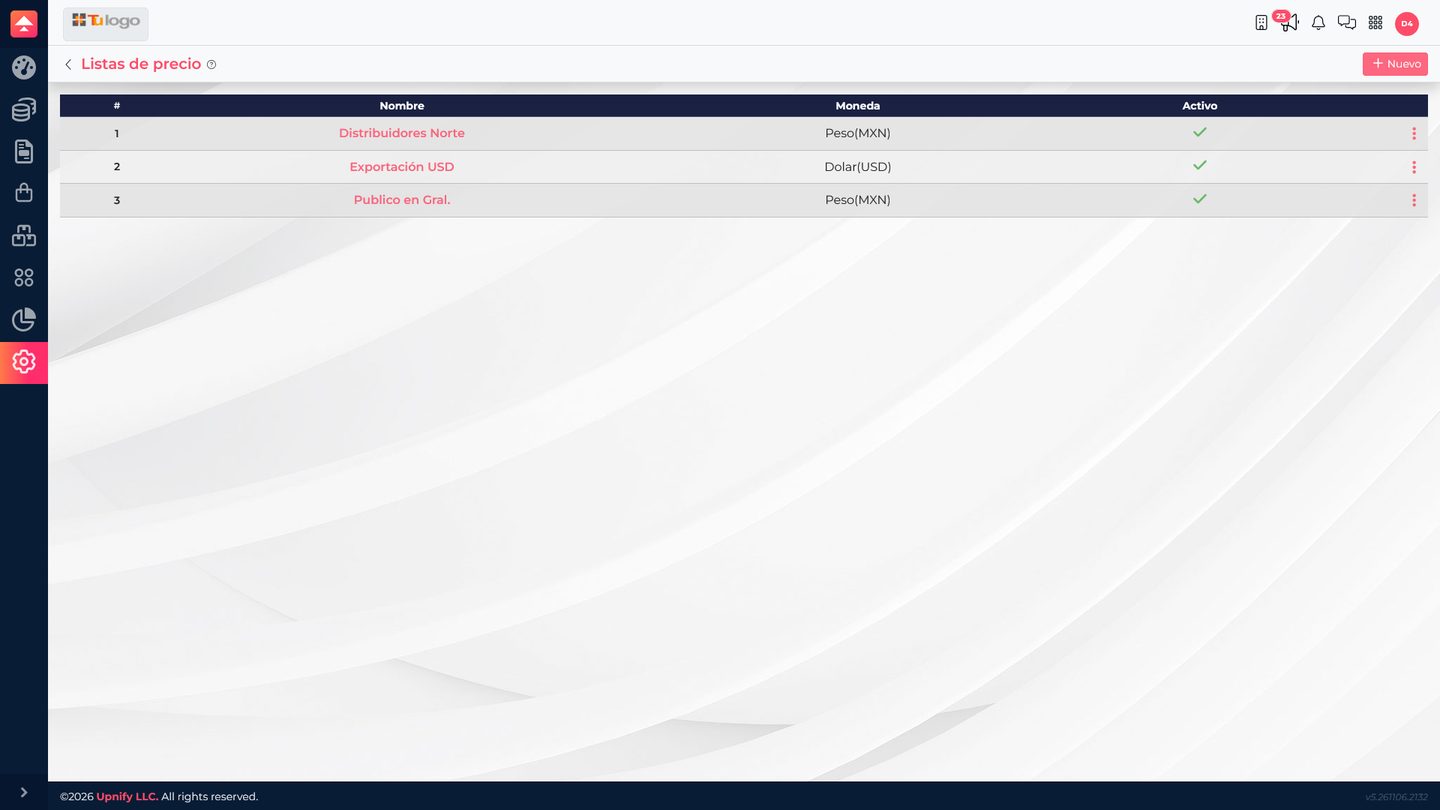
Before saving, confirm the currency matches the one you will use for prices. For a foreign-currency list, also review the currency and exchange rate in its catalog.
Assign prices to a product
Open Catalogs > Products, find the item, and select Edit. Under Prices, taxes, and commissions, find the field for each list and enter the product price in that currency.
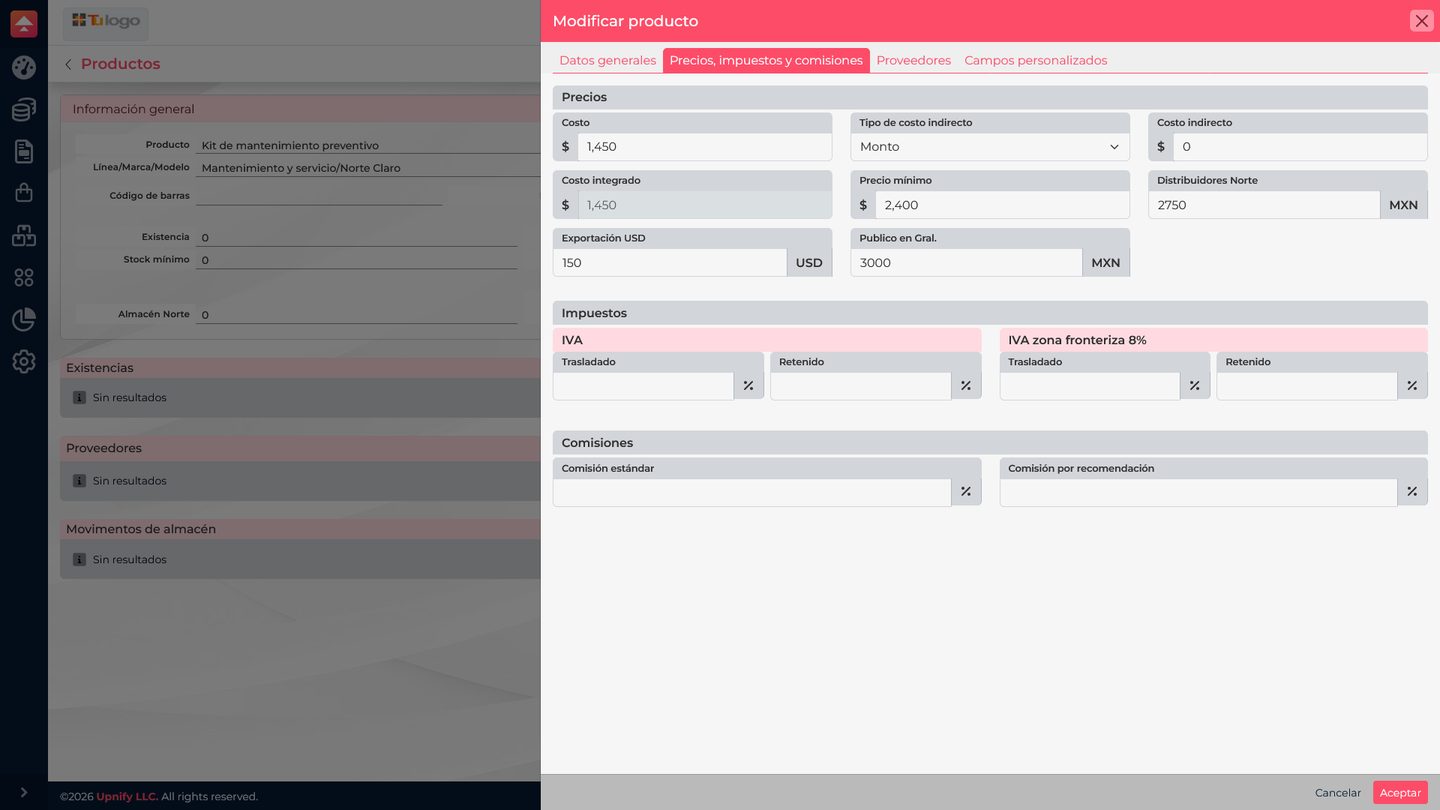
- Confirm you opened the correct product.
- Find the field whose name matches the list.
- Enter the price in that list\u2019s currency.
- Review the other lists so you do not leave a needed price blank or use the wrong field.
- Save the product and reopen it to confirm the amounts.
Repeat for every product that should use those lists. If you add a list later, update the records for products that will be sold with it.
Choose the price in an operation
When a document allows a list to be selected, choose the one that matches the customer or context. Review the amount and currency before confirming. A price list is different from a discount rule or a product minimum price.
Example: a company keeps one list for distributors and another for exports in USD. Configure both, assign each product\u2019s price in the corresponding fields, and select the appropriate option when preparing a supported operation.