

A purchase order records the products your company requests from a supplier, the quantities, and the agreed terms. It gives purchasing, warehouse, and administration teams a shared reference and helps compare what was ordered with what was received.
Prepare the order
Open Purchases > Purchase orders and select New. Choose a supplier and complete the requested details, such as warehouse, currency, dates, and payment terms when applicable. Add catalog products, enter quantities, and review costs before saving.
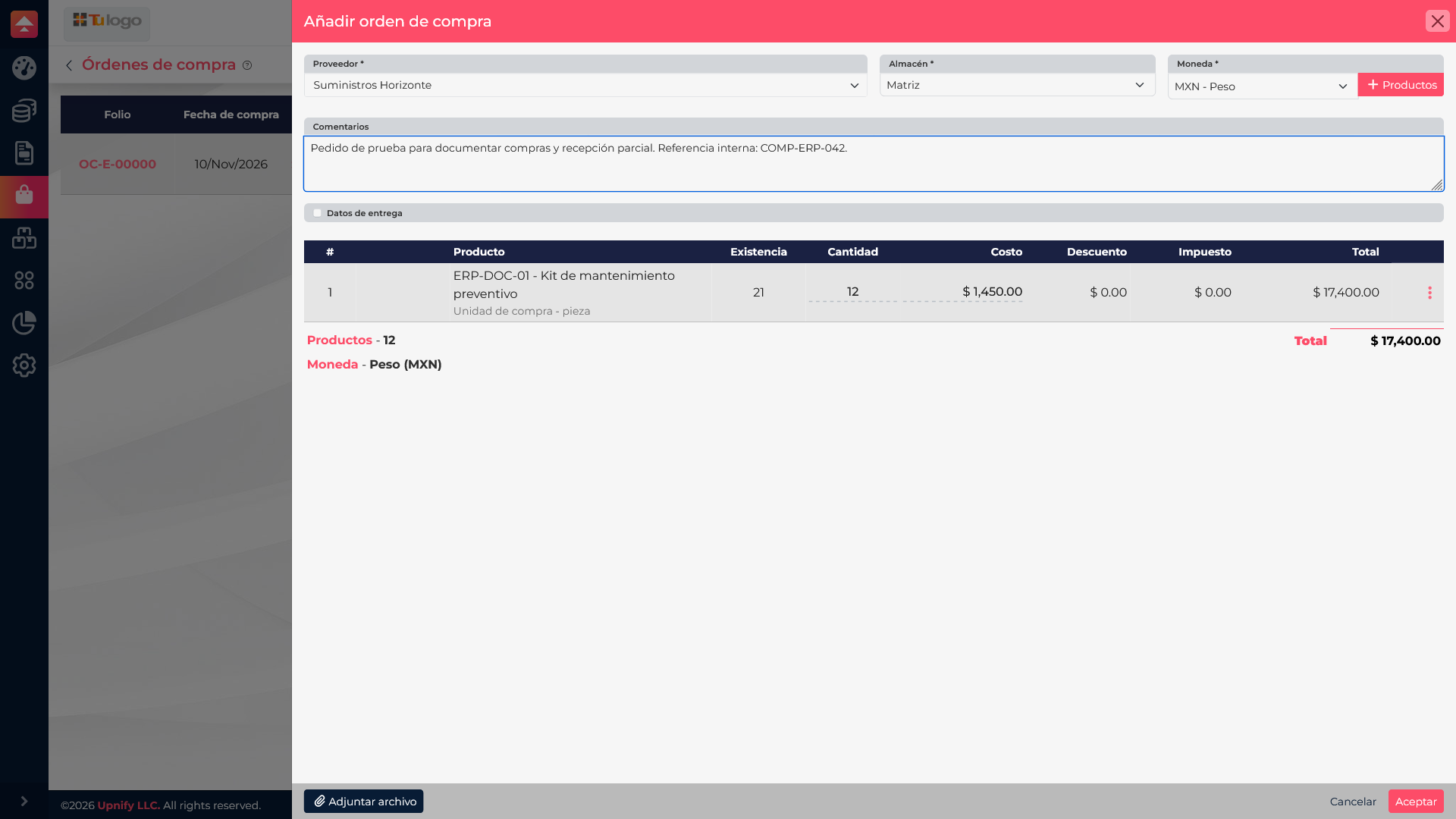
For example, to order 12 maintenance kits, select Suministros Horizonte, the Matriz warehouse, and the catalog product. Confirm that the quantity and unit cost match the supplier agreement.
Save while preparing the request. Confirm only after reviewing the supplier, quantities, costs, and warehouse. The order records what was requested; it does not increase stock by itself.
Review the order and its actions
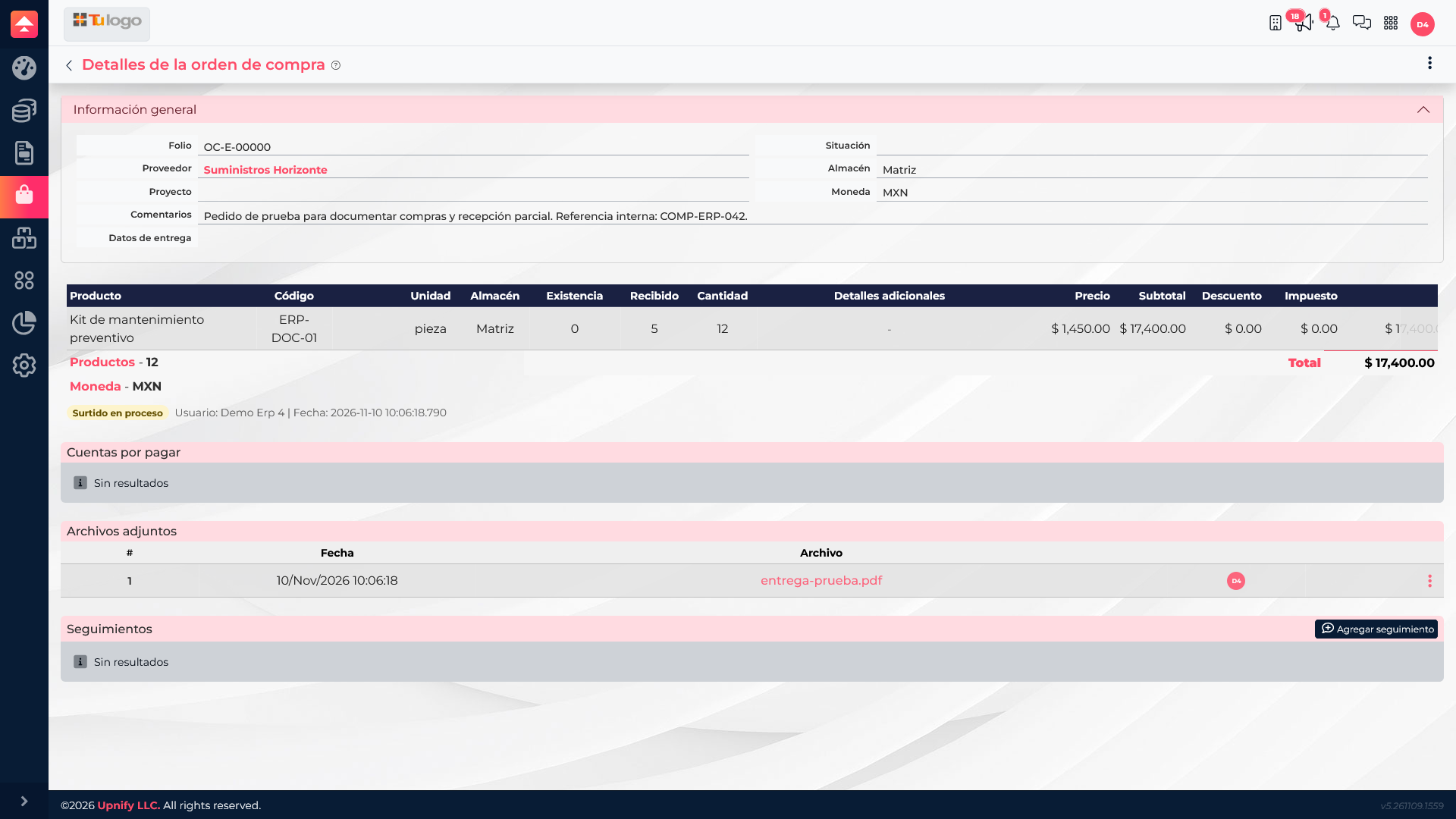
Open a saved order to review its line items, totals, supplier, and status. Available actions can move it forward, for example confirming it, sending it to the supplier, validating it, or creating a warehouse entry. Options depend on the document\u2019s current status.
Track it through receipt
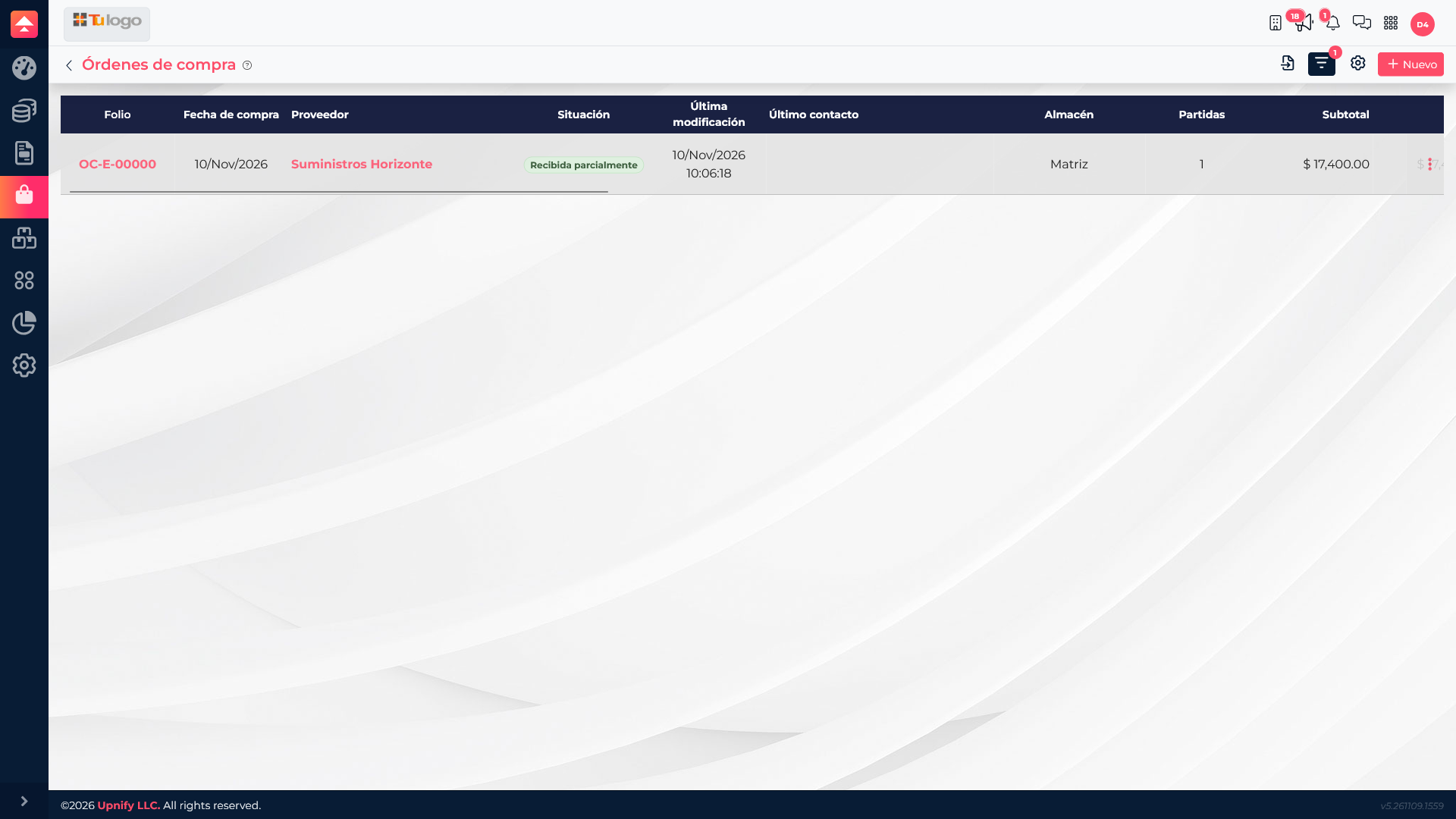
Use the purchase order list to check status and return to the detail. For a confirmed purchase, create or review the pending warehouse entry to record what actually arrived. Receipt is a separate step: until an entry is recorded, the order should not be treated as received inventory.
A practical routine
- Prepare the order with the agreed supplier and products.
- Review the details before confirming.
- Track delivery and status from the order list.
- When goods arrive, record a full or partial receipt.
- Compare received quantities with the remaining amount before closing follow-up.
In this example, the 12 kits may arrive in two deliveries. The order retains the requested total, while each entry records the quantity received on that occasion.