

ERP reports bring together information from purchasing, inventory, sales, and finance. They help you review operations at a glance and find the records behind an amount. Filters narrow the analysis, while exports let you keep a copy or work with the data outside the system.
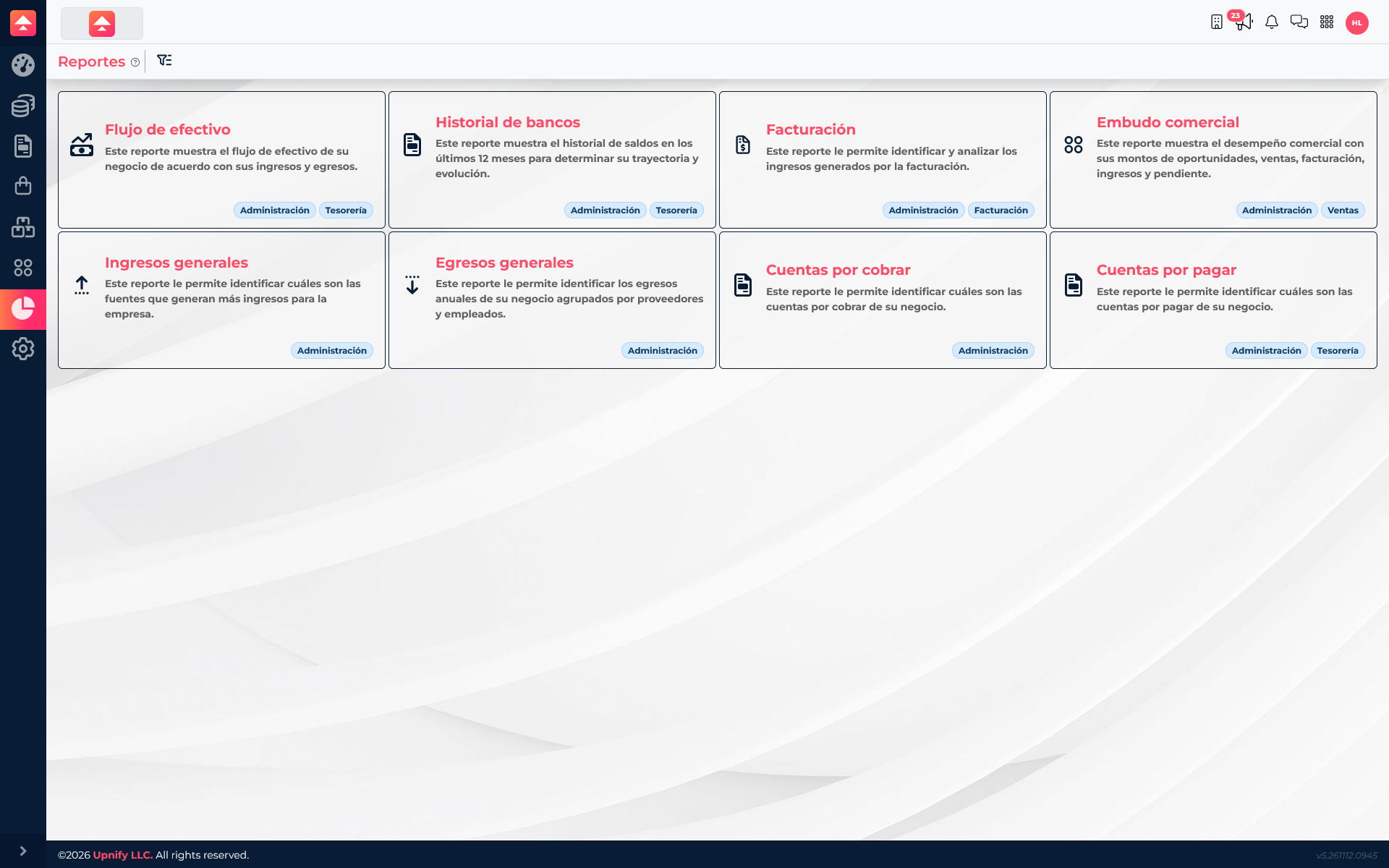
Open a report and choose a period
- Open ERP and select Reports from the side menu.
- Choose the report that answers your question. For example, use General income to review recorded income by month, or Cash flow to compare income, expenses, and cash flow.
- Review the visible filters. Depending on the report, you may choose a year, period, currency, account type, grouping, or status. Some views also let you enter text to narrow the results.
- Select Apply to refresh the chart and table. If you change a filter, apply it again before interpreting the amounts.
A filter determines which records are included. Grouping controls how results are organized, such as by vendor, customer, bank account, or executive. If a result looks incomplete, first check the selected period and grouping.
Open details and export
In several reports, you can select a table amount to open the records behind it. Use this detail to answer questions such as which transactions make up a monthly total or which documents remain unpaid.
When a report has results and your profile has export permission, use the export action in the top toolbar. The menu offers formats depending on the download type, such as Excel, CSV, or PDF for the current view, with additional options for exporting all data. The available formats may vary by report.
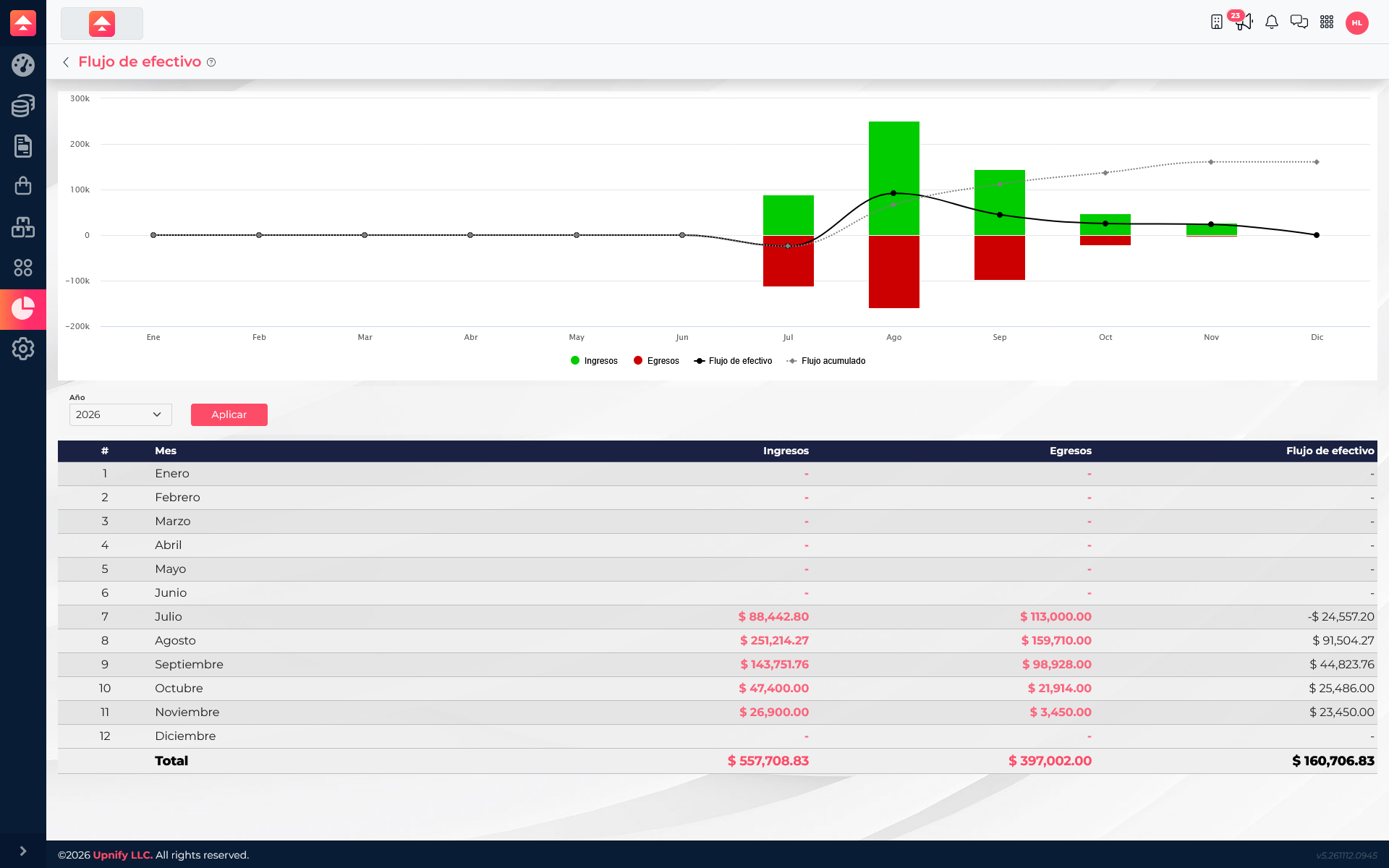
With 2026 selected in Cash flow, August shows MXN 251,214.27 in income, MXN 159,710.00 in expenses, and MXN 91,504.27 in cash flow. July, by contrast, shows negative cash flow of MXN 24,557.20. Use the chart to identify months to review, then open available amounts and export the results with the right filters.