

The supplier catalog keeps the information you need when purchasing and makes it easier to review what you have ordered from each company. Checking it before creating an order helps you confirm the right contact and supplier.
This guide focuses on reviewing suppliers during the purchasing process. To add or edit supplier records, see How to manage suppliers in ERP in the Settings category.
Find a supplier
Open Purchases > Suppliers. Use the screen's search or filters to find a supplier by name or other available details. Check the row before opening it, especially when companies have similar names.
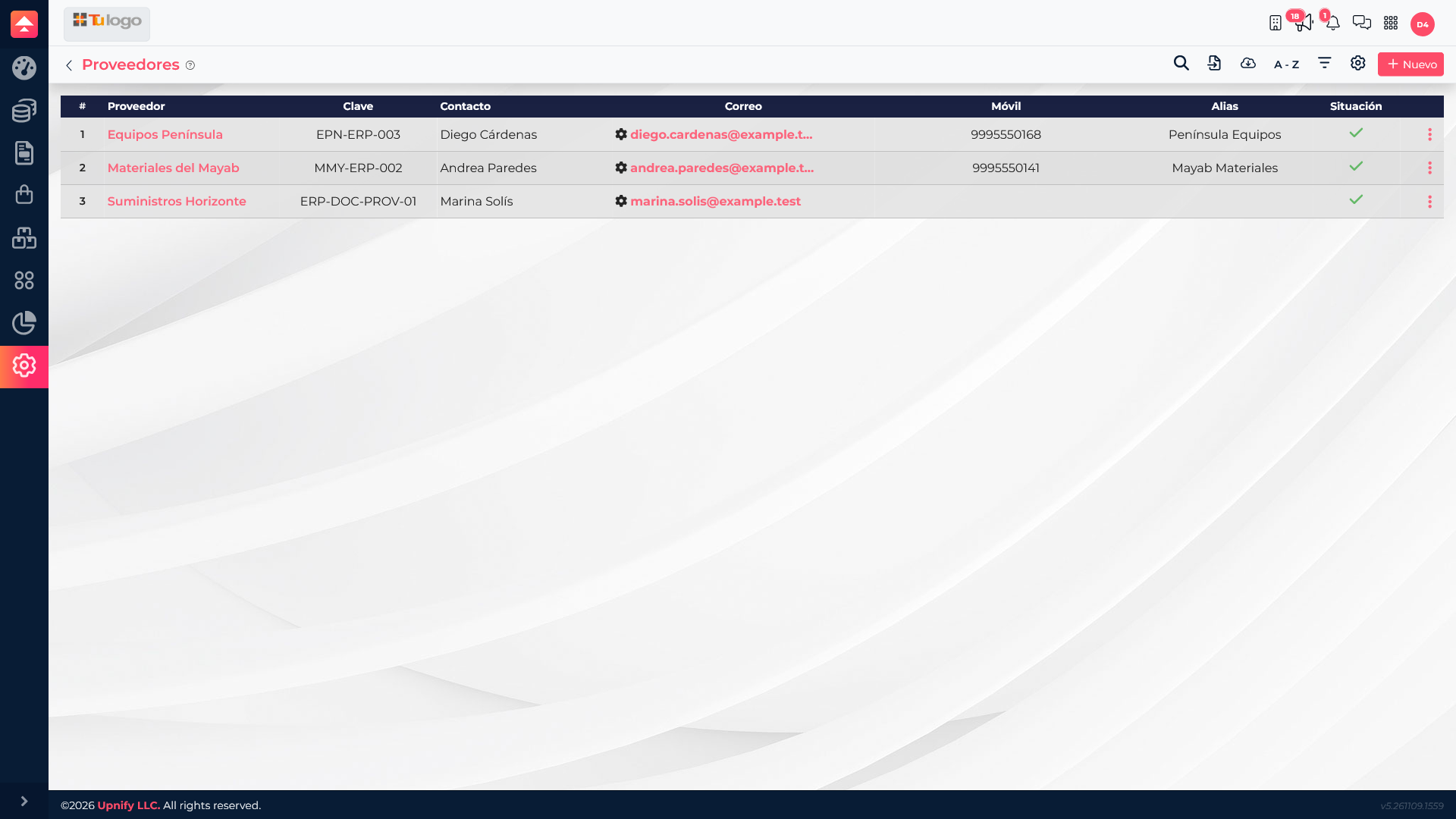
Review the supplier profile
Open the supplier to check its identification and contact details, along with any purchase or related document information shown on the profile. This helps confirm where to send an order, continue an earlier purchase, or verify you selected the correct company.
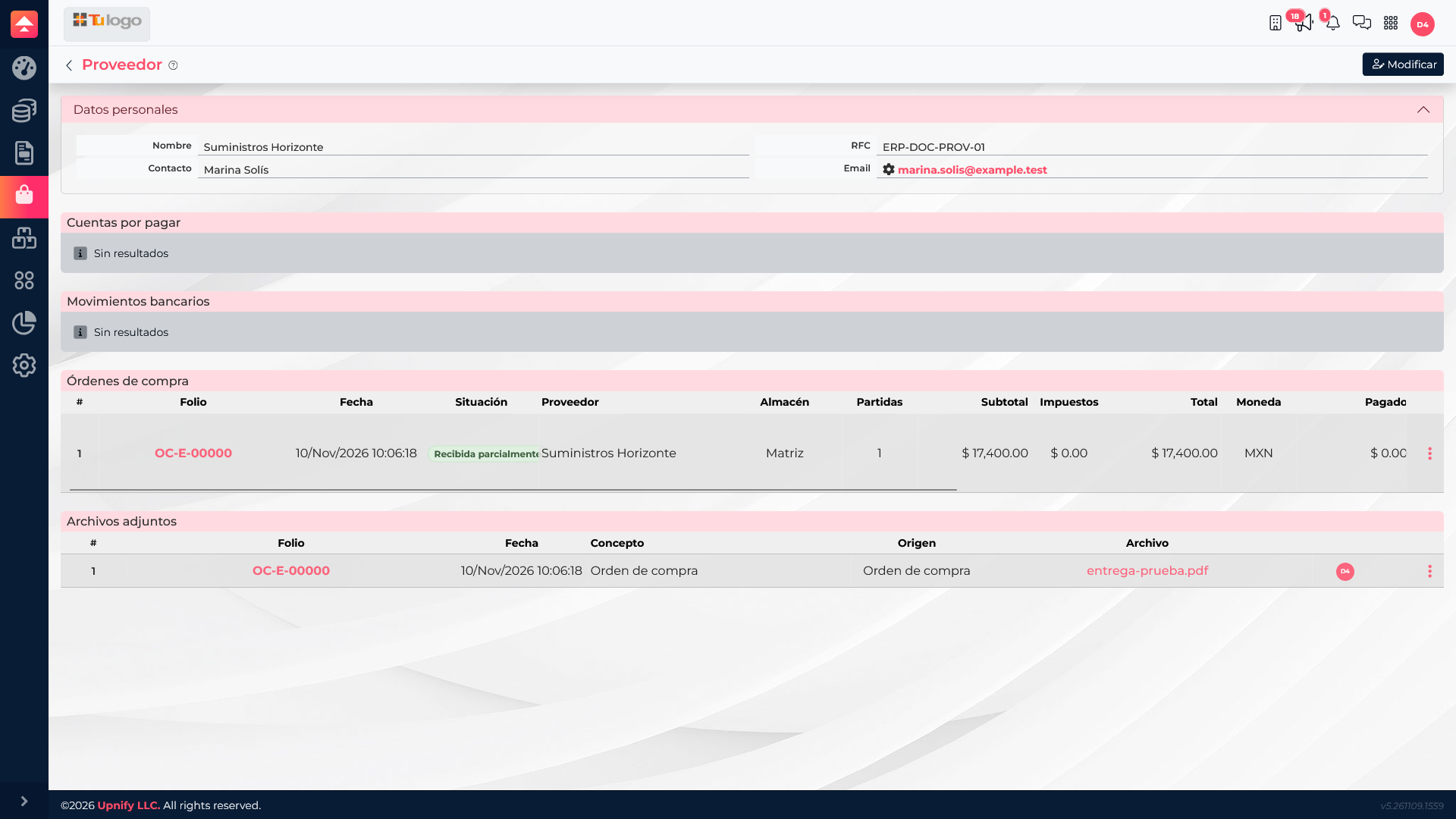
Use the information when purchasing
- Find and open the supplier profile before creating an order.
- Confirm its name, contact, and available commercial details.
- Create the order from Purchases and select that supplier; continue tracking it through the normal purchase flow.
For example, before ordering 12 maintenance kits, check the Suministros Horizonte profile and confirm the contact. Then create the order with the agreed quantities and costs. If a colleague resumes the purchase later, they can return to the profile and find the related order.
Ask an ERP administrator to add it to the supplier catalog, then return to Purchases and select it. Avoid creating a duplicate just because the first search did not find it.
What to check
| Check | Why it matters |
|---|---|
| Supplier name and details | Helps avoid assigning an order to a similarly named company. |
| Contact details | Makes it easier to send or clarify the order with the right person. |
| Related purchases | Provides context for previous quantities, dates, or agreements. |