

ERP\u2019s file manager brings company documents, images, and templates together in one place. Keeping them organized helps your team quickly find a piece of evidence, a visual resource, or a template needed for daily work.
For example, store product photos in Images, reference documents in Documents, and reusable files in Templates. This library is separate from files attached to a purchase, sale, invoice, or bank movement; those attachments are viewed from the record they belong to.
Understand the sections
| Section | Purpose |
|---|---|
| Documents | Store working and reference files such as PDFs, spreadsheets, text documents, presentations, images, or supported media. |
| Images | Organize visual assets such as product photos, logos, and graphic references. |
| Templates | Keep HTML or XML templates available to ERP processes that use them. |
Each section has its own folder tree. A Documents folder does not automatically appear in Images or Templates, so choose the correct section before creating folders.
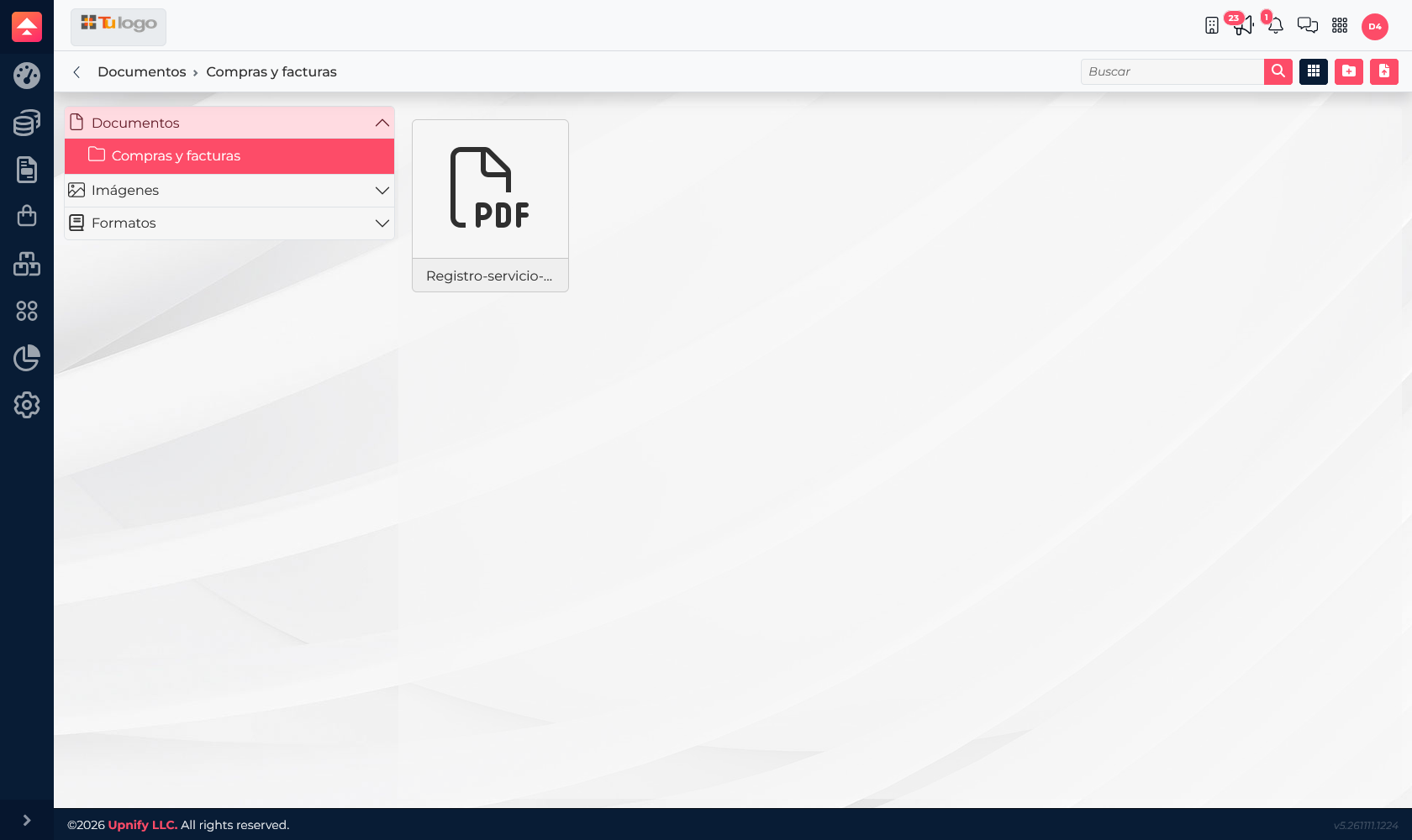
Create a useful folder structure
- Open ERP > Files and select Documents, Images, or Templates.
- Create a folder and give it a recognizable name. You can organize by team, year, or product family.
- Open the destination folder and choose the upload option. Drag the file into the upload area when it is available.
- Before confirming, check the filename and file type. Descriptive names such as pump-service-sheet-2026.pdf make versions easier to distinguish.
A practical structure might be Documents > Purchases > 2026 for reference documents and Images > Catalog > Pumps for photos of a product family. Follow the structure your team actually uses and avoid creating multiple paths for the same material.
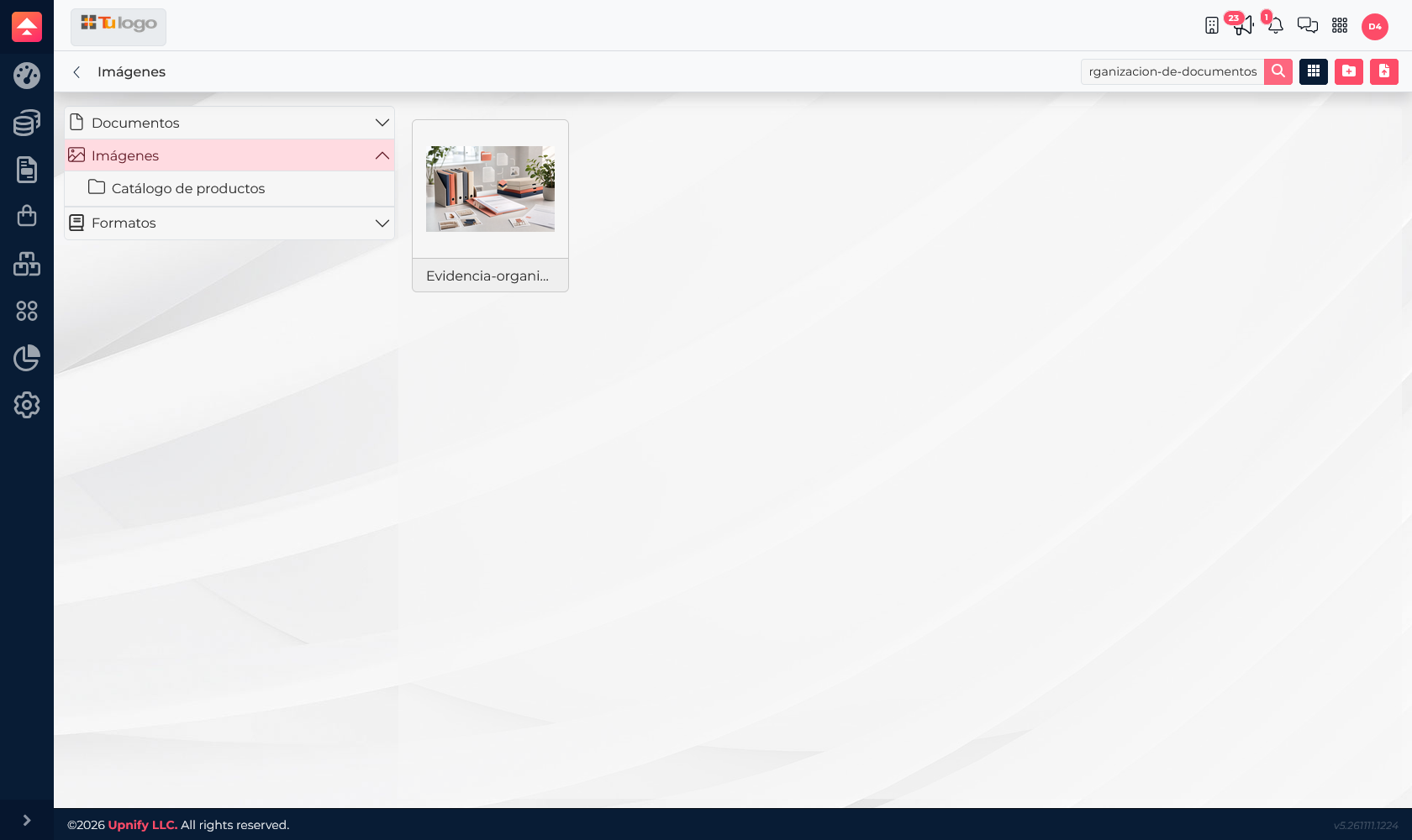
Search, move, rename, or download
Use the search field to find a file by name. Depending on the item, its actions let you rename it, move it to another folder, preview it, download it, or delete it. Before moving or deleting a shared asset, check that other users or company processes do not need it.
Grid view is useful for recognizing images; list view helps compare names and locate text-based files. If a file does not appear, check the selected section and folder, and clear any active search filter.
Supported types and upload limits
- Images: JPG/JPEG, PNG, GIF, BMP, SVG, and WEBP; up to 10 MB per file and 10 files per upload.
- Templates: HTML; the template upload flow also accepts XML. The limit is 10 MB per file and 10 files per upload.
- Documents: supported document, text, Adobe, book, image, video, and audio categories. The limit is 10 MB per file and 10 files per upload.
Available extensions vary by section. If the file picker rejects a file, confirm that you selected the right area and check its extension and size.
Good practices
- Use short, consistent filenames and add a date or version when it helps identify the file.
- Keep each asset in one reference location and use folders to make it easier to find.
- Reserve Templates for files ERP uses as templates; do not use it as a general document folder.
- To keep proof with an operation, attach it from the relevant purchase, sale, invoice, or bank movement instead of storing it only in the general library.