
An organized catalog makes it easier to find the right product when quoting, creating orders, or checking stock. In ERP, each product can be organized with a line, brand, model, and unit. You select these values on the product record from related catalogs.
1. Organize lines and sub-lines
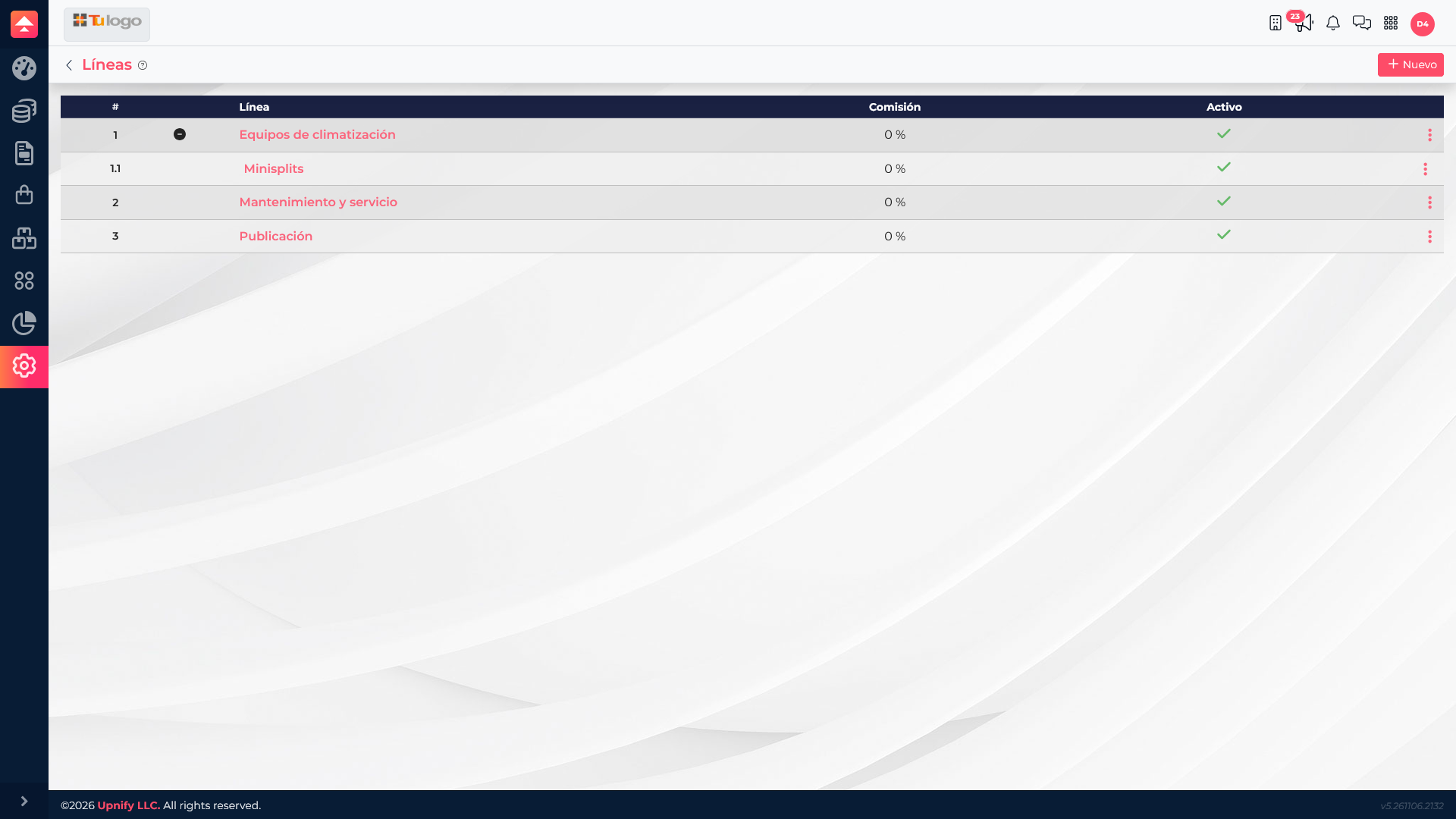
Open ERP > Settings > Catalogs > Lines. Create product families that fit how your company organizes and sells its products. If the account supports a hierarchy, add a parent line and sub-lines. For example, Climate control equipment can contain Mini-splits. Use a consistent naming convention so users do not create equivalent categories under different names.
2. Link each brand to its line
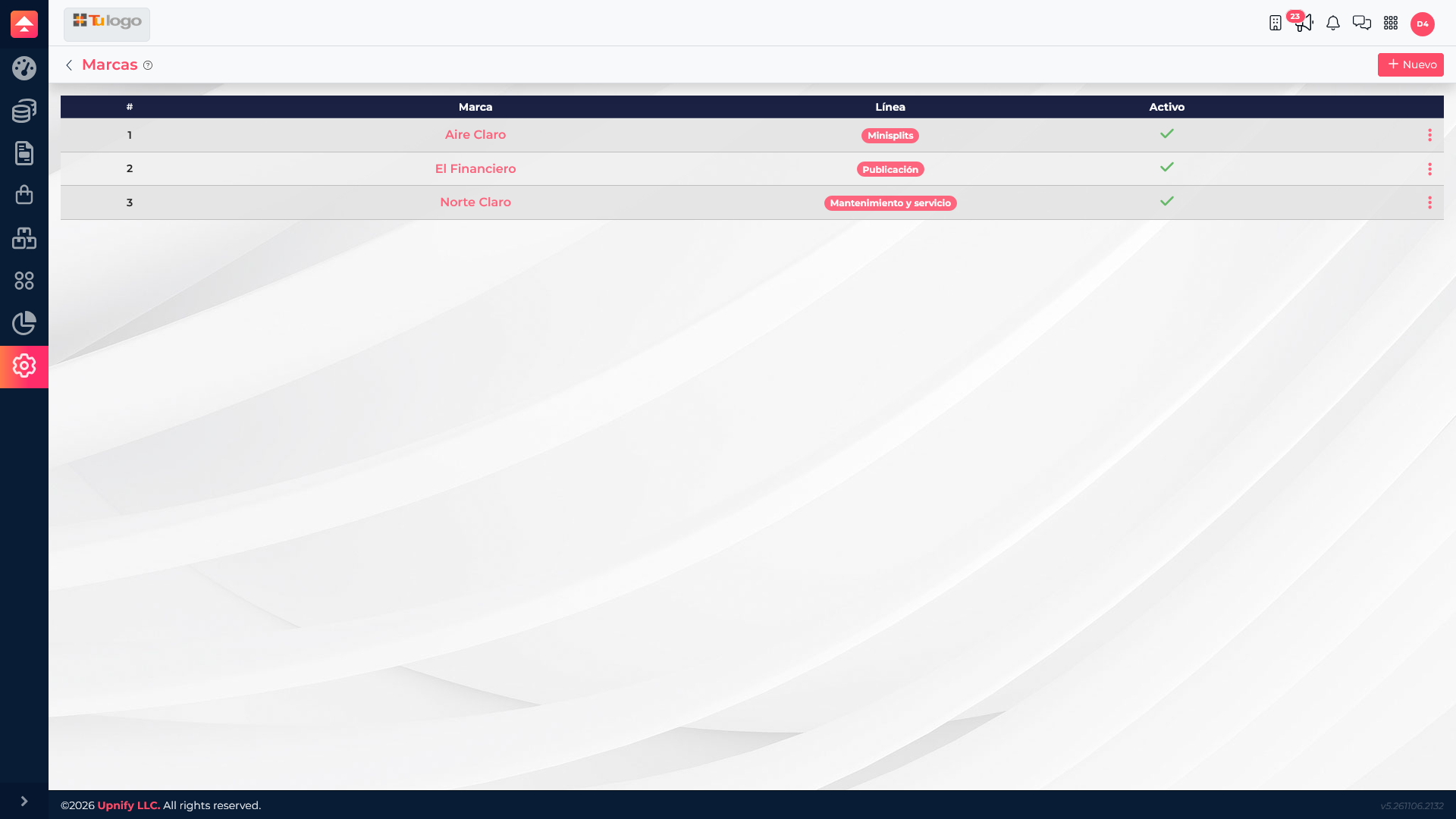
In ERP > Settings > Catalogs > Brands, review current brands and add those your company actually manages. When creating or editing a brand, choose its line if the form asks for one. In this example, Aire Claro is linked to Mini-splits.
3. Assign models to the right brand
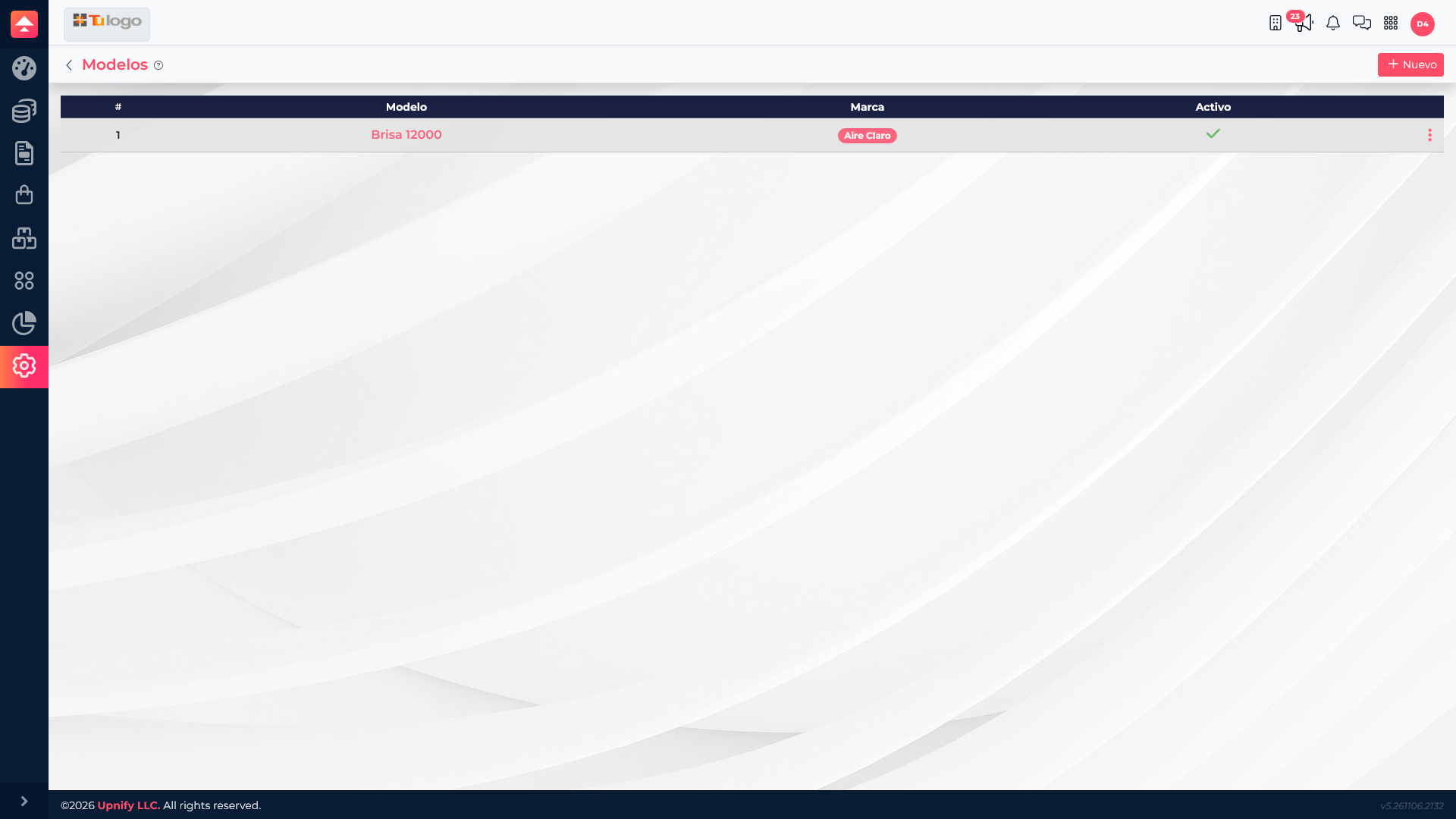
Open ERP > Settings > Catalogs > Models. Add commercial models and assign them to their brand. If a line field is also available, make sure it matches the product classification. For example, Brisa 12000 is linked to Aire Claro and Mini-splits. Use the name or code your team recognizes to distinguish variants.
4. Define units of measure
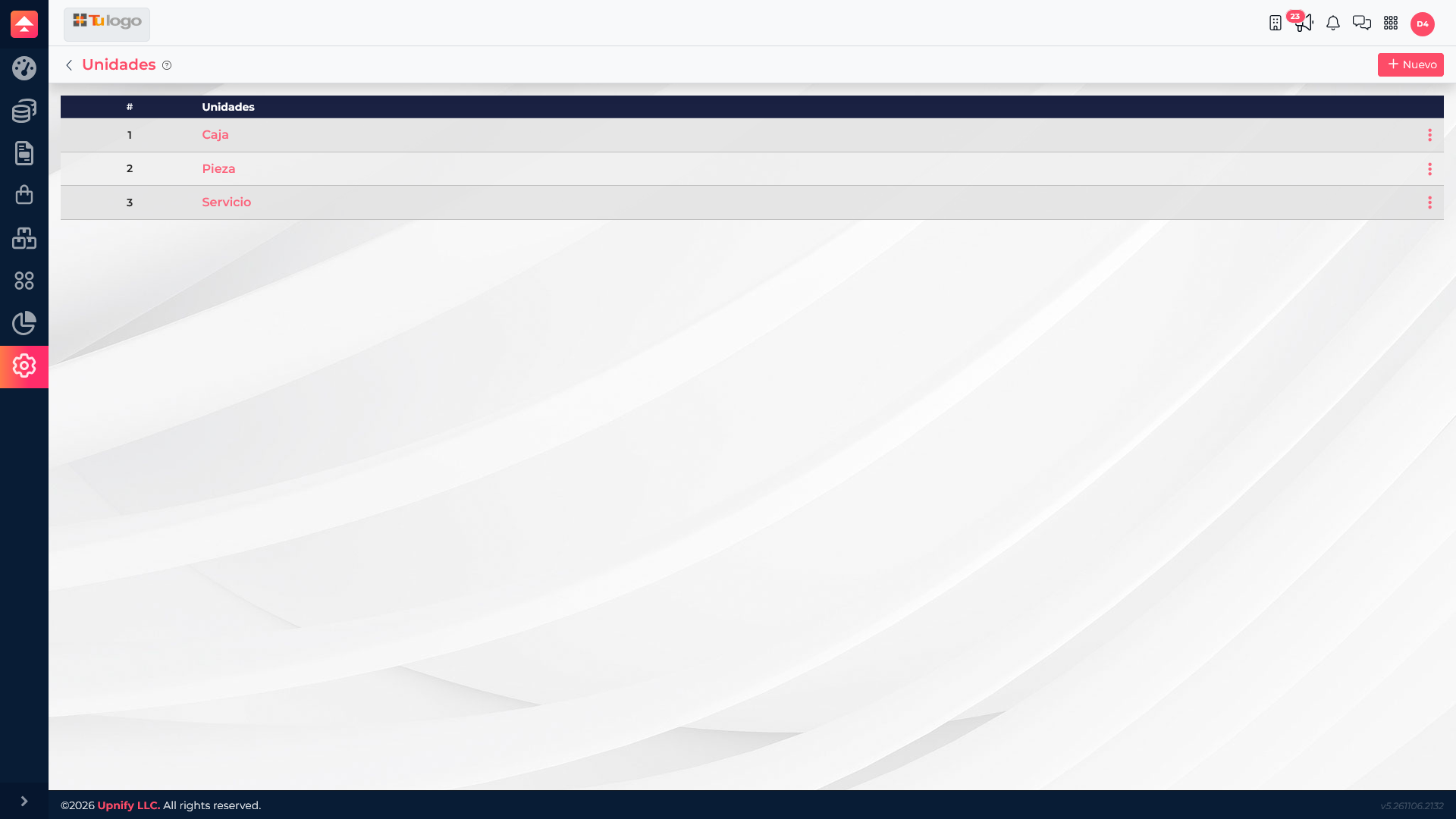
In ERP > Settings > Catalogs > Units, prepare the units your company uses, such as Piece, Box, or Service. On each product record, choose the unit that matches how its quantity is used in purchasing, inventory, quoting, or delivery.
Complete the product record
Once the catalogs are ready, create or edit a product and select its relationships. Check that the line matches the brand, the model belongs to the brand, and the unit reflects how the product is handled. Complete the product name, SKU, and any other fields the form requests.

Complete example: the Climate control equipment line contains the Mini-splits sub-line. The Aire Claro brand is linked to it, and the Brisa 12000 model is added. If the product is tracked by unit, choose Piece. When quoting or checking stock, the team can recognize the classification and unit on the record.
Review before saving
- Check whether a line, brand, model, or unit already exists.
- Use consistent names and avoid abbreviations only some team members know.
- Confirm line-brand-model relationships before saving a product.
- Make sure the unit matches how the product is actually purchased, stocked, and sold.
- Before renaming or deactivating an item, check which products use it.
This structure makes the catalog easier to browse and helps ERP documents use clearer, more consistent product records.