

Record deposits, withdrawals, and transfers, review their effect on accounts, and link them to payables or receivables.
Why bank movements matter
The bank module tracks your company\u2019s account activity and links incoming or outgoing money to the operation behind it. This helps you see which transfer settled a supplier payable or which deposit corresponds to a customer receipt.
A bank movement and a commercial transaction are separate records. The movement represents cash in an account; a payable or receivable represents the commercial balance. Linking them preserves context and helps prevent duplicate payment entries.
Review an account
- In ERP, open Finance > Banks.
- Select a bank account to view its movements. The all-movements view can also help you search by account, date, type, or reference.
- Review the date, concept, type, deposit or withdrawal amount, balance, and reconciliation status. For a supplier payment, also verify the entity and the movement\u2019s available amount.
Record a movement
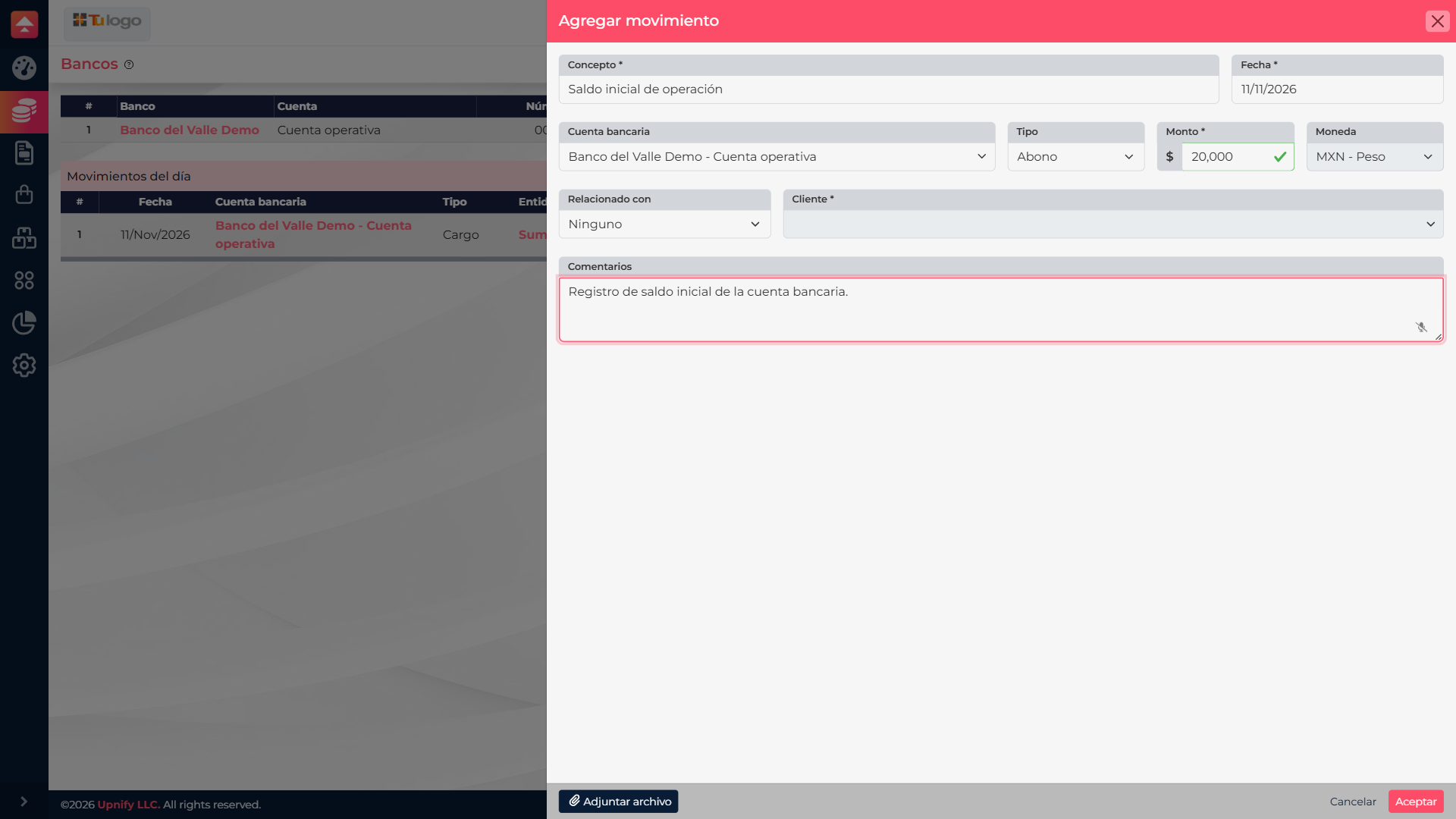
From the bank account, select Add movement and complete the form:
| Field | What to enter |
|---|---|
| Concept | A recognizable description, such as \u201CMay maintenance payment.\u201D Avoid generic labels like \u201CTransfer.\u201D |
| Date | The date the bank movement occurred. |
| Bank account | The account where the deposit, withdrawal, or transfer starts. The account determines the currency. |
| Type | Choose Deposit, Withdrawal, or Transfer based on the bank statement. |
| Amount | The actual movement amount. The type determines whether money comes in, goes out, or moves between accounts. |
| Relate to | When applicable, identify a customer, supplier, or employee and select the correct record. Leave it unlinked if it does not belong to one of these entities. |
| Destination account | For a transfer, select the other bank account. Enter the requested exchange rate if the currencies differ. |
| Comment and files | Add useful references and attach supporting proof when needed. |
Before saving, check the account, type, and amount: a deposit increases the account balance and a withdrawal reduces it. For a transfer, verify both the source and destination.
Link a movement to an ERP transaction
If you recorded or imported the bank movement first, open Accounts Payable, find the payable, and select Relate to banks. Search by supplier, concept, account, date, or available amount, then select the movement. ERP limits the applied amount to the open payable balance and the amount still available on the movement.
For a customer receipt, use the relationship flow from the corresponding receivable. Confirm the customer, reference, and amount before accepting.
Example: supplier payment. The bank statement already shows a USD 4,500 withdrawal to Parkside Repair. Record or import that withdrawal only once. Then open Parkside Repair\u2019s payable and link the movement to the correct debt. The bank movement remains the original withdrawal, while the payable reflects the applied amount.
If the payment is not yet recorded, start from the payable with Apply to banks. ERP records the payment and its related bank movement in one flow. Do not add another manual charge for the same transfer afterward.
Verify and reconcile
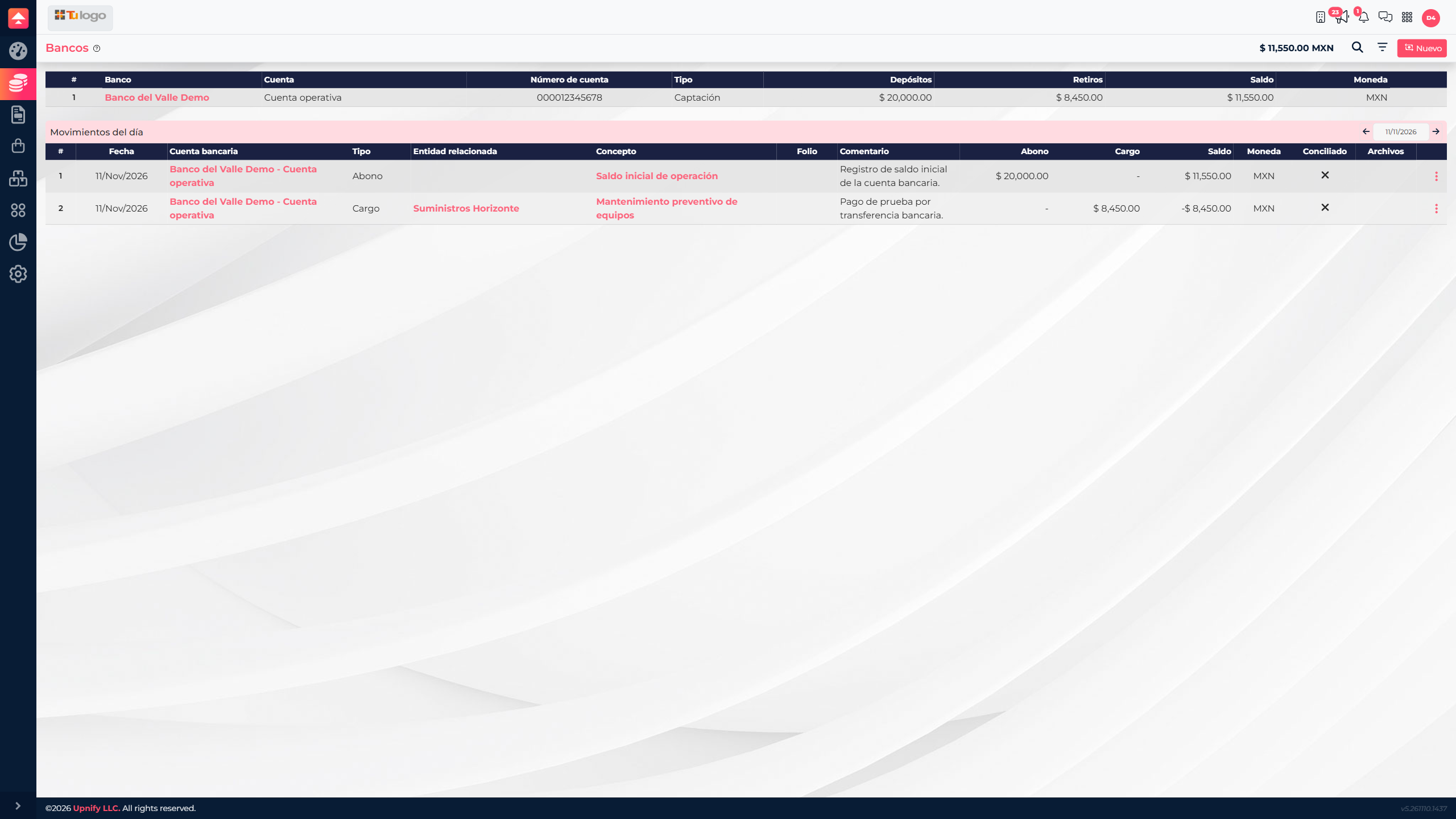
Return to the bank account details and compare the concept, date, and amount with the statement. Review the linked operation and any remaining balance. If the movement is unavailable to link, check whether it is already related, fully applied, or assigned to another entity.
Use reconciliation actions when comparing ERP movements with the bank statement. Reconciliation marks a movement as reviewed; it does not replace linking it to an account payable or receivable.
Avoid common mistakes
- To prevent a duplicate, record the payment from the payable or record the bank movement and then link it.
- Verify the customer or supplier together with the date, concept, and amount.
- Choose the correct movement type and enter the amount as a positive number.
- Verify the account and currency; for transfers, also check the destination and exchange rate.
- Mark a movement reconciled only after comparing it with the available bank information.