

Review supplier balances, record partial or full payments, and link existing bank charges without duplicating them.
What accounts payable helps you do
The Accounts Payable view shows what your company still owes each supplier and when each amount is due. Use it to plan upcoming payments, confirm whether a purchase has been settled, or find a bill that still has an outstanding balance.
The table includes the supplier, due date, original amount, amount paid, balance, currency, and related purchase reference. A payment reduces the balance and can be partial or full.
Find the payable
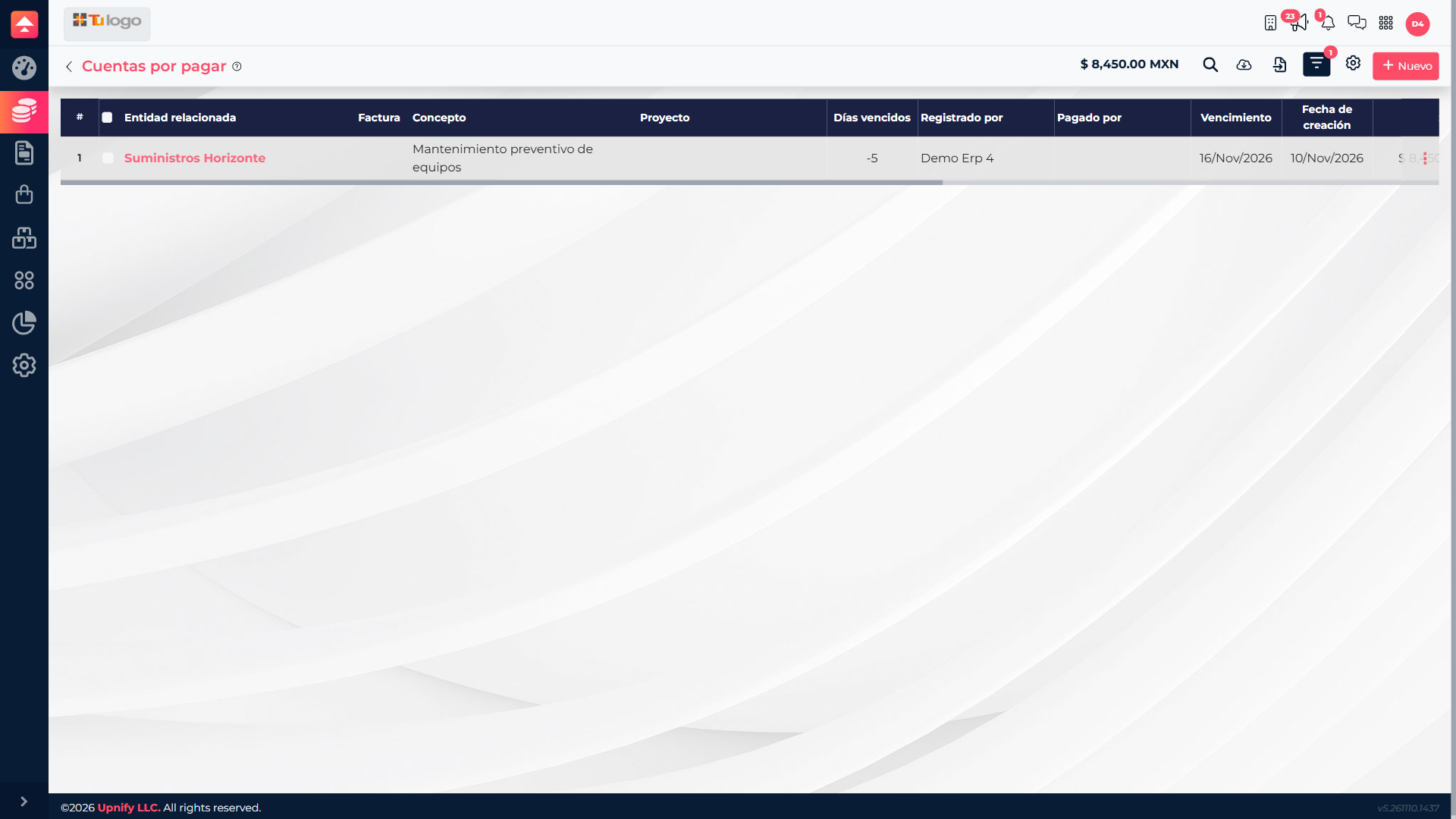
- In ERP, open Finance > Accounts Payable.
- Filter by supplier, status, currency, or due date. Search for a specific document and verify its purchase reference.
- Before paying, confirm the supplier, document, original amount, previous payments, balance, and currency. This helps prevent applying money to the wrong payable.
The amount is the original total; amount paid adds recorded payments; balance is what remains. If the supplier has multiple payables, use the concept, date, and reference to identify the right one.
Record a payment from the payable
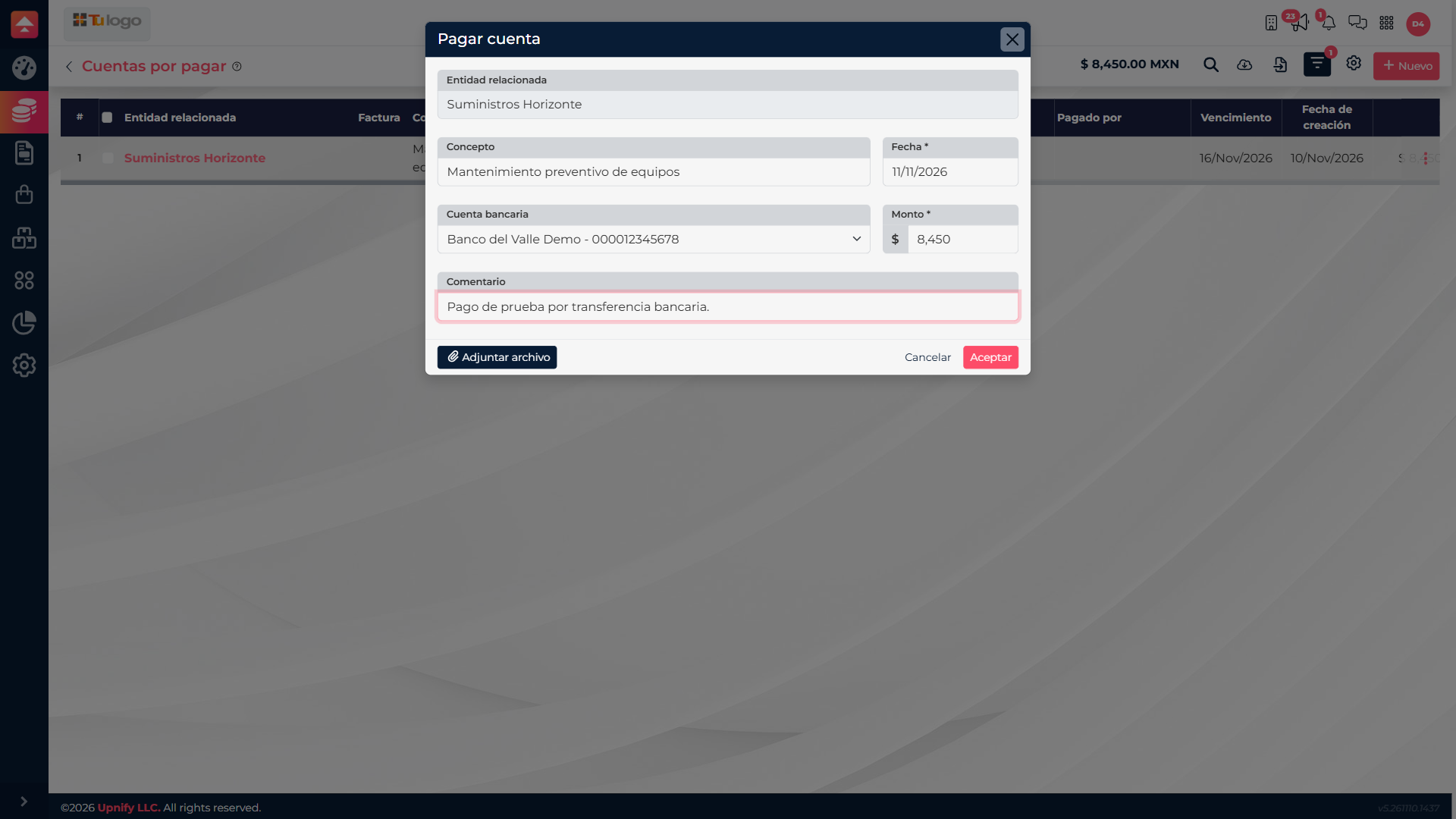
- Open the payable\u2019s actions and select Apply to banks. The Pay account window opens with the supplier and payable concept.
- Confirm the payment date and the bank account the money came from. Check that its currency matches the transaction.
- Review the prefilled amount. For a partial payment, enter only the amount actually paid; to settle the payable, do not exceed the balance due.
- Add a note that helps identify the movement and attach proof if your company requires it.
- Review the supplier, concept, date, account, and amount, then select Accept. ERP records the payment and its related bank charge.
Example: A supplier payable is MXN 18,000 with no previous payments. If you transfer MXN 6,000 today, record MXN 6,000; the remaining balance will be MXN 12,000. When you pay the rest, record a second payment for the actual amount transferred.
After saving, confirm that the paid amount and balance changed as expected. Add a bank reference in the comment when it helps reconciliation.
Link a bank movement that already exists
If the bank charge is already in ERP\u2014for example, it was imported or recorded from the bank account first\u2014select the payable\u2019s checkbox. In the actions above the table, choose Relate to banks. Search by supplier, concept, account, date, or available amount; select the movement and confirm how much to apply.
This option links an existing movement to the payable; it does not create another charge. If no bank movement exists for the payment yet, use Apply to banks from the payable\u2019s actions.
Checks and common issues
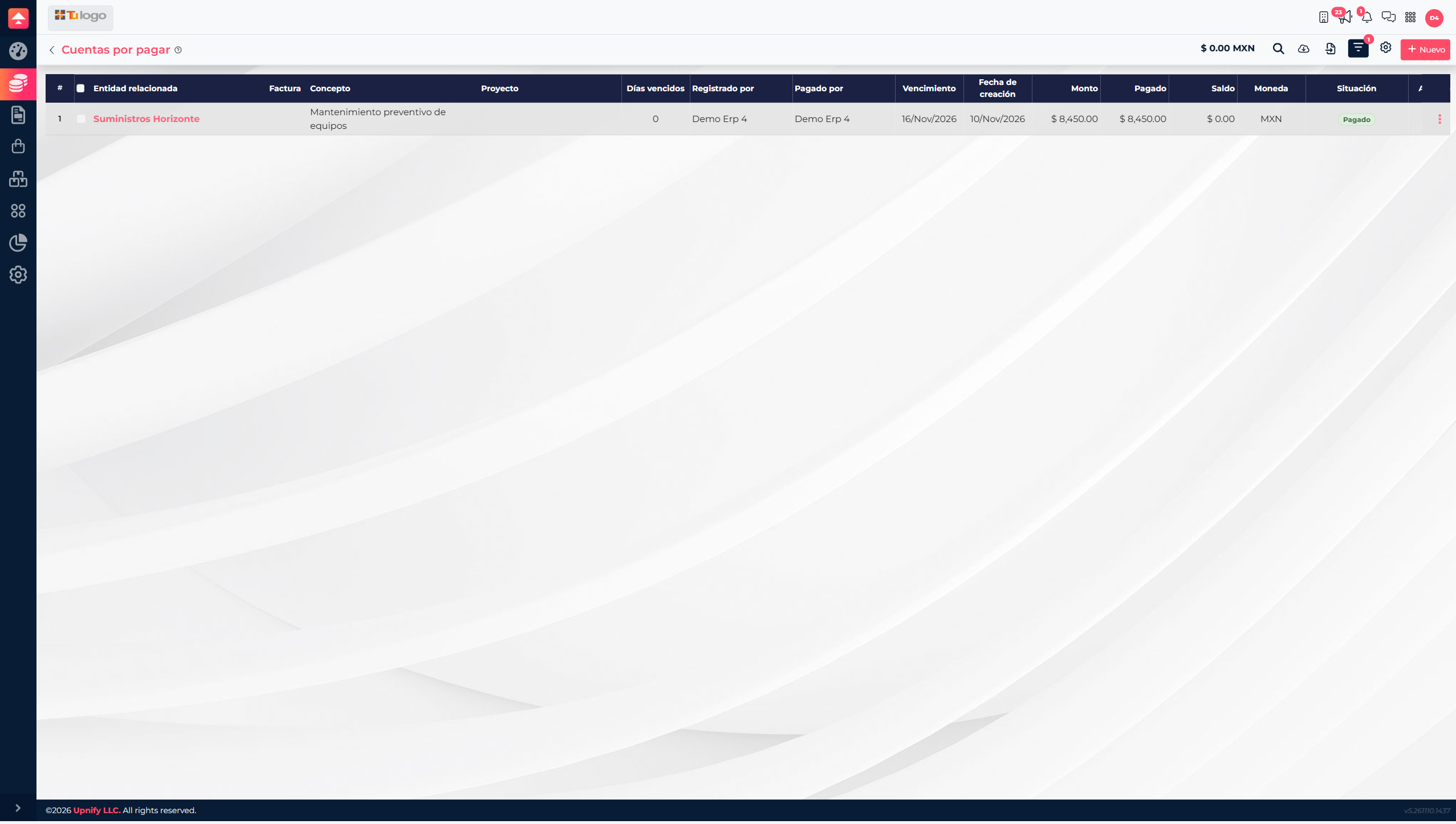
- A balance remains: the payment may be partial or earlier payments may exist. Review the history and record only the next actual payment.
- The bank account is missing: confirm it is active in bank settings and that you have access.
- The movement is not available to link: verify the supplier, available amount, and that the bank charge has not already been fully applied.
- Currency or exchange rate looks wrong: verify the purchase and bank account before saving.
- Proof is required: attach the requested valid file if your company has made attachments mandatory.