

In ERP, a Customer record represents the organization your company does business with. It can bring together general company details, one or more legal entities, and the people who work with that organization. CRM complements this information with each person\u2019s record and sales follow-up.
This separation helps prevent duplicates: if one company has several contacts or more than one tax entity, they are usually managed as relationships under the same ERP customer instead of as separate companies.
When to manage a customer in ERP
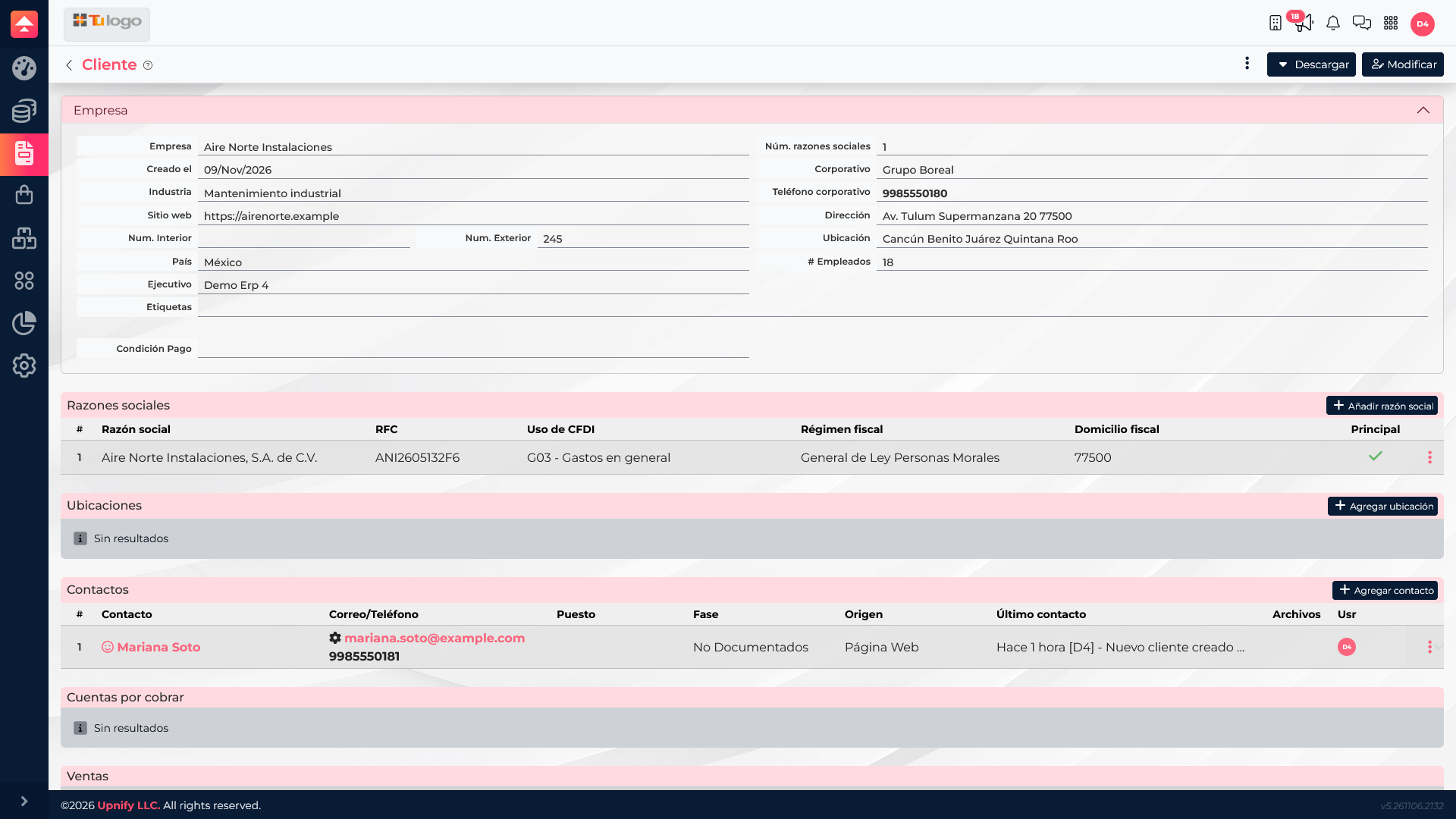
Use this area when you need to prepare quotes or orders, identify the legal entity to bill, organize customers by industry or corporate group, or keep several people from the same organization together. For example, the sales team may speak with Mariana Soto while invoices are issued to Aire Norte Instalaciones\u2019 legal entity.
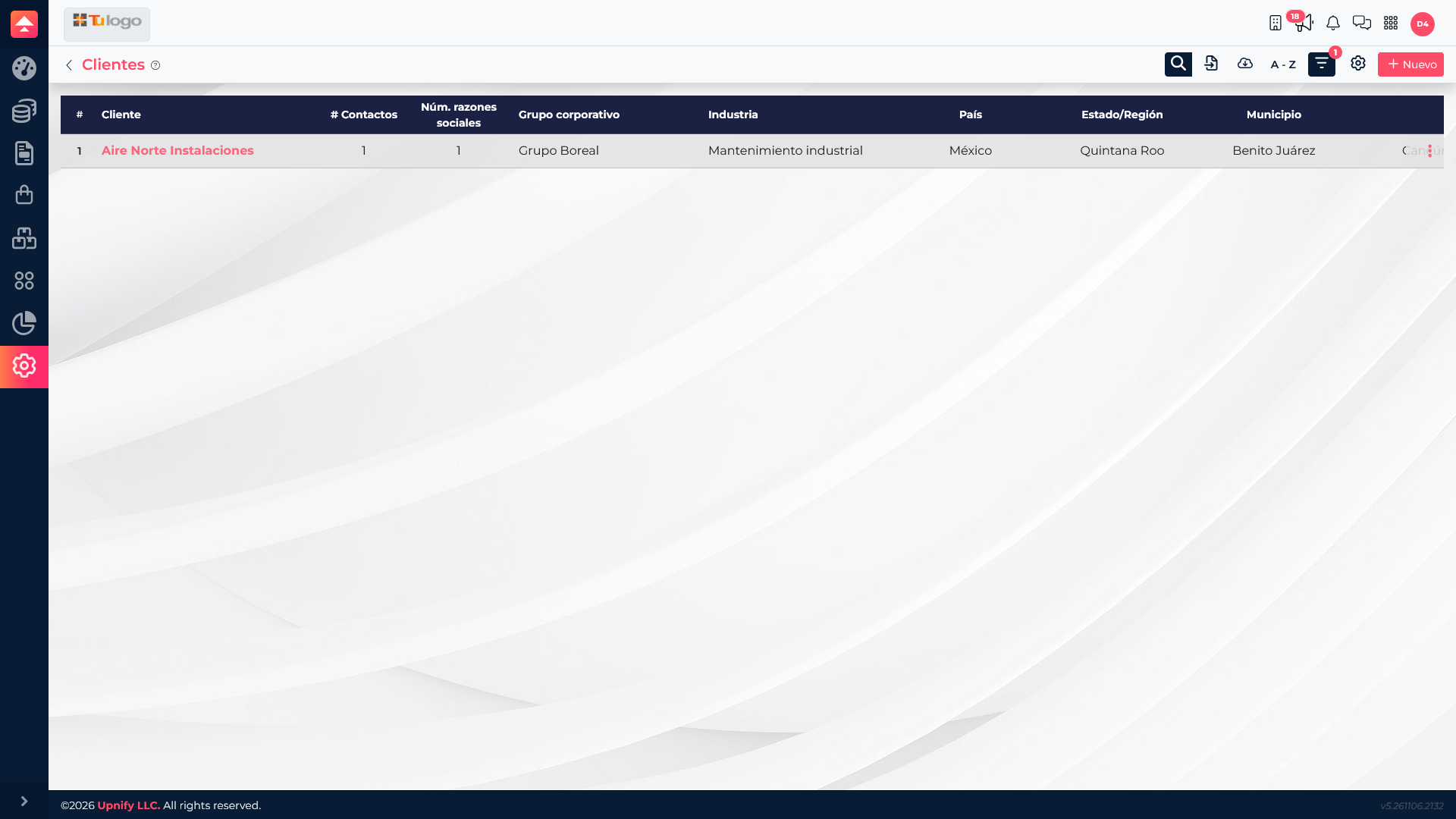
Create a customer and link a contact
- In ERP, open Settings and go to the Customers catalog.
- Select New and enter the organization\u2019s general details, such as name, phone, website, location, employee count, and, when applicable, corporate group, industry, owner, or payment terms.
- Under Legal entity, enter the legal name and tax details used on documents. If the company bills through more than one legal entity, add each one in this section.
- Enable Contact details and add the person your team will communicate with. Enter their name, email, and phone; these details identify the person, not the legal entity.
- Save and open the customer record to confirm that the company, legal entity, and contact are linked.
When you create a customer with contact details through this flow, ERP creates or links the person\u2019s CRM record and marks it as a customer. The team can then follow up with that person in CRM while ERP keeps the company details and commercial documents.
Which information belongs in each product
| In ERP | In CRM | How they relate |
|---|---|---|
| Company, corporate group, industry, legal entities, and details used on sales documents. | The contact person, their details, interactions, and sales follow-up. | The person is associated with the company; the team can work with the contact in CRM and use customer details in ERP operations. |
| One organization can have several legal entities and contacts. | Each person keeps their own record and history. | Add another legal entity or contact to the existing customer record when it belongs to the same organization. |
Review and maintain the relationship
Find the company in the customer list and review the contact and legal-entity counts. Open its record to see the details and contacts table. If a person already exists, verify their information before creating another record; if they belong to the company, add them as a contact so commercial operations retain the right context.