

After a customer approves a quote, you can convert it into an order to record the commercial transaction and continue with delivery. Keep in mind that recording the order and fulfilling it are separate steps: creating the order preserves the agreed products and quantities; confirming fulfillment records the inventory operation.
This distinction helps you see what was sold and what has actually left the warehouse. It also prevents an order from being treated as delivered before someone checks and confirms the quantities.
1. Confirm the sales order
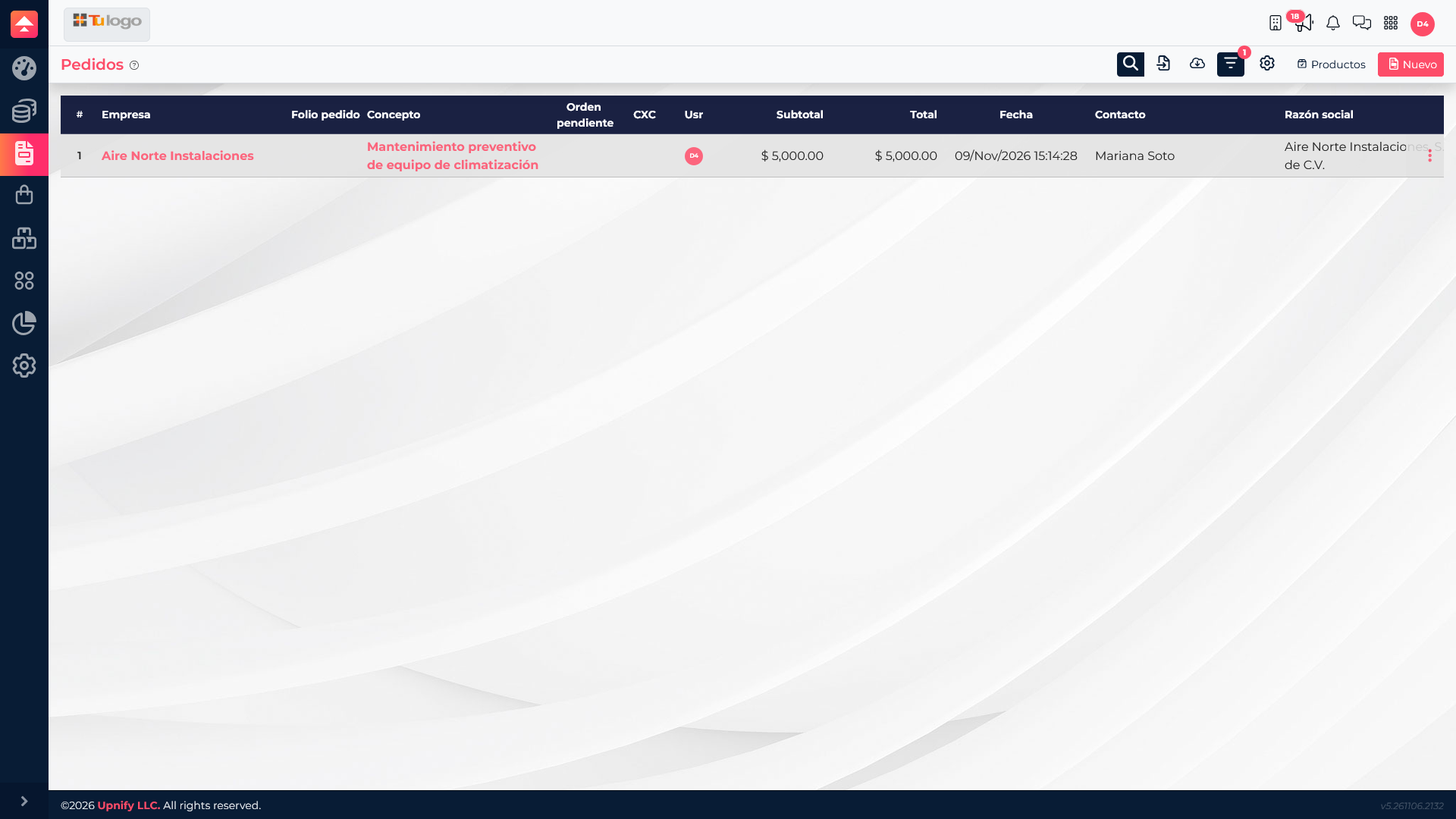
If the sale started with a quote, find the approved proposal under Sales > Quotes and use Convert to order. Review the customer, contact, products, quantities, and amounts before accepting. Then open Sales > Orders to find the generated record.
The list lets you confirm who the transaction belongs to, what it includes, and its total. Open the order to review its products and continue with the available actions. To learn how to prepare the proposal before approval, see How to create quotes and orders in ERP.
2. Create and review the fulfillment order
From the order actions, you can start creating a fulfillment order. This prepares the warehouse work; by itself, it does not confirm that the product was delivered or that inventory changed.
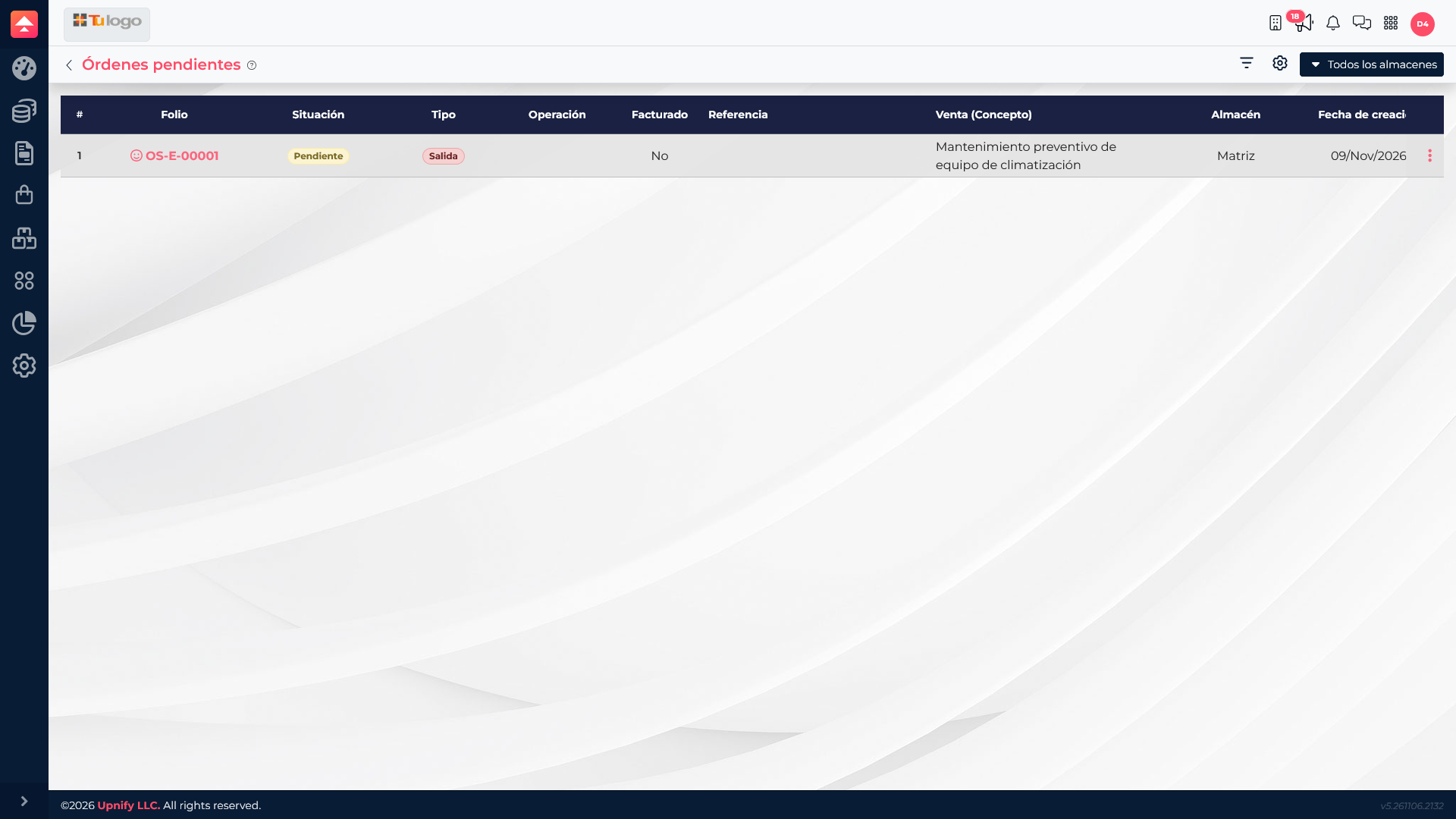
After creating it, go to Inventory > Pending orders. Review its number, status, operation type, and warehouse. In this example, the order for two kits creates a pending issue for the Main warehouse. Pending means it still needs to be reviewed and confirmed.
3. Fulfill the order and record the issue
- In Pending orders, open the action menu and select Fulfill.
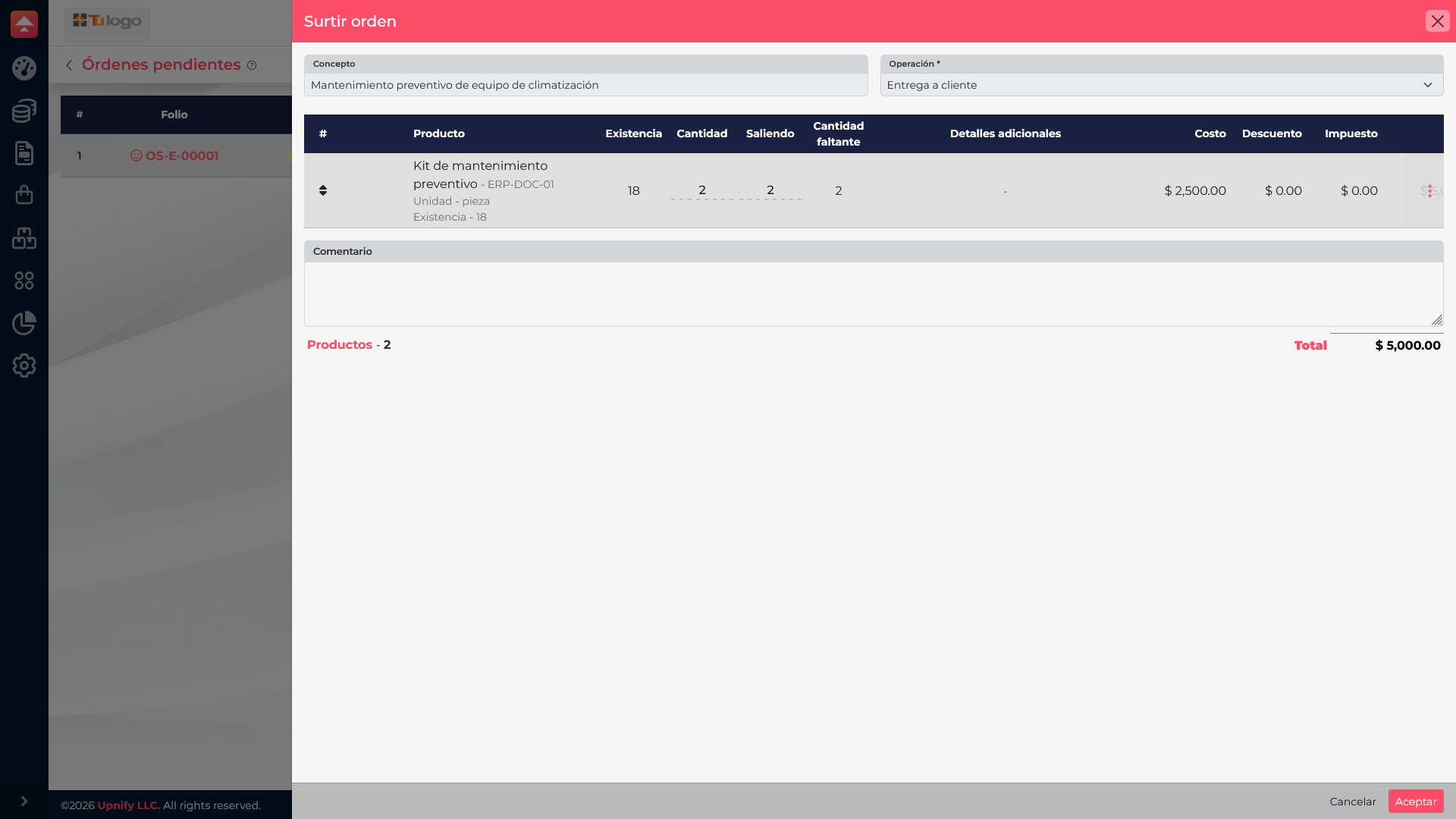
- Check that the customer, warehouse, and inventory operation match the delivery. The operation type describes why inventory is moving; in this example, it is Delivery to customer.
- Review each product, available stock, requested quantity, and quantity to deliver. If you cannot fulfill everything, do not confirm a different quantity without checking how your operation should handle the order.
- Add a comment if it helps give the team context, and select Accept only when the information is correct and the issue should be recorded.
The fulfillment screen brings together quantities and warehouse details before confirmation. Until the operation is accepted successfully, the order remains pending; opening or reviewing the form does not reduce stock.
4. Check progress and keep the follow-up
Return to Pending orders to check the order status. If it is still Pending, fulfillment has not been confirmed. The action menu lets you review or add follow-up and, depending on the status and your permissions, continue with the available process.
Keep the order and fulfillment order linked when answering customer questions or reviewing an inventory difference. This makes it easier to distinguish what was agreed in the sale, what was prepared, and which movement was confirmed.
Order and fulfillment: what each status means
| Record or action | What it represents | Does it change stock? |
|---|---|---|
| Sales order | The commercial transaction with its customer, products, and quantities. | Not simply by creating the order. |
| Pending fulfillment order | Warehouse work to review before preparing the issue. | Not yet; it is awaiting confirmation. |
| Accepted fulfillment | Confirmation of the inventory movement, with its operation, warehouse, and quantities. | Yes, according to the confirmed operation. |
Example: deliver two maintenance kits
Aire Norte Instalaciones approves a quote for two preventive-maintenance kits. The team converts it into an order and creates a fulfillment order for the Main warehouse. The person preparing the delivery checks that stock is available, confirms the two units, and accepts the Delivery to customer operation. ERP then records the issue and the order can continue through its commercial follow-up.