
The Operational Performance report shows how tasks in a workflow are distributed across owners and phases. Use it to spot where work is accumulating, which tasks have spent longer in a stage, and what the team should review. It is not an individual score; it is a view for investigating progress and possible bottlenecks.
Choose the workflow, period, and status
- In Flow, open Reports and select Operational Performance.
- Under Workflow, choose the process you want to review. This field is required because phases depend on the workflow.
- Under Period, choose an available period or set a date range.
- Under Status, select All, Active, or Closed, depending on whether you want all tasks, only open tasks, or completed/canceled tasks.
- Select Apply to refresh the chart and table.
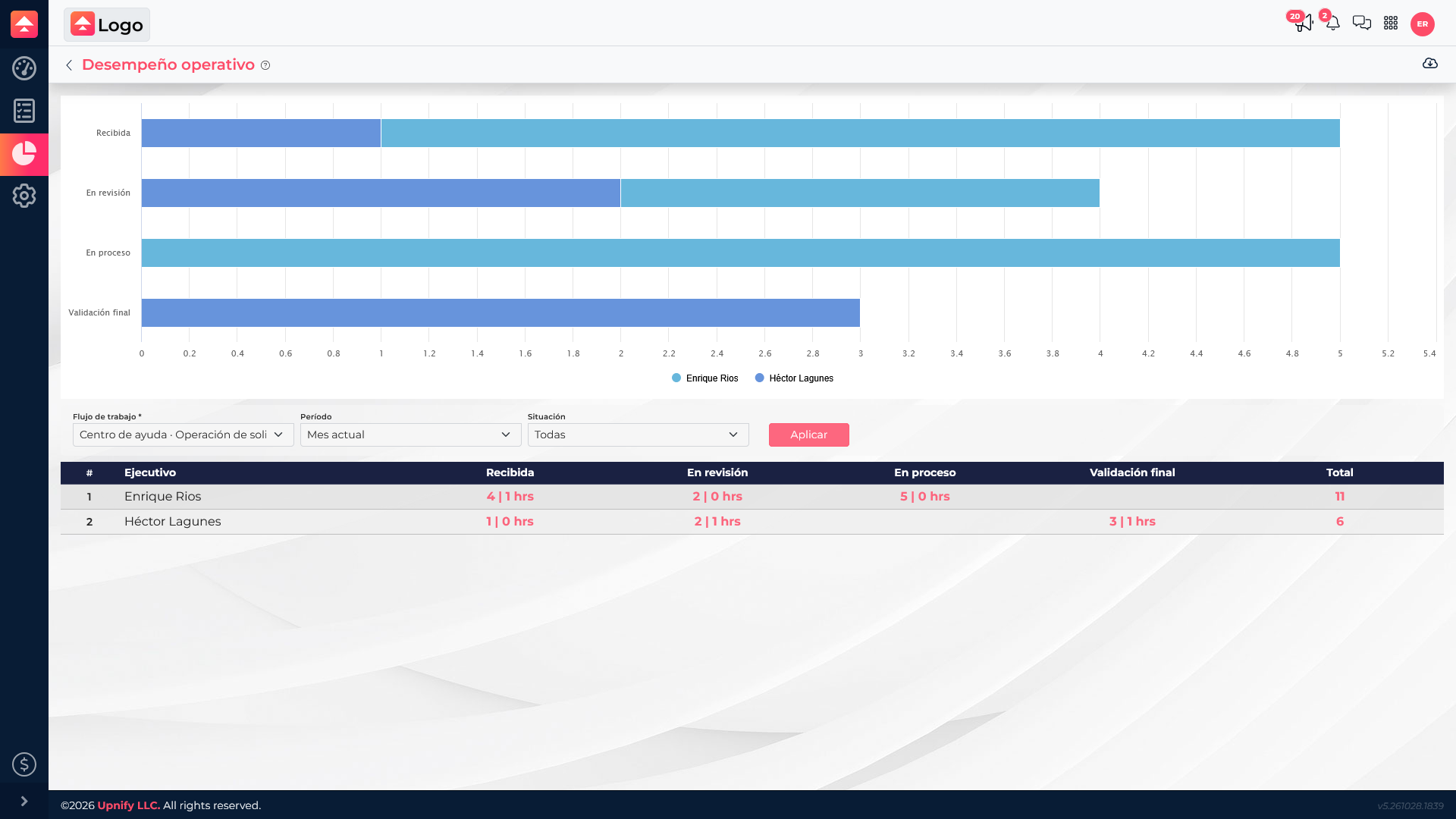
Read phases and time values
The chart compares tasks by phase and owner. In the table, each row is an owner and each column is a workflow phase. In a cell, the first number is the task count in that phase; after the separator is the rounded average number of hours those tasks have spent there. For example, 4 | 1 hrs means four tasks and about one average hour in the phase. A value of zero can represent an average of less than one hour.
The time reflects how long tasks have been in their current phase or, for closed tasks, the time until they were closed. It does not mean the owner actively worked for all those hours; it is the elapsed time Flow records for that stage.
Open the detail to investigate a bottleneck
If one phase has many tasks or a longer average time than others, select the number in that cell. Flow opens the task details behind that result. You can review each title, phase, due date, creation date, creator, and owner, as well as a linked contact or company when available.
Compare like with like
Before comparing owners, confirm that the workflow, period, and status are the same. A phase may have more tasks because it is designed to receive more work; average time adds context to the count. Use the detail to check each case and discuss dependencies, capacity, or next steps.