
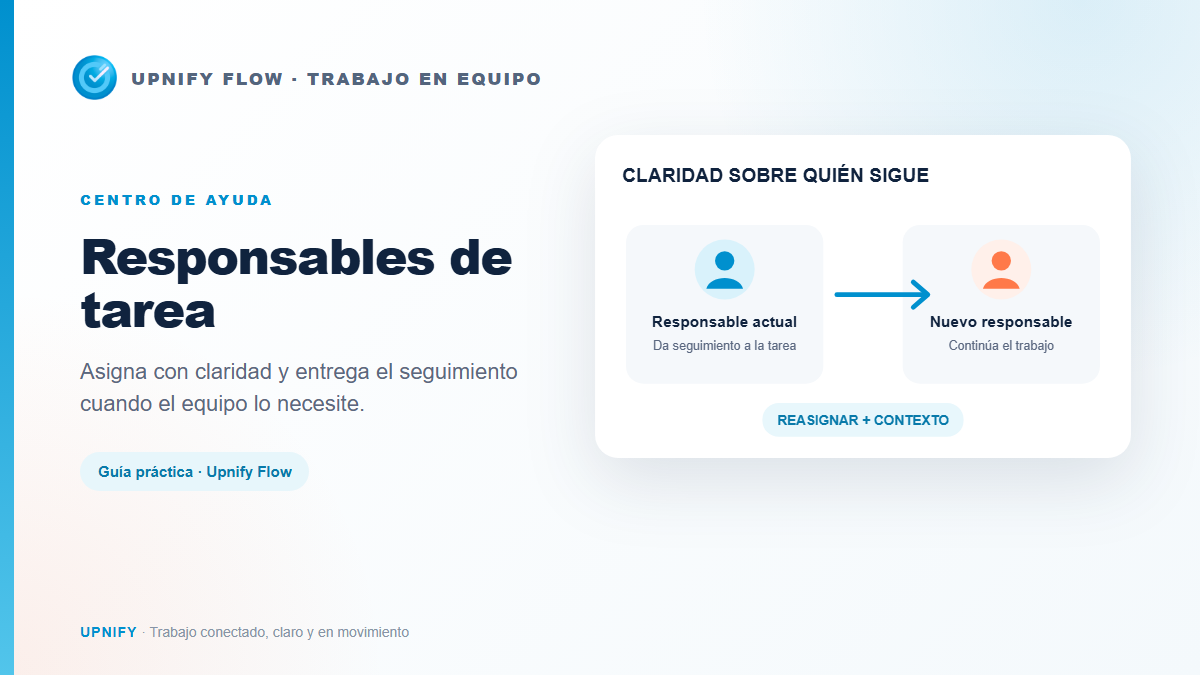
A task\u2019s assignee is the person the team identifies to follow up on that work. Assigning someone prevents a request from being left without an owner and helps everyone know whom to ask about the next step. The creator and assignee can be different people: the person who records a task does not necessarily execute or coordinate it.
Assign the right person when creating the task
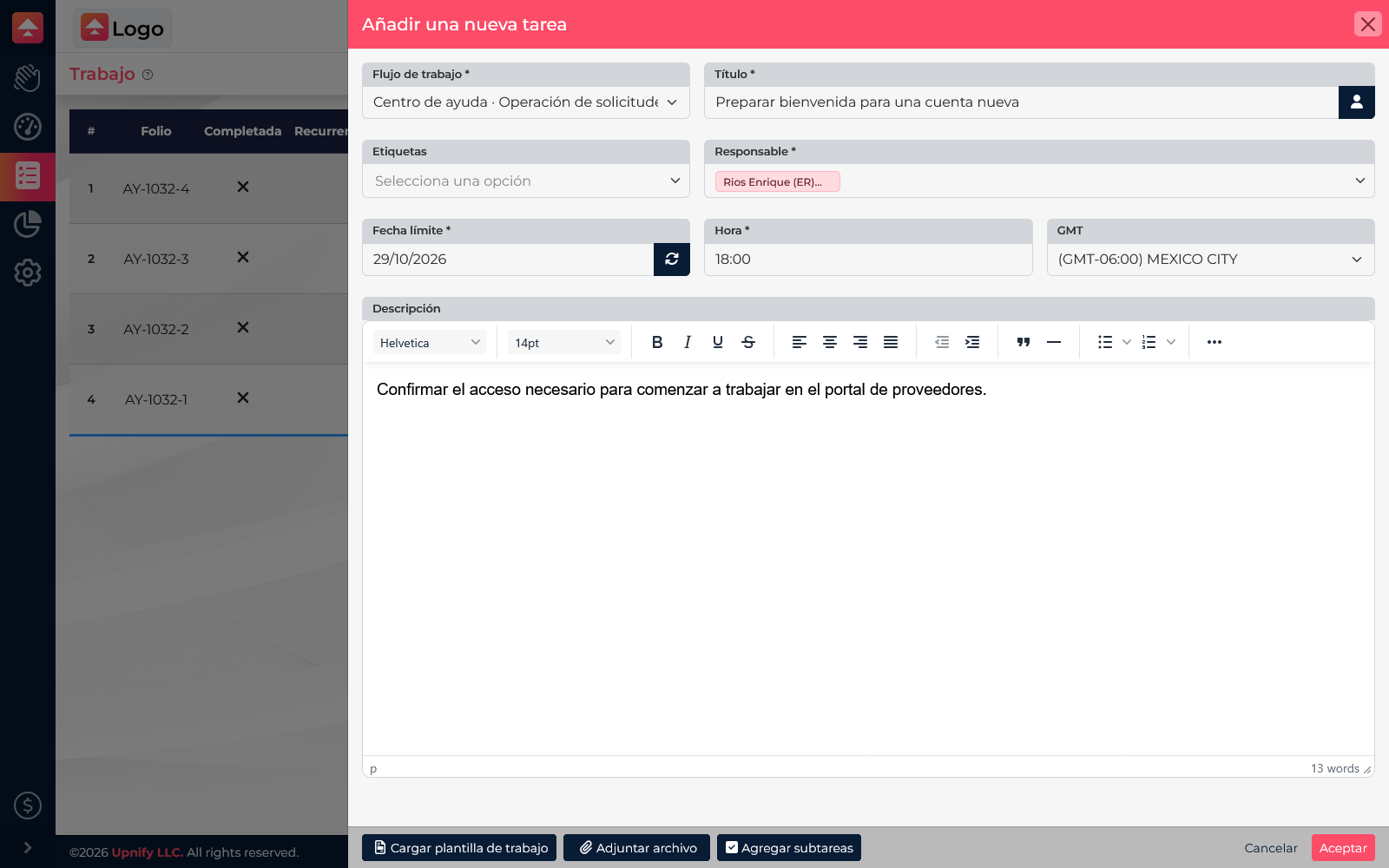
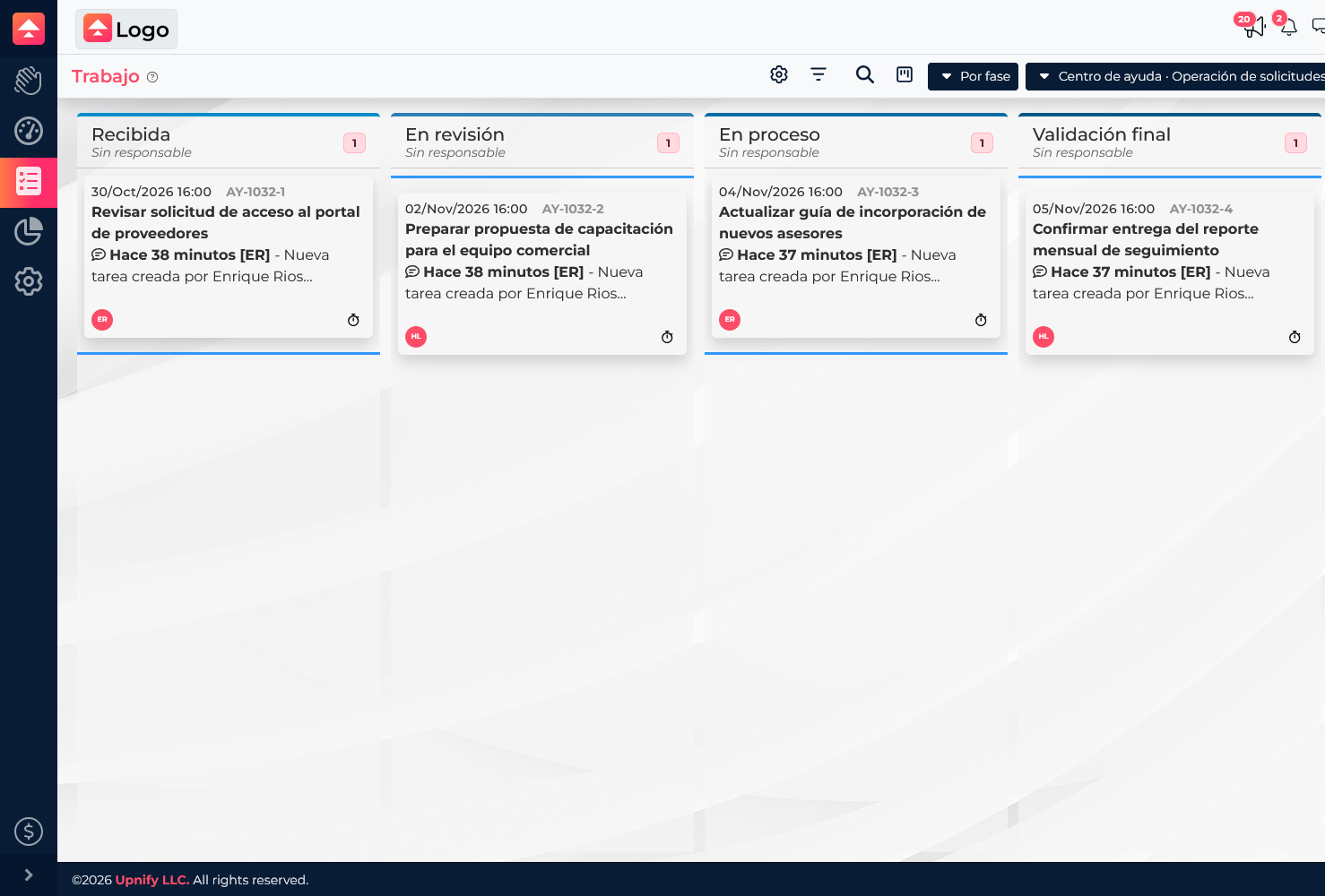
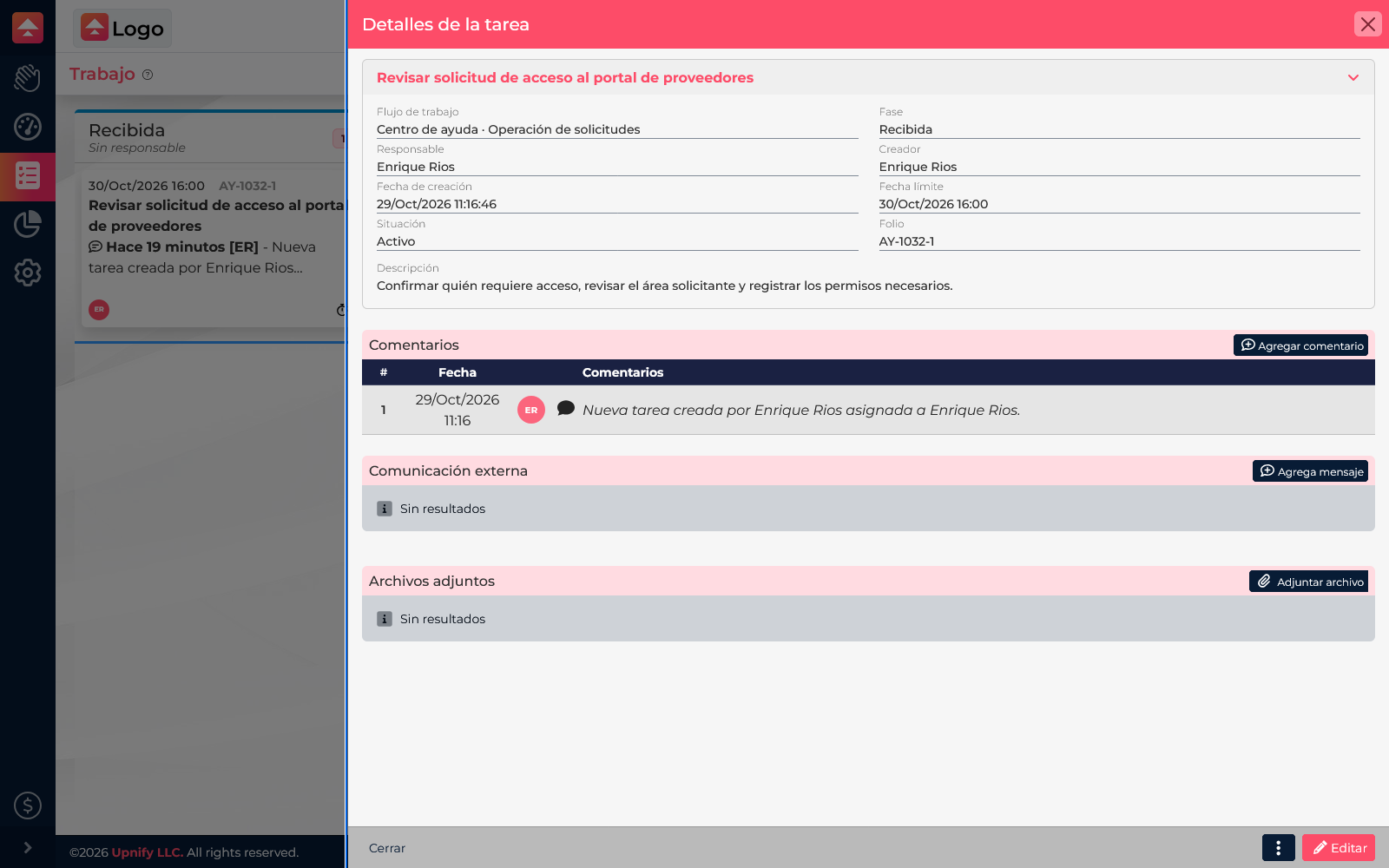
When creating a task in Flow > Work > New, complete the required Assignee field. Choose someone with the context, availability, or role needed to handle it, and add the expected result and starting information to the description. On the board, task cards show the assignee\u2019s initials; the task details show their name alongside the creator.
When to reassign
Reassign a task when work distribution changes, the current assignee is away, or someone with different expertise should take over. For example, Enrique receives a request, checks the information, and finds that the commercial team must validate it. He can reassign the task to Héctor and add a short note explaining what was reviewed and what remains. The next person can continue without rebuilding the context from scratch.
- Open the task from the view you are using.
- In the task details action menu, select Reassign.
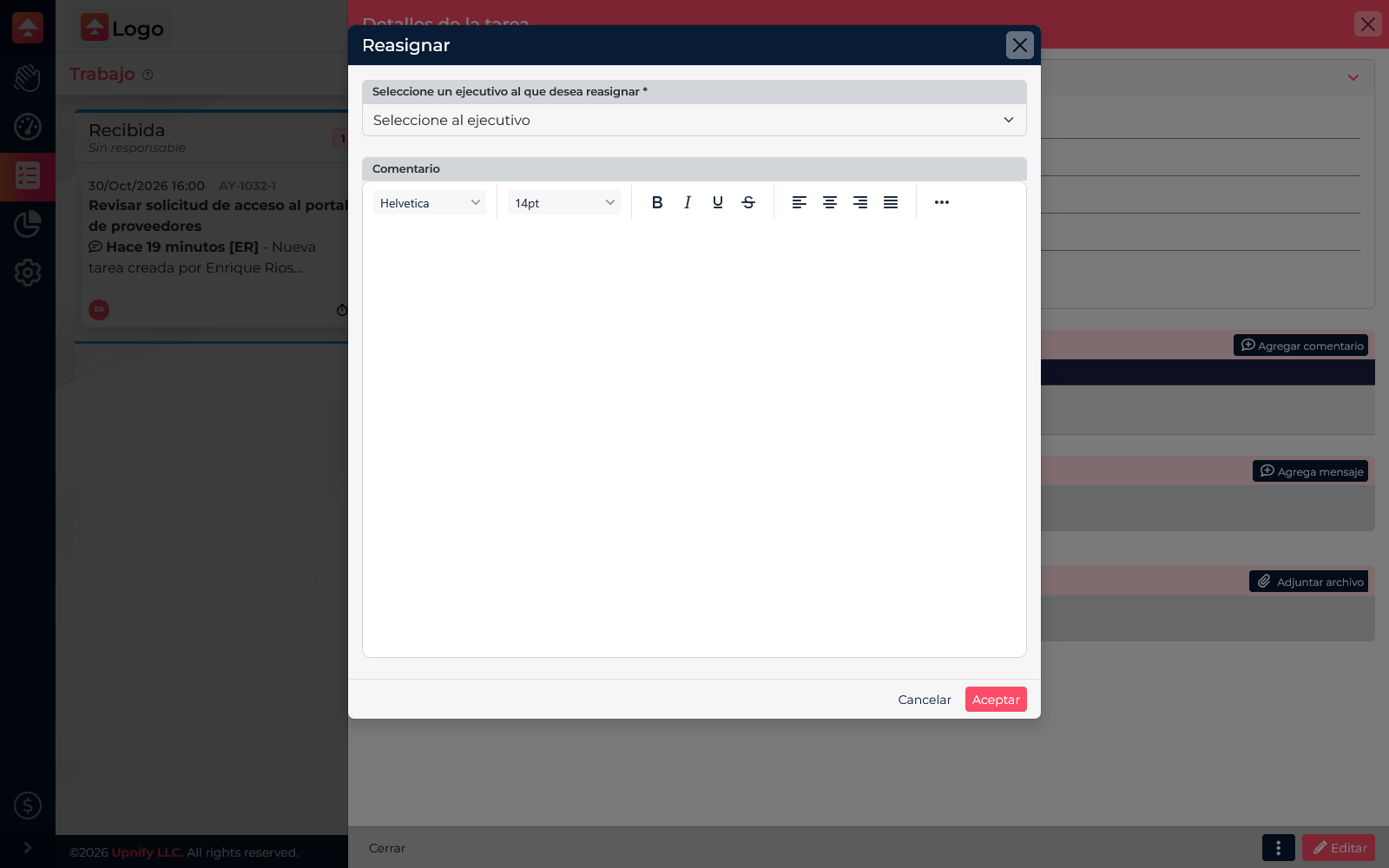
- Choose the executive who will continue following up. This field is required.
- In Comment, leave a handoff note: what is done, what comes next, and any relevant date or detail.
- Review the selection and comment. Click Accept only when you want to save the change; use Cancel to close without changing the assignment.
Keep ownership clear
- Assign one person as the owner, even when several people collaborate.
- Use comments to coordinate a handoff and make clear who needs to act.
- Update the description or due date if the commitment also changed.
- After saving, review task details to confirm the new assignee appears.