
A task often needs more context than its title and description. A quote, screenshot, approved form, or reference document can help the assignee move forward and let the next person review the evidence without searching through messages or separate folders. In Flow, files remain associated with the task and can be reviewed from its details.
Available file sources
| Source | When to use it |
|---|---|
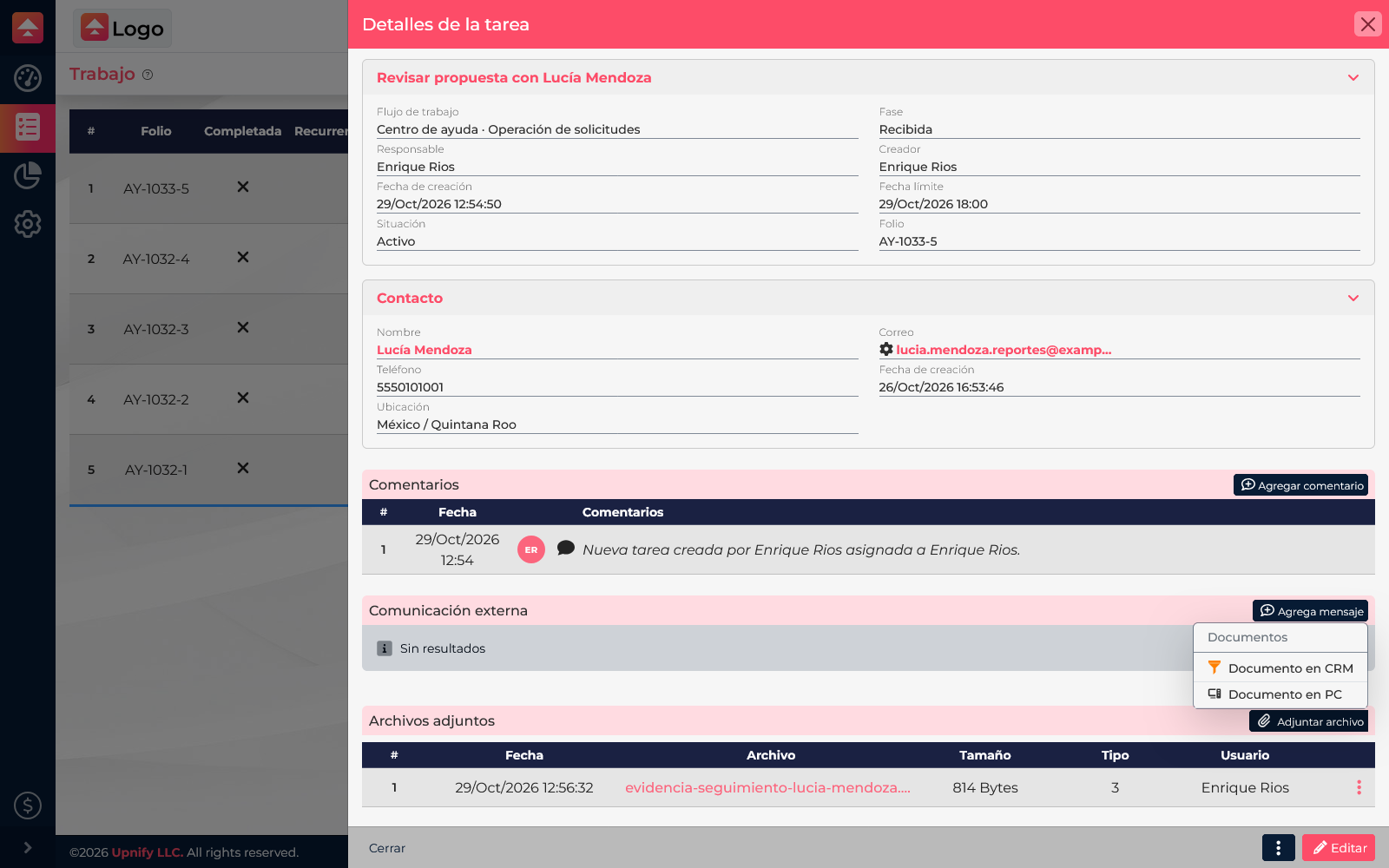
| Document in CRM | Choose a file already stored in CRM and related to the work or contact. |
| Document on your computer | Select a file on your device when the evidence is not already stored in CRM. |
| OneDrive | Choose a document from a OneDrive account already linked to your user. This option appears after you connect the integration. |
The menu depends on your access and configured integrations. Attach a file that helps someone complete or verify the task; avoid uploading duplicates that add no context.
Attach a file from task details
- In Flow > Work, open the task that needs the evidence.
- Go to Attached files and select Attach file.
- Choose the source: a CRM document, a file on your computer, or OneDrive if you have already linked the account.
- Select the file and confirm in the window that opens. For a local file, use your system\u2019s file picker to find it.
- Wait for the upload to finish and make sure the file appears in the task table.
Review evidence later
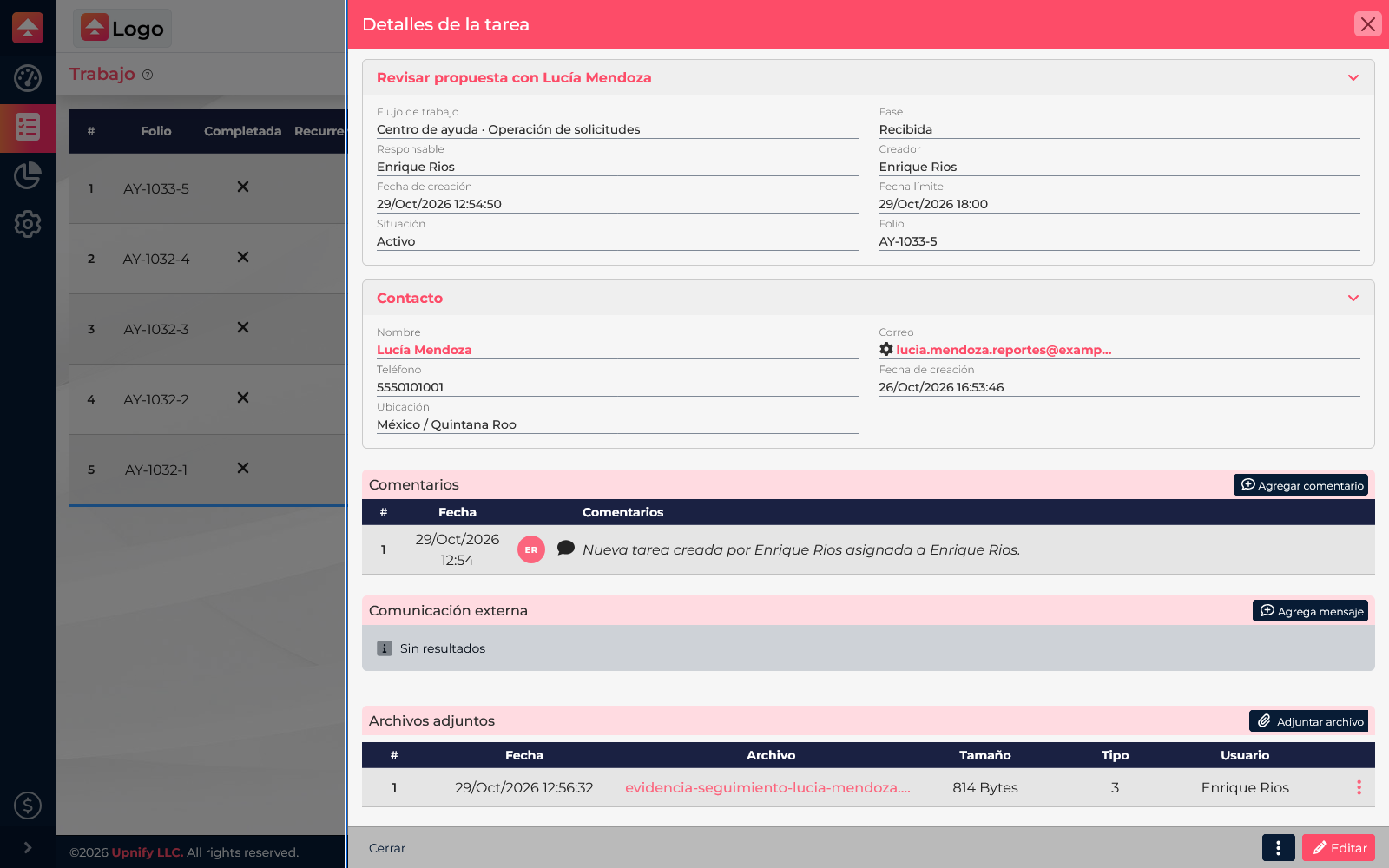
Reopen the task and check the Attached files table. You can identify a file by name and review details such as its date, size, type, and the user who added it. Select the file name to open it in the available viewer. The row actions menu can also remove a file when it should no longer be associated with the task and you have permission to do so.
Keep task files useful
- Use names that make the content easy to recognize, such as updated-proposal.pdf.
- Attach current files that relate to the task.
- If a document explains a change or decision, add a short comment describing what the team should review.
- If the correct file is already in CRM or OneDrive, select it there to avoid unnecessary copies on different devices.