
When a task enters a phase, the next step may already be known: call the contact, create a follow-up task, or update related information. Phase actions let Flow prepare those operations to run as the task advances, reducing missed steps and repetitive work.
Use them when the same response applies to all\u2014or most\u2014tasks reaching a phase. If every case needs a decision first, keep the action manual to avoid creating unnecessary work.
What a phase action can do
Depending on the workflow options and active products, an action may create a Flow task, schedule a CRM follow-up, update a CRM phase, apply a tag, convert an opportunity into a sale, or move the task to another phase. Available choices depend on account configuration and permissions.
| Action type | What it does | Example |
|---|---|---|
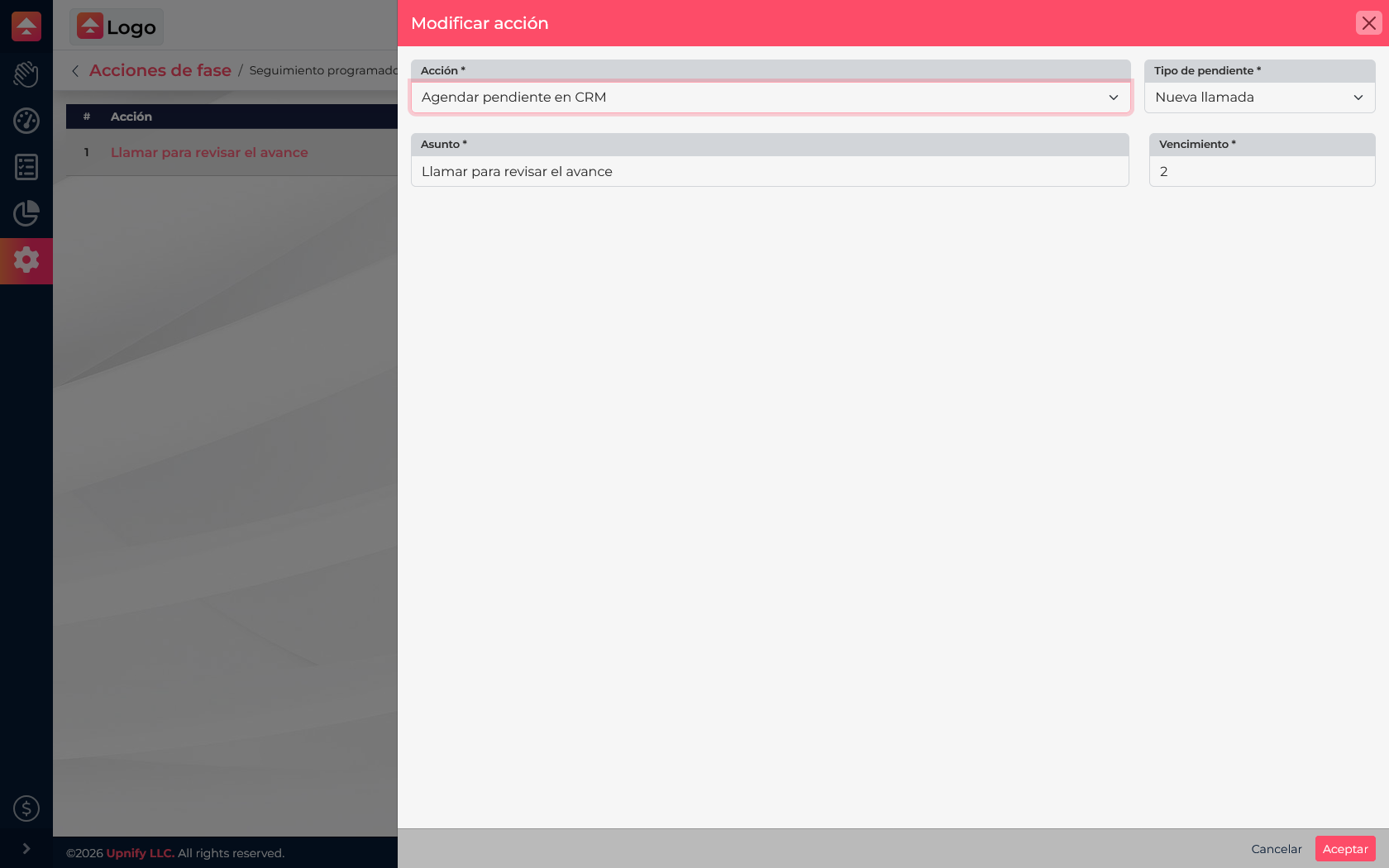
| Schedule a CRM follow-up | Creates a reminder, appointment, call, visit, or CRM task with the configured details. | When a service visit is closed, schedule a call to confirm the result two days later. |
| Tag | Applies the selected tag to the related CRM record. | After installation, add the \u201CInstallation completed\u201D tag so those contacts can be filtered later. |
| Update CRM phase | Changes the related CRM record to the selected phase. | When a demo task is completed, move the prospect to \u201CFollow-up\u201D. |
| Create a Flow task | Creates a Flow task with the workflow, phase, owner, and details defined in the action. | After an inspection is approved, create a quality-review task for the supervisor team. |
| Convert opportunity to sale | Creates a sale from the related opportunity using the configured assignment options. | When a proposal is accepted, start the corresponding sales record. |
| Move Flow phase | Moves the current task to the selected phase. | After a technical review is approved, move the task to \u201CQuality control\u201D. |
Available options depend on active products, linked records, and account permissions. Before enabling an action that changes CRM or creates another task, confirm the related record exists and the phase cannot trigger an unwanted repeat.
Configure the action- Open Flow > Settings > Workflows and select the workflow where you want to automate a step.
- Open the actions for the relevant phase and select New.
- Choose an action and complete its required fields. For example, to schedule a CRM follow-up, specify its type, subject, and due date.
- Save and confirm that the action appears in that phase\u2019s action list.
- Test the workflow with a demonstration task and confirm the result before using it in operations.
Design predictable automations
- Attach actions to the phase where they make sense; an action on the initial phase runs before the team finishes reviewing the case.
- Write subjects that make it clear why the task or follow-up was created.
- Check permissions and active products, especially for actions that update CRM records.
- Avoid repeating the same action in several phases if that could create duplicate follow-ups.
If you move a task back to an earlier phase, review what happens to pending actions from the phase it leaves; the configuration may remove pending actions for that phase. Test backward moves as well before enabling a live workflow.