
Notifications keep a task from depending on someone manually checking every list. Choose which Flow events trigger alerts and which channels users receive them through—for example, when a task is assigned, moves to another phase, is completed, or someone is mentioned in a comment.
This is useful when a team works across shifts or when another person must act at a particular phase. Enable signals that prompt action and avoid channels that only create noise.
Choose events and alert channels
- Open Flow > Settings > Notifications.
- Review events such as Task phase change, New task assigned, Mention in comment, or Overdue tasks.
- For each event, review the available channel columns and enable the ones the team should receive.
- Save if prompted and confirm that a test notification arrives through the selected channel.
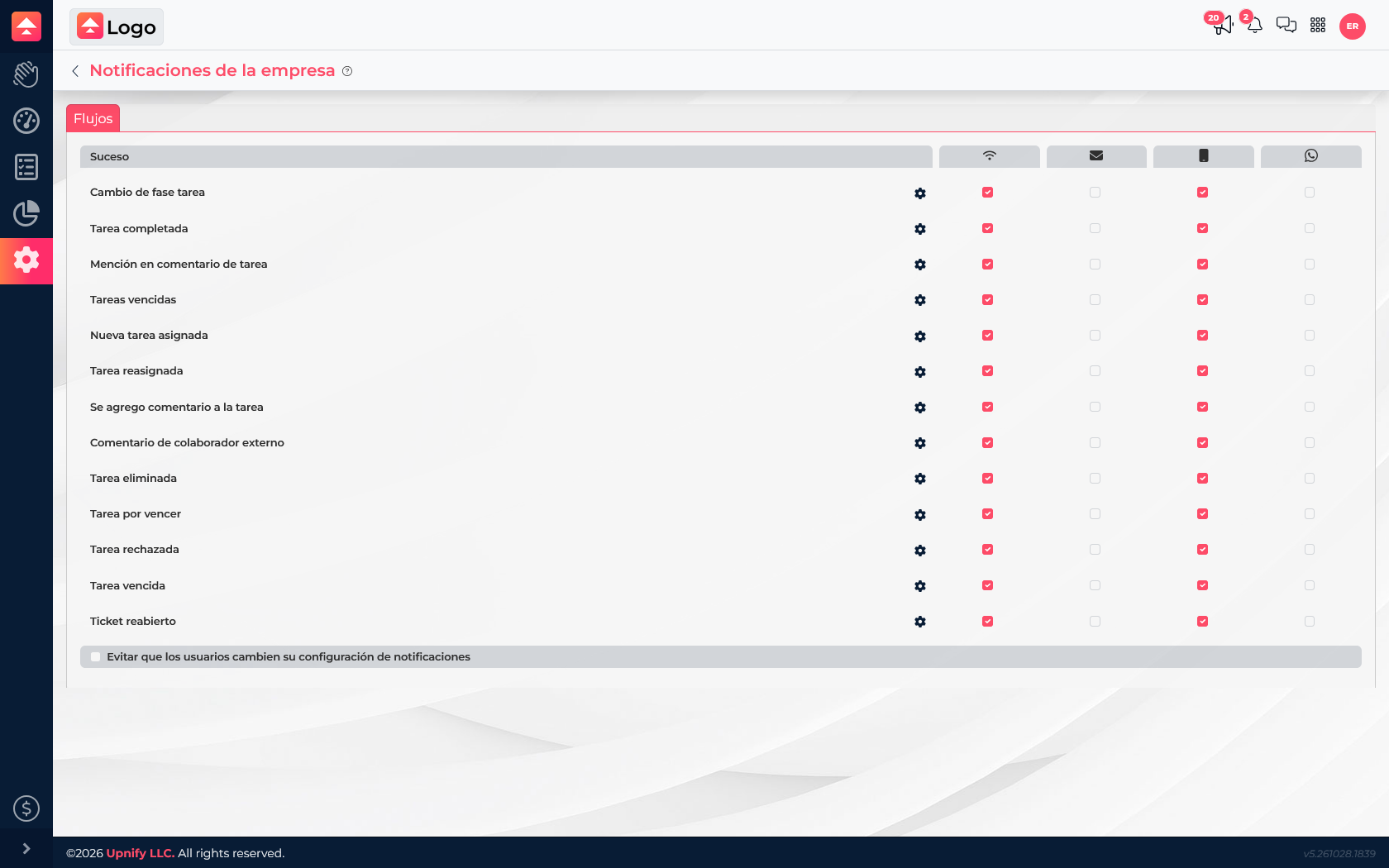
Requirement for receiving WhatsApp alertsFor Flow notifications to reach a collaborator on WhatsApp, they must have a 10-digit mobile number set in My account or have enabled two-step verification. They can configure this in their own account; a super administrator can also do it from My organization. Then confirm that WhatsApp is enabled for the relevant event in the notification matrix.Phase-change alert or phase communication
If a person only needs to know that a task changed phases, enable Task phase change in the appropriate channels. The alert identifies the event and helps the user open the task to continue.
If the process requires sending specific content when a task advances through a phase, go to Flow > Settings > Workflows, open the workflow, and edit the relevant phase. In its communication options, identify whether the message is internal or external and select the medium, template, and timing when those options are available. Availability depends on the templates and channels configured in the account.
Decide whether each person can change preferences
At the bottom of company settings, you may see Prevent users from changing notification settings. When enabled, the company manages these preferences centrally; when disabled, each person can adjust the personal options allowed to them.
Before locking changes, agree with the team on which alerts are necessary. A request-handling operation, for example, may need mobile alerts for phase changes and overdue tasks, while email may be reserved for messages that need an easy-to-reference record.