
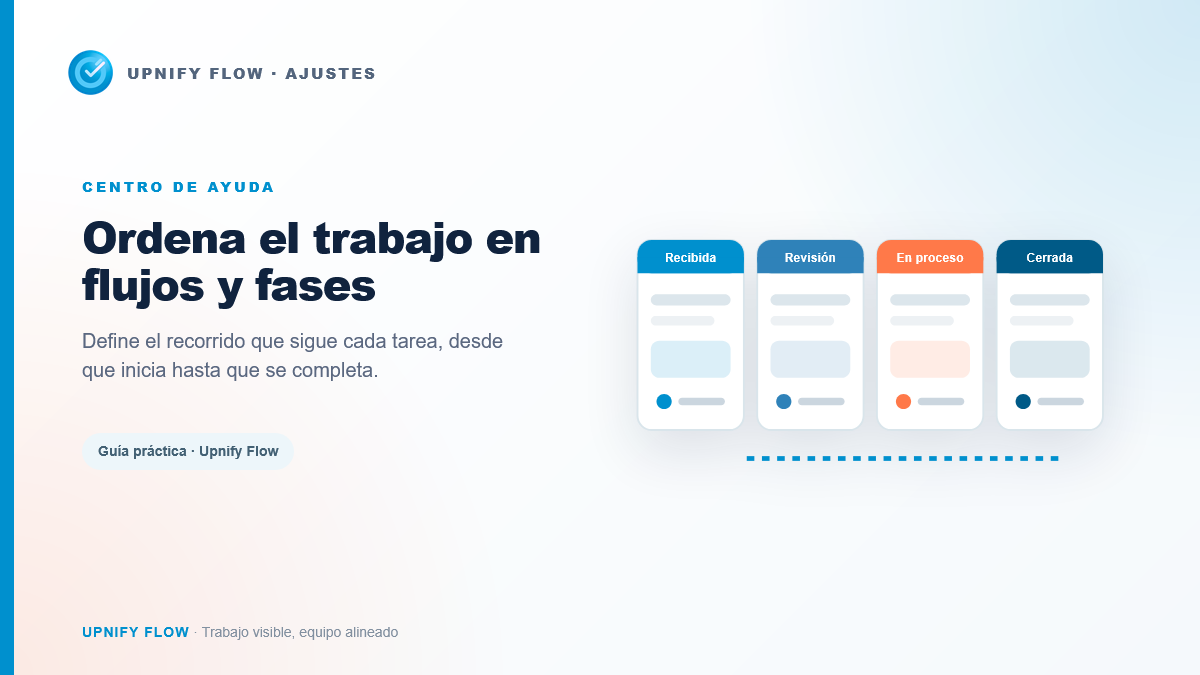
A workflow defines the stages a task can move through. It helps everyone understand what comes next, who should act, and when work has progressed. Instead of relying on scattered instructions, you can represent a complete process with visible phases. Each task belongs to the workflow, and its phase shows its current status; a phase is not a new task.
For example, an internal request team could use Received ? Under review ? In progress ? Final validation.
Create the workflow
- Go to Flow > Settings > Workflows.
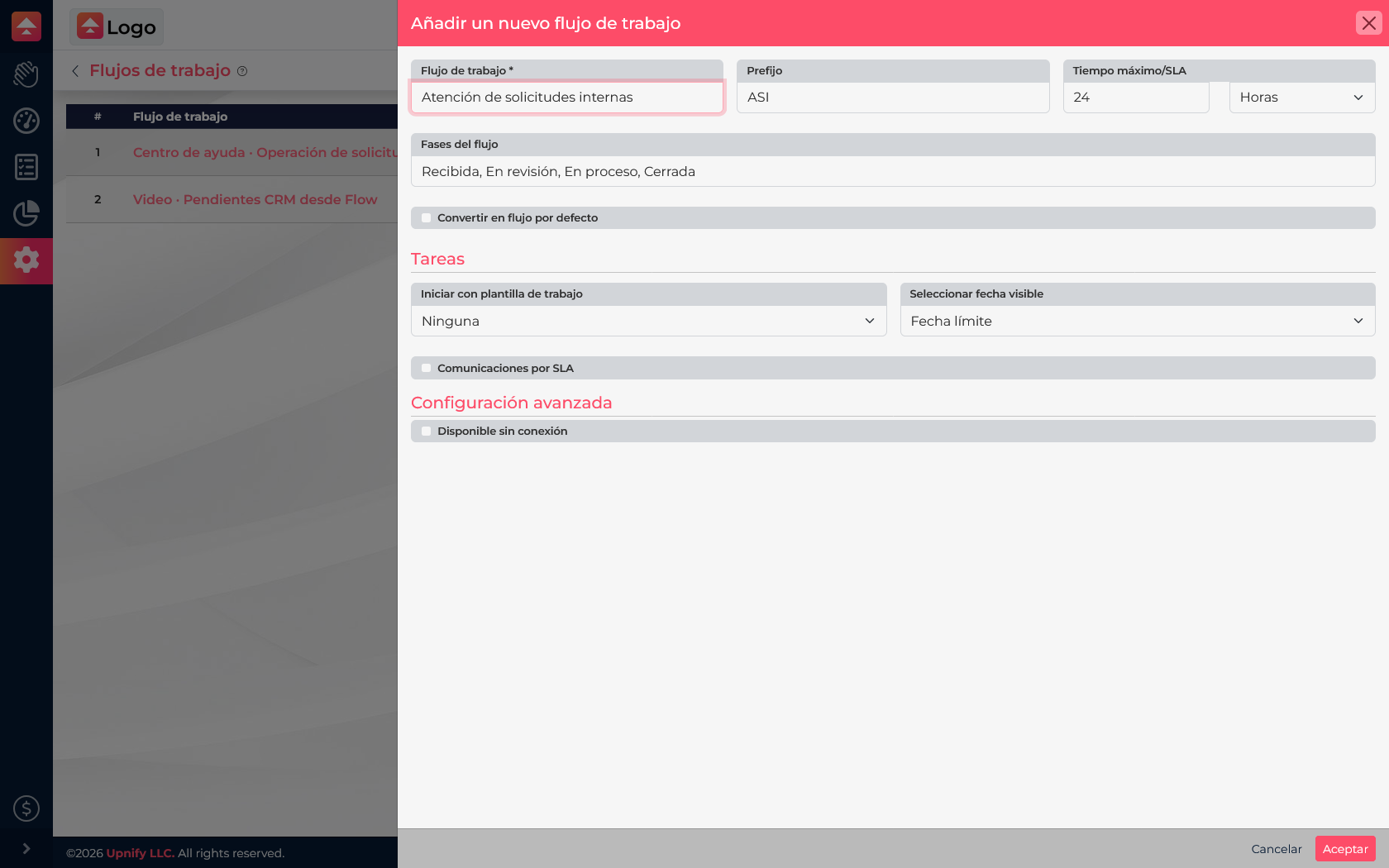
- Select New and enter a name that describes the process, such as Internal request handling.
- Set a prefix to identify its tasks. If your company has a target response time, configure the agreed maximum time/SLA.
- Under Workflow phases, enter the stages in work order. Separate each name with a comma.
- Review options such as the initial template, visible date, SLA communications, or offline work. Save when the setup is ready.
Configure and maintain phases
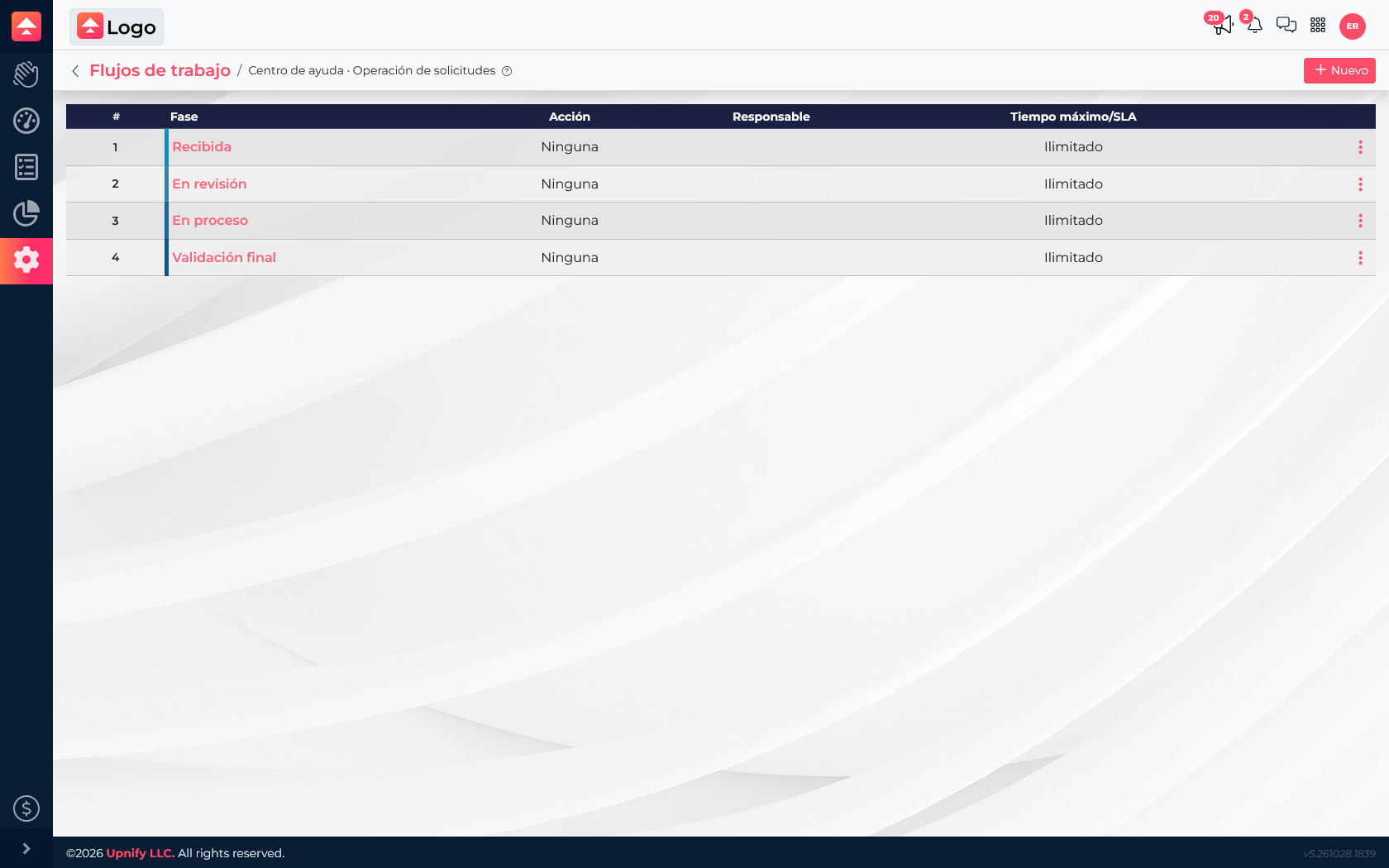
After creating the workflow, open its name to review the phase list. From there, you can edit each stage and, depending on the process, set a color, owner, action, or maximum time. These details help the phase communicate both the current status and what needs to happen before work continues.
Design useful phases
- Use short names that describe a status or verifiable action.
- Include stages that help the team decide or understand what comes next.
- Set owners and time limits where a handoff between people or teams occurs.
- Test the workflow with a simple task and confirm everyone knows when to move it.
When the process changes, update the phases to reflect the real work. If you need repeatable steps inside a task, complement the workflow with a work template or checklist.