
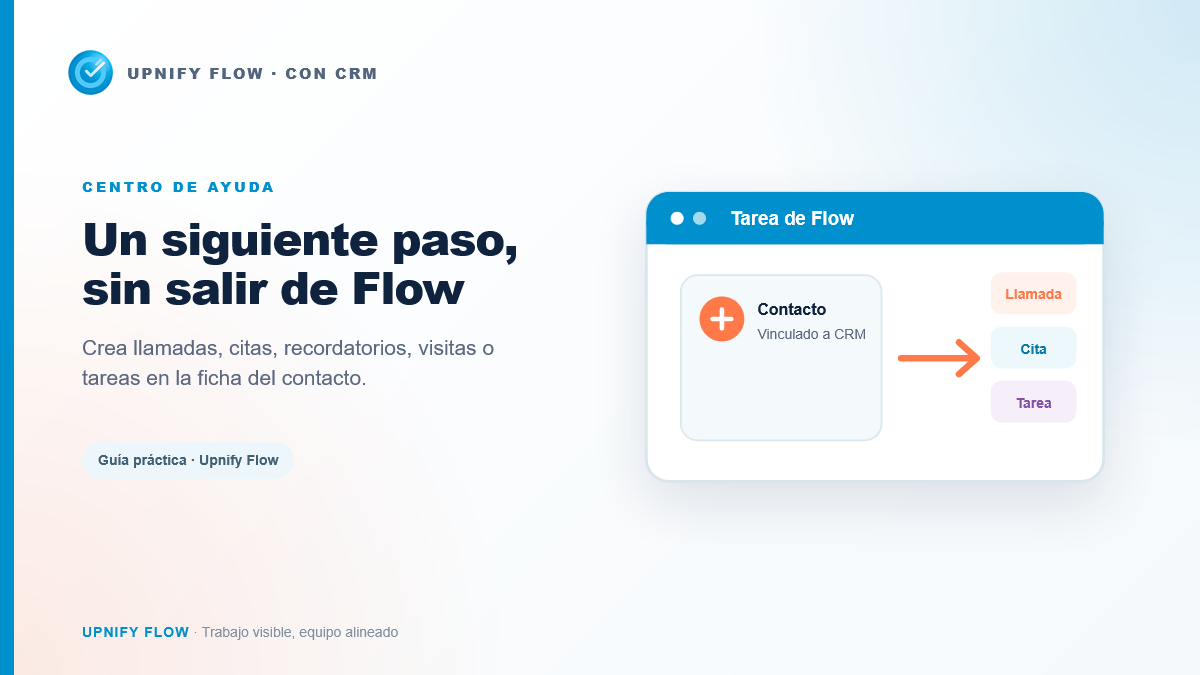
When a team is working on a Flow task and needs to call, meet, or follow up with someone, switching apps to find the contact again interrupts the work. If the task is already linked to a CRM contact, you can create a follow-up from that contact\u2019s details in Flow. The activity is saved in CRM and follows the standard behavior for that type.
When Add follow-up is available
The option appears in a task\u2019s details when a CRM contact is linked and both the company and your user have access to CRM. If you do not see it, first check that the task is linked to a contact and that CRM is enabled for the company and your user.
Choose the type of follow-up
- In Flow > Work, open the task linked to the contact.
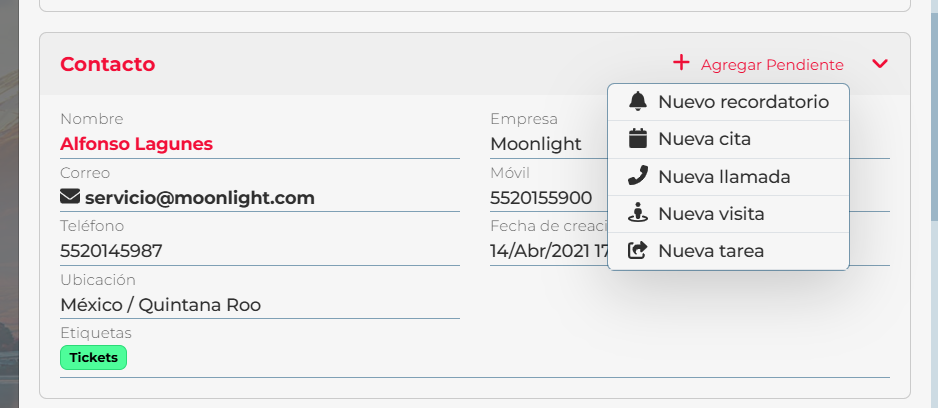
- In the Contact section, select Add follow-up.
- Choose the activity that matches the next step.
| Type | When to use it |
|---|---|
| New reminder | To set aside a time to remember an action or review something later. |
| New appointment | For a meeting or conversation with an agreed date and time. |
| New call | To schedule a follow-up call with the contact. |
| New visit | To coordinate a visit related to the service or sales process. |
| New task | To assign a specific action that is not a call, appointment, or visit. |
Complete and save the follow-up
After you choose an option, CRM opens its standard form for that activity type. The contact linked to the Flow task is identified automatically, so you do not need to search for it again. Fill in the fields requested by the form \u2014such as subject, date, owner, or reminder, depending on the activity\u2014 and save. If you cancel the form, no follow-up is created and the Flow task is not changed.
Where to find the activity
The follow-up is stored in CRM, on the contact record, and appears in the CRM calendar according to its type and settings. This is a shortcut for creating a CRM activity while you work in Flow: it does not create a Flow task, move the task to another phase, or add a separate synchronization between the two activities.
If the contact changes from prospect to customer, the follow-up remains associated with the corresponding CRM record. For daily work, check the task in Flow and the follow-up in the CRM contact record or calendar.