
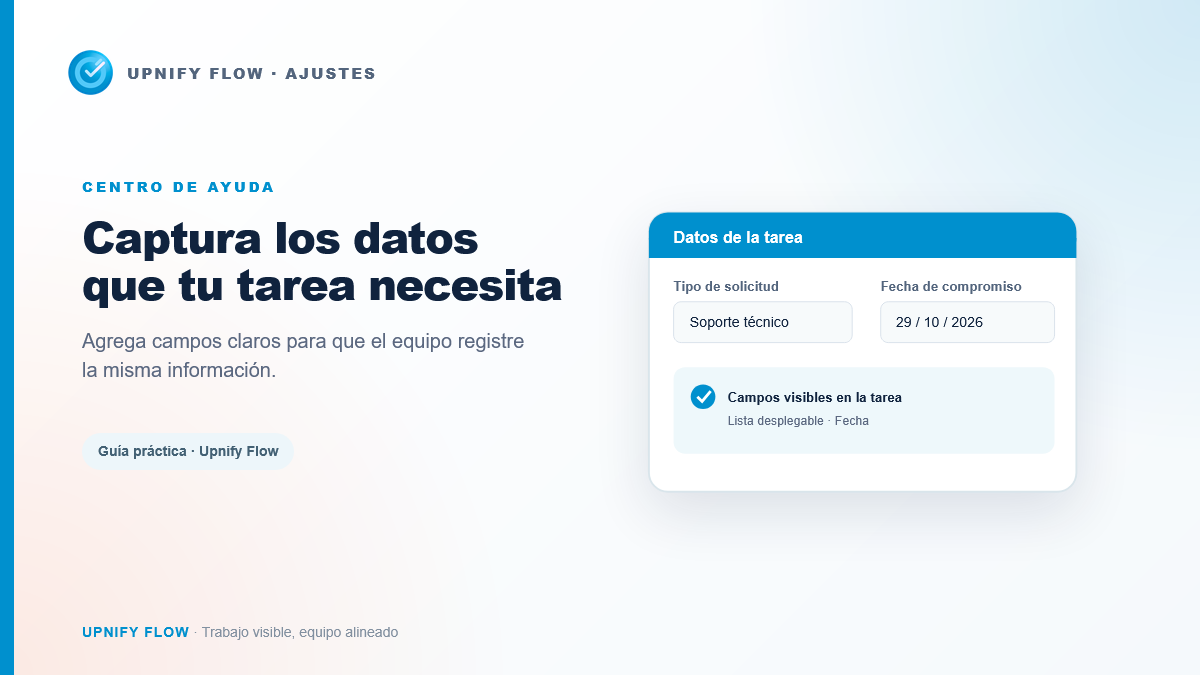
Custom fields let you record task information that is not part of your process\u2019s standard data. They keep important details out of comments, task names, or attachments: the value stays in a named field and can be reviewed with the task.
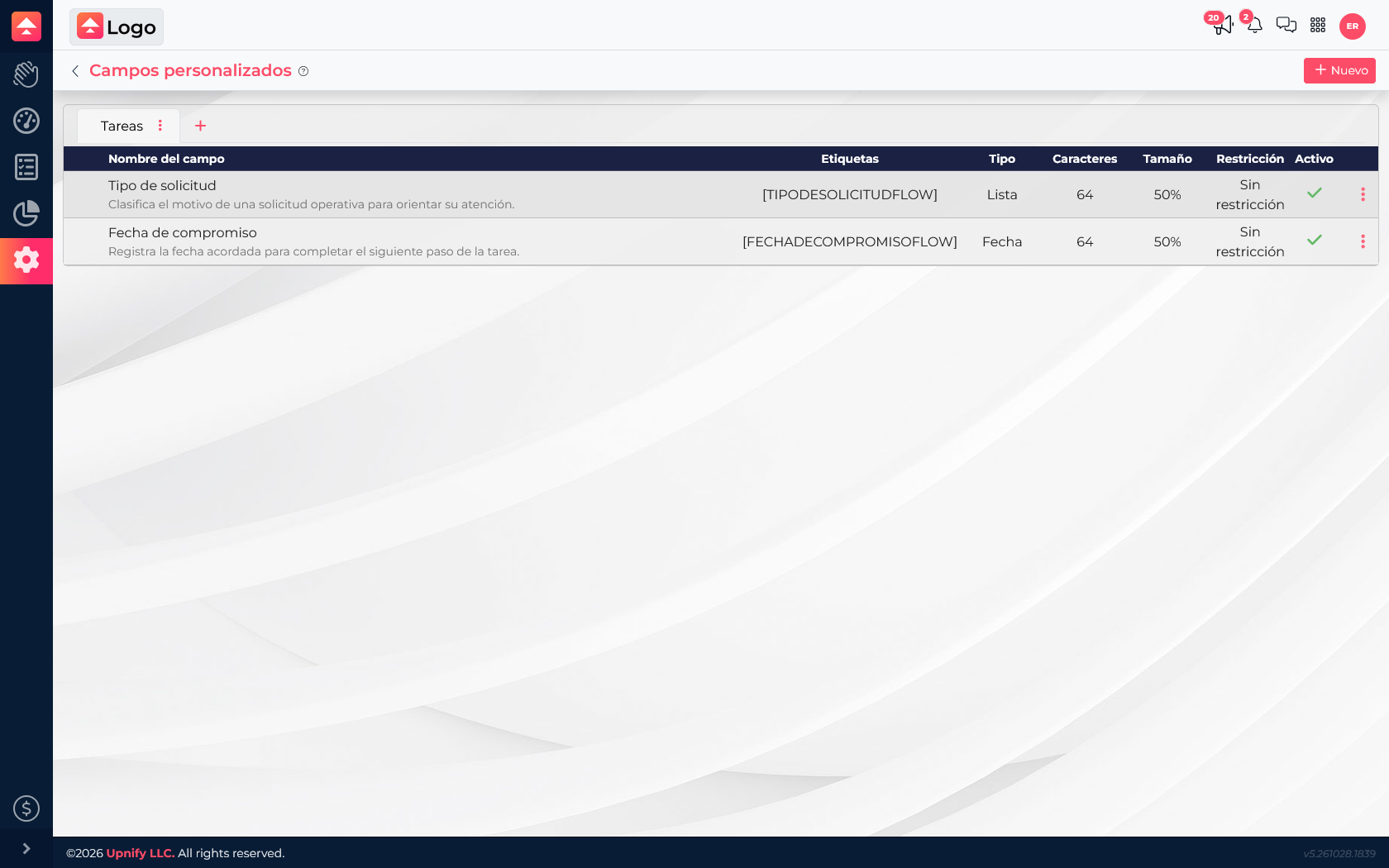
For example, a support team can record the Request type and Commitment date. Anyone opening the task can see what needs attention and when the next step was promised.
Create a task field
- Go to Flow > Settings > Custom fields.
- Select the Tasks tab and choose New.
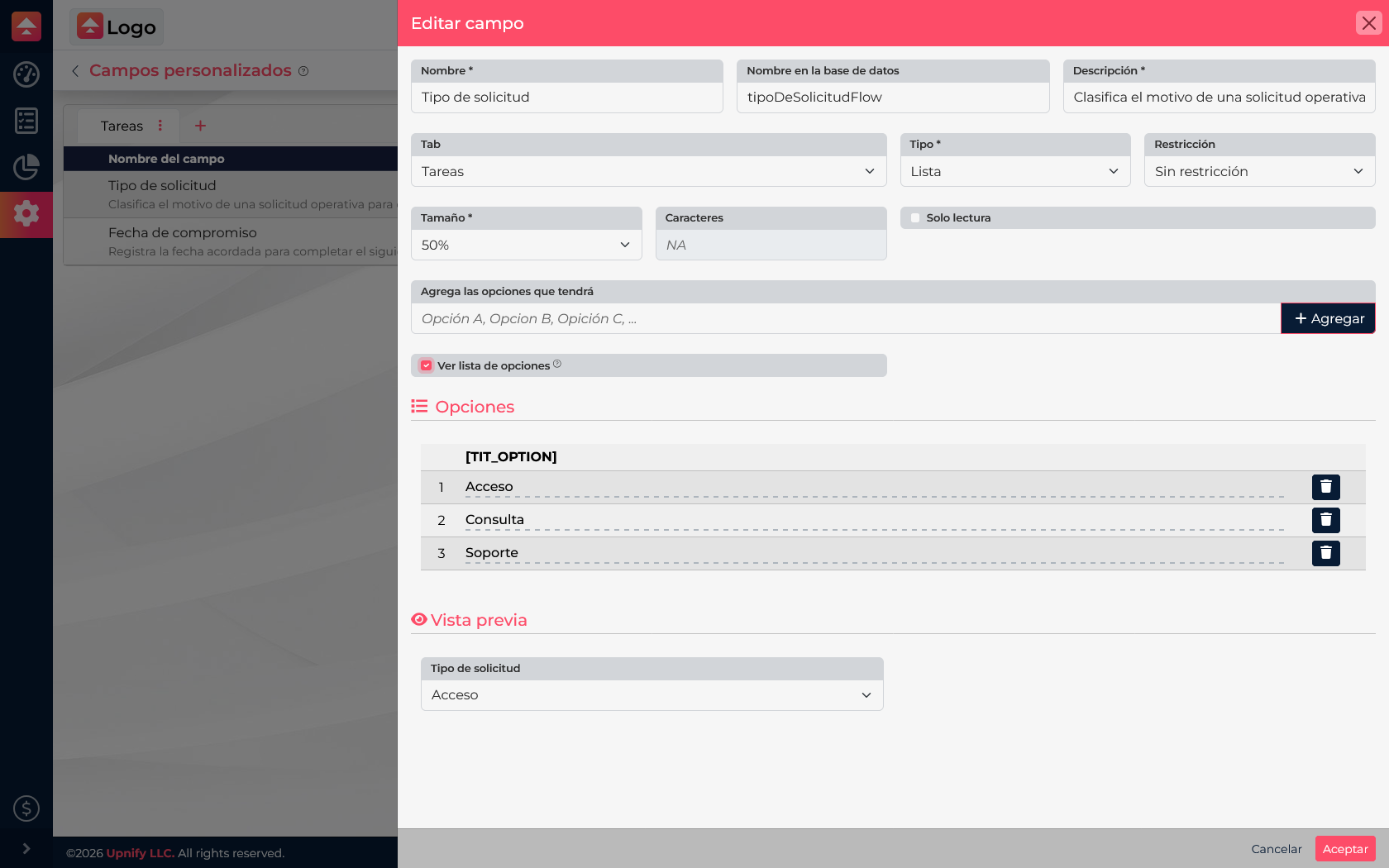
- Enter a name and clear description. The system suggests a technical name; keep it as the identifier unless you have a defined reason to change it.
- Choose the type that matches the data, such as List for controlled options or Date for a commitment.
- Set the tab, size, and restriction. For a list, add the options and confirm they appear in its option list.
- Save, then open a task to check that the field appears and works as expected.
Example: internal requests
For Request type, the team chooses Access, Question, or Support instead of entering a different category each time. For Commitment date, they record the promised day. The task keeps its context and the team can review data consistently.
Choose the field type intentionally
- Use a list to compare categories from a stable set of options.
- Use a date when the value represents an agreed day or deadline.
- Use text when the value changes for every task and cannot be summarized as options.
- Avoid fields that duplicate task information or that few people will review.
Before creating many fields, agree on what the team needs to record and who will use it. A short, shared structure is more useful than information that is hard to maintain.