
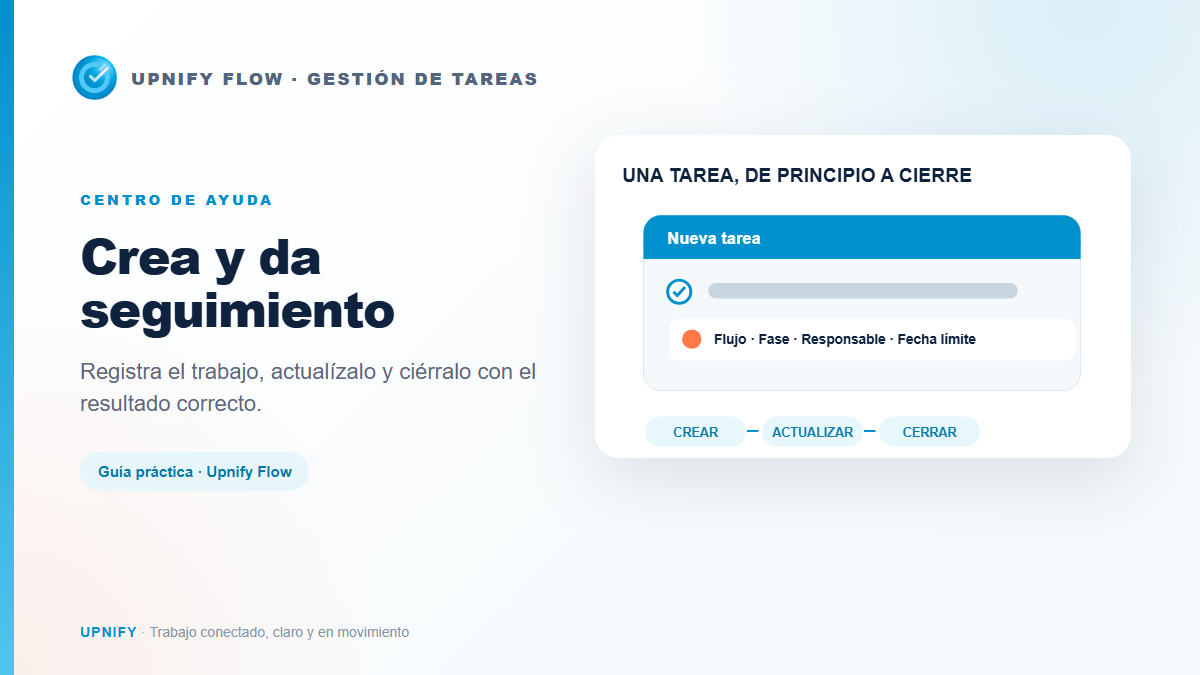
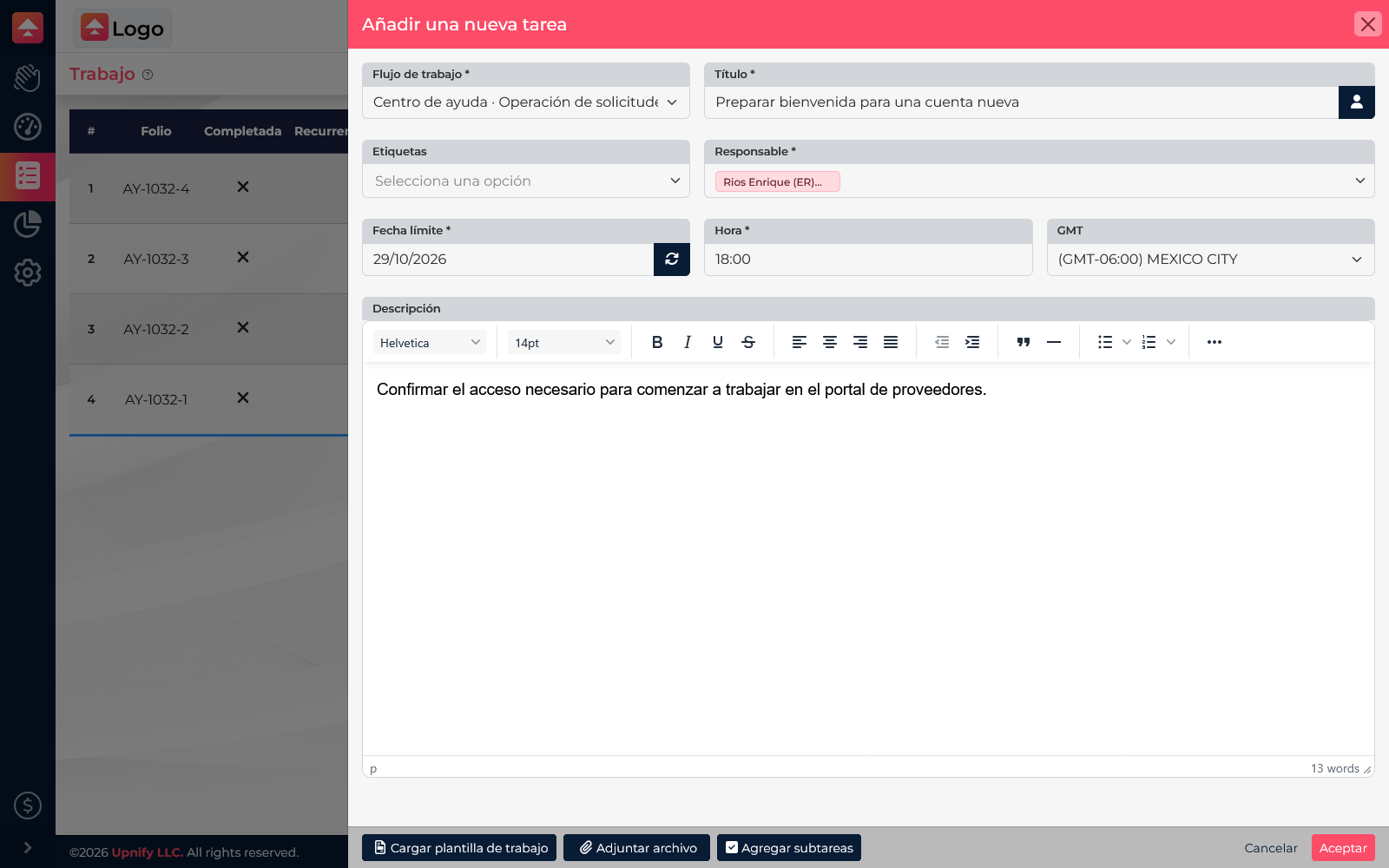
Flow tasks turn pending work into visible actions for the team. A task can have a workflow, title, assignee, due date, time, and description. You can also add labels, load a work template, attach a file, or create subtasks when the form allows it. Recording these details helps ensure the next step does not depend on memory or scattered messages.
Create a task
- In Flow > Work, select the workflow that should contain the task and click New.
- Enter a clear title that says what needs to be done, such as Prepare a welcome for a new account.
- Select the assignee. This is required and makes clear who should follow up.
- Set the due date, time, and time zone (GMT). Choose a realistic deadline.
- Describe the expected result or the context the person doing the work needs. Add labels, load a template, attach files, or include subtasks when useful.
- Review the details and select Accept to save.
Edit an existing task
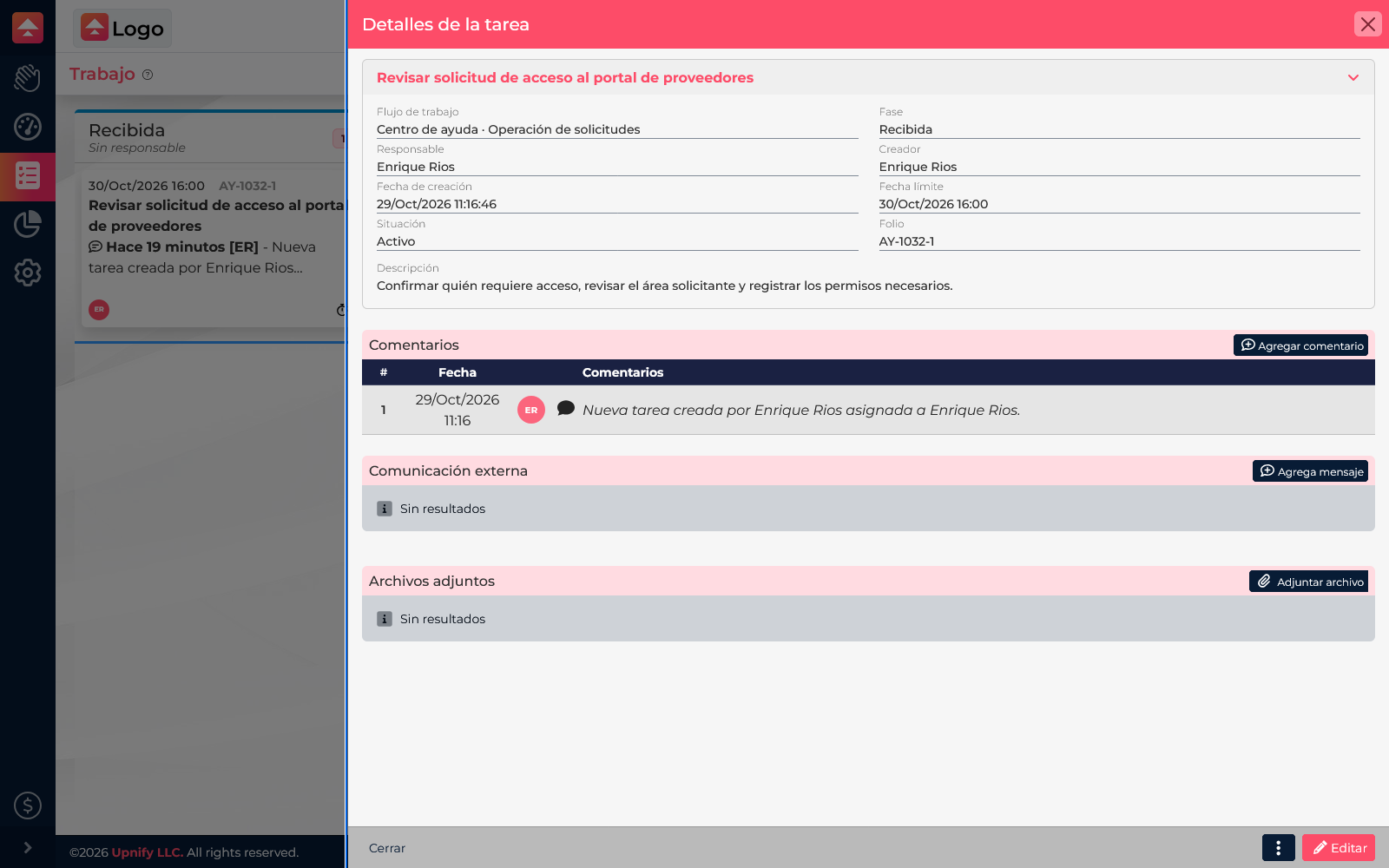
Open the task from List, Kanban, or Project. Review its workflow, phase, assignee, and due date, then click Edit to update the title, description, or other available fields. Save after reviewing your changes. If the process has moved forward, use Change phase instead of rewriting the description to represent progress.
Complete or cancel: choose the right outcome
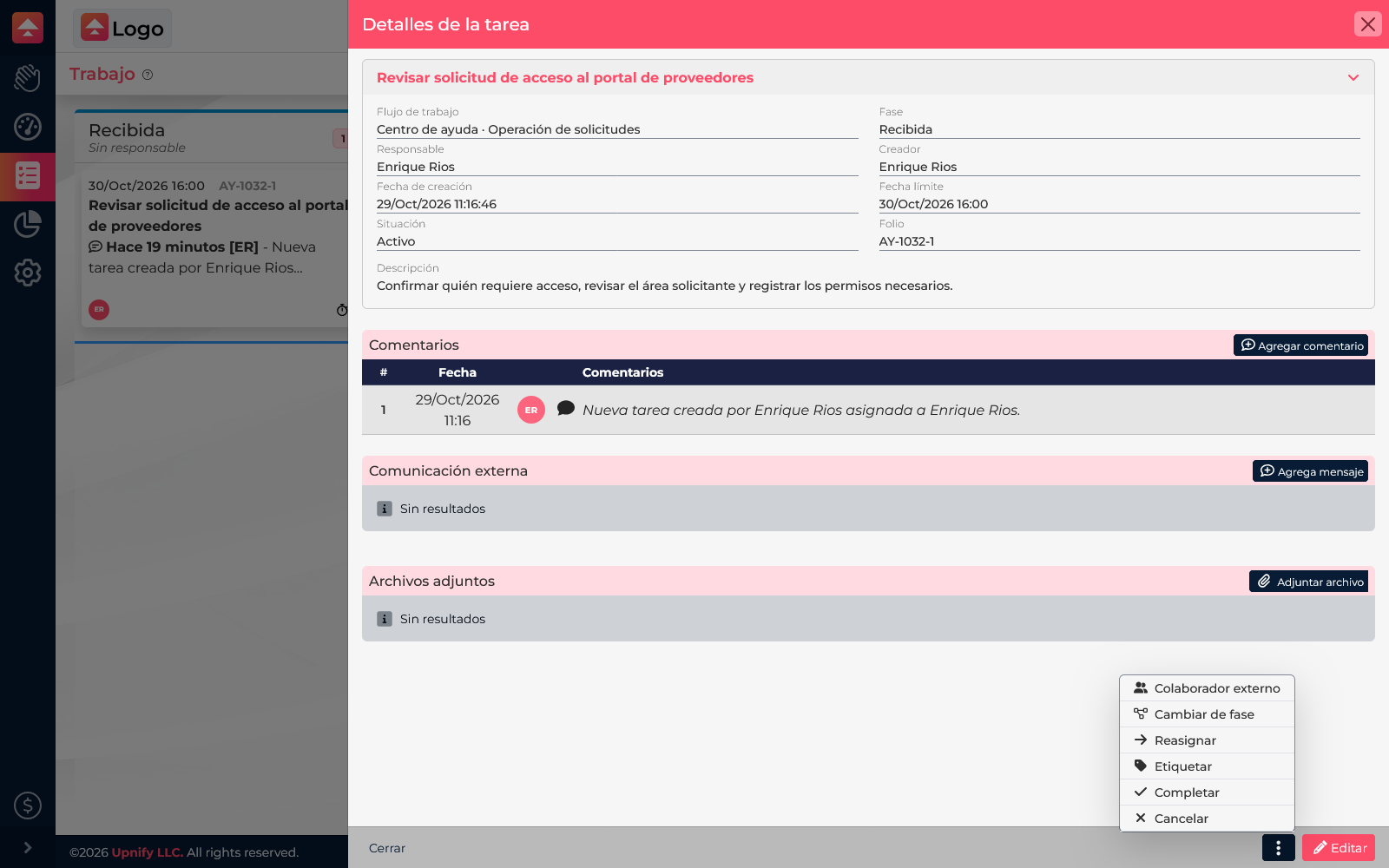
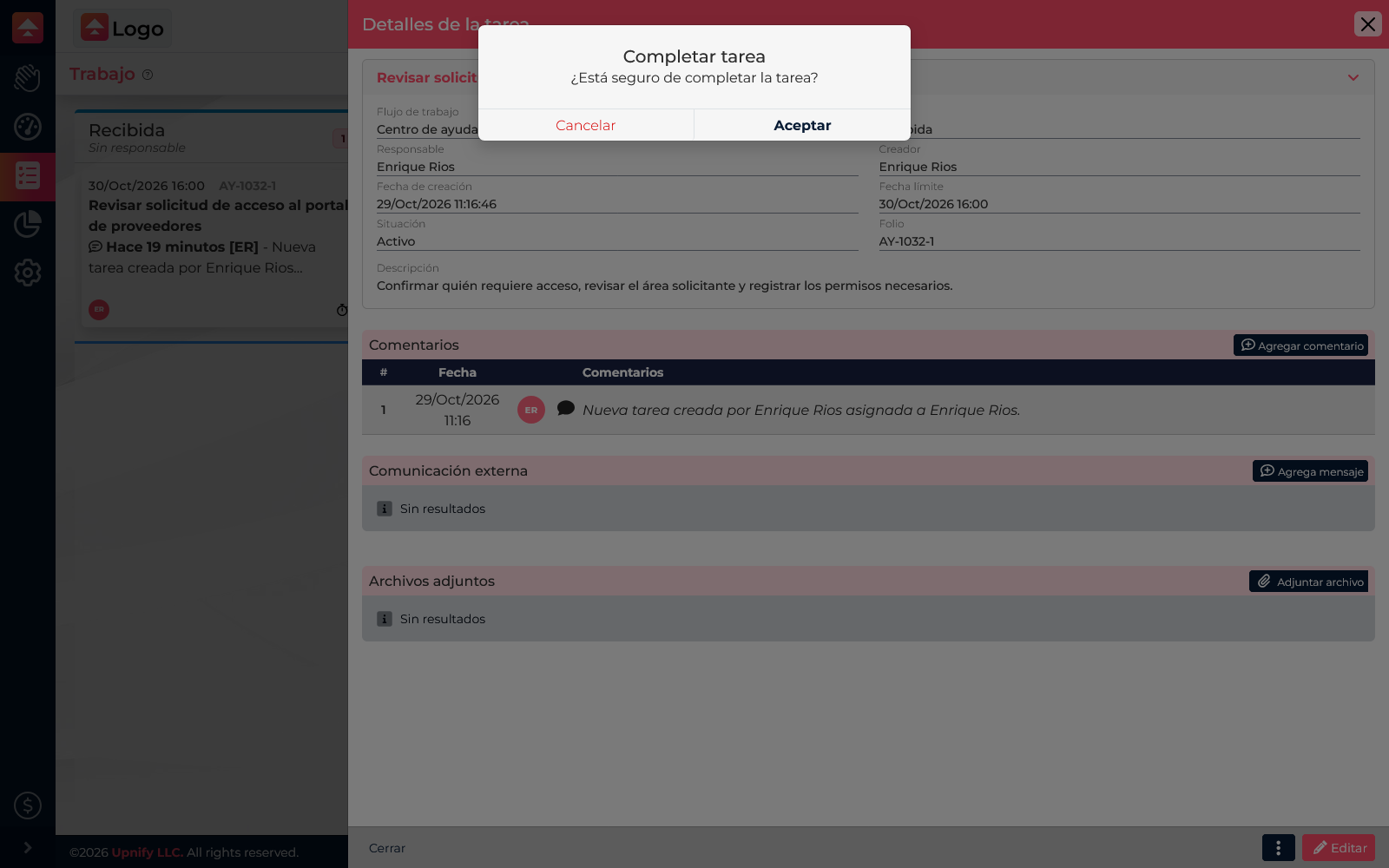
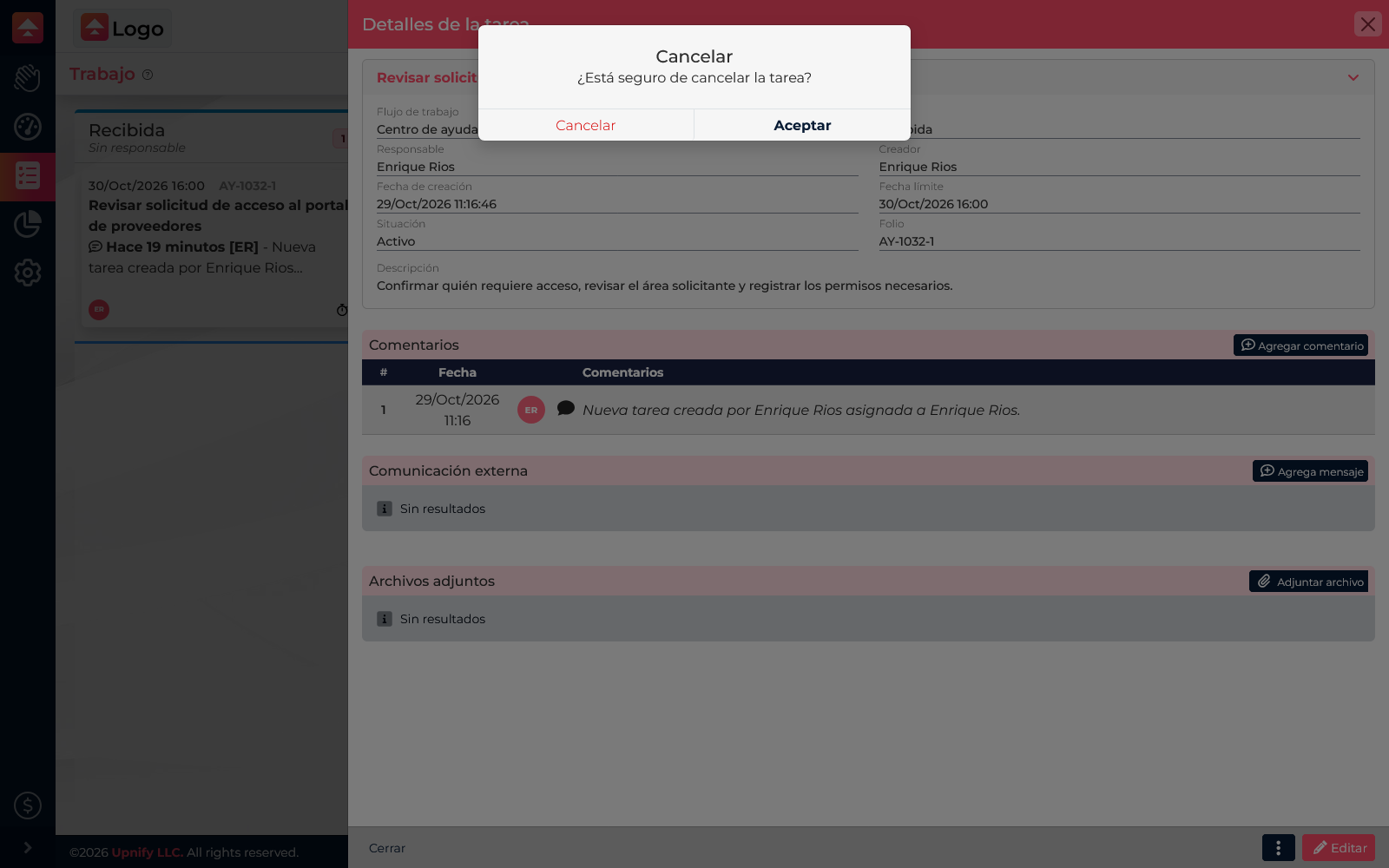
Open the task\u2019s action menu to find Complete and Cancel. Both close a task, but communicate different outcomes:
| Action | When to choose it | What it communicates |
|---|---|---|
| Complete | The work was done and no action remains for this task. | The task reached its expected result. |
| Cancel | The work is no longer needed or should not continue. | The task is closed without saying the work was completed. |
Flow asks you to confirm either action. Check the task title and message before accepting. If work remains, cancel the dialog and leave the task active; do not use Complete just to remove it from the list.
A simple routine for useful tasks
- Write titles that start with an action and describe a verifiable result.
- Include context that prevents the assignee from having to ask what to do.
- Update the date or description if the commitment changes; move the task to a new phase as the process progresses.
- Complete work that was done and cancel work that will not happen. Check the confirmation before closing the task.