
A form turns open-ended instructions into clear, consistent data capture. Instead of asking each person to describe a result in their own way, you define what must be recorded and which evidence is needed. This helps with service visits, inspections, deliveries, installations, and reviews another person will validate.
A Flow form can combine system information, custom fields, and evidence requirements such as images, a signature, or geolocation, depending on the process.
Design the form
- Go to Flow > Settings > Forms and select New.
- Give it a name that describes when it will be used, such as Service visit report.
- Under System fields, select information that should accompany the response, such as contact or company when relevant.
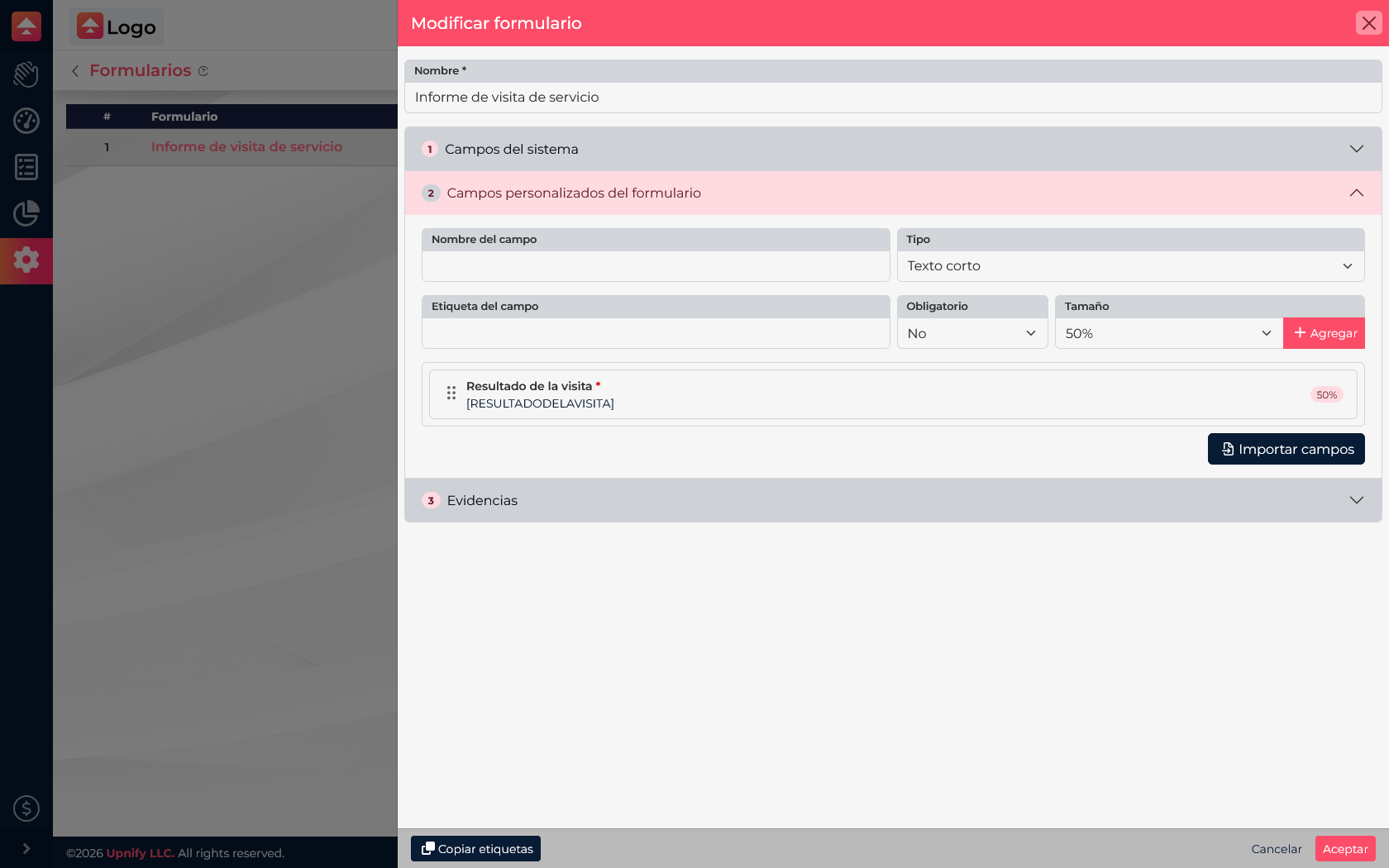
- Under Form custom fields, add questions and choose an answer type. Use a list or selection field when answers need to stay consistent.
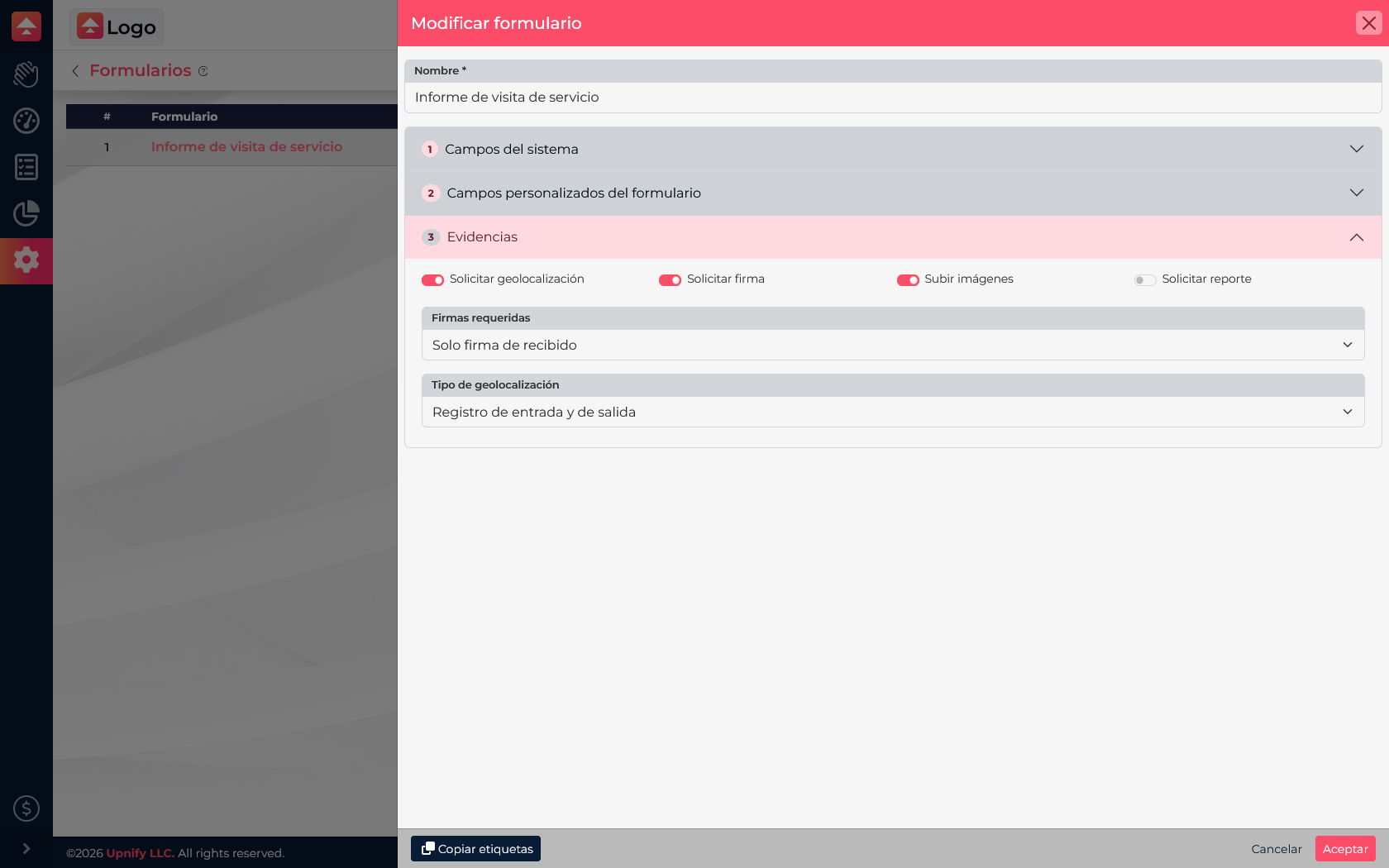
- Under Evidence, enable only what the process requires: geolocation, signature, images, or report. Set related options such as location type or required signatures.
- Save the form and add it to a checklist or task the team must complete.
Choose evidence for the work
Before enabling evidence, decide what the team needs to verify when the task is complete. System fields bring in information already related to the task or contact; custom fields ask for details specific to the service, such as the result, a measurement, or an observation.
| Situation | What the form can record | Useful evidence |
|---|---|---|
| On-site maintenance | Equipment inspected, result, readings, and pending work. | Before-and-after photos, location, and recipient signature. |
| Installation or delivery | Installed model, delivered accessories, and acceptance. | Installation photos and the recipient\u2019s signature. |
| Periodic inspection | Checklist items, conditions, and findings. | Photos of issues and location when work is done in the field. |
For example, a maintenance visit can ask for a service result and notes as custom fields, require equipment photos, and collect the signature of the person who received the work. If you also need to identify who performed the inspection, configure signatures to include the responsible person.
Prepare the format labels
If you need a consistent report, enable Request report in Evidence and select an HTML format. Choose an existing format or upload one from the format selector. The file defines the final layout; labels mark where each task, contact, responsible-user, or response value should appear.
- Add the custom fields that the response will use, such as Result and Observations.
- Use the form\u2019s Copy labels button to get the available labels. Paste them into the HTML where each value should appear. Labels are generated from field names; use the label provided by the form to avoid spelling mismatches.
- Include system labels such as
[WKF_TITULO_TAREA],[WKF_TAREA_FOLIO],[NOMBRE],[APELLIDOS], or[EJECUTIVONOMBRE]when the report should identify the task, contact, or person who handled it. - To place evidence, add
[FORMULARIO_EVIDENCIAS]. For the recipient\u2019s signature, use[FORMULARIO_FIRMA]; if the form also requests the responsible person\u2019s signature, include[FORMULARIO_FIRMA_EJECUTIVO]. - Save the file with the
.htmlextension, select it as the format, and test a response on a demo task. Check that values, photos, and signatures appear in the report before using it in your live process.
This is the report Flow generates from a completed response: saved answers replace the labels, and uploaded photos and signatures appear in their evidence blocks. The final layout depends on the selected HTML format.
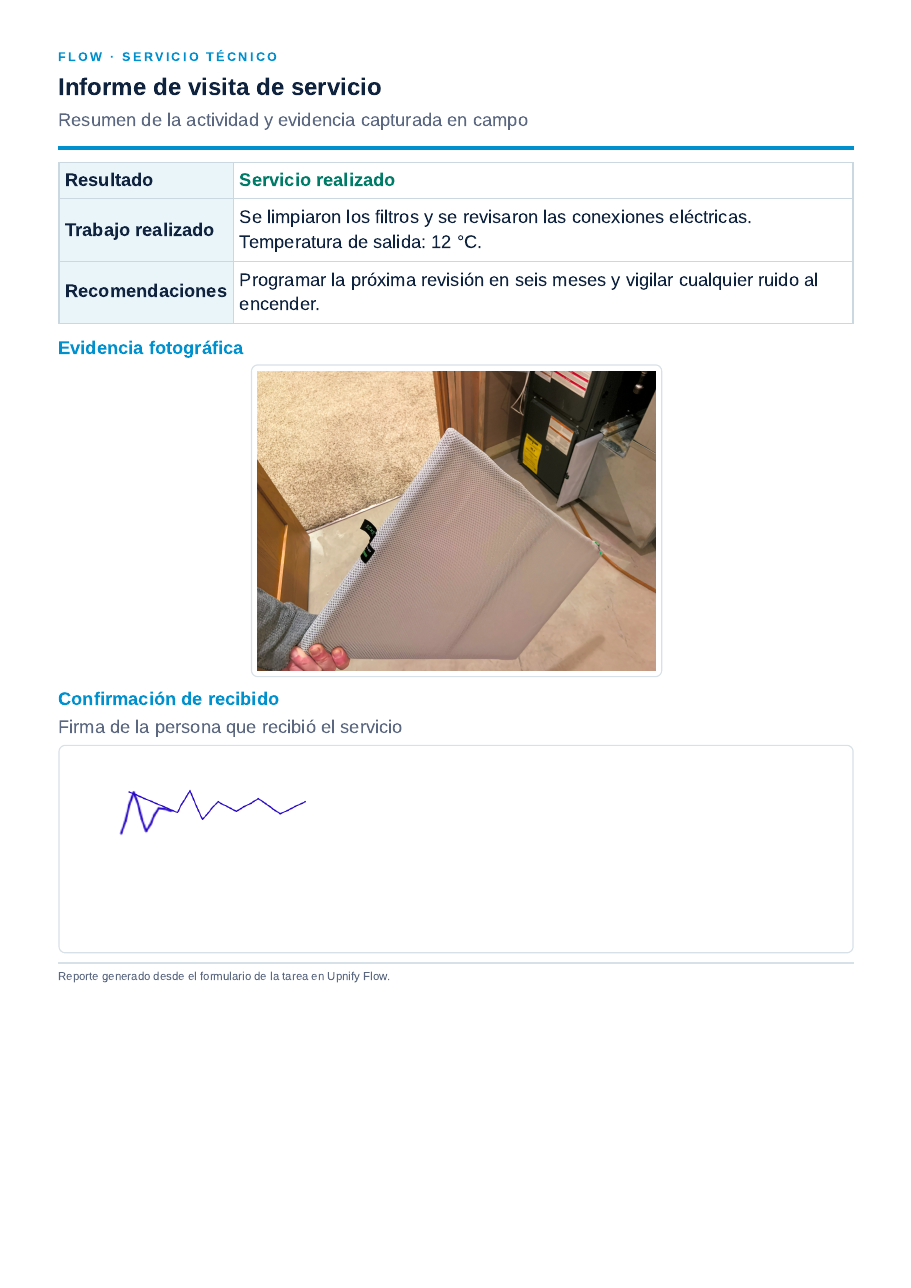
Example of a completed response
Imagine a preventive-maintenance task for a branch\u2019s air-conditioning unit. The technician selects Service completed, notes that the filters were cleaned and the drain checked, adds one photo of the serviced unit and another showing the result, and requests the signature of the person who received the work. If you enabled signatures from both parties, the technician signs as well.
After the response is saved, the team can review its fields and evidence in the task. When the report is generated, Flow places the information into the HTML format: the folio and contact identify the work, custom labels show the result and notes, and the evidence blocks include the available photos and signatures. This gives operations and supervisors one report to review instead of reconstructing the visit from separate comments.
Make the form easy to complete- Ask only for information someone needs to review, verify, or use later.
- Use clear options for recurring outcomes and open fields for unique details.
- Do not request a signature, image, or location unless it serves an operational purpose.
- Test the form from a task and confirm questions and evidence appear in the expected order.
The form captures information and evidence in the task\u2019s context. To make it part of a process, add it to the relevant template or checklist.