

Recurring tasks are useful when an activity needs to happen on a known schedule: review requests daily, perform maintenance monthly, or prepare a weekly report. Instead of creating each task from scratch, define the frequency and Flow generates later occurrences according to that schedule.
Use recurrence for repeatable processes with a clear owner, workflow, and due date. It is not a good fit for work that depends on an unpredictable decision or event; create a task when that event happens instead.
Set up a recurring series
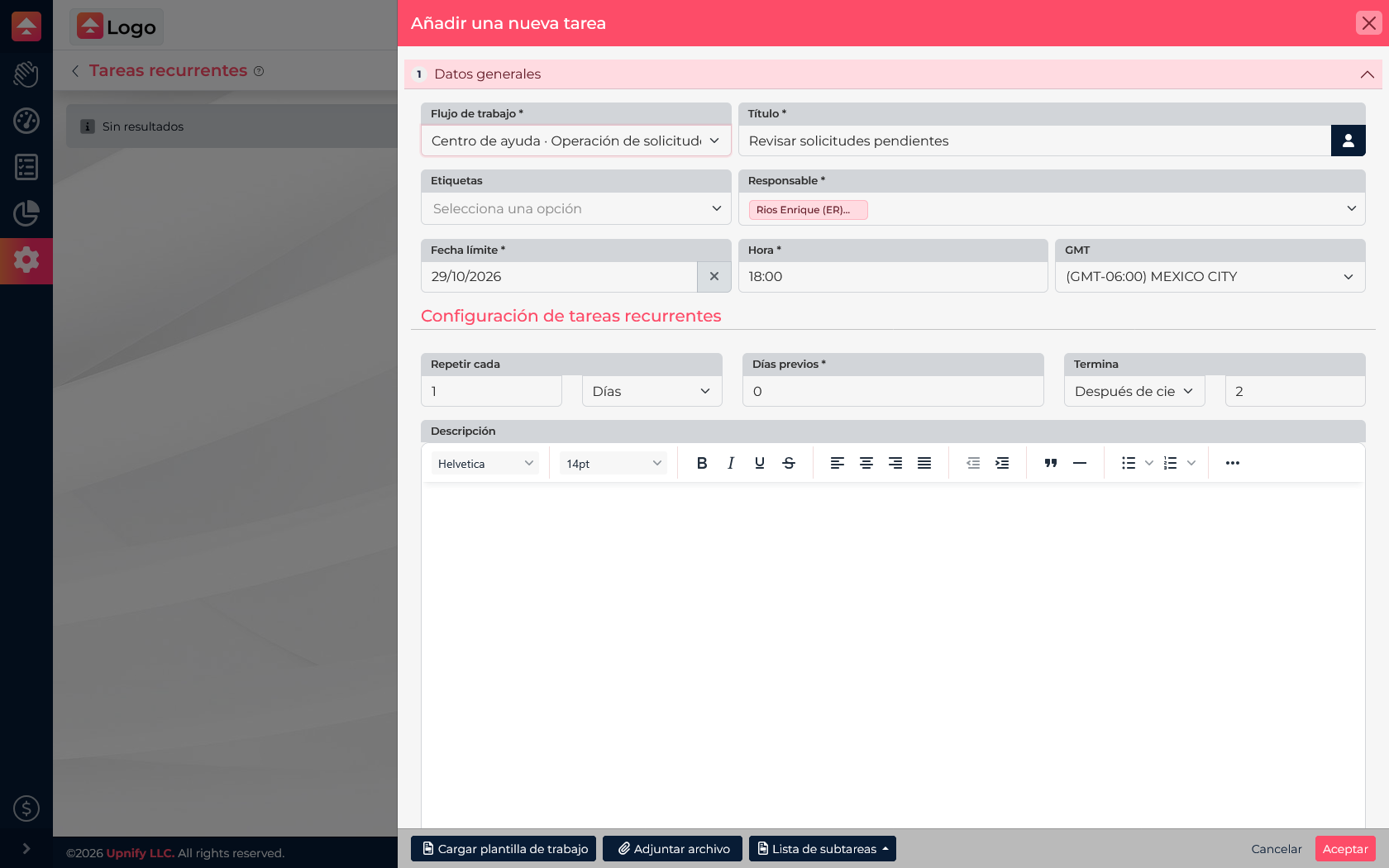
- Open Flow > Settings > Recurring tasks and select New.
- Select a workflow, enter the task title, and assign an owner.
- Set the due date and time for the first occurrence.
- Under Recurring task settings, choose the interval: for example, every 1 day, every 1 week, or every 1 month.
- Set Days in advance to indicate how early the task is prepared relative to its due date. Use 0 if it should be generated on the same day.
- Choose when the series ends: after a set number of occurrences, on a date, or with no end date, depending on the options in your account.
- Add a description, checklist, or files if the process needs them, then save.
Review the series
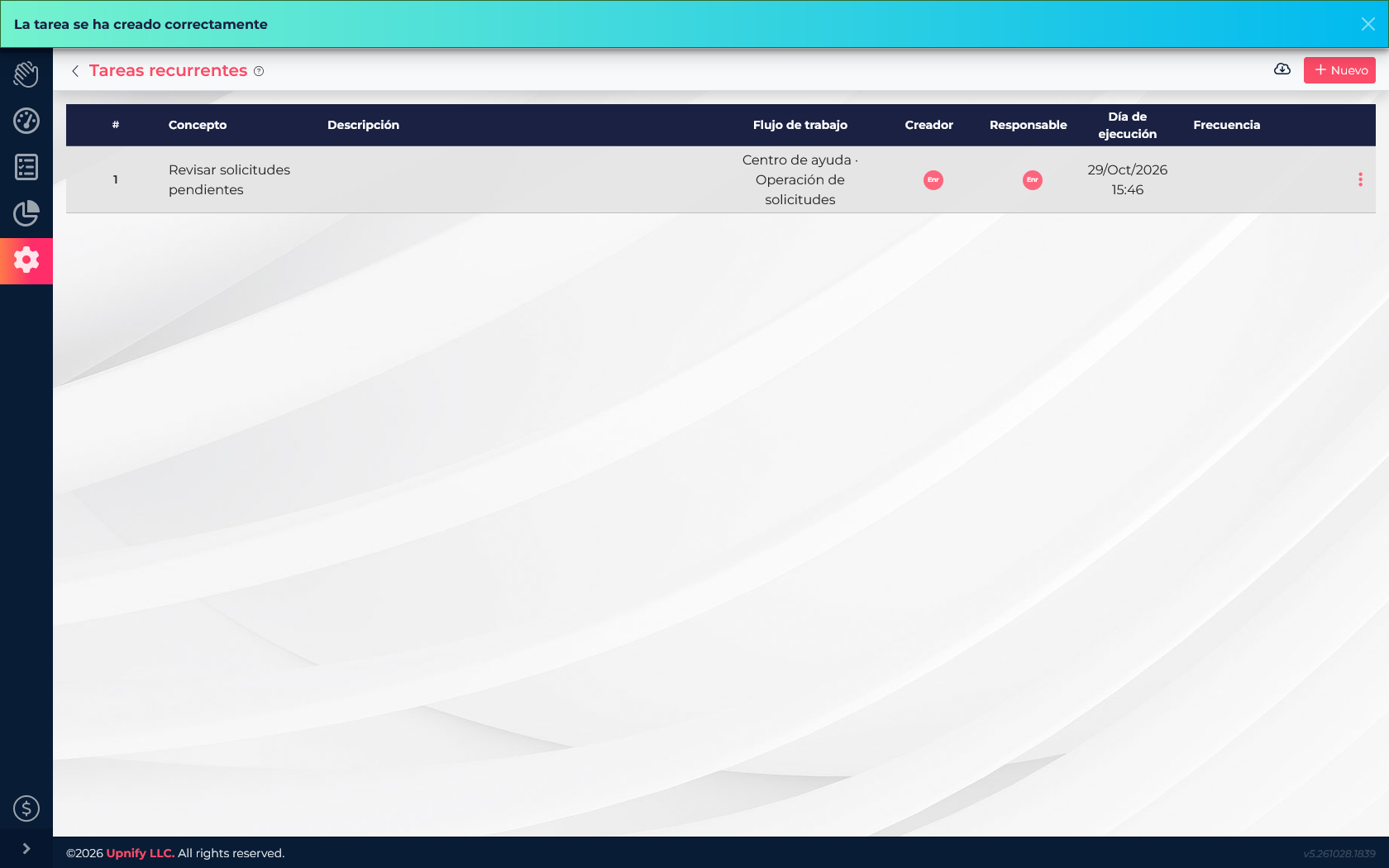
After saving, the series appears in the Recurring tasks list. Review its name, workflow, owner, execution date, and frequency there; the row menu provides the available management actions.
Stop recurrence without confusing the options
There is a practical difference between removing the schedule and canceling pending work too:
- Delete the recurring task from the list to remove the configuration that would create future occurrences. Tasks already created remain and must be completed or canceled separately.
- Cancel this task and its recurrences from a task\u2019s options to cancel that task and stop pending occurrences in the series.
Before confirming, check which outcome you need. If you only need to change the interval or end date, edit the series instead of deleting and recreating it.