
A template keeps people from writing instructions from scratch for recurring tasks. In Flow, a task template provides context and guidance, while a checklist template organizes the steps that must be completed. They help when a team repeats visits, installations, reviews, or deliveries and needs a consistent standard.
For example, a maintenance visit can start with a shared description and use a checklist with an initial review, a service report, and final photos.
Why are there two template types?
Flow separates these templates because a task has two levels that are useful to reuse independently: the main task information and the steps performed within it. This lets you standardize the full assignment, its checklist, or both.
| Type | What it reuses | When to use it |
|---|---|---|
| Task template | The task foundation: title, description, tags, owners and, if configured, files and subtasks. | When you repeat the same kind of assignment and want to start with its usual context and details. |
| Subtask template (checklist) | A reusable set of steps within a task. It can include required or sequential steps, forms, and file requests. | When tasks vary but must pass through the same checks or collect the same evidence. |
In short: a task template prepares the assignment; a subtask template guides how to complete it. They are not two names for the same thing.
In some controls, the second type may appear as Subtask template and in others as List template. Both refer to the reusable list, not a third type.
Create a task template
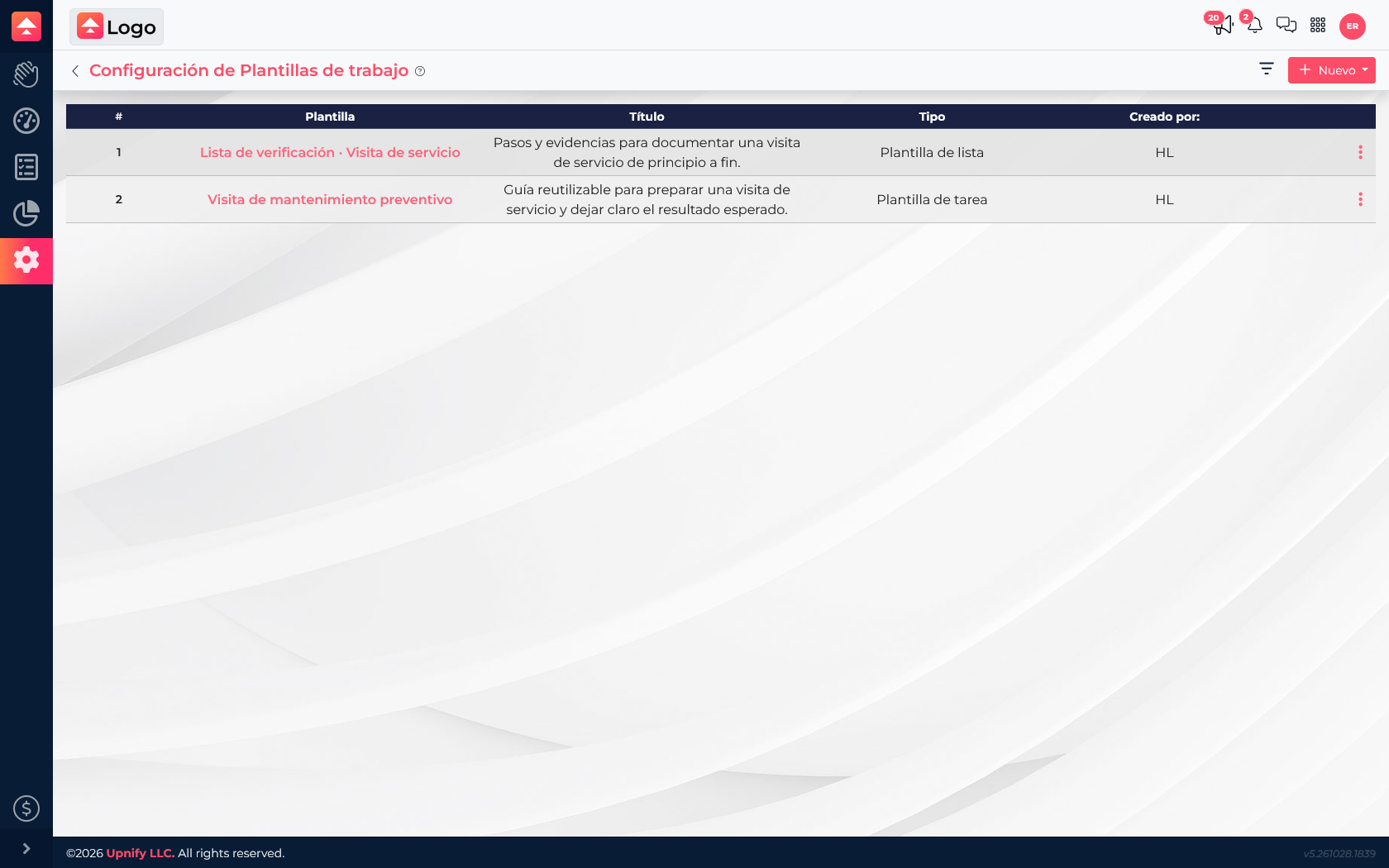
- Go to Flow > Settings > Work templates and select New.
- Choose Task template, enter a recognizable title, and write the instructions in Description.
- If needed, add tags, a suggested owner, and steps or subtasks that help complete the work.
- Save and review it in the list. Select it when creating a task or configuring a workflow where appropriate.
Create a subtask template (checklist)
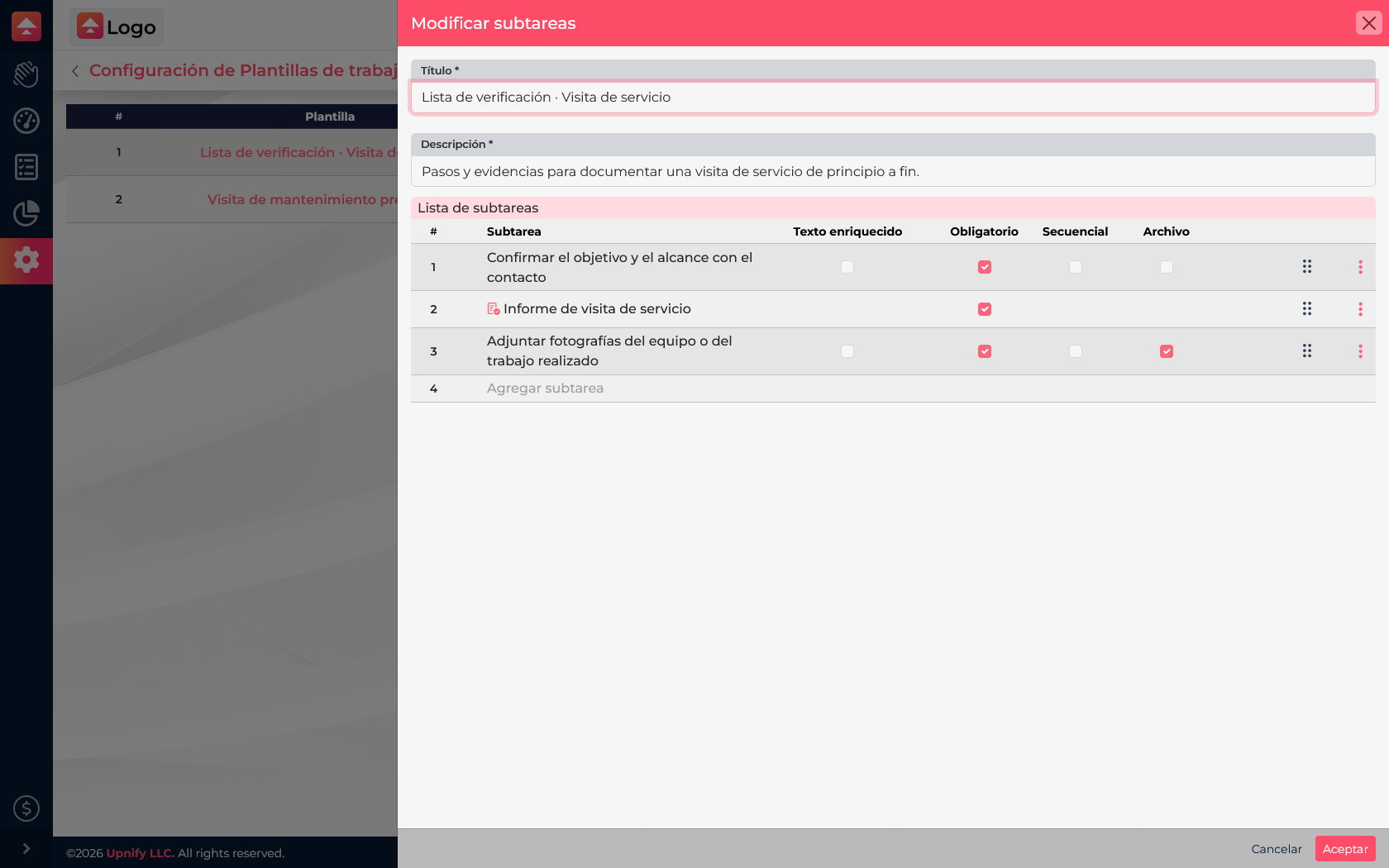
- Select New, then choose Subtask template.
- Give it a name and description that explain which process it covers.
- Add steps in the order they should be completed. Mark them as required or sequential when needed.
- When useful, add an existing form or configure a step to receive files.
- Save the checklist and use it for tasks that need the same controls.
What belongs in each resource
- Task template: purpose, context, and general instructions.
- Checklist: steps to mark, answer, or support with evidence.
- Form: structured information you need to compare or review later.
Review templates when the process changes. Remove steps that no longer help; if everyone performs a step differently, turn it into a clear instruction or evidence requirement.