
If your team keeps work documents in OneDrive, linking that account to Flow lets you choose those files when attaching them to a task. The evidence then stays alongside the workflow, phase, assignee, and comments instead of relying on every person to find and upload a separate copy from their computer.
The connection belongs to each user
Flow saves the integration in the settings of the user who authorizes it. Each person who needs to choose their own OneDrive files must link their account; a teammate\u2019s connection does not automatically sign in everyone else.
Before you start
- Sign in to Upnify with an account that has access to Flow.
- Have the Microsoft account that contains the files ready.
- If you use a work or school account and your organization restricts connected apps, you may need help from your Microsoft 365 administrator.
Microsoft distinguishes personal accounts from work or school accounts. If you are unsure which one to use, see Microsoft\u2019s official explanation of account types.
Connect OneDrive from Flow
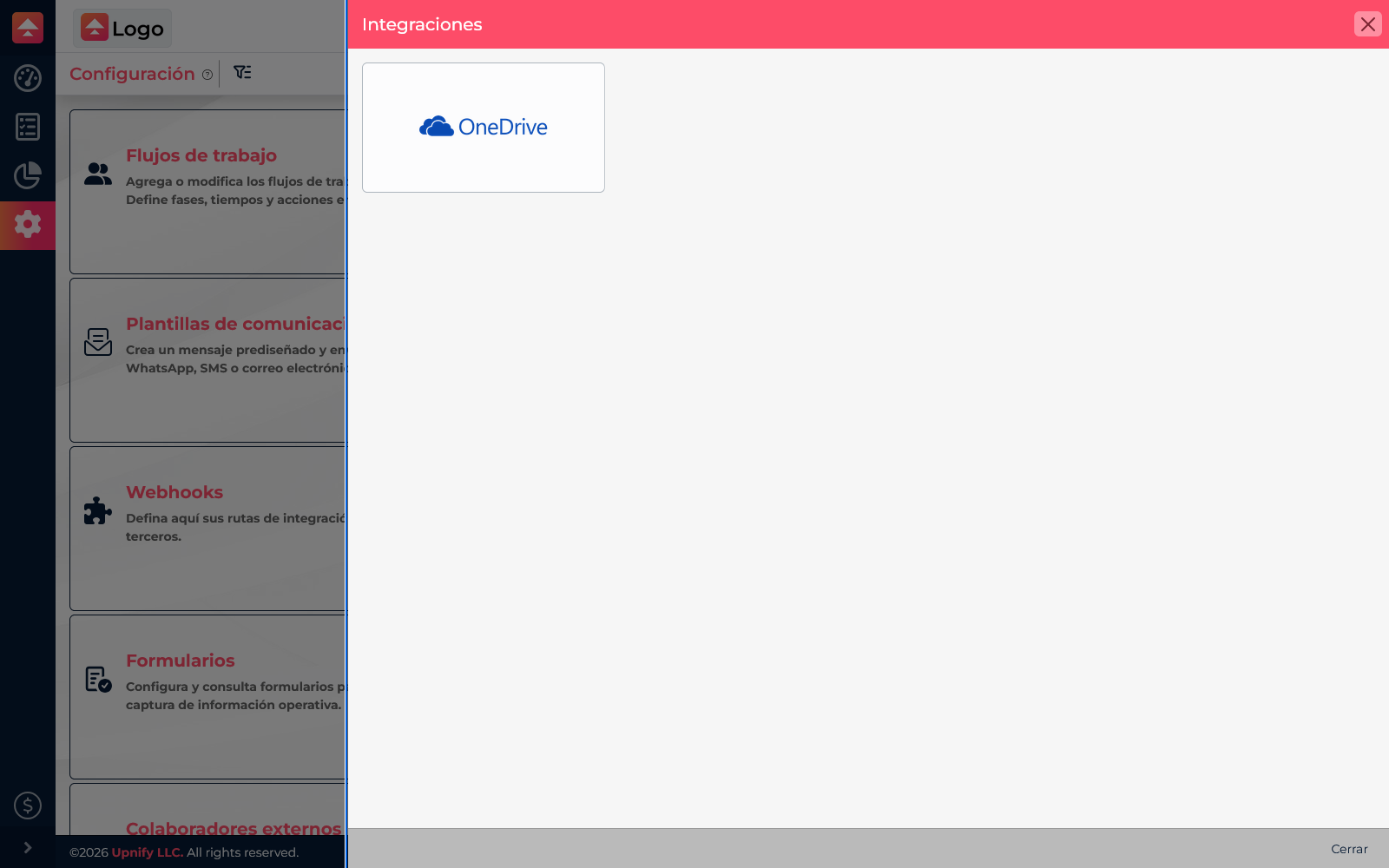
- Open Flow > Settings and select Integrations.
- Select the OneDrive card to open its options.
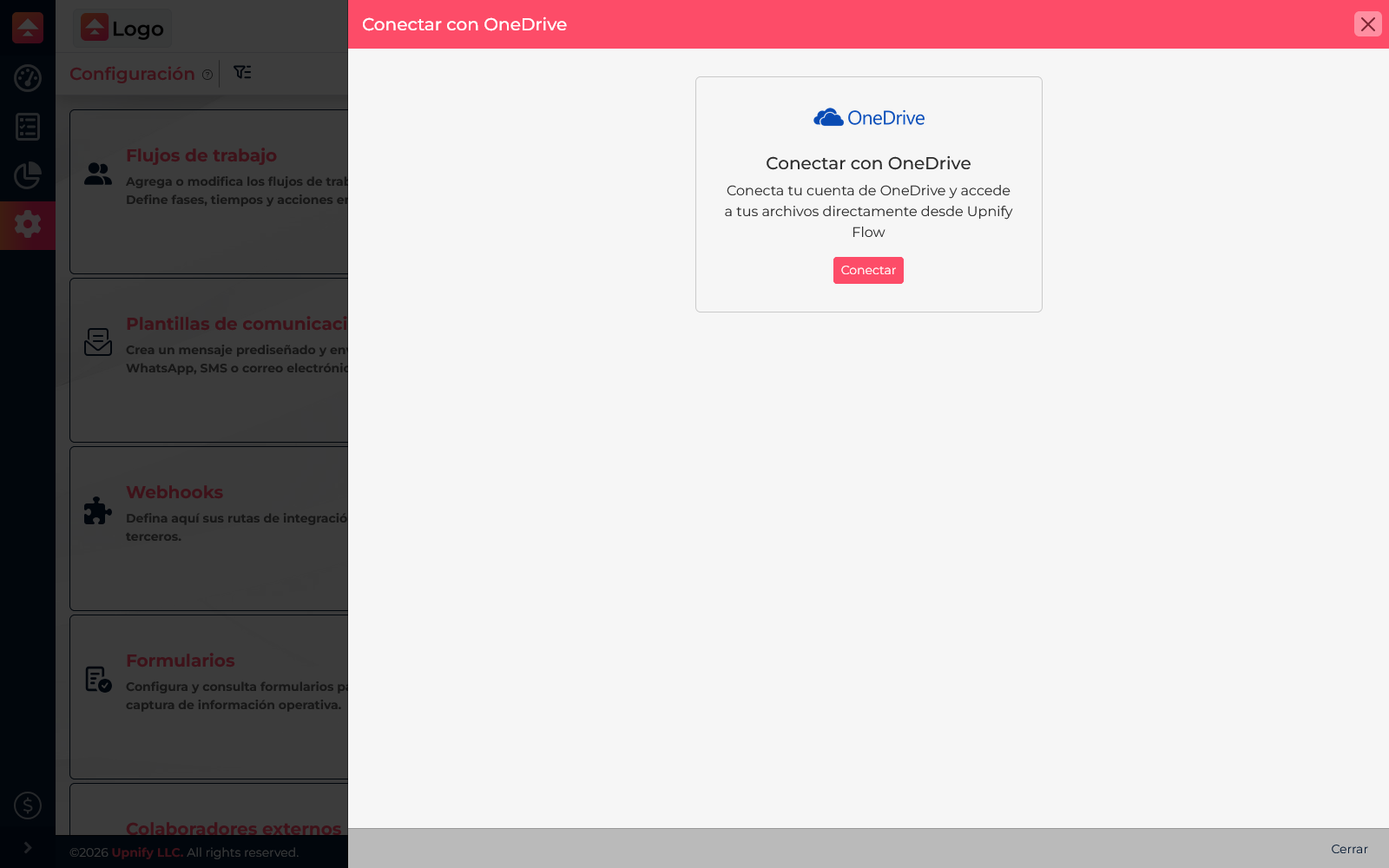
- Review the description and select Connect. Upnify opens Microsoft\u2019s authorization window.
- In the Microsoft window, sign in to the OneDrive account you need and complete the authorization prompts.
- Return to Flow. The card should reflect that the account is connected; if an identity is displayed, make sure it is the account that contains your files.
Choose a file while working on a task
- Open a Flow task and find Attached files.
- Select Attach file. After OneDrive is connected, the menu includes that source.
- Open OneDrive, find the document, and select it to add it to the task.
- Check that it appears in the task\u2019s Attached files table.
OneDrive is another file source inside Flow. The task keeps the file as evidence in its own details; connecting the integration does not synchronize every OneDrive folder with Flow.
If you cannot connect or find the account
- Confirm that you authorized the Microsoft identity where the file is stored. If your browser has several active sessions, Microsoft may offer more than one account.
- If you cannot sign in to OneDrive, see Microsoft\u2019s official OneDrive sign-in troubleshooting.
- If your organization blocks consent or OneDrive access, contact your Microsoft 365 administrator.
- If an earlier connection no longer works, return to Integrations and check OneDrive\u2019s status. Disconnect only if you need to switch identities, then connect the correct account.
Example: sharing a proposal for review
If the sales team stores approved proposals in OneDrive, each person can link their account, open the review task, and attach the right document. The assignee can then find the evidence in Flow alongside the task\u2019s other updates.