

Some tasks require people outside the internal team: a provider who will install equipment, a maintenance company, or a specialist who must review evidence. Flow lets you organize these relationships through a specialties catalog and an external collaborators directory.
The catalog classifies available expertise; the directory stores contact details. Registering a person in the directory does not by itself invite them to a task. Send an invitation from the task when you need that person to participate.
Organize the specialties catalog
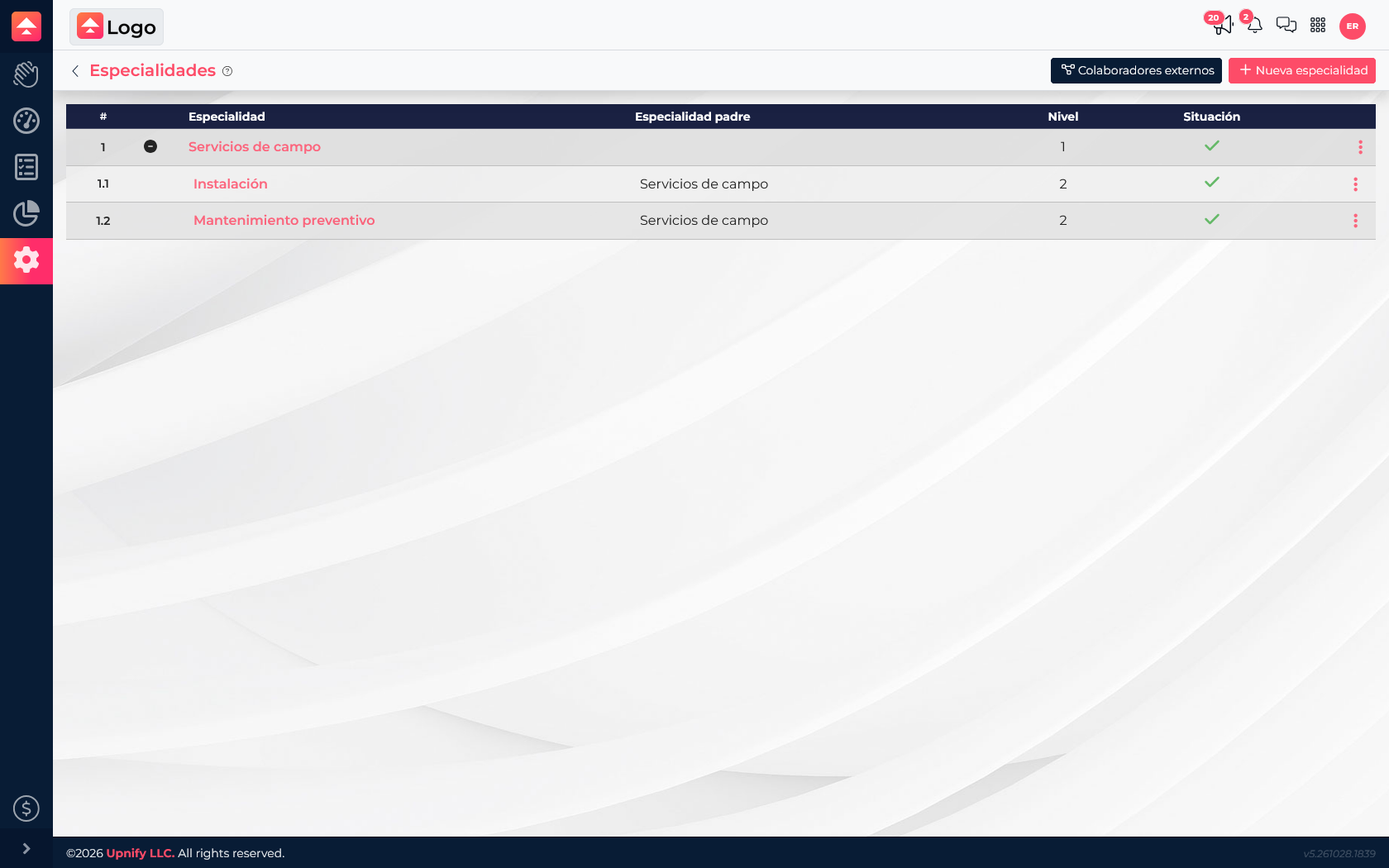
- Go to Flow > Settings > External collaborators > Specialties.
- Create a main specialty for a broad discipline, such as Field services.
- Add child specialties for specific work, for example, Installation and Preventive maintenance.
- Review the tree and make sure each specialty is under the category that accurately describes the service.
Register an external collaborator
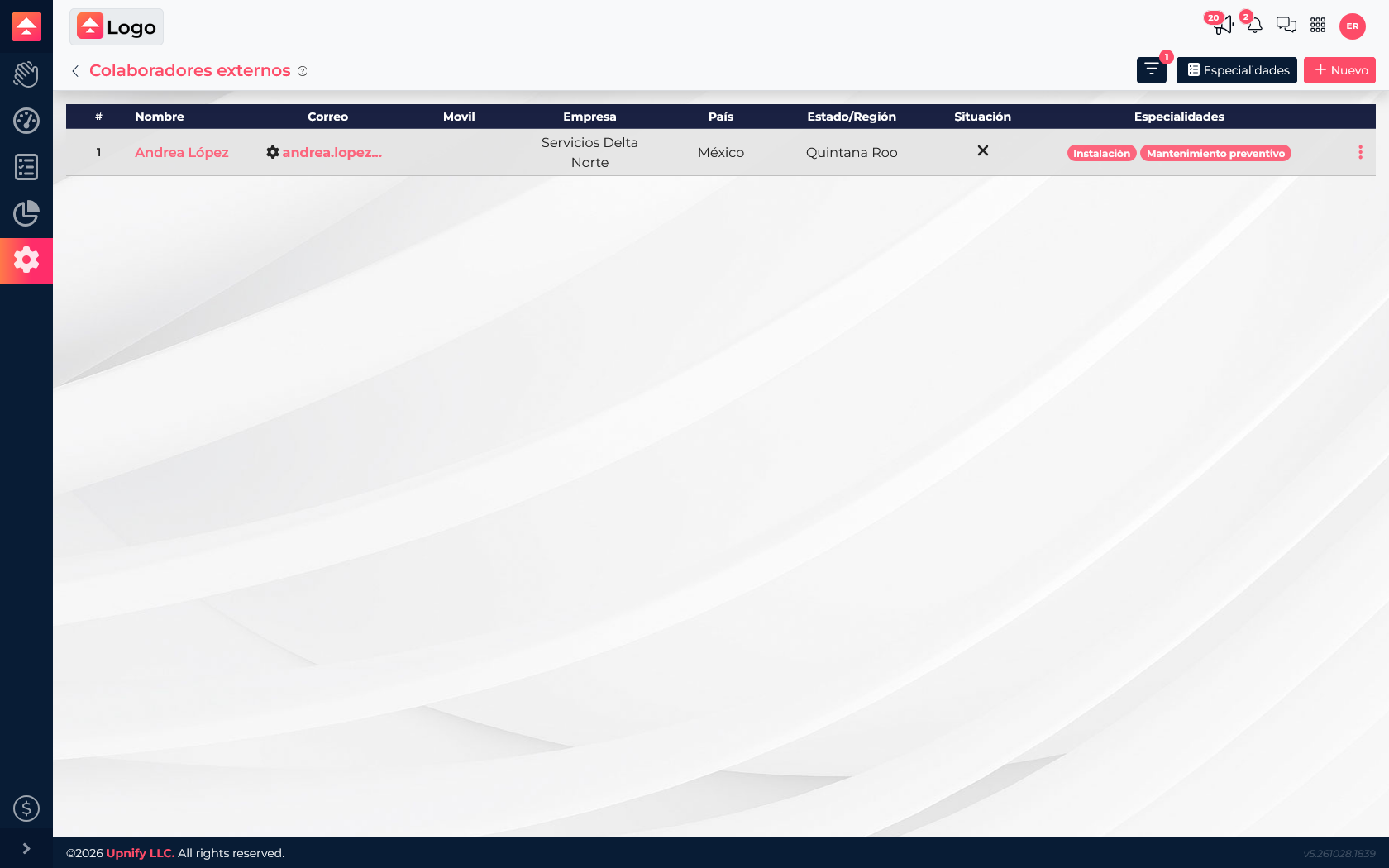
- Open External collaborators and select New.
- Enter the name, company, email, and any location or phone details the team needs to coordinate the work.
- Assign one or more specialties from the catalog so the person can be found by service type.
- Save and review the row in the list, including its specialties and status.
Link an external collaborator to a task
When a task needs outside support, link the person from the directory to that task. The specialty shown next to a name helps you choose someone with the right background; assigning a specialty in the directory does not automatically add that person to tasks.
- In Flow > Work, find and open the task the collaborator will handle.
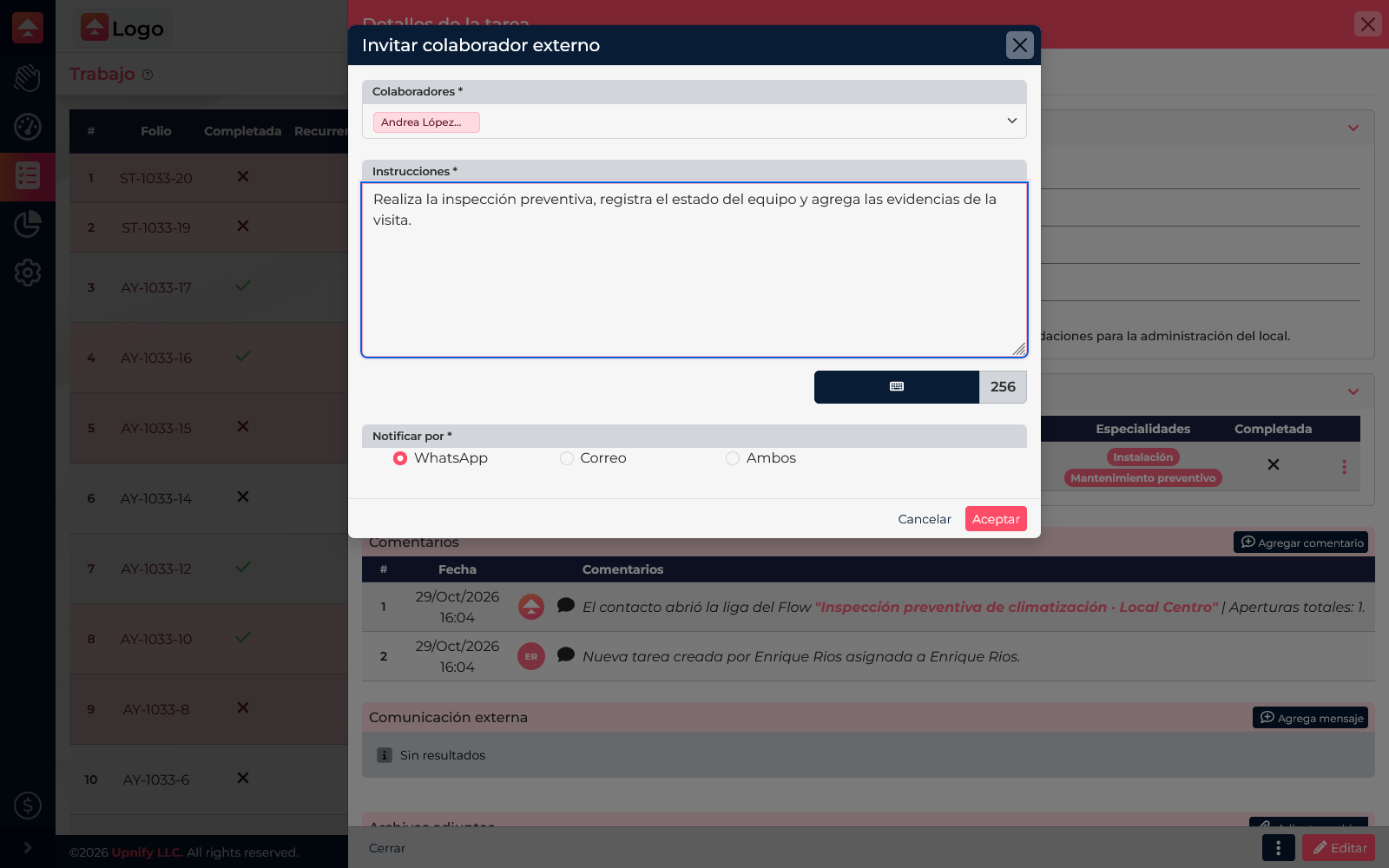
- Open the task options menu (?) and select External collaborator.
- Search for and select the person. If several names are similar, use the specialties shown in the list to identify the right person.
- Write clear instructions: what to inspect or do, what result you need, and what evidence to attach.
- Choose whether Flow should send the link by WhatsApp, email, or both, then select Accept.
Flow links that person to the task and sends them a link to participate. In the task details, you can check who was invited, the instructions, and their participation status.
What the collaborator sees through the link
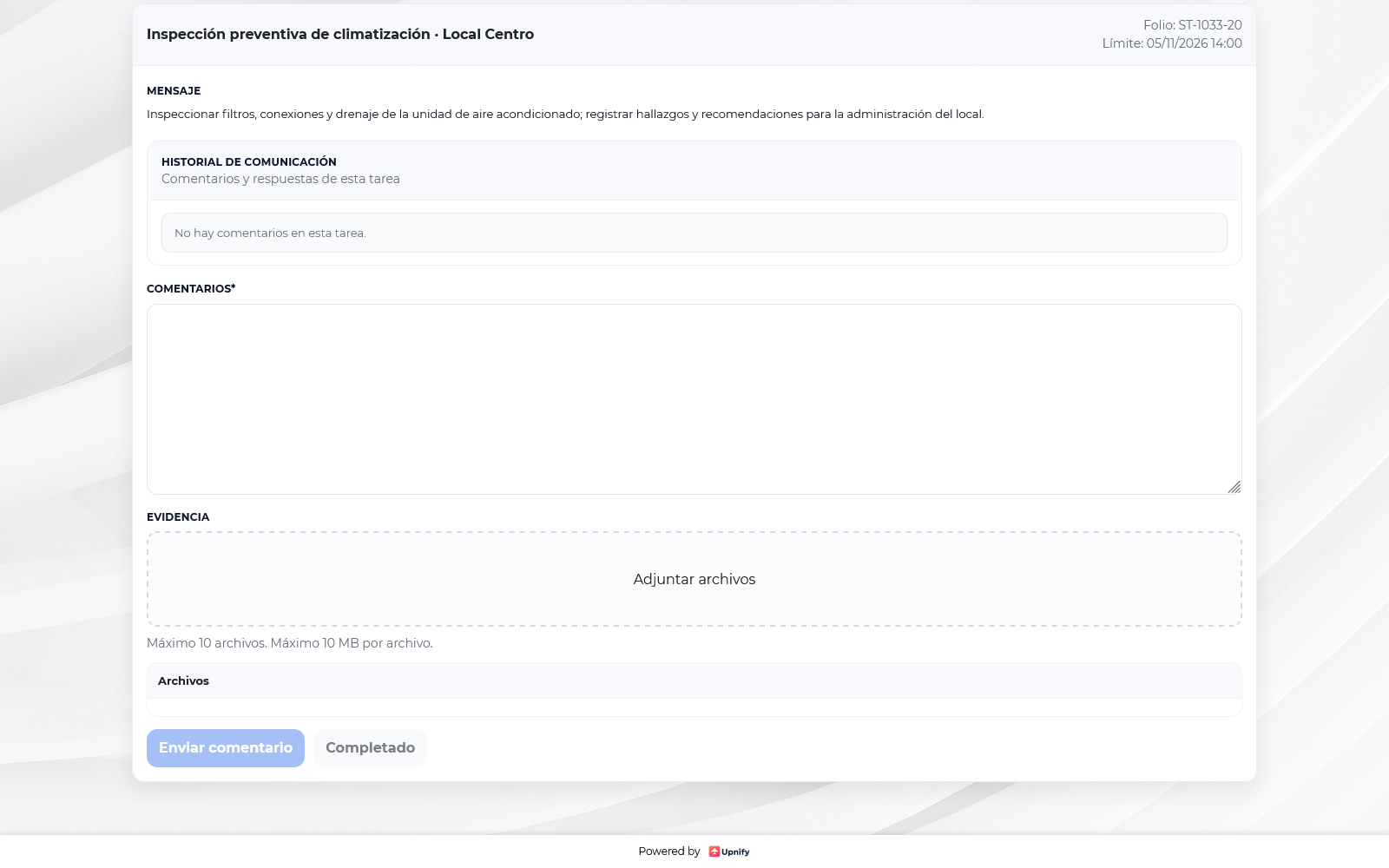
The link opens a portal for that task. The collaborator can review company and contact details, the internal owner, the task name and reference number, its due date, and the instructions. Access is tied to the invited task and collaborator; it does not open the rest of Flow or other company tasks.
From the portal, the collaborator can write a comment describing findings or work performed, attach evidence, and select Send comment to keep everyone informed. The portal accepts up to 10 files, with a maximum of 10 MB each. When their part is finished, they can add a final comment and select Completed. This marks the collaborator’s participation as complete; the internal task continues through its own Flow process and tracking.
Use the catalog in daily work
When you need help, search or filter the directory to find someone with the right specialty. Then link that person to the specific task and share the context needed to complete it. For example, an installation task may go to someone classified under Installation; a periodic check may require Preventive maintenance.
Review contact details, specialties, and record status periodically. If someone stops collaborating, use the row actions to update or deactivate the record as appropriate, and avoid assigning new tasks while their access is being reviewed.