

When a workflow contains different kinds of requests, the phase name alone may not explain what needs attention. Tags add a visual cue to a task: they help distinguish cases, group related work, and quickly find a set of tasks.
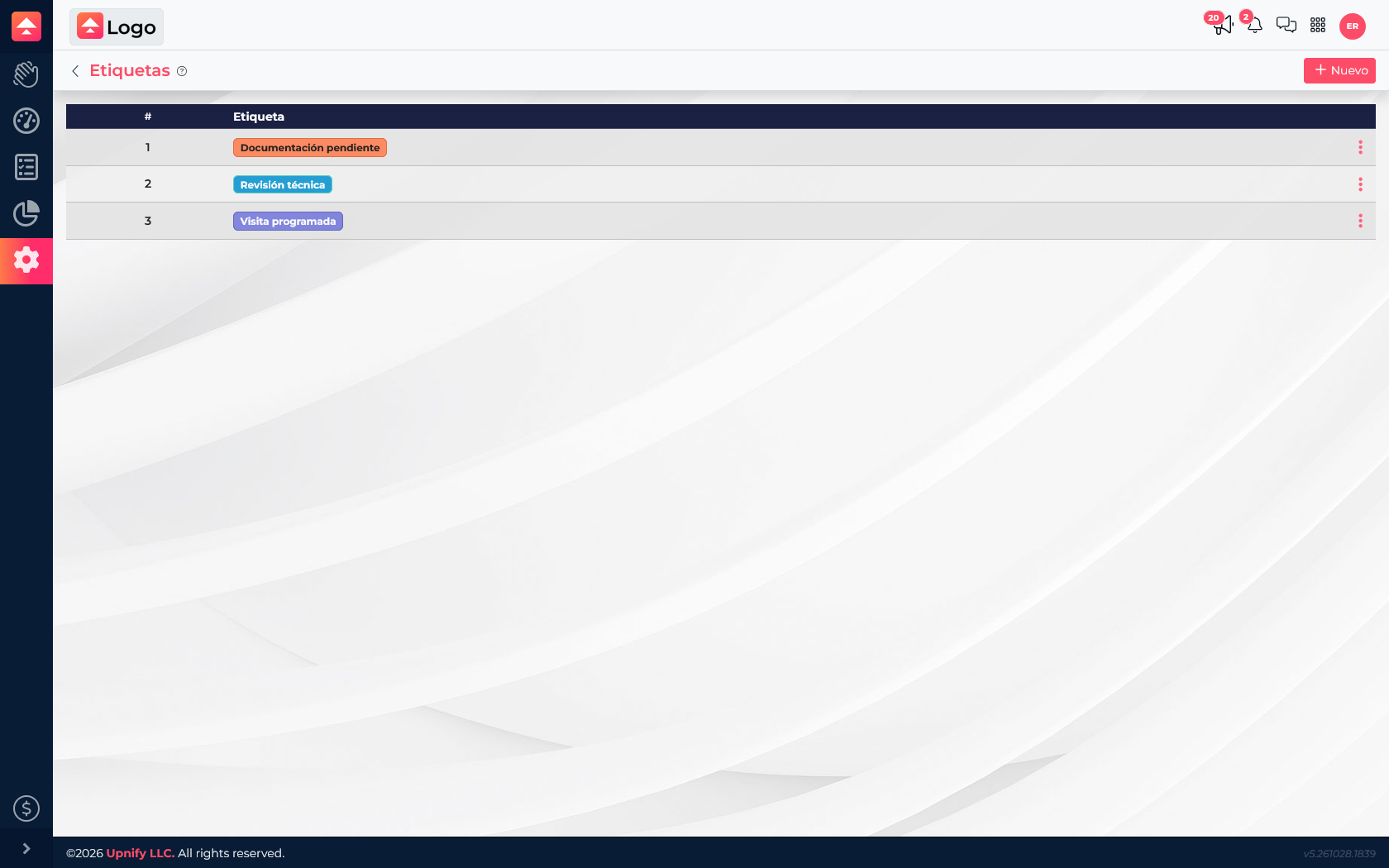
For example, a support team can tag a request as Documentation pending, Technical review, or Visit scheduled. Anyone viewing the task can understand the next follow-up without opening every record. Tags complement the workflow and its phases; they do not replace the owner, due date, or task status.
Create and maintain the tag catalog
- Go to Flow > Settings > Tags.
- Select New, enter a short name that describes a condition or type of attention, and choose a color.
- Save and repeat for the other tags your team needs.
- Check the list before creating another tag: equivalent names with different colors make consistent classification harder.
Apply a tag to a task
When creating or editing a task, use the Tags field to select one or more catalog options. The tag is associated with that task and remains a visual reference while the team works. If the context changes, edit the task and update its tags so they still describe the situation.
In task lists, use the available filters to narrow the view to the work you need. Before a field-service day, for instance, find tasks tagged Visit scheduled; a reviewer can focus on Technical review. Results depend on the team applying tags consistently.
Example
Imagine the Request operations workflow receives reports, questions, and visit requests. Keep phases for overall progress\u2014received, under review, in progress, and final validation\u2014and use tags to describe the type of follow-up within any phase. A task can move between phases without losing its classification, and the team can find all visits even when they are at different stages.
- Use a tag for a classification that can appear in several phases.
- Do not create a tag for every individual case; use the task title and description for that.
- Agree on who can create new tags to avoid duplicates.
If a tag is no longer useful, first check whether any tasks still depend on it. Then use the catalog actions to manage it according to the options available in your account.