
Flow\u2019s task report helps answer questions such as: How many tasks were created this month? How were they distributed among owners? Which workflow had the most work? It lets you compare task volume using the same criteria and then open the details behind a number.
Open the report and choose how to group tasks
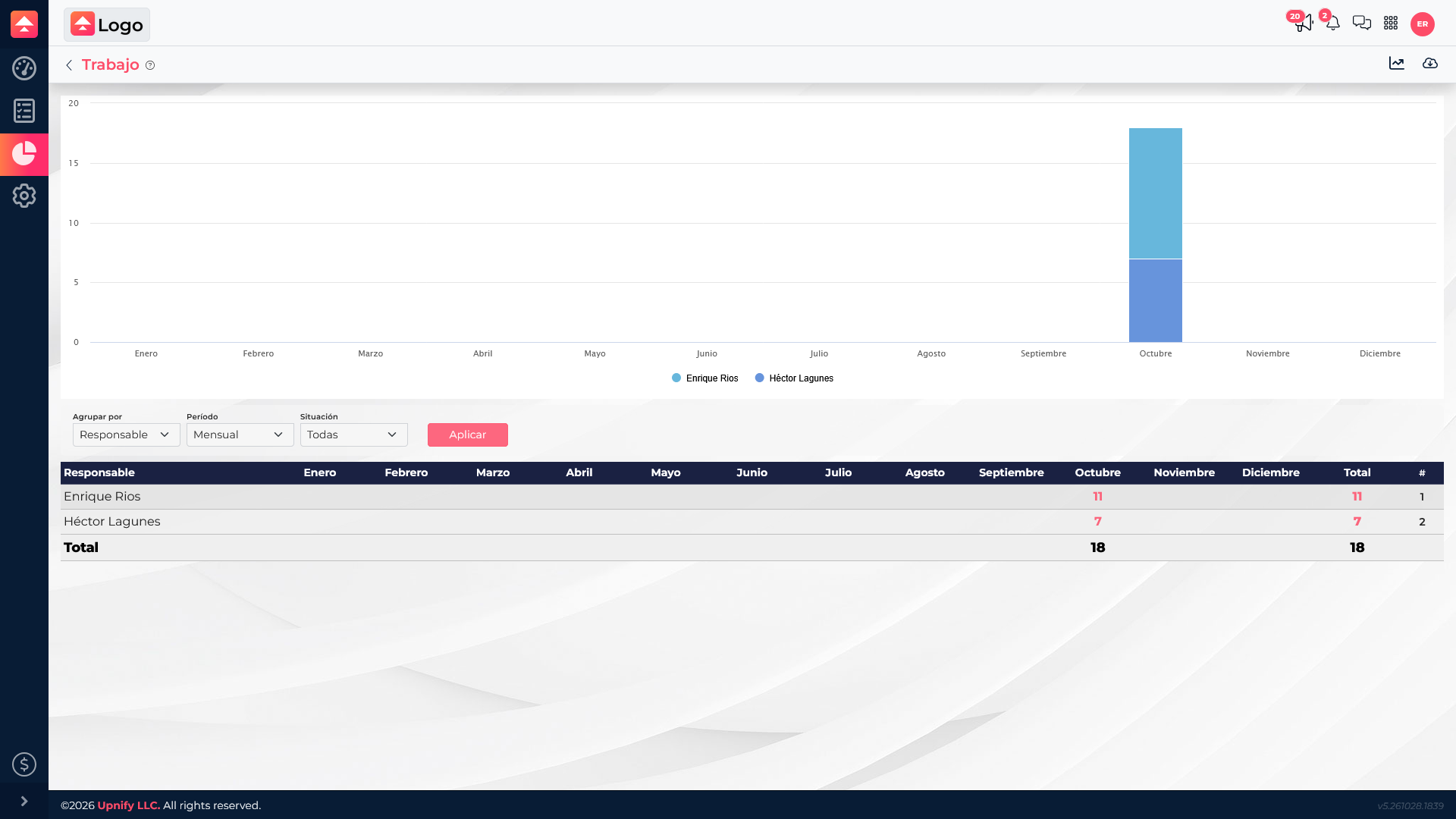
- In Flow, open Reports and select Work.
- In Group by, choose what you want to compare:
- Creator: the person who created the task.
- Owner: the person assigned to carry it out.
- Workflow: the process the task belongs to.
- In Period, select Monthly to compare months in a year or Weekly to review weeks.
- Choose a year and any additional criteria you need, then select Apply.
Read the table and open the tasks
Each row represents the person or workflow selected in Group by. Columns show months or weeks, along with the period total. For example, a task with an assigned owner is counted for that person; switching to Creator shows who entered the tasks, while grouping by Workflow helps compare processes.
Report counts are links. Select a month or week number to open the list of tasks behind that result. From the detail, you can review the title, workflow, creator, owner, due date, and status. The row total also opens the details for the entire period.
Choose filters that answer your question
Use the monthly period to review trends across a year or compare months; use weekly when you need a closer view of changes. Status and year help narrow the query. If the report is empty, check whether tasks were created during the selected year and period and whether the grouping matches the people or workflows you are looking for.