
When a workflow contains many requests, finding a task from memory alone can take time. Search and filters in Flow > Work help you find a specific record or narrow the list to what the team needs to review. This is useful before a meeting, when checking due dates, or when someone asks for the status of a case by its folio.
Quick search and filters: when to use each
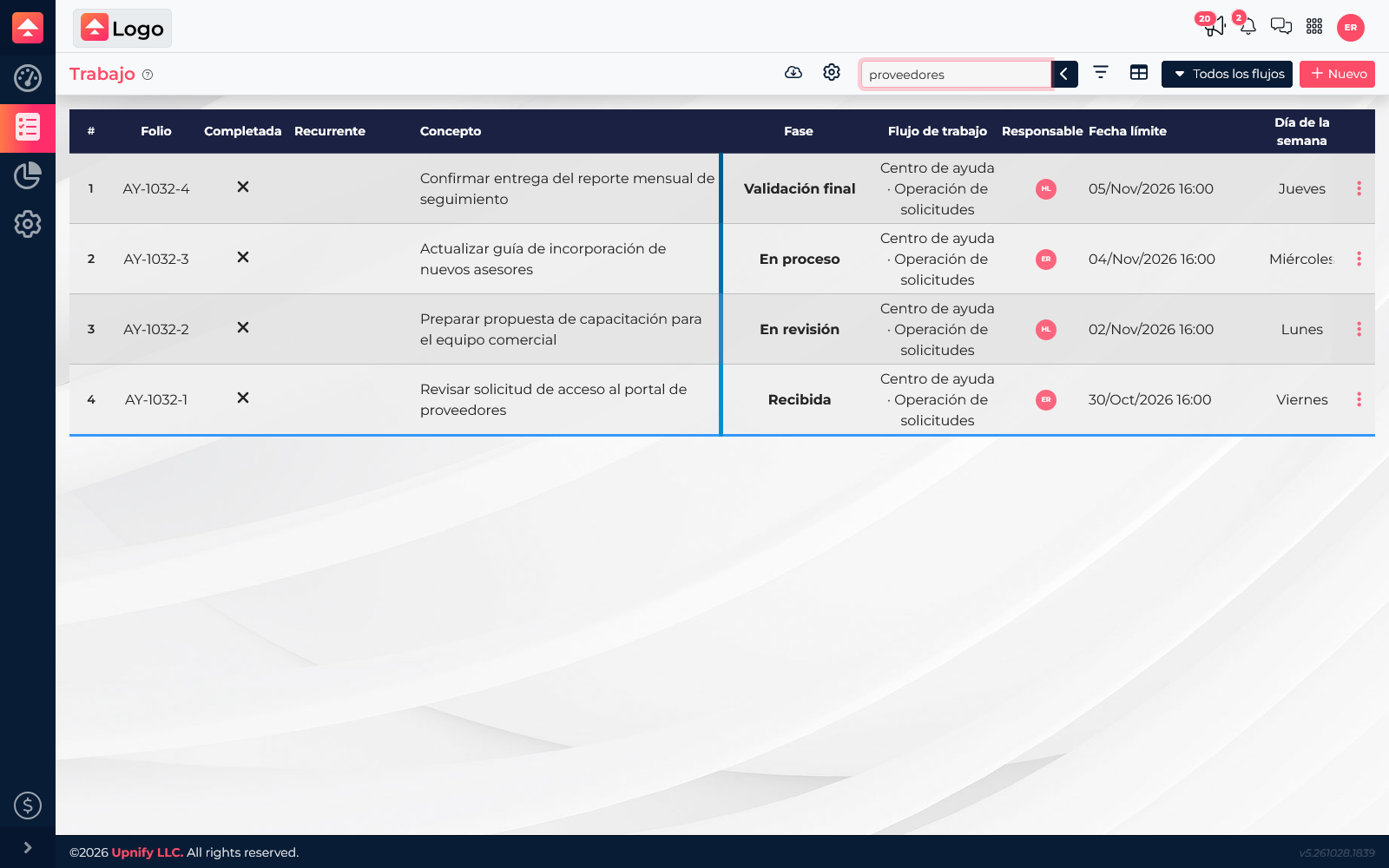
Quick search is useful when you remember a word from the task title or a short detail. Open the magnifying glass above the list, enter the term, and press Enter to run the search. If the result does not appear, try a more distinctive word or use filters to search a specific field.
The filter button narrows results using defined criteria. Depending on the data type, you can choose values such as creator, assignee, contact, company, workflow, phase, label, or status; you can also search by folio and dates. Filters are especially useful when a word appears in several tasks or when you need to review a group of tasks.
Filter by a specific criterion
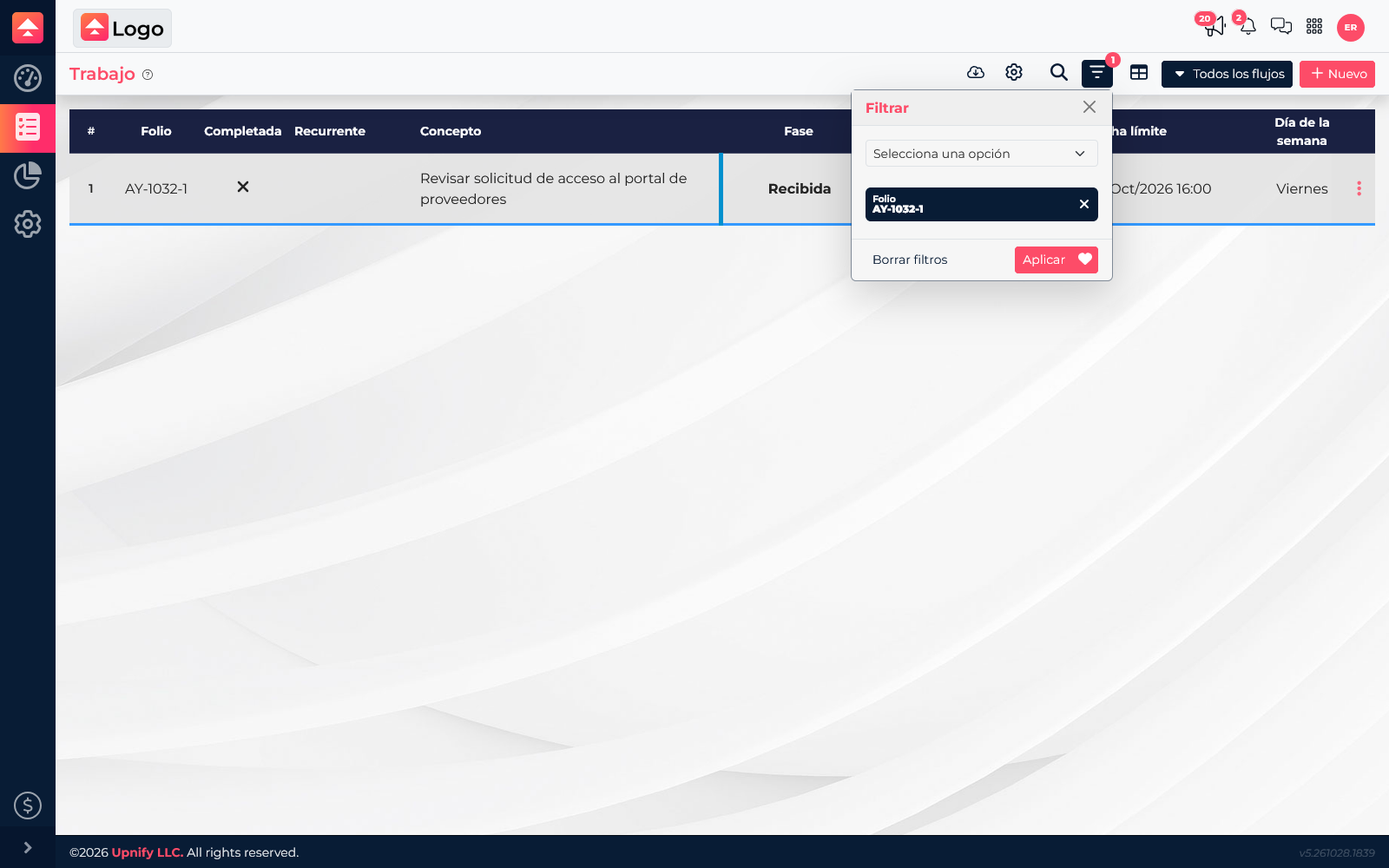
- In Flow > Work, open the button with the filter icon.
- In the selector, choose the field that will help you find the task. For a specific identifier, select Folio.
- Enter or select a value. For example, enter AY-1032-1 to find the supplier portal access request.
- Select Apply and review the list. The task should still show its title, phase, workflow, assignee, and due date so you can confirm you found the right record.
Questions you can answer with filters
Choose criteria based on what you need to find:
| You need to know\u2026 | Useful criterion |
|---|---|
| What one person needs to handle | Assignee |
| Who created a task | Creator |
| Where a case stands in the process | Phase or workflow |
| Which tasks relate to a person or company | Contact or company |
| Which tasks share a label | Label |
| Which cases are still open or already closed | Status |
| Where to find a known record | Folio |
| Which work falls within a date range | Dates |
If a filter returns too many tasks, add another criterion to narrow the search, such as an assignee and a phase or date range. If the expected result is missing, check the selected values and confirm you are in the right workflow.
Clear filters and return to the full list
When you finish, open the panel again and select Clear filters. This prevents an earlier search from limiting your next review. Before sharing a result, check whether the filter button shows active criteria.