
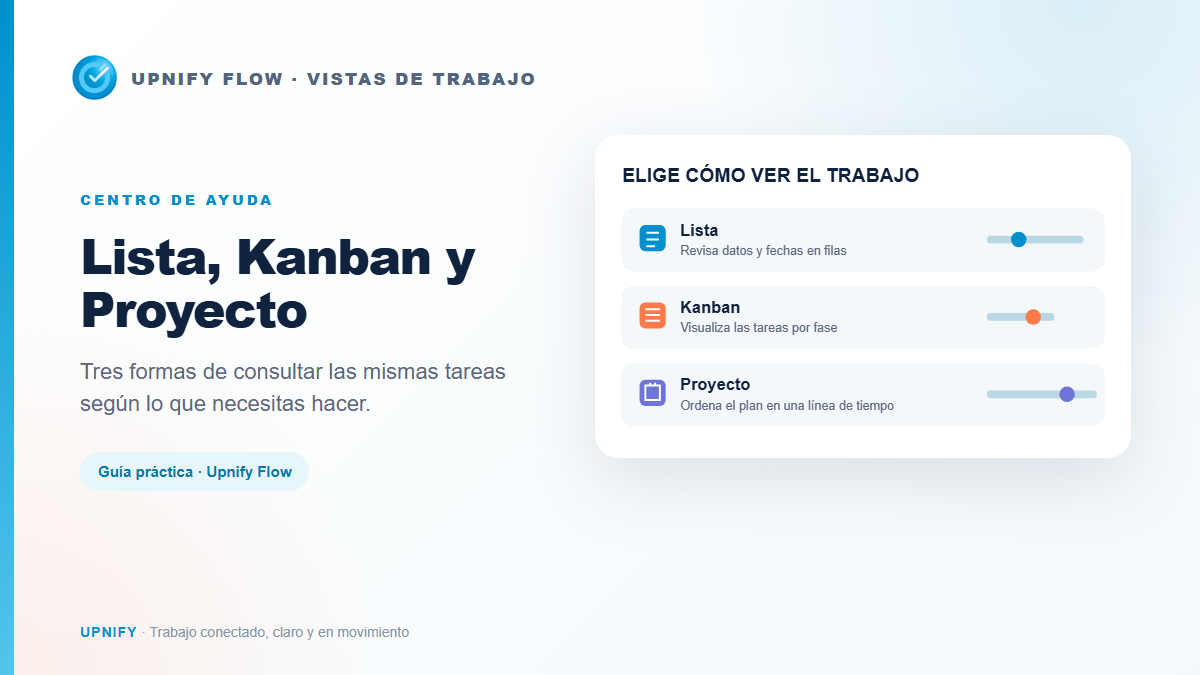
List, Kanban, and Project show Flow work from different perspectives. They are not three copies of the same screen: each makes a different way of organizing work easier. Use List to find specific information, Kanban to understand progress by phase, and Project to review the schedule.
Open a view and choose a workflow
- Go to Flow > Work.
- Use the controls at the top to switch between List, By phase (Kanban), and Project. The option may appear as an icon or selector depending on the current view.
- Select a workflow from the top selector to focus on one process. To review tasks from multiple processes, choose All workflows when available.
- Review dates and assignees; use filters where available to narrow the task list.
All three views display the same Flow tasks. Switching views does not create a new task or change its phase, assignee, or due date.
List view: find and compare details
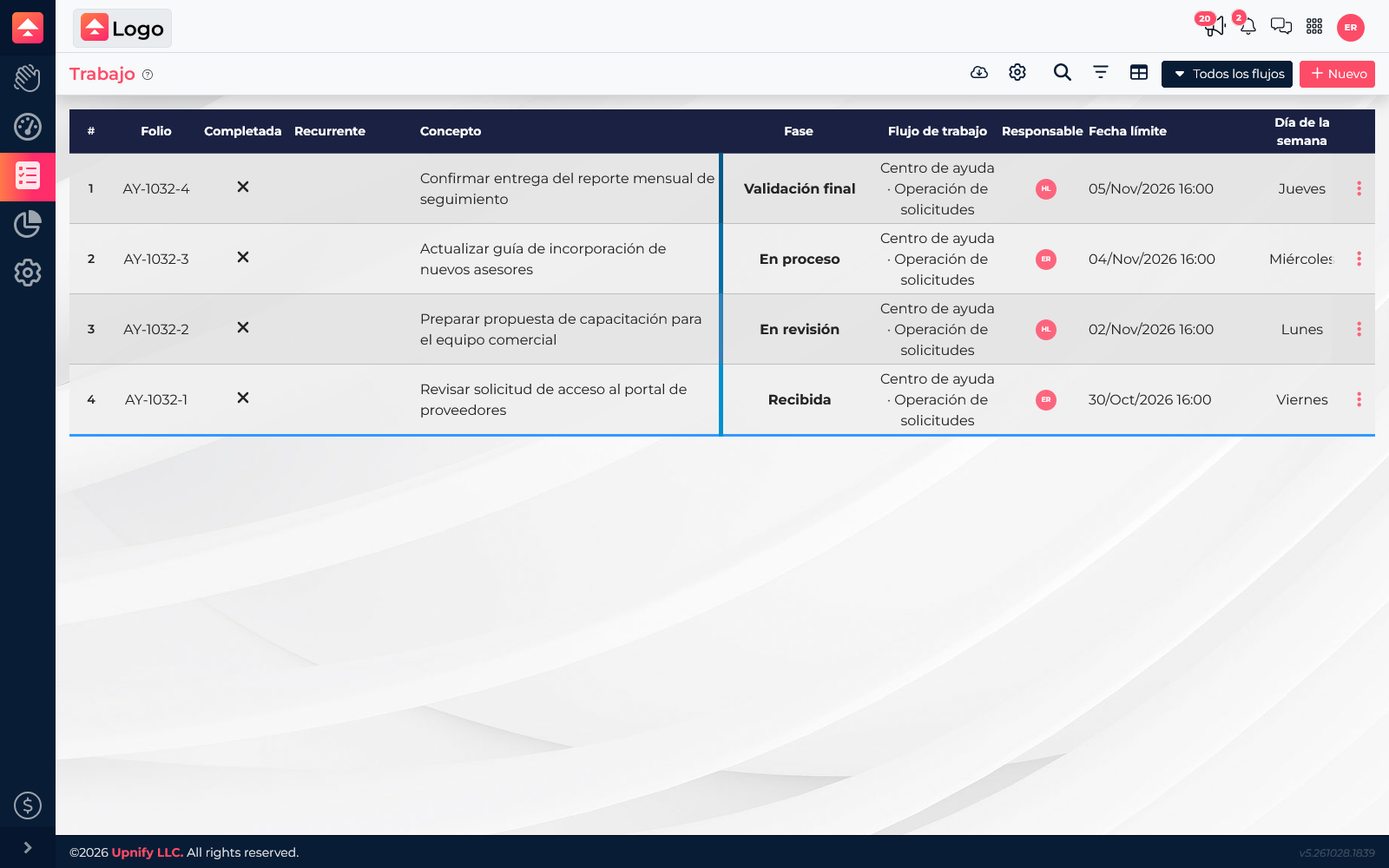
List displays tasks in rows and lets you review several fields at once: folio, title, phase, workflow, assignee, and due date. Use it to locate a record, compare deadlines, or review several people’s work without opening every task.
Kanban view: see where work is building up
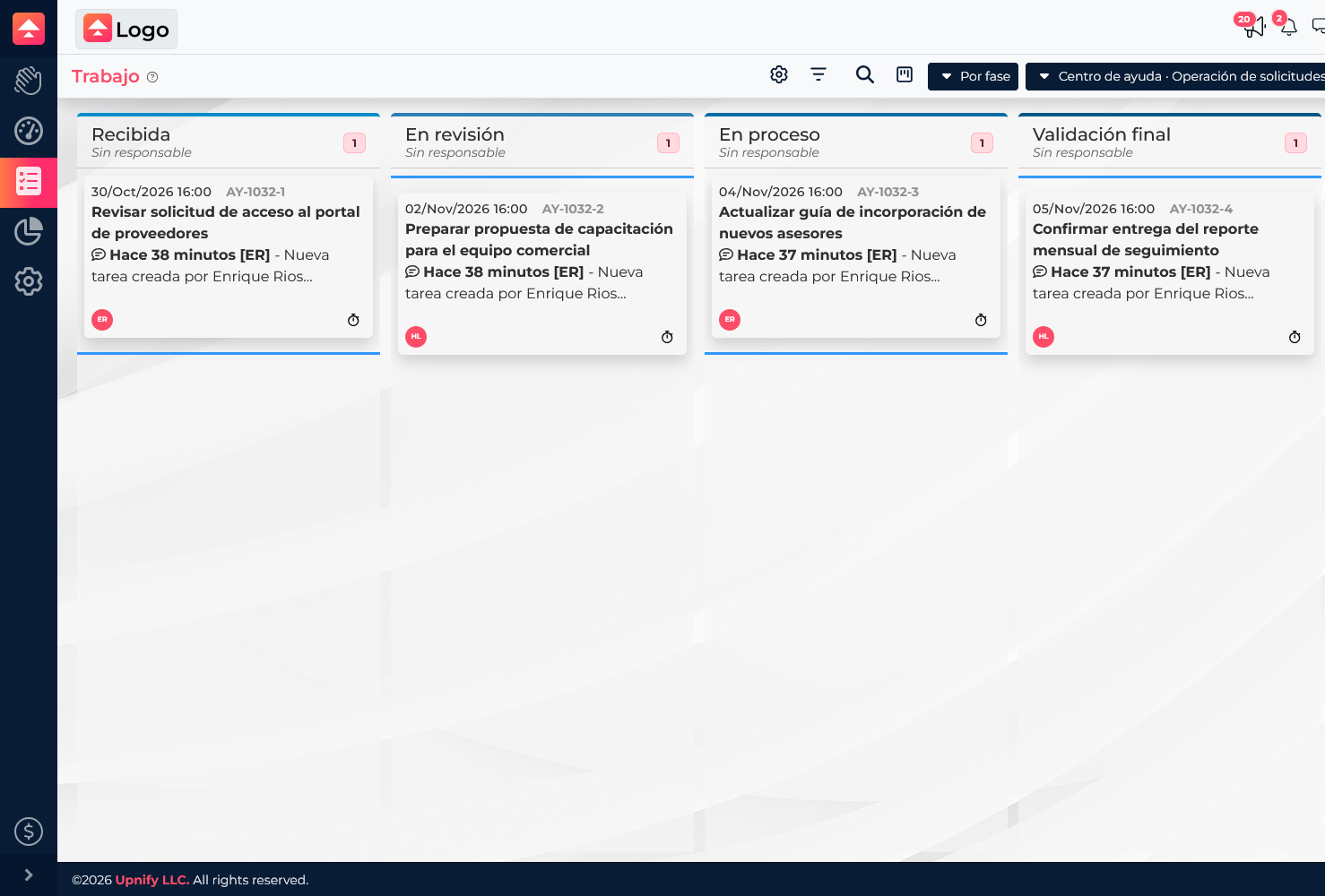
Kanban groups tasks into columns by phase. Each card shows its title, folio, due date, and the assignee’s initials. This view helps you spot whether several requests remain under review or whether a phase has cases that need attention. Open a card to review its full details.
Project view: review the schedule over time
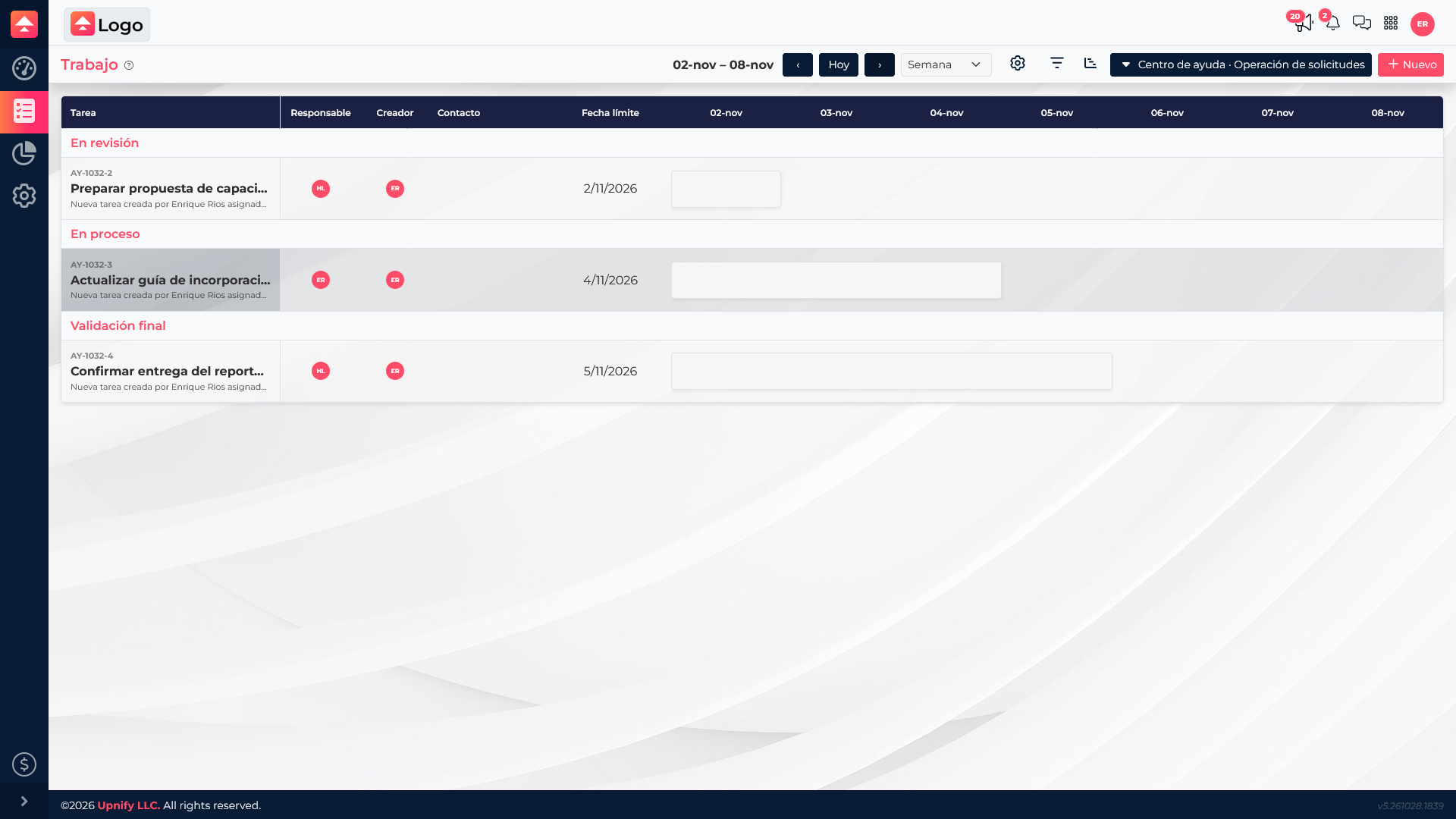
Project organizes tasks in a calendar or timeline view. The side table retains the task, phase, assignee, creator, and due date; the scale across the top places work within the selected period. Use it to review deadlines, anticipate busy weeks, and discuss the work sequence. Change the calendar period when you need to review other dates.
Which view should you choose?
| If you need to… | Use… | Because… |
|---|---|---|
| Review folios, dates, and assignees across tasks | List | Fields can be compared in rows. |
| See progress and identify phase backlogs | Kanban | Tasks are grouped into columns by phase. |
| Plan dates and review timing | Project | The selected period and due dates appear on a timeline. |
A team can switch views throughout the day: plan in Project, coordinate progress in Kanban, and find a specific folio in List. Keep one task and update its information there; do not duplicate it to make it appear in more than one view.