
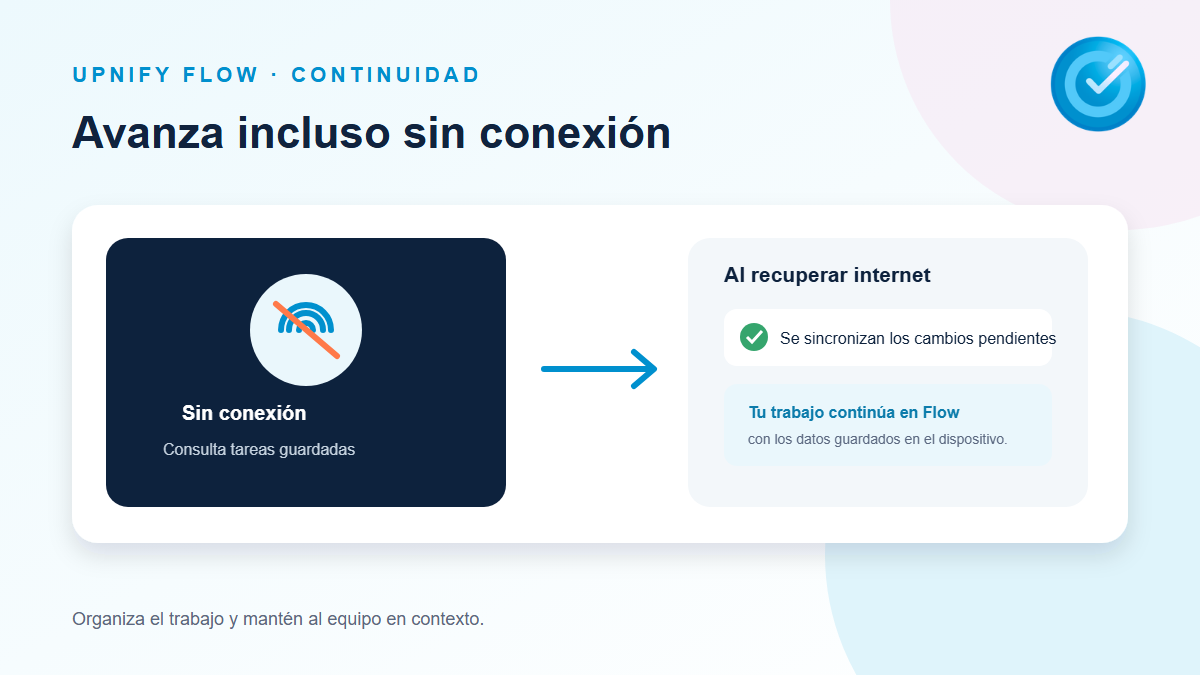
Some places have an unreliable connection: a customer visit, warehouse, or room with a weak signal may prevent you from opening a task online. Flow lets you prepare certain workflows so their active tasks and linked forms can be viewed and filled in from the app without internet. Availability depends on the workflow settings and on whether the information was saved on the device beforehand.
Enable offline availability for a workflow
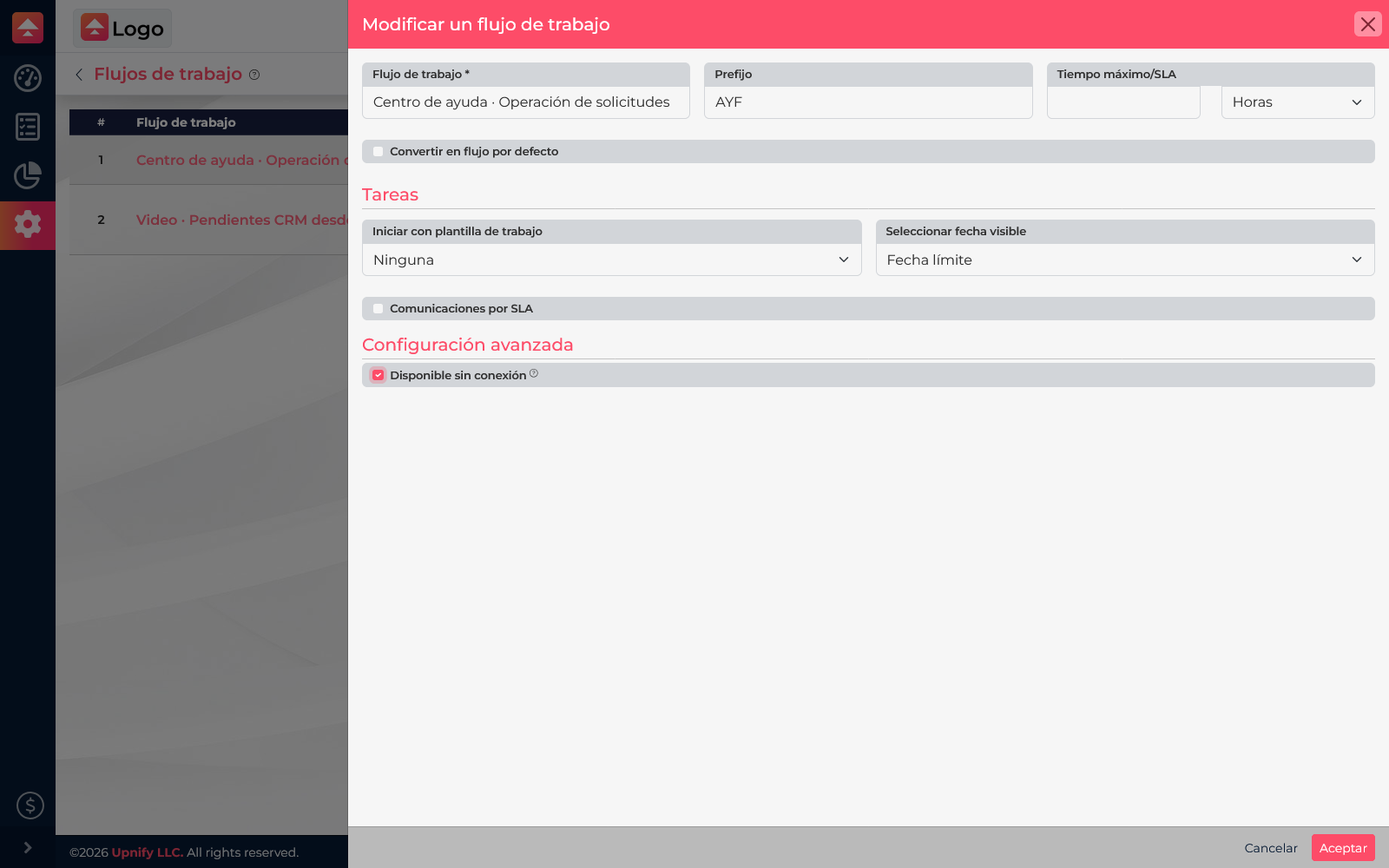
- In Flow, open Settings > Workflows and edit the workflow that will be used offline.
- Under Advanced settings, turn on Available offline.
- Select Accept to save the setting.
- On the device the assignee will use, sign in and open Flow while internet is still available. Open the workflow and let its tasks and forms finish loading.
The setting applies to the workflow, but each user receives their own active tasks. A task assigned to someone else will not appear in the current user’s saved information.
Open tasks when there is no internet
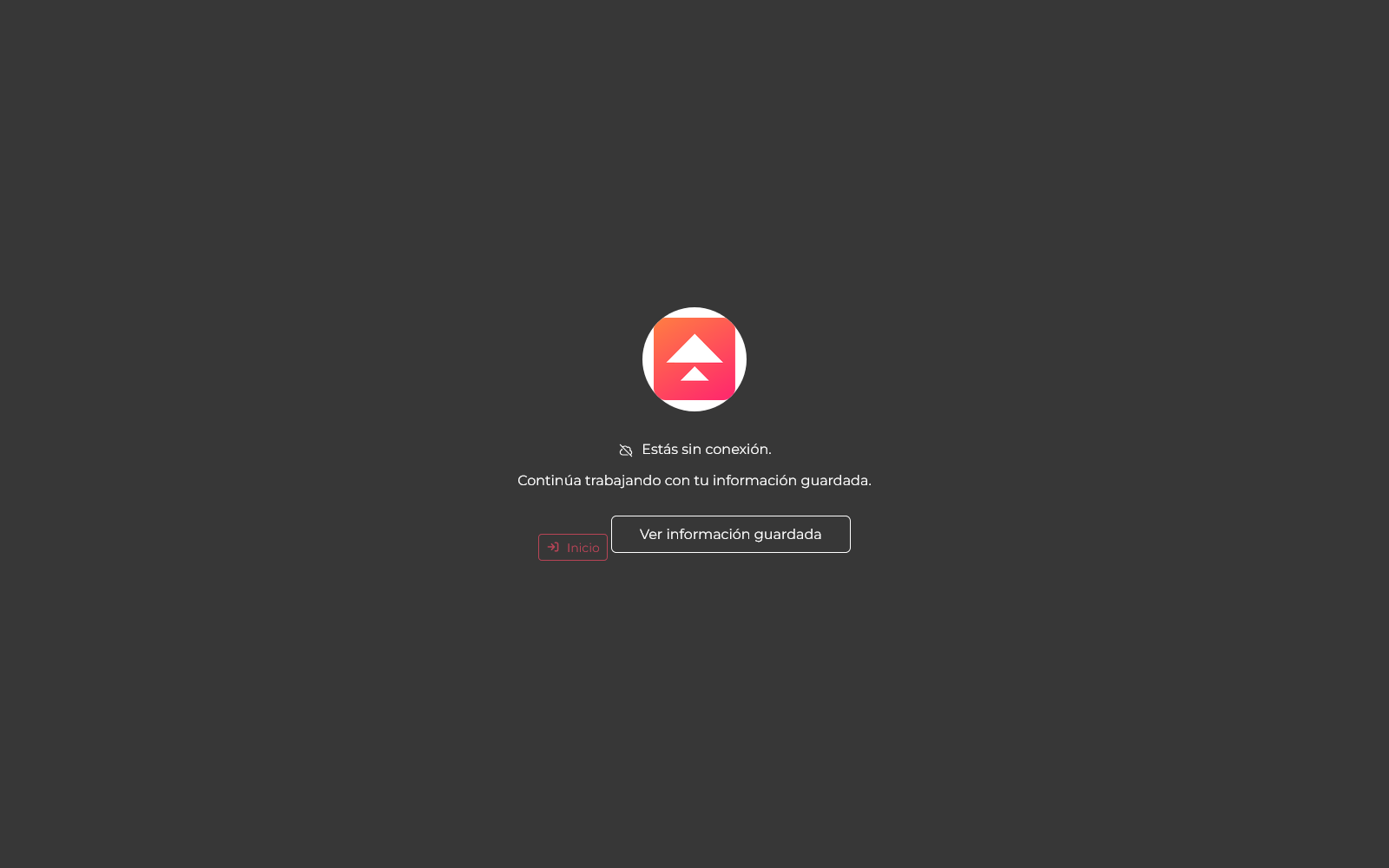
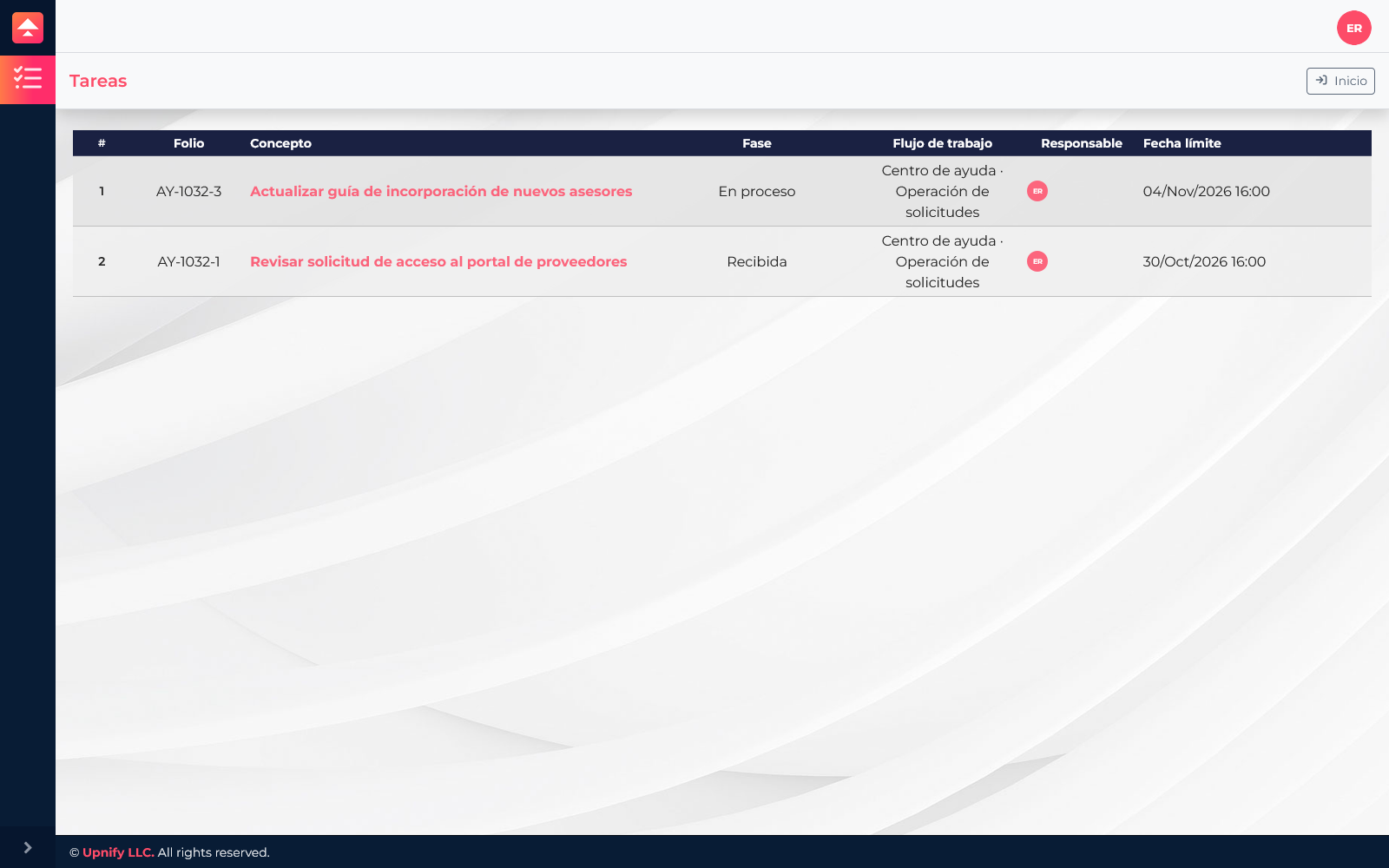
If the device loses connection, Flow displays an offline message and an option to view saved information. Select View saved information and open the available tasks section. You can review active tasks that were downloaded before going offline.
What you can do and what to keep in mind
Offline mode is designed to view available information and complete task forms or actions that support offline use. Information is stored locally until the device can communicate with Flow again. Not every feature is available offline; for example, follow-up comments require internet and are not added to the sync queue.
- A new task, reassignment, or change made by someone else after the last connection will not appear until the device reconnects and refreshes its information.
- If you need to post a comment, mention a teammate, or view data that was not saved, wait until internet returns.
- Before going offline, confirm you are in the right account and workflow and that the required tasks appear in the available list.
Sync when the connection returns
When internet is available again, Flow automatically syncs information saved locally. Keep the app open and connected while it finishes sending. Then open the task online and confirm that the form or action shows the expected result. If the team changed the same task while the device was offline, review the data before continuing so you are working with the updated version.