
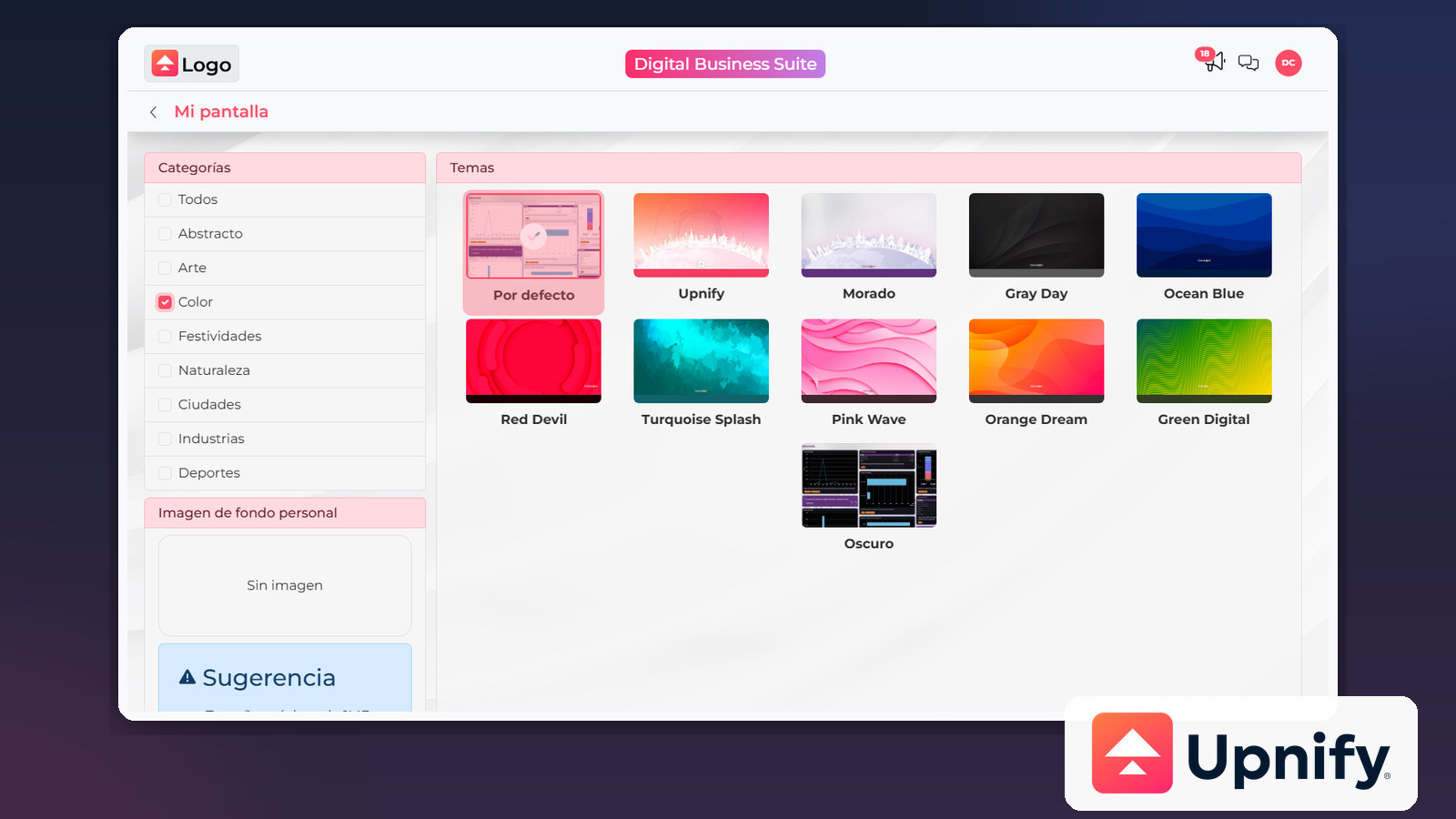
My screen brings together options for adapting the look of Upnify Suite to your work: choose a theme, set a background image, and change how the side menu expands.
Theme and background are separate settings: a theme changes the application’s overall appearance; a personal background adds an image behind the content.
Choose a theme
- Open the user menu and go to Personal adjustments > My screen.
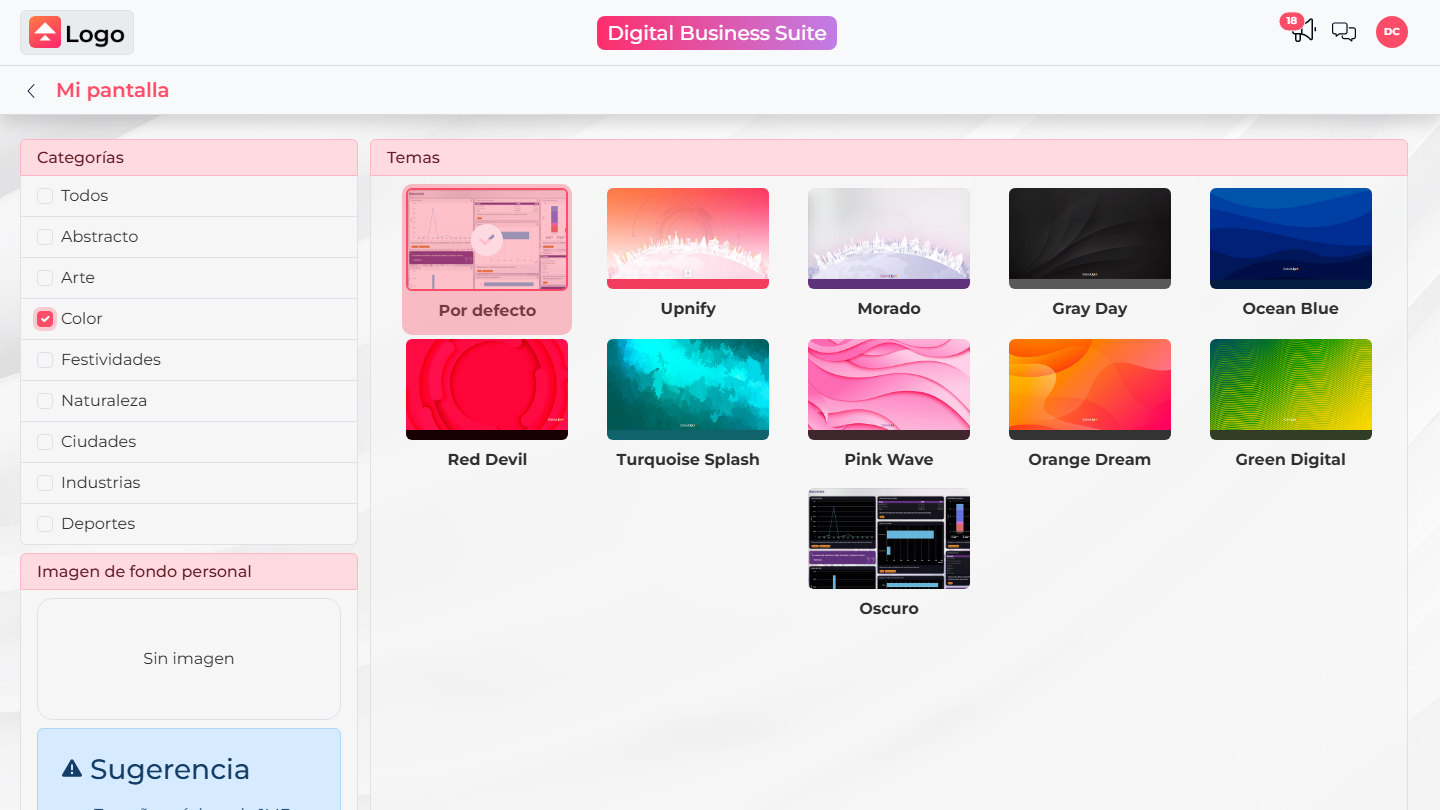
- Under Categories, filter themes by type—such as Color—or leave All selected to browse the full list.
- Select a theme card and select Apply to save your choice.
The scope depends on where you open the settings: choosing a theme from the Suite home page updates active applications; choosing one from inside a product applies it to that product.
Set a background image
- Under Personal Background Image, choose a .jpg, .jpeg, or .png file up to 1 MB. The image appears in a preview before you apply it.
- Open the Apply menu and choose who can use the background: Only me, My group, or All the organization.
- Group and organization options depend on your role: My group is available to administrators and managers; All the organization is available to administrators only.
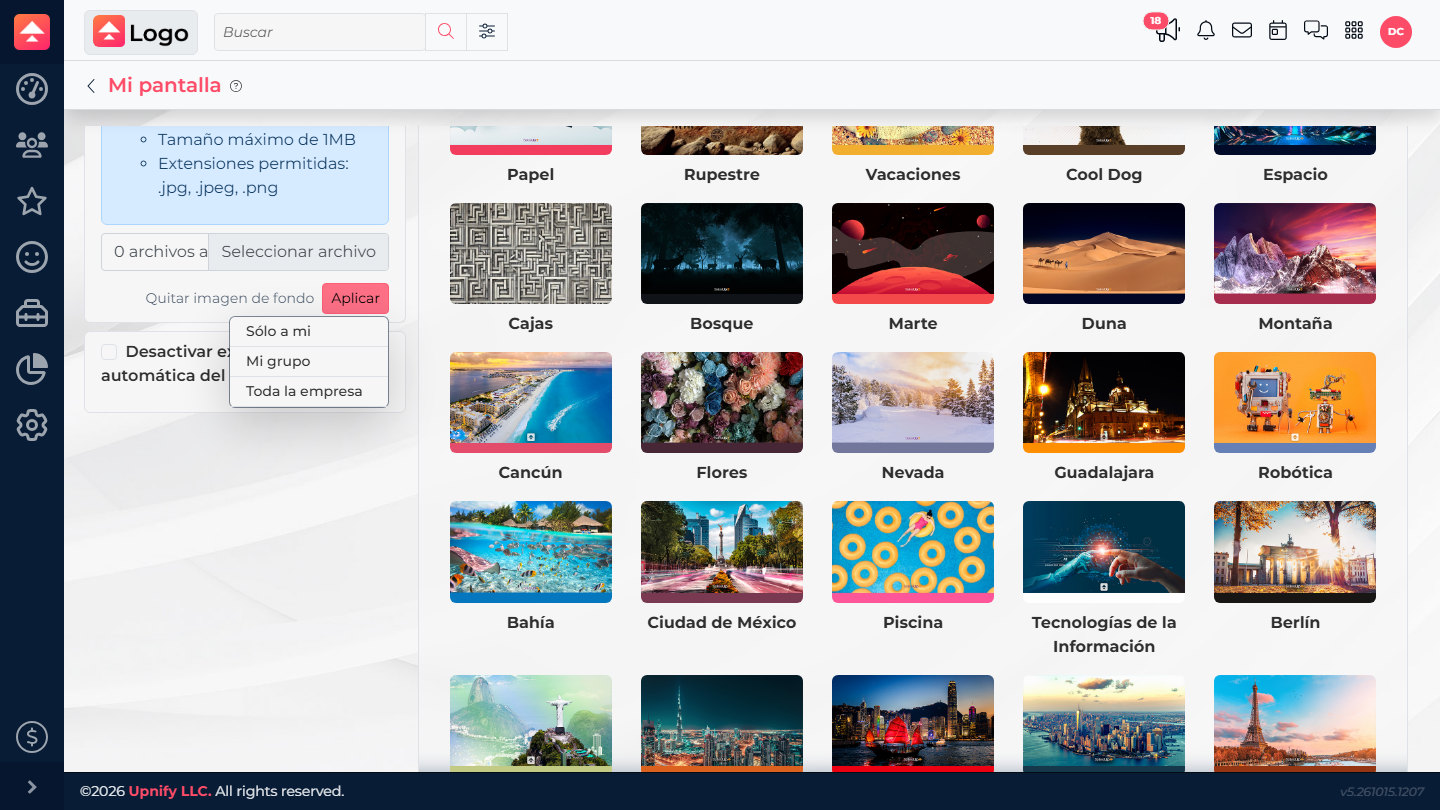
To remove an image you already applied, select Remove background image. If the file is over the size limit or uses another extension, choose a compatible image before continuing.
Adjust the side menu
Turn on Disable automatic expansion of the side menu to stop the menu from expanding when you move the pointer over it. The checkbox saves when you change it; you do not need to select Apply.