
Your account has two security options that work differently. Two-step verification adds a check when you sign in. Link account connects your user to Google, Apple, or Microsoft so you can use that provider to sign in.
They are not the same: linking Google, Apple, or Microsoft does not automatically enable two-step verification. You can set up both options from your user details.
Turn on two-step verification
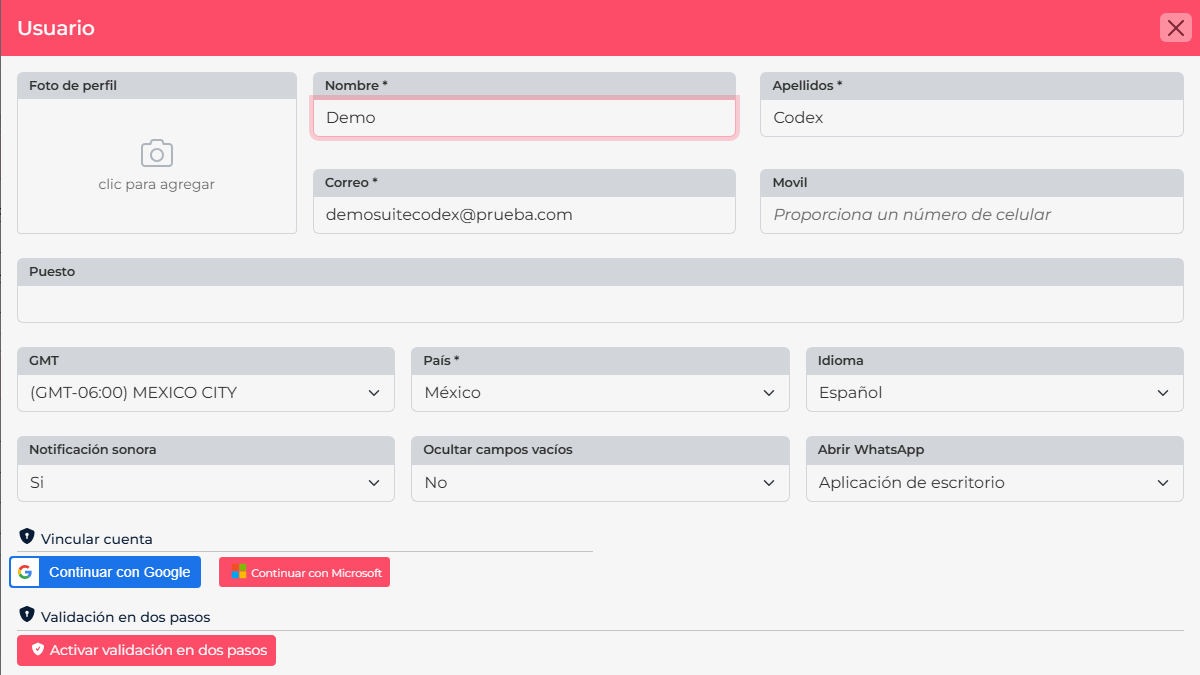
- Open your avatar menu and select My account.
- Select Modify account data.
- In the Two-step validation section, choose Enable two-step validation.
- If Suite asks, add or confirm a mobile number you can access.
- Follow the on-screen instructions to finish setup. When you sign in, Suite may ask for a code sent to your phone.
Turn it on especially if you work away from the office or sign in from different devices. In addition to your password, you will need to confirm the sign-in with a code.
Link Google, Apple, or Microsoft
- In the same user details form, find the section for linking an account.
- Select Link account next to the provider you want to use.
- Sign in in the provider’s window and approve the connection.
- Return to Upnify and confirm that the account appears as linked.
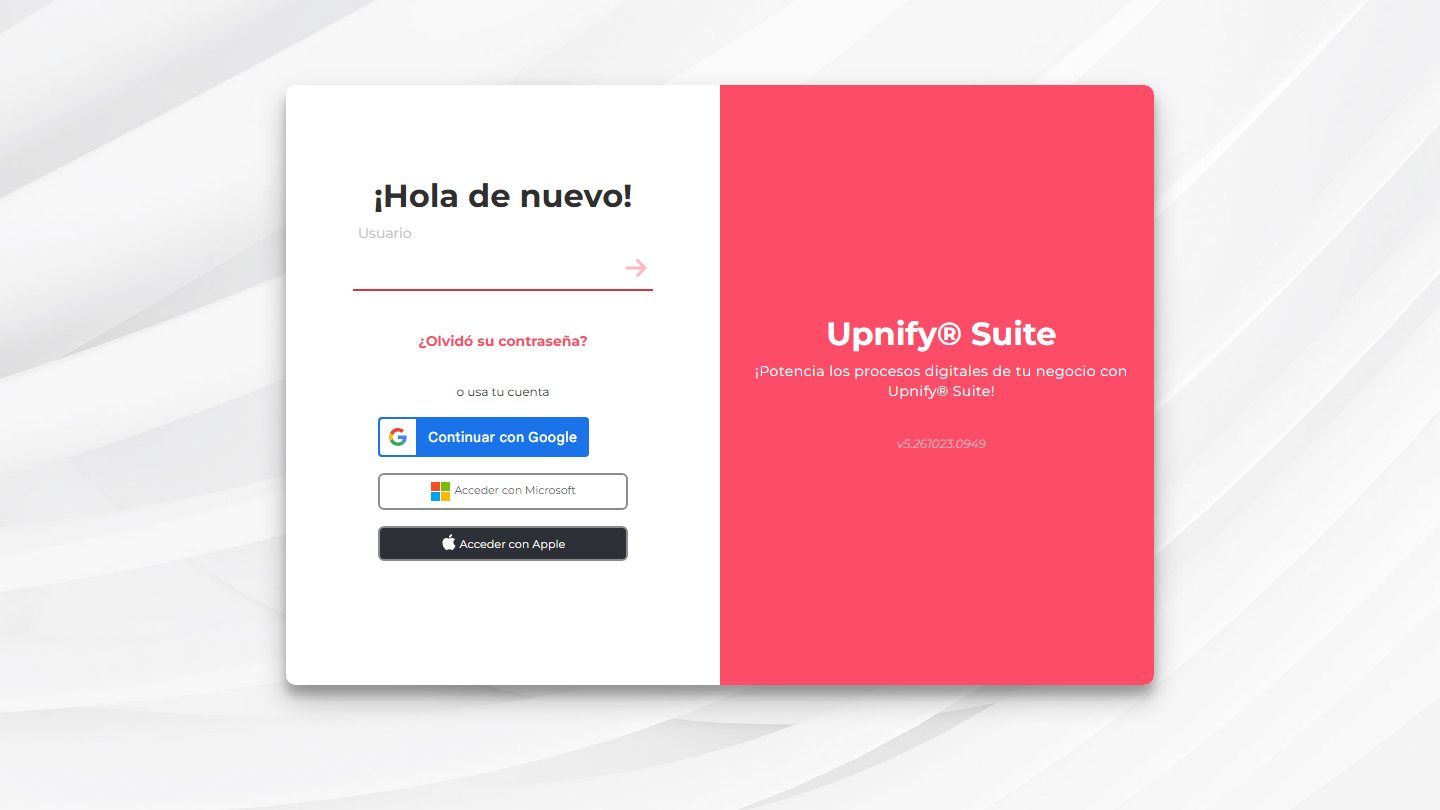
The next time you sign in, choose the same provider on the sign-in page. Apple appears on supported Apple devices; Google and Microsoft sign-in options depend on your account setup.
If an option is missing or does not work
- Make sure you are using the right user and that the provider is linked.
- If you changed the email on your Google, Apple, or Microsoft account, ask your administrator to confirm which identity is linked to your Upnify user.
- If you do not receive the verification code, check that the registered phone number is current and can receive messages.
- Before unlinking an external account, make sure you have another way to sign in.
- If the issue continues, ask your administrator to review your user status and linked sign-in methods.