
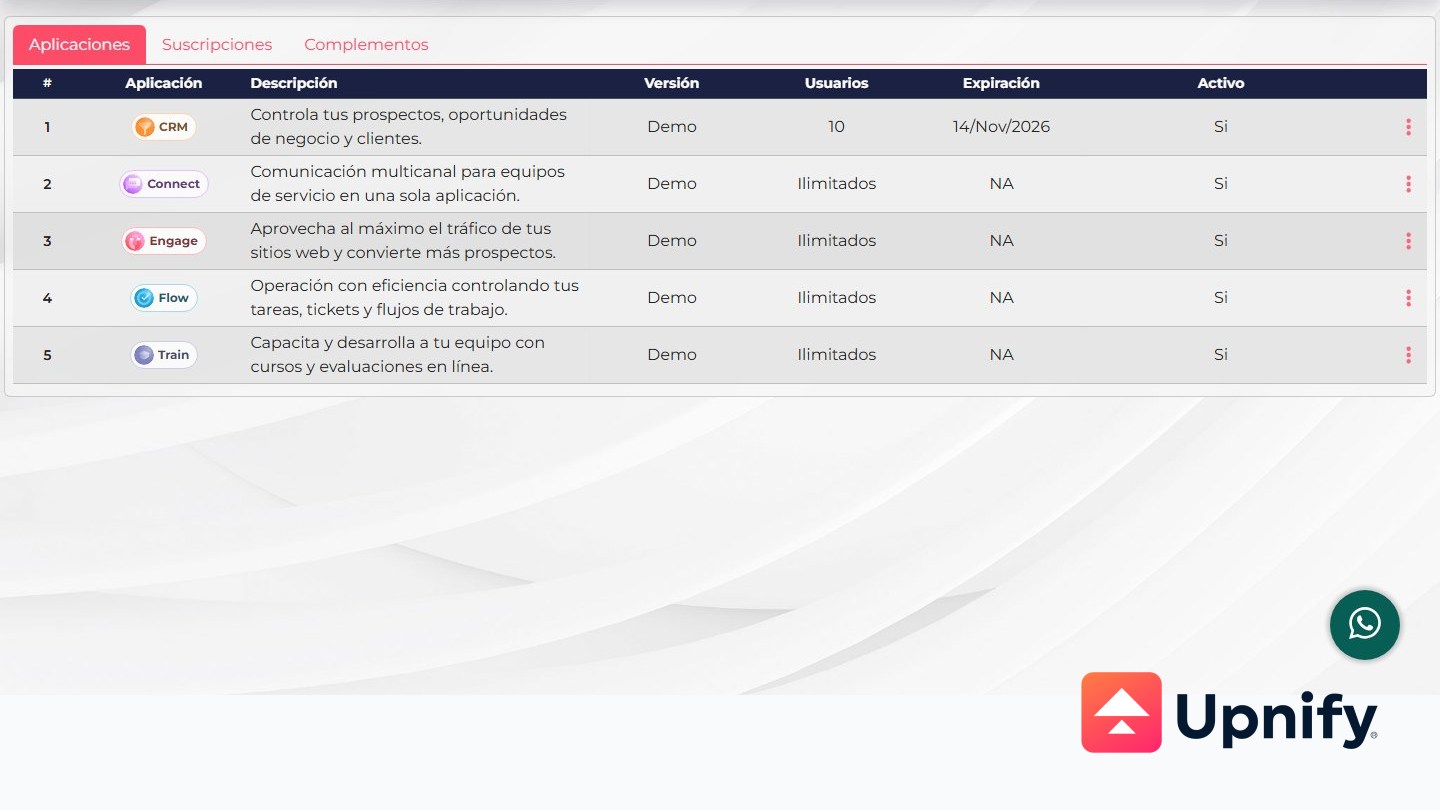
The licensing screen brings together different information that should be reviewed separately: products enabled for the company, subscriptions with scheduled charges, and add-on or credit balances. This guide shows where to find each item and what to check before starting a renewal.
The Licensing and applications screen is available to the Super Administrator. If it is missing from your menu or you need to confirm commercial terms, ask the account administrator or Support for help.
Open the licensing screen
- Sign in as a Super Administrator.
- Open the profile menu and select Licensing.
- Confirm that you are on the Licensing and applications screen.
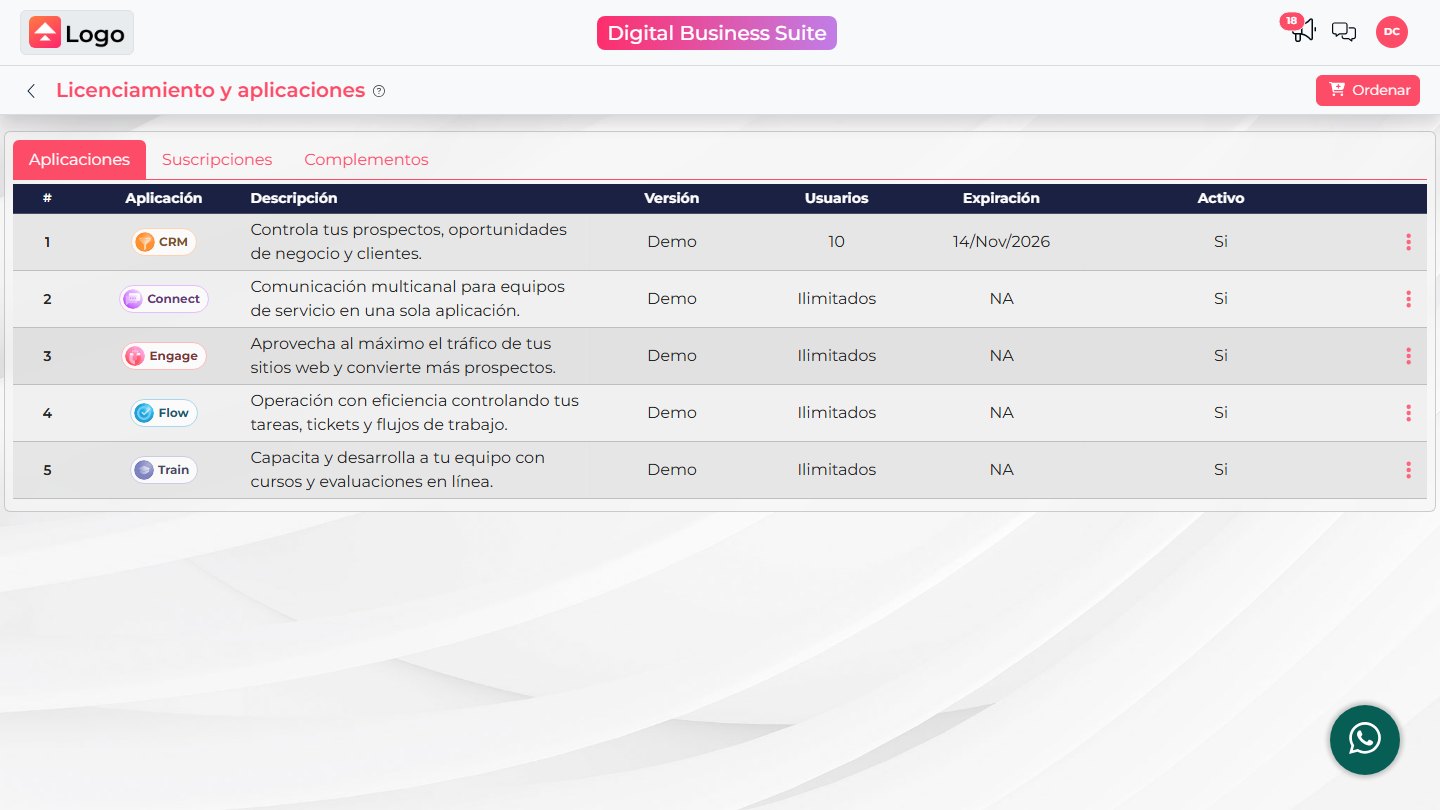
The screen has three tabs: Applications, Subscriptions, and Add-ons. Each answers a different question.
Applications: products, users, and expiration
Under Applications, review the product and the available columns for its version, user capacity, expiration date, and active status.
| Field | How to read it |
|---|---|
| Version | Identifies the plan or edition shown for the product. Available names can vary by contract. |
| Users | Shows the user capacity listed for the product. If it says Unlimited, the screen does not show a numeric limit for that item. |
| Expiration | Shows a date when one is recorded on the screen. N/A means that no date is displayed here; do not treat it by itself as confirmation of an indefinite term. |
| Active | Indicates whether the product appears enabled for the account. |
Subscriptions: recorded charges and renewals
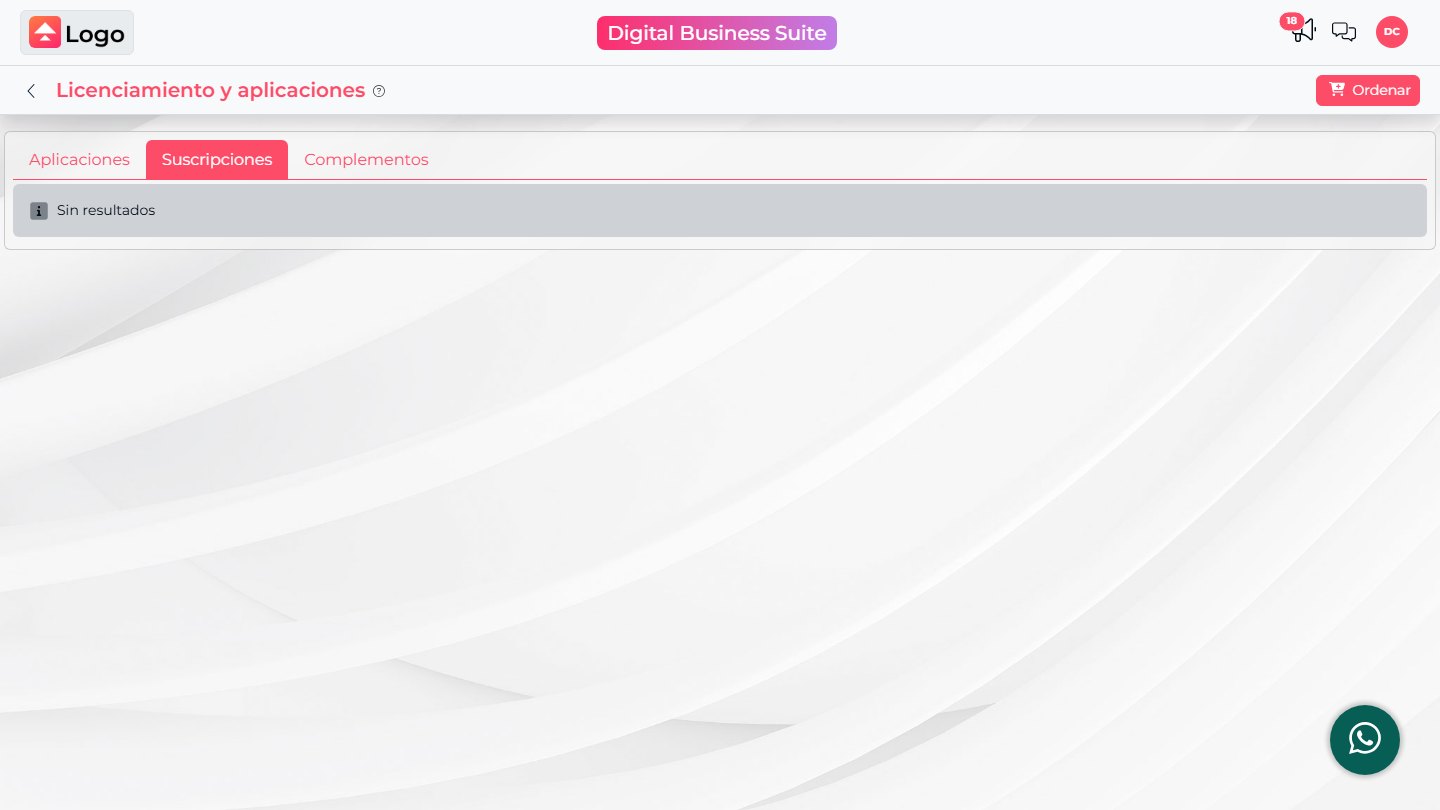
Open Subscriptions to review items associated with charges: product, concept, quantity, frequency, last charge, next charge, and amount. This table shows the information available for a recorded subscription.
If you see No results, there are no subscription rows displayed by this view at that time. This alone does not confirm that products have no expiration or that a license needs no attention. Also review Applications and confirm your account terms with the Super Administrator or Support.
Add-ons: credit balances
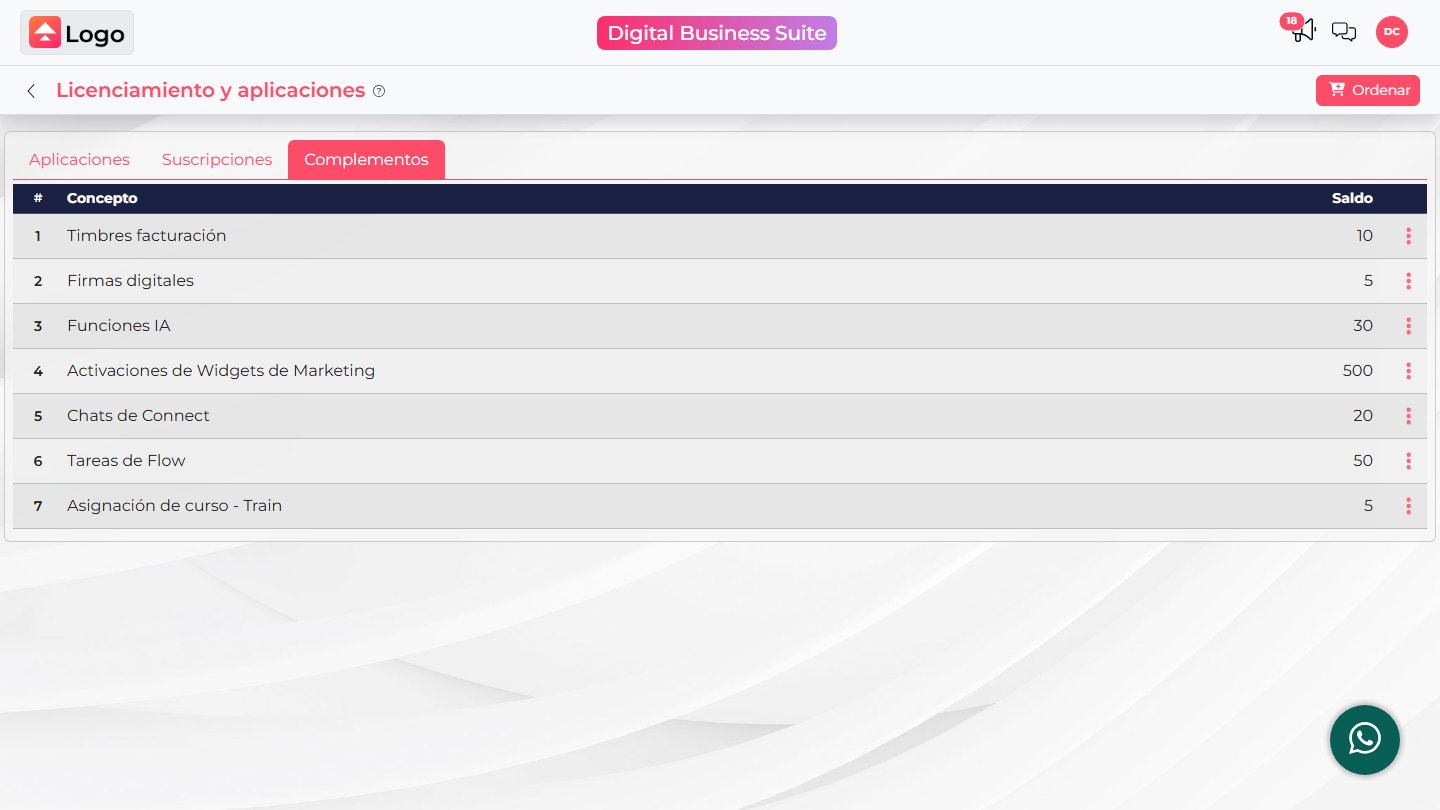
Under Add-ons, review balances for credit types enabled on the account. Depending on the products and services purchased, these may include billing stamps, digital signatures, AI features, widget activations, Connect conversations, Flow tasks, or Train course assignments.
Available types and balances vary by account; this list is illustrative. A credit balance represents usage units for the listed add-on. It is not a user license or product activation.
Review a renewal or purchase
When your account provides ordering options, open Order and review the available actions. If a Licenses group appears, it may include actions such as Renew licenses or Add users. Availability depends on the account and enabled products.
- Choose the action that matches your need: renew an existing license, add user capacity, or acquire credits.
- Before confirming, review the product, quantity, period, amount, and terms shown in the current order flow.
- Confirm only if the details match your needs and you are authorized to make the purchase.
Adding users and renewing a license are separate actions. Credits or Order more options appear only when available for the corresponding add-on. Accounts do not all show the same actions.
Do not use prices, periods, or quantities shown in a screenshot as a quote for your account. Current terms are those displayed in your order flow or confirmed by the team responsible for your contract.
If you cannot find the information or option
| What you see | What to do |
|---|---|
| Licensing is missing | Ask the Super Administrator to review the account. |
| No date is shown or the field says N/A | Check the information against your contract; do not assume the license never expires. |
| Subscriptions shows no results | Check Applications and ask the administrator or Support to confirm how your account’s term is managed. |
| Renew licenses is missing | The action may not be available for that product or account. Ask the Super Administrator to confirm the applicable process. |
| The credit type you need is missing | Check whether the add-on is enabled and ask Support which options are available for the account. |
When requesting help, include the product or add-on, the tab you checked, and the information you need confirmed. Do not send payment details or sensitive data through unauthorized channels.