

Your profile brings together information that personalizes your Upnify Suite experience. Keeping it current helps align dates with your time zone, show the interface in your language, and adapt preferences to the way you work.
Open your account
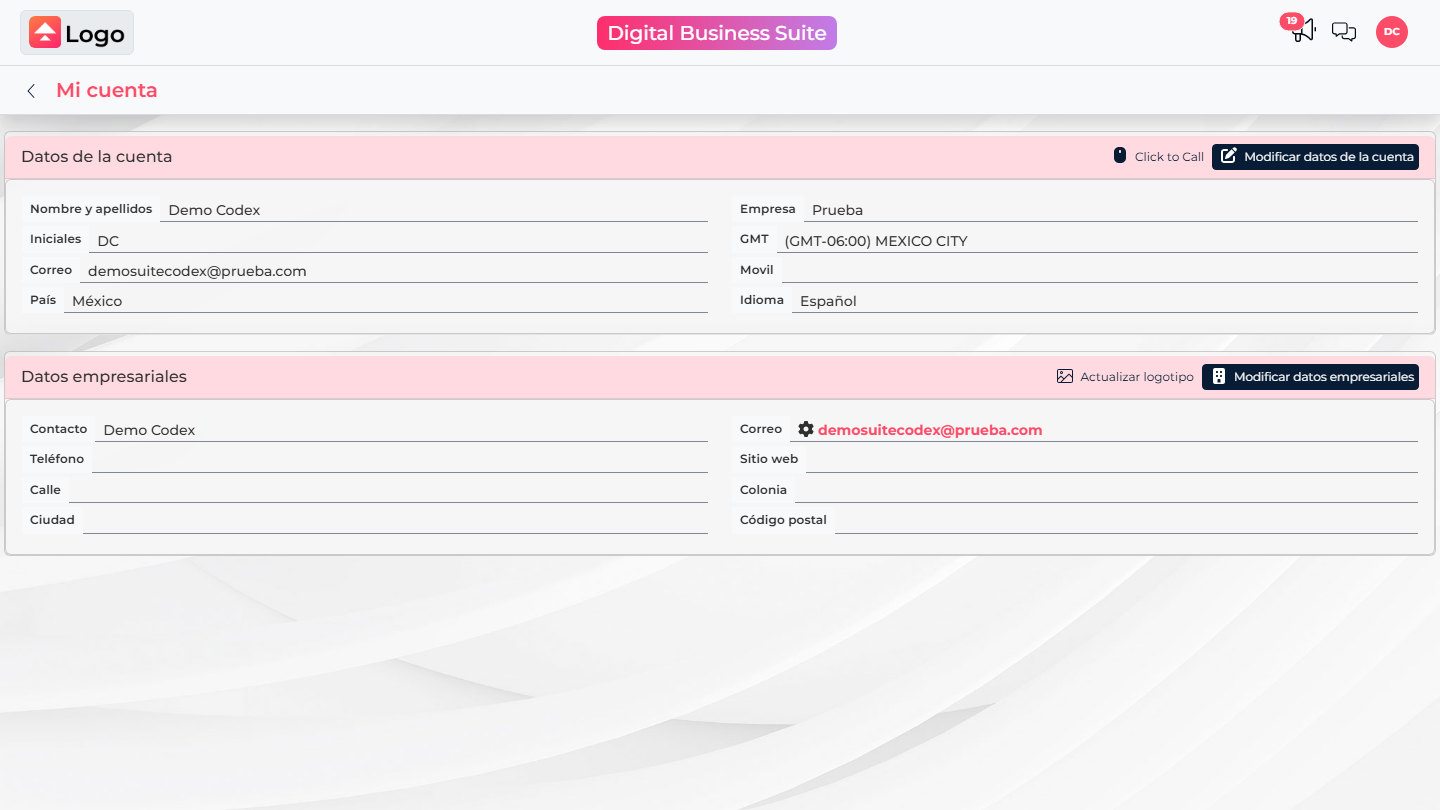
- Select your avatar or initials in the header.
- Choose My account.
- Under Account data, select Modify account data.
What you can set
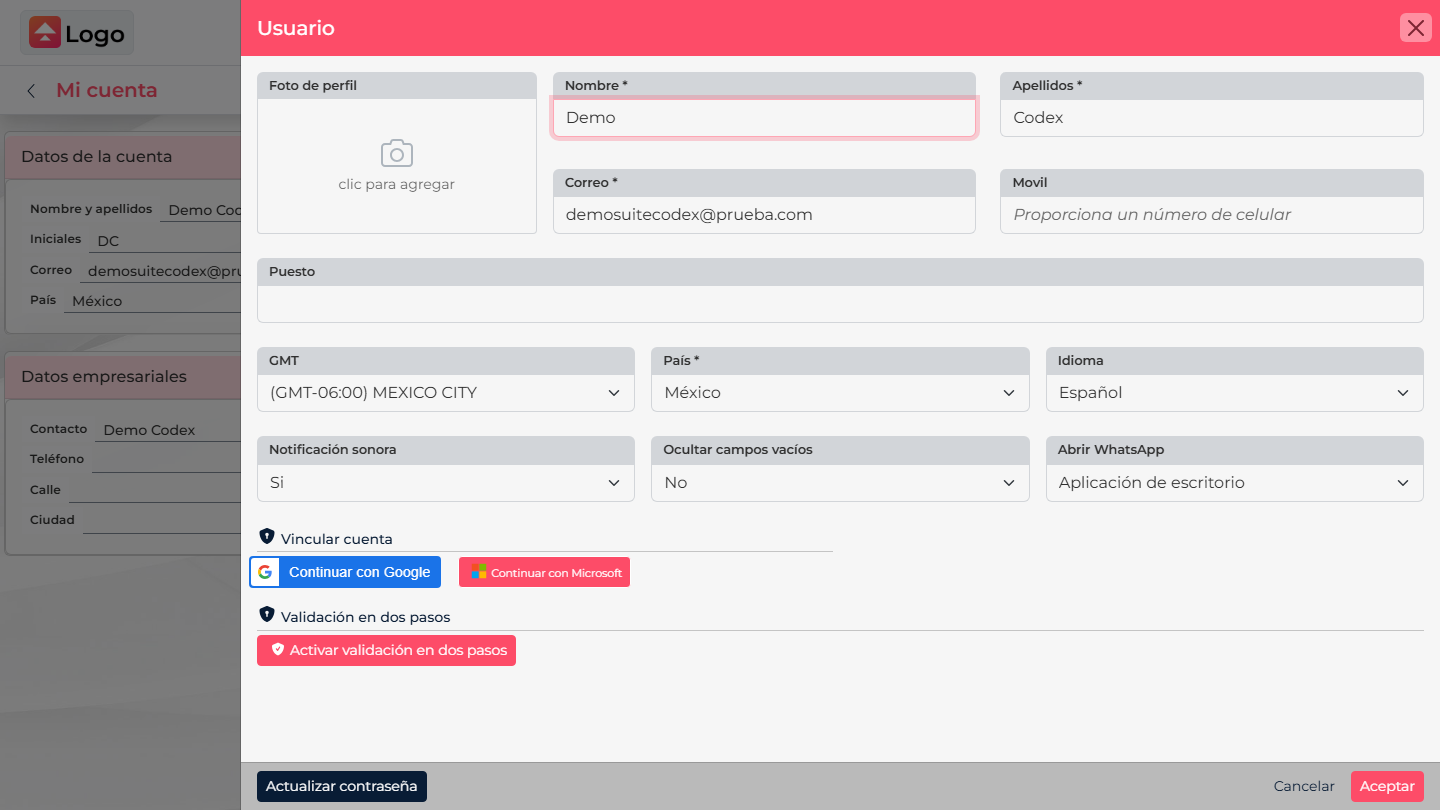
The form lets you review your name, last name, and photo; add details such as mobile number or job title; and choose your country, time zone, and language. Change only what you need.
- Time zone: choose the one for your usual location so call and activity times are clear.
- Language: changes the interface language for your user. It does not translate names or text your team entered in records.
- Sound notifications: turn the sound for some notifications on or off.
- Hide empty fields: keeps records more compact when some fields have no data.
- Open WhatsApp: if shown, choose whether links open in the desktop app or WhatsApp Web.
Save your changes
- Review your country, language, and time zone.
- Select Accept to save.
- Select Cancel to close without applying changes.
For example, if you moved or work from another time zone, update it so a call or task time is clear. If several people share the computer, each person should set preferences in their own account.