

To access Upnify Suite, use the account registered by your company and the sign-in method assigned to that account. If you can sign in but cannot see an app, the issue may also involve your permissions, user status, or product availability.
Have the email address used to register your account ready. If your company uses Google or Microsoft sign-in, confirm which option you should use; a Suite password and an external identity provider may be separate methods.
Sign in to Suite
- Open suite.upnify.com in your browser.
- Enter your user email and select the arrow beside the field to continue.
- Enter your password and select Sign in. If your organization uses Google or Microsoft, choose the provider linked to your account.
- If Suite asks you to choose a company, select the correct one and continue.
- From the app menu, select Enter for the product you need. Only products available to your account will appear.
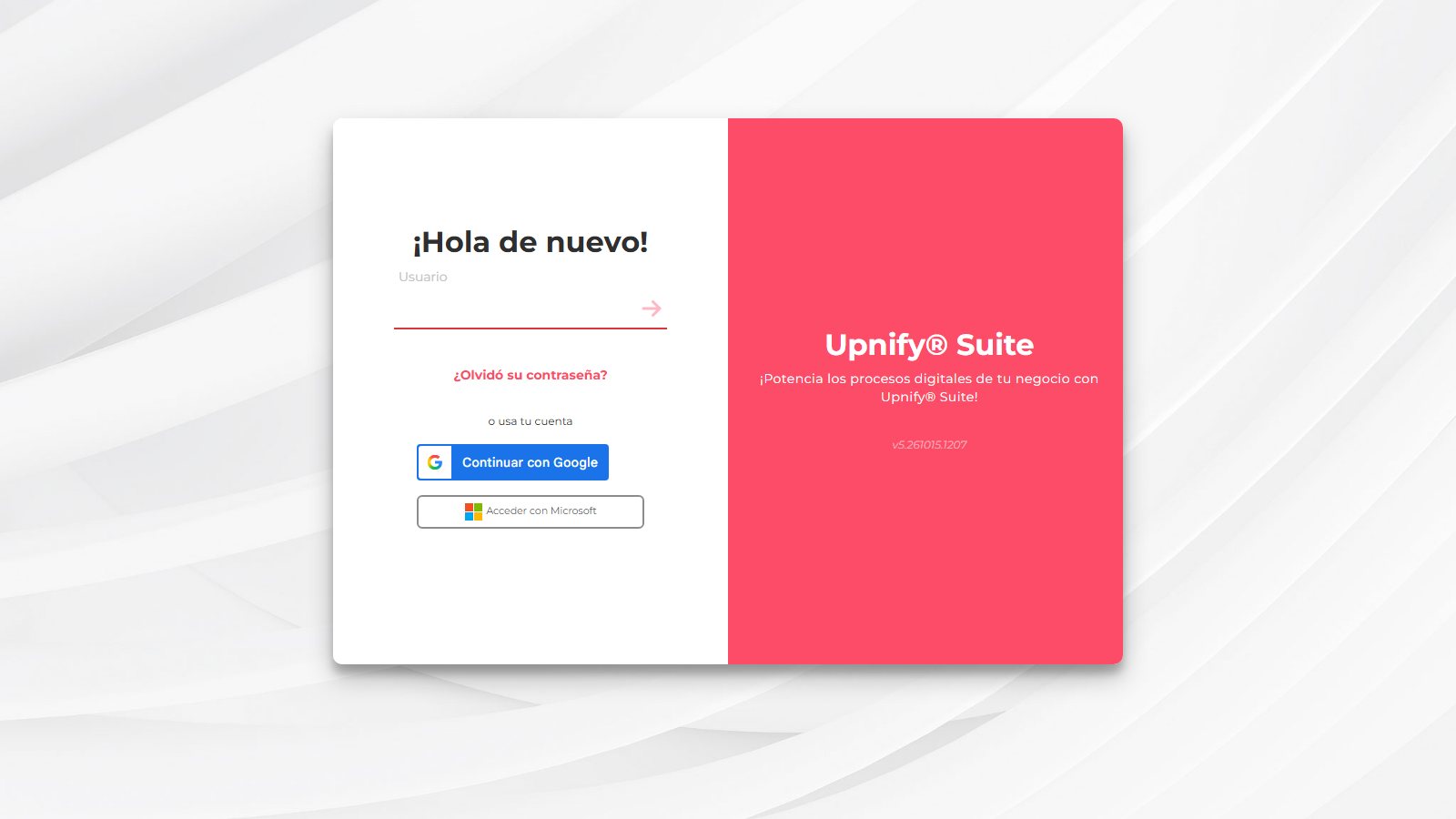
Enter your email and continue with the arrow. Screenshots were captured in Spanish; labels may appear translated to match your account language.
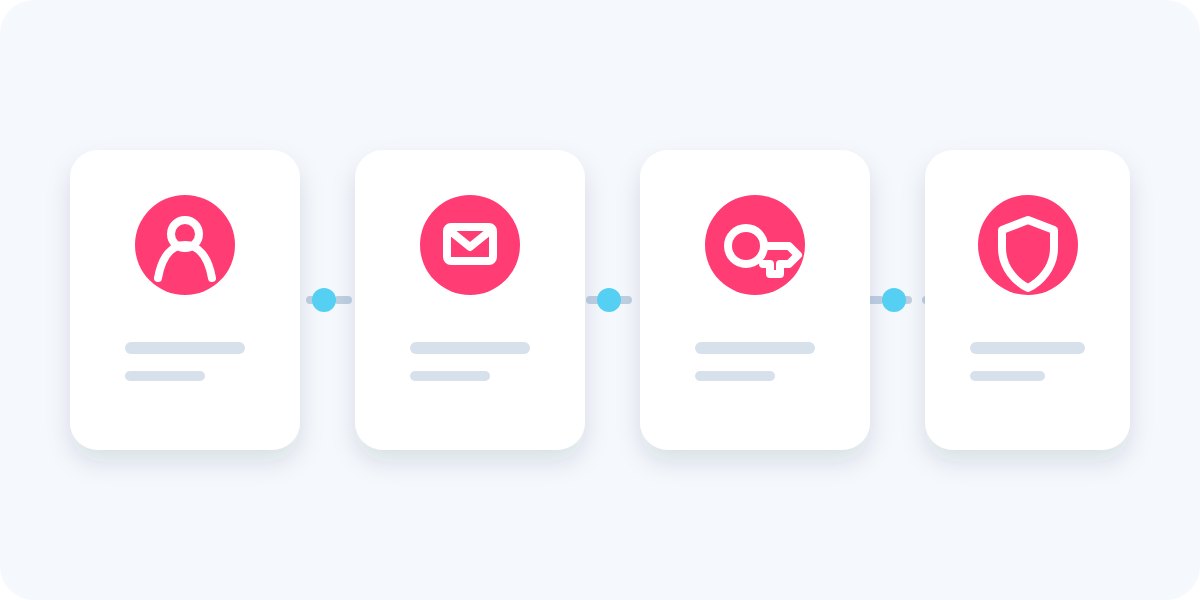
Signing in combines your account identity, verification, and assigned permissions.
Reset a forgotten password
- On the sign-in screen, select Forgot your password?.
- Enter the email address linked to your user and select Reset.
- Check your inbox and spam folder. Open the recovery message and follow its link.
- On the page that opens, enter a new password, confirm it, and select Recover. Then return to the sign-in screen.
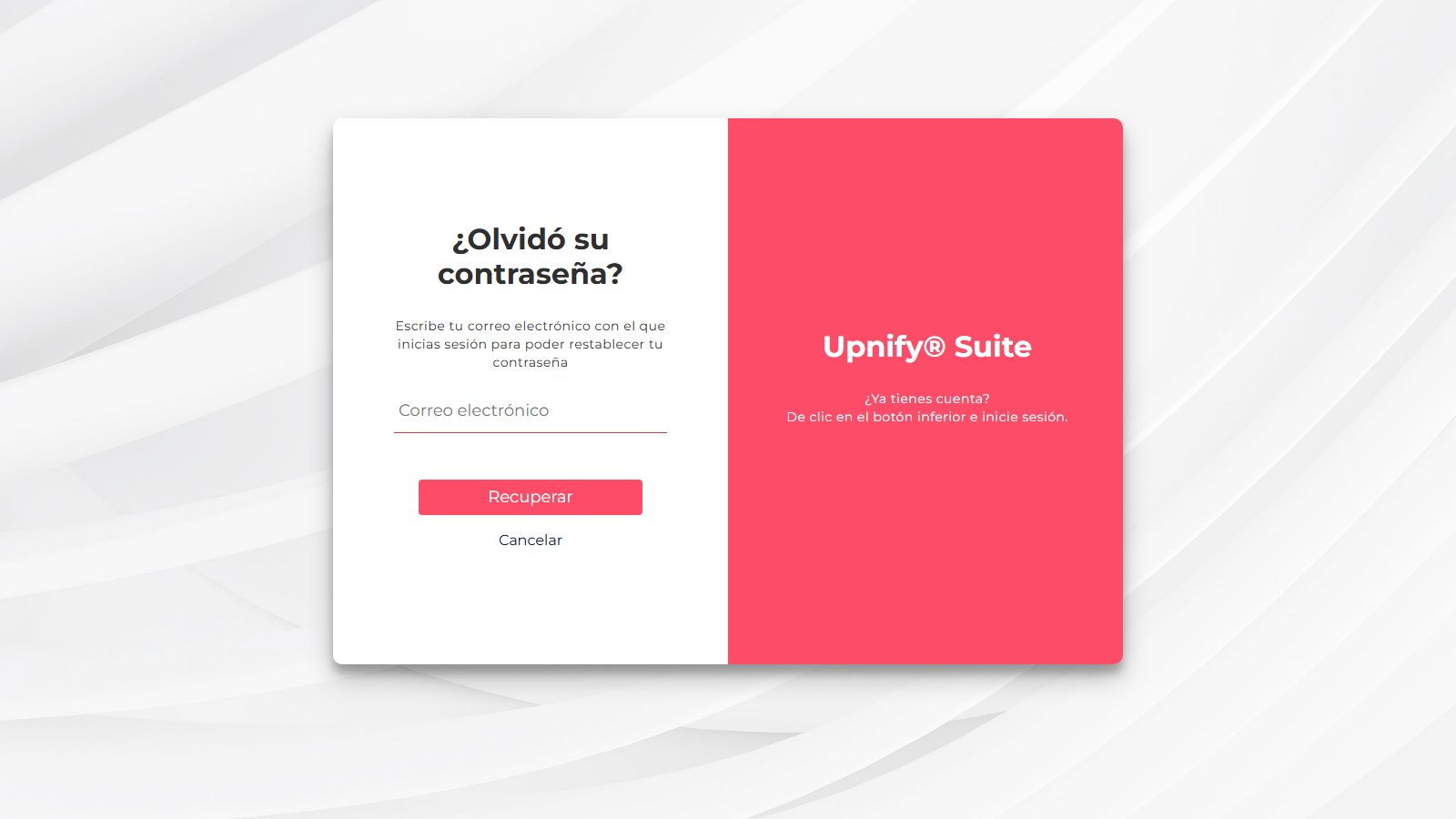
Start the request from the recovery link on the sign-in screen.
Do not share your password, recovery link, or verification codes. If the email does not arrive, confirm the address and check your spam folder.
If you cannot sign in or your session ends
| What happens | What to check |
|---|---|
| Your username or password is not recognized | Confirm the full email address and use the sign-in method assigned by your organization. If you forgot your password, start recovery from the sign-in screen. |
| You do not receive the recovery email | Check the address, spam folder, and whether the user is still registered. If it still does not arrive, ask your administrator to review the account email. |
| You see access denied or an app is missing | Ask the Super Administrator to confirm that your user is active and has access to the product. Product availability may also depend on the company account. |
| Your session ends or Suite returns to sign-in | Sign in again. If this keeps happening, record the date, browser, URL, and exact message for your administrator or Support. Do not share passwords or codes. |
If your company manages sign-in through Google or Microsoft, ask your administrator which method to use and who manages the password. If the issue continues, include the exact message and steps that led to it; never include credentials or private links.