

Company data and the logo identify your organization in Suite. Keep them current when your business name, contact person, or the address your team uses changes.
Who can edit this section: company details are available to administrators. If the edit action is not shown, ask the person who administers Suite for your company.
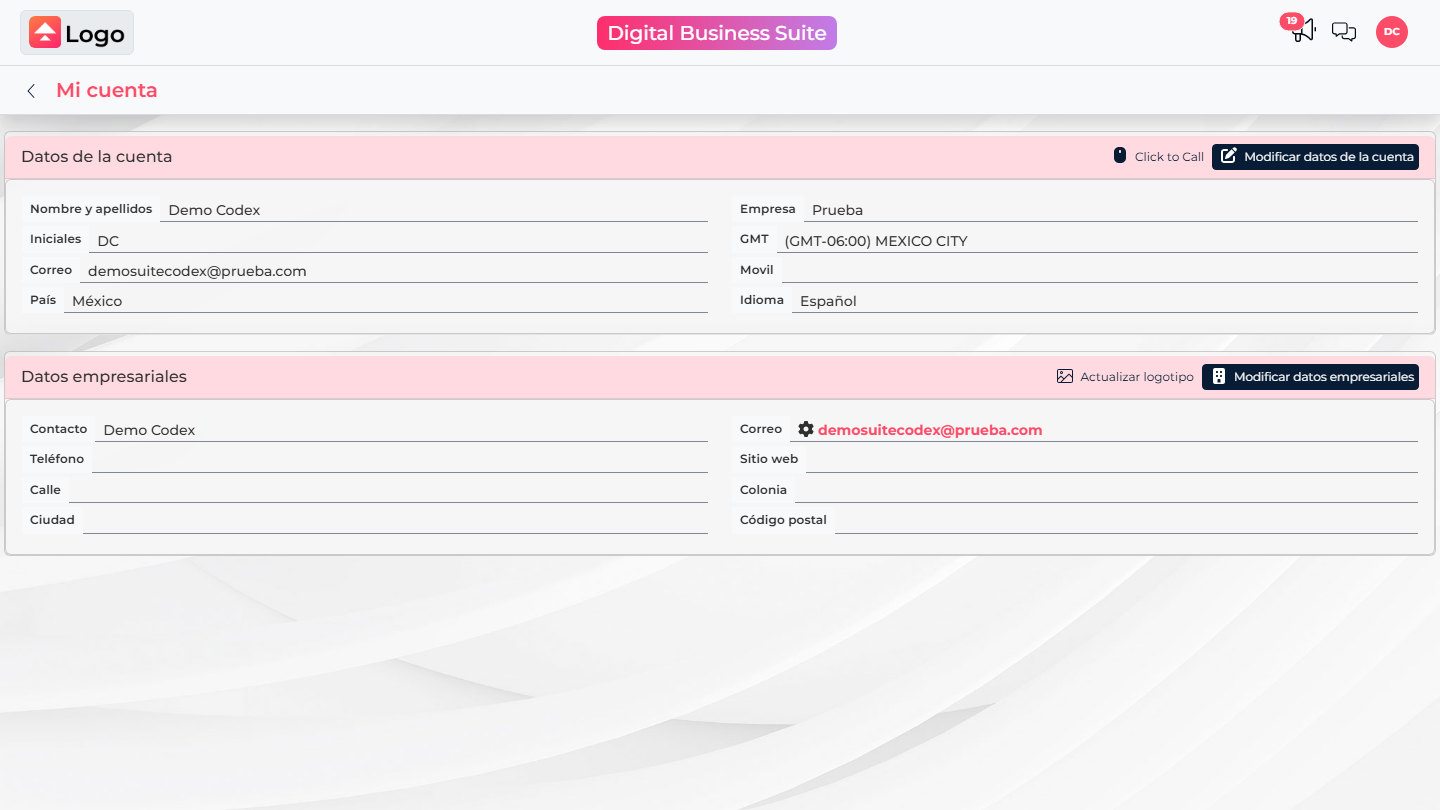
Update company information
- Open the user menu and select My account.
- Under Company data, select Modify company data.
- Update relevant fields: company name, contact, email and phone, address, country, state or region, postal code, and website.
- Review the information and select Accept.
Change the logo
- Return to the Company data section.
- Select Update logo.
- Choose your company’s official file and confirm in the window that opens.
- Review My account to confirm the correct image is displayed.
Review before saving
Use current information that matches what your company shares with customers and coworkers. If the office moved, check the country, state, and postal code as well. If you only need to change your own name, personal phone, or language, edit Account data; that section belongs to your profile, not the organization.