

If you work with more than one company, you may not need a separate email for every sign-in. Multilogin lets you link authorized accounts and choose which company to work in. Each organization keeps its own records, permissions, and settings.
When it can help
For example, someone who supports two companies in the same group can review opportunities for one organization and then handle tasks for the other without signing out and entering credentials again. This does not merge information; it changes the company context you are working in.
Set up linked accounts
Multilogin links user accounts that belong to different companies. The email you enter must belong to an active user in another company. This lets you switch organizations without mixing their records, permissions, or settings.
- Open the user menu and select My account.
- Under Account data, select Multilogin. This option is available with a Max license.
- Enter the email address of the active account you want to link, then confirm. Upnify sends a request to that address.
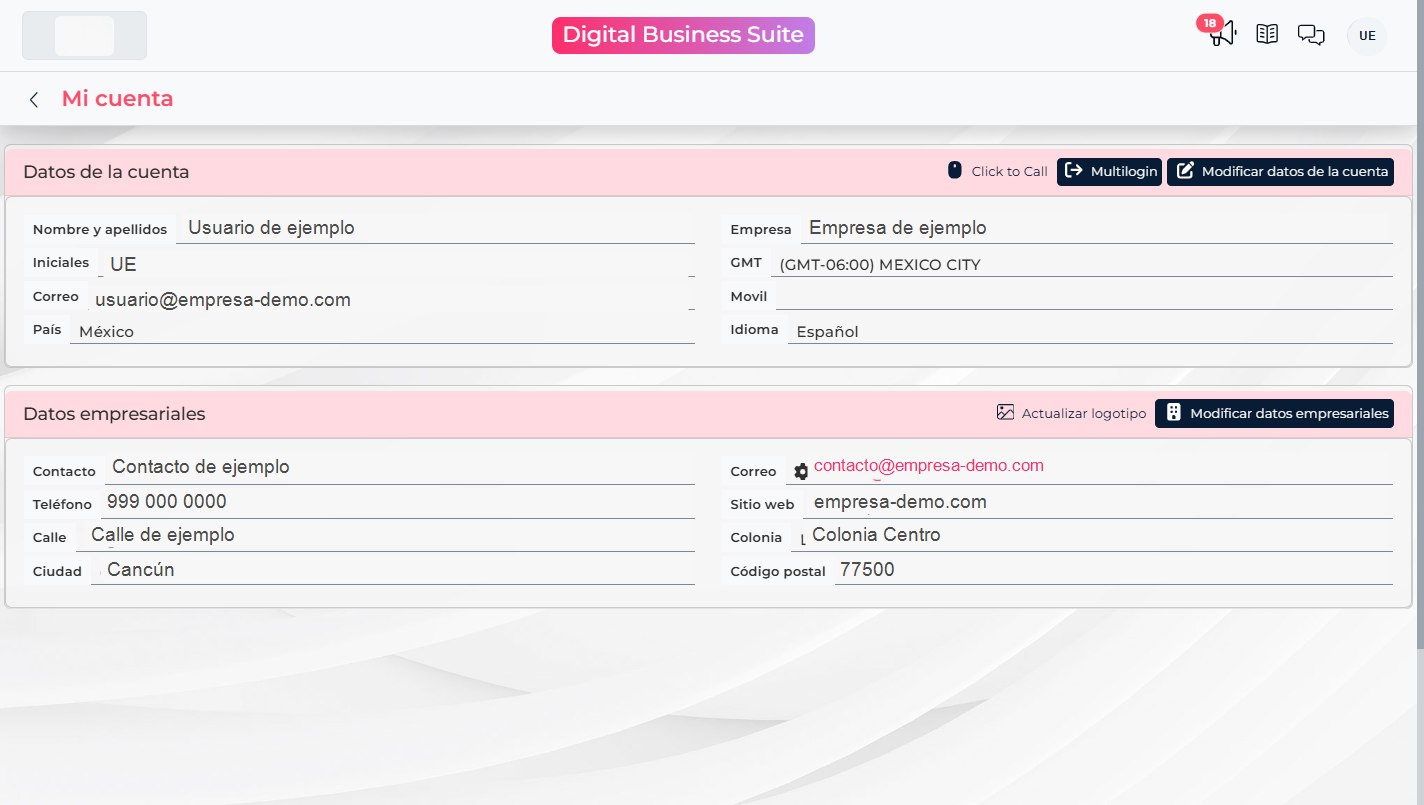
- The person receiving the request must open the authorization email, check which company is requesting the link, and follow the link.
- On the Multilogin page, select Authorize to confirm. They do not need to share their password.
- Return to My account > Multilogin and check the table. It shows the person, company, email, and link status. A pending link cannot be used yet; once it is active, it is ready.

Check that you entered the email address for an active account in another company. If the link already exists or is still pending, check its status in the table before sending another request.
Choose a company when you sign in
- Open Upnify and sign in with the linked email using your usual sign-in method.
- When Suite displays Select the account you wish to access, open the list and choose the company you need.
- Select Sign in. Suite opens the selected organization.
- Check the company name before viewing or updating records.
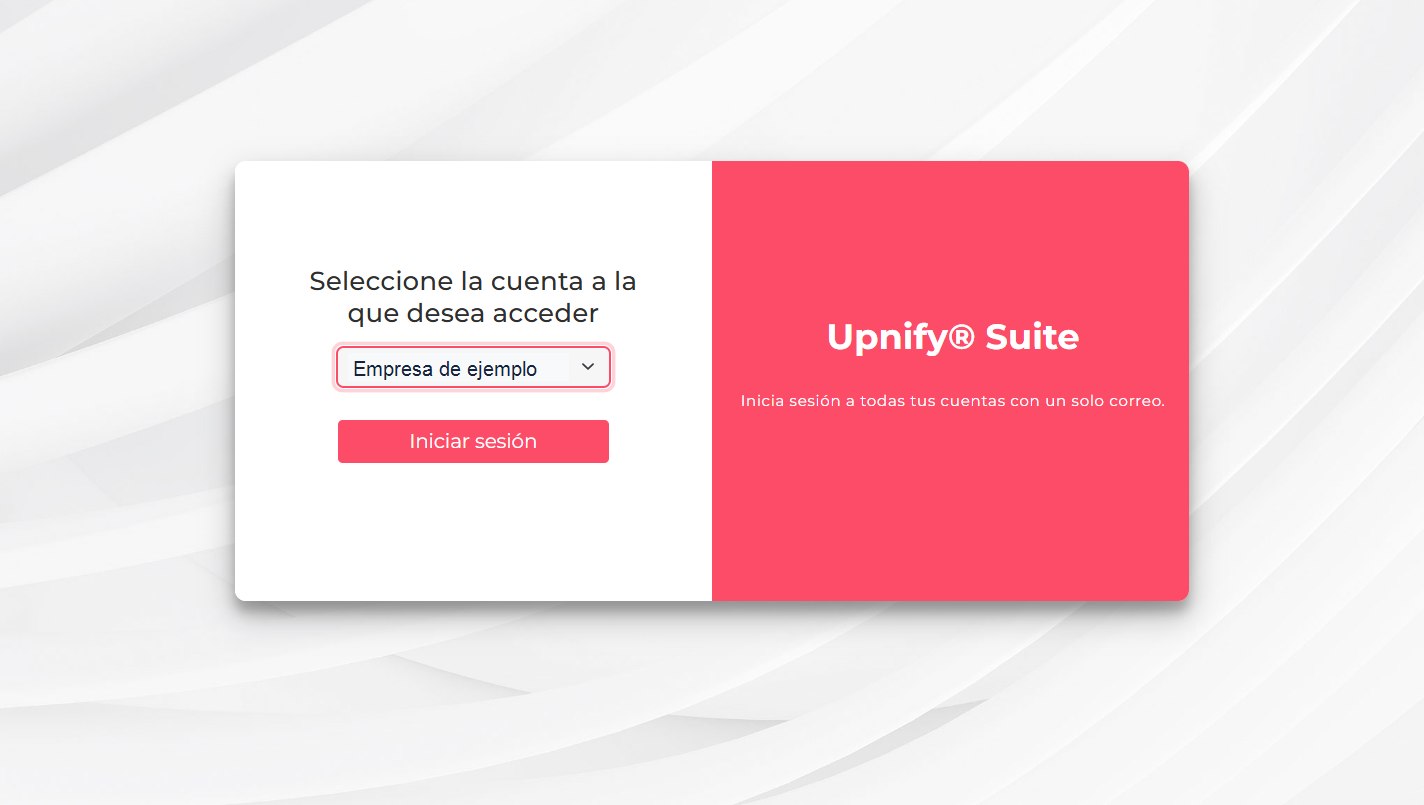
For example, if you support two companies in the same group, select one organization to work on its opportunities, then choose the other when you need to review its records.
Switch companies without signing in again
- From any Suite product, open the user menu.
- Select Change account.
- In the window that appears, choose the destination company and confirm.
- After Suite switches the company context, check the company name before continuing.
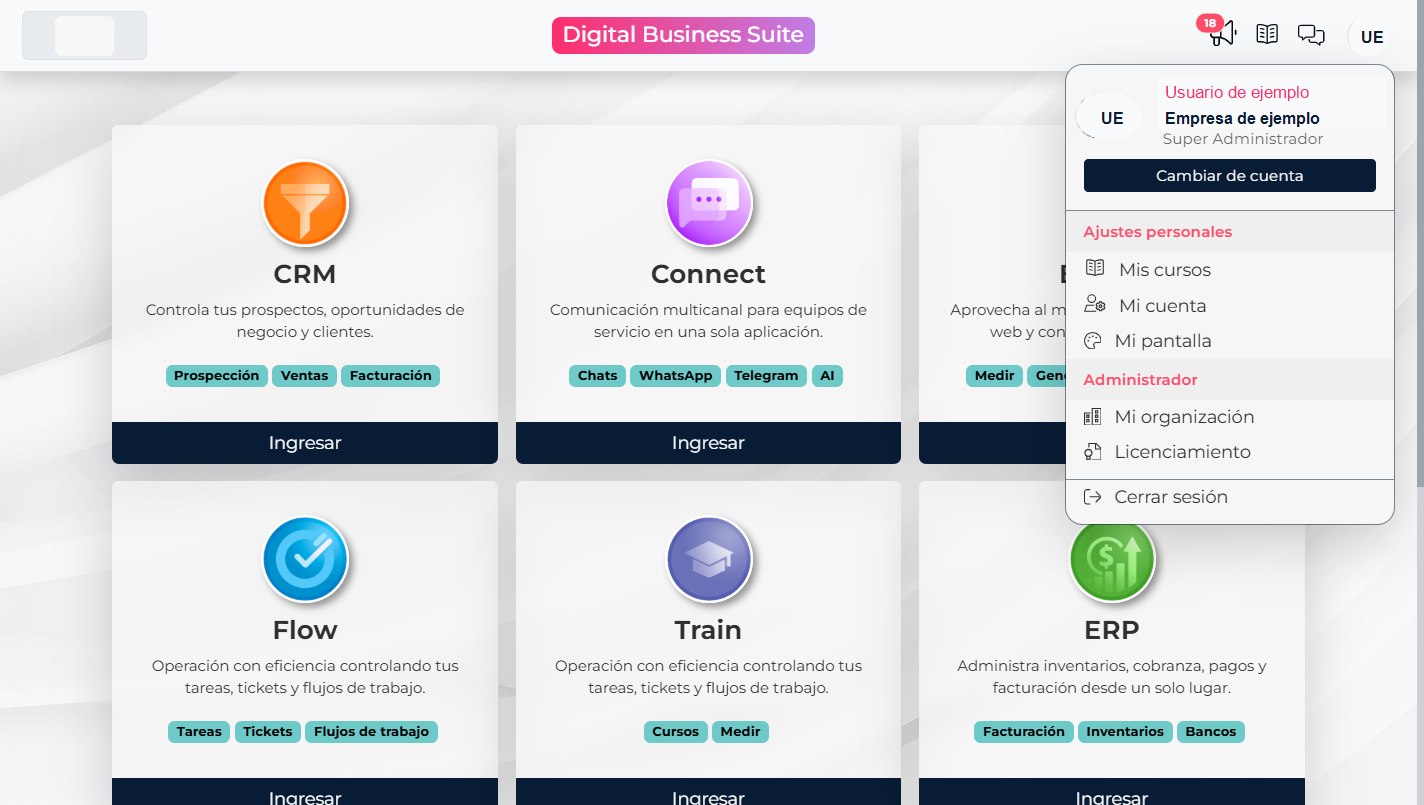
Save any changes you have open first. If the company selector does not appear when you sign in or you cannot see Change account, check that your license includes Multilogin, the other user approved the link, and you signed in with the linked email.