
When training is assigned in Train, the course is linked to your user or contact. You can review its topics, progress according to the course rules, and record assessment results. This guide explains how to start and finish, and how to distinguish an access issue from a course that is not yet available to you.
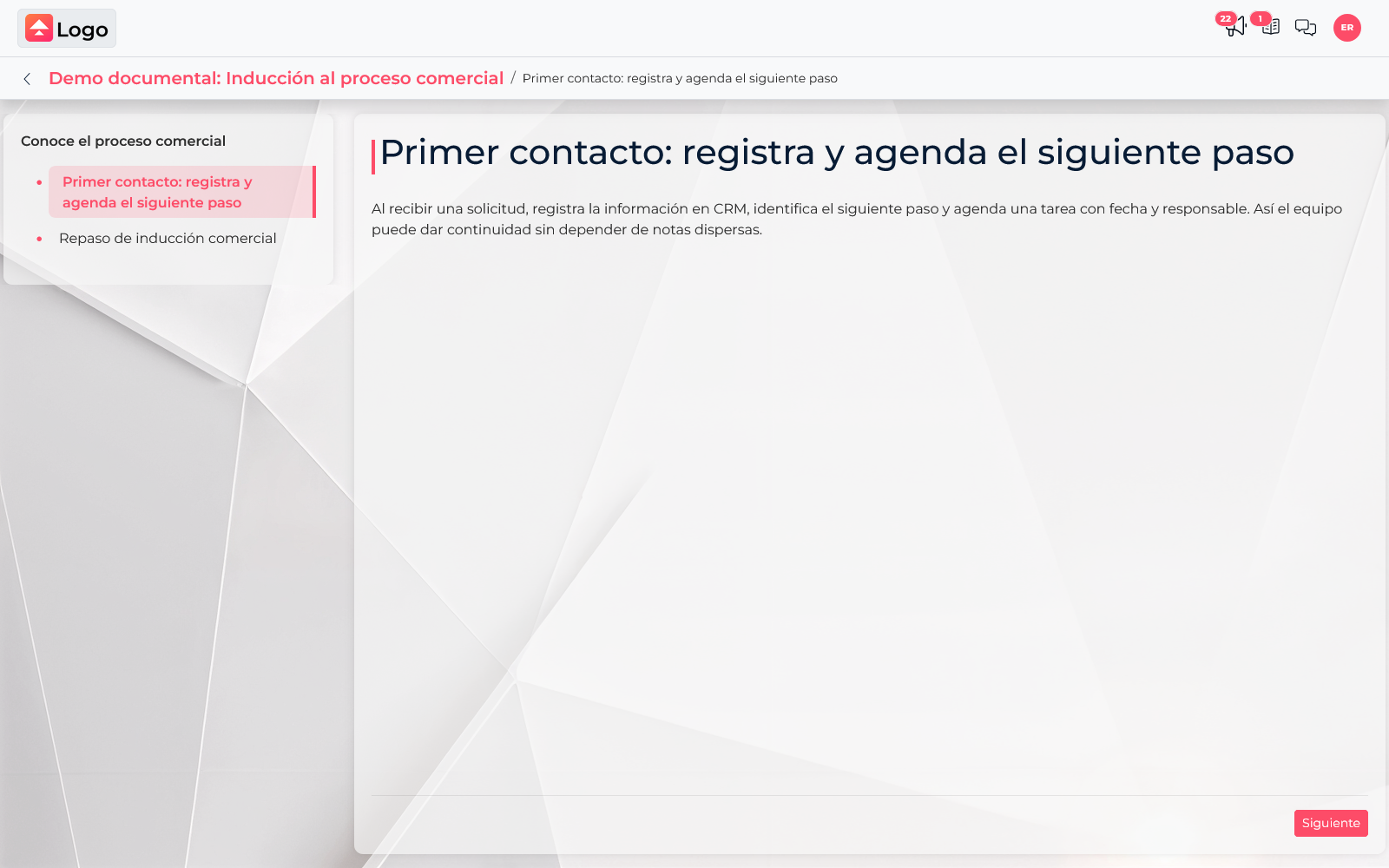
Open your assigned training
- Sign in to Upnify Train with the user to whom the course was assigned.
- Open the training from your assigned courses or from the access link you received. If it was assigned to your contact, use the access associated with that record.
- Check the course name and sections. Select the first available content.
- Review the material and select Next to continue. If the course is sequential, complete items in order to unlock the next one.
Train saves your progress so you can continue later. When you return, check the selected section and assignment status to resume in the right place.
Complete the content and assessments
Some courses contain only resources; others include assessments. When you reach one, open it, answer each question, and submit your responses. Review the result screen to confirm whether you passed and see your score.
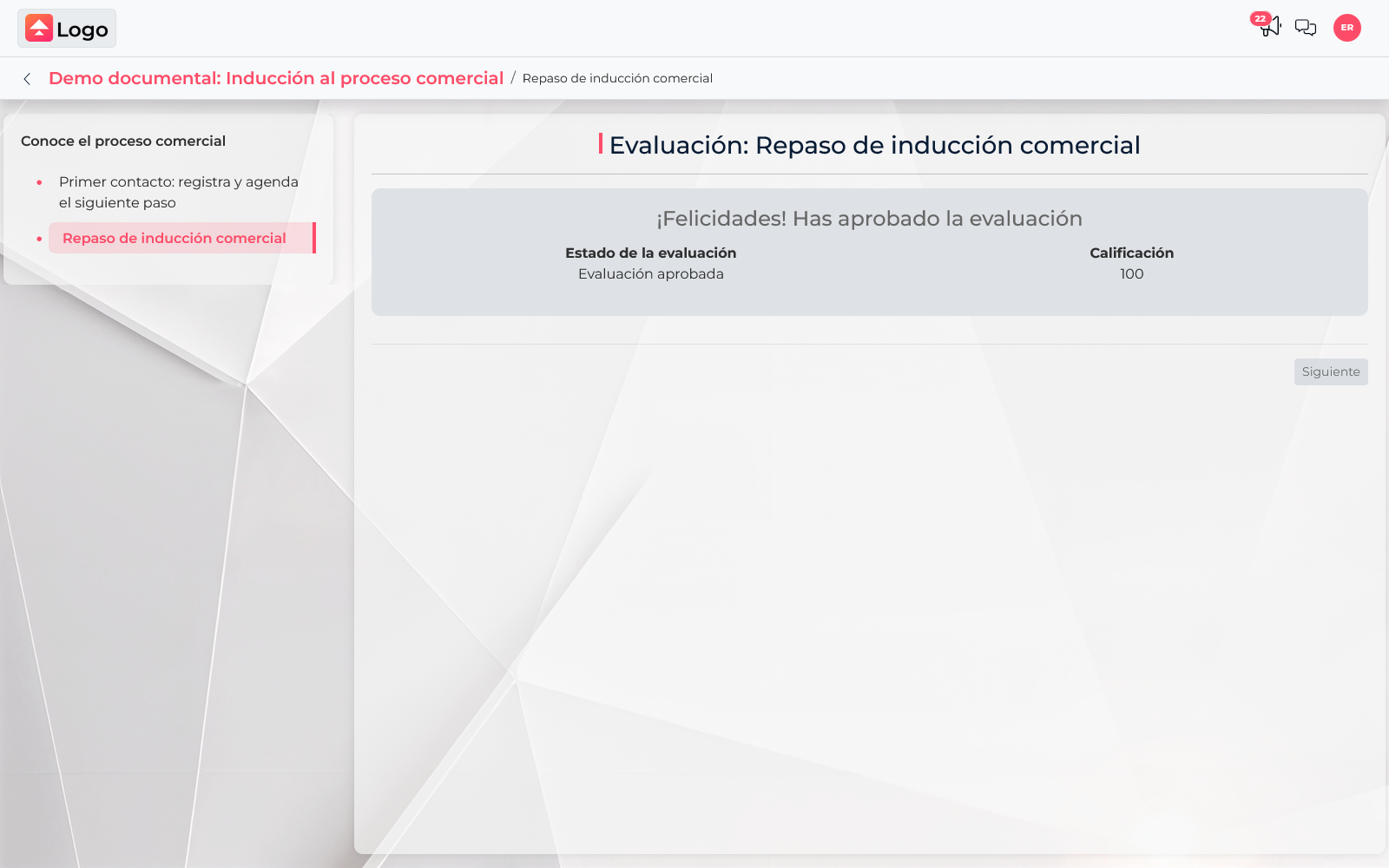
Progress shows how much content you have covered. The score reflects your assessment result. If the course has a test, check its status and score to confirm whether you passed.
If you cannot open or continue
- You cannot find the course: make sure you signed in with the right user and the administrator assigned the training to you.
- The course appears but will not open: check whether the assignment is active and within its availability or due dates.
- The next item is unavailable: check whether you need to complete the previous content or pass an assessment first.
- The page does not finish loading: refresh and try again. If it persists, report the course, content, and message shown.
- You already answered an assessment: review the result before trying again. Attempts and passing score depend on the course settings.
If you need help from your Train administrator, share the course and assigned user names, plus the section or assessment where you stopped. This helps them review the assignment without asking you to repeat the whole process.