
A certificate provides a record that a learner completed a course. In Train, prepare a document format with the details you want to show, then attach it to the course. This is useful for onboarding, technical training, or programs that need to formally recognize participation and results.
Prepare the certificate format
Have a document available in the Formats library that can serve as a certificate. Plan space for the learner name, course name, instructor, duration, completion date, and score according to your program. Keep the layout readable and allow room for long names.
Train recognizes these exact tags: [ESTUDIANTE], [NOMBRE_CURSO], [INSTRUCTOR_NOMBRE], [INSTRUCTOR_APELLIDOS], [DURACION_CURSO], [FECHA_FIN_CURSO], and [CALIFICACION_CURSO]. Type them exactly, including brackets and underscores. A tag with a different name will not be replaced automatically; when you attach the format, the system may warn about unsupported tags.
For onboarding, learner, course, and completion date may be enough. If the course includes an assessment, you can add the score. Include instructor details when it matters who delivered or endorsed the program.
Attach the format to the course
- Open Courses and select New or edit the relevant course.
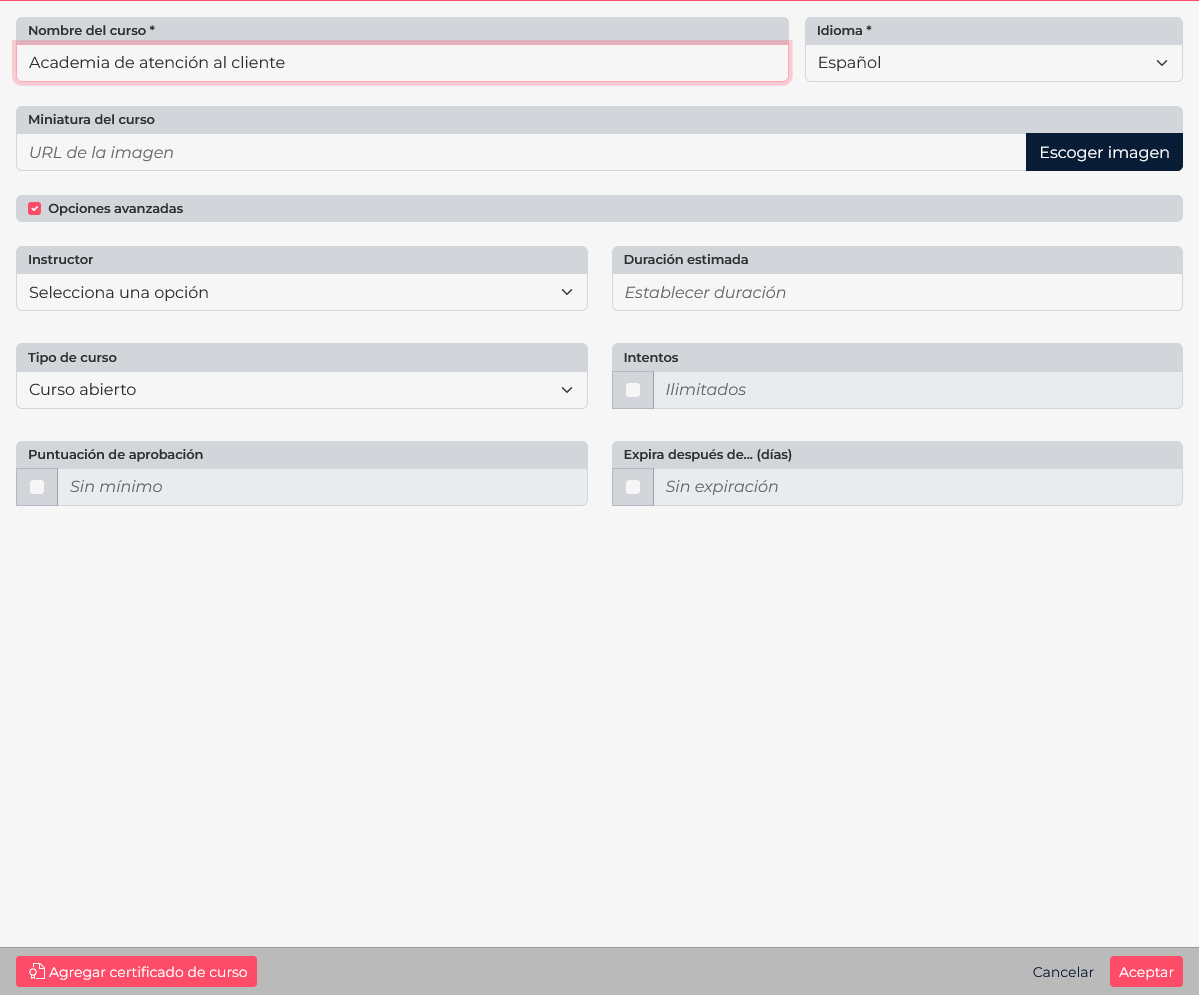
- Expand Advanced options and select Add course certificate.
- In the selector, open Formats, find the document you prepared, and select it.
- Confirm the format name appears with the course, then save the form.
If the course already has a certificate, the control changes to edit the certificate. Select the correct format and save the course. Before replacing a format used by a group, confirm which version should remain attached.
Review the result before using it
Review the document with a test learner when your training workflow allows. Confirm each tag shows the expected value, the date and score are correct, and no tag remains as plain text. If a tag is not replaced, check that it is typed exactly and the related course or learner result contains that data.
Checklist
- The final format is available in Formats.
- Tags match the supported list exactly.
- The course shows the attached certificate and saves the change.
- The design leaves room for variable details, signatures, or required branding.