
An assignment connects a prepared course with the people who need to take it. It helps organize onboarding, process updates, or required training, and lets you review who has progressed and who may need support. Before creating one, confirm the course is active and its modules and materials are ready.
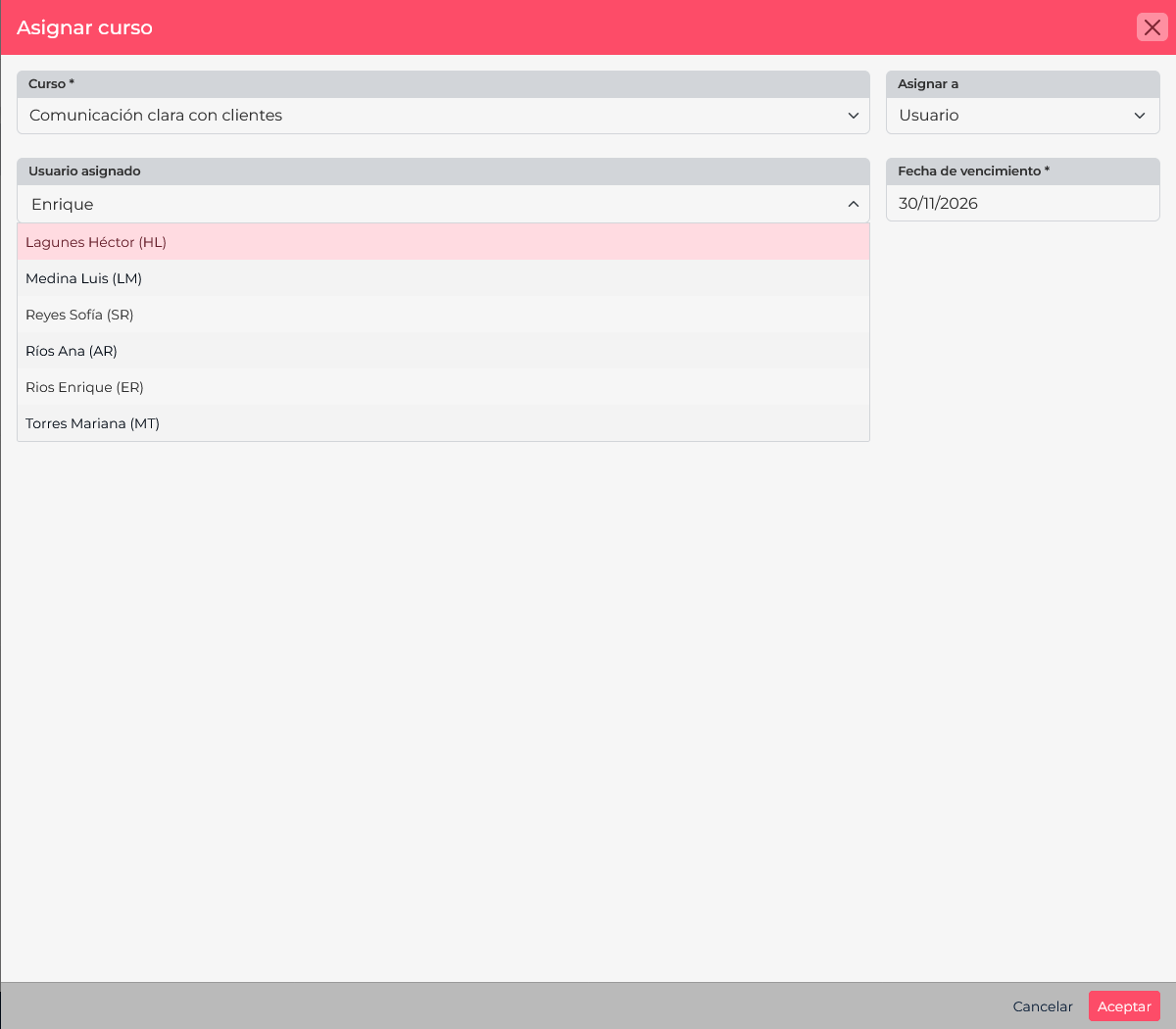
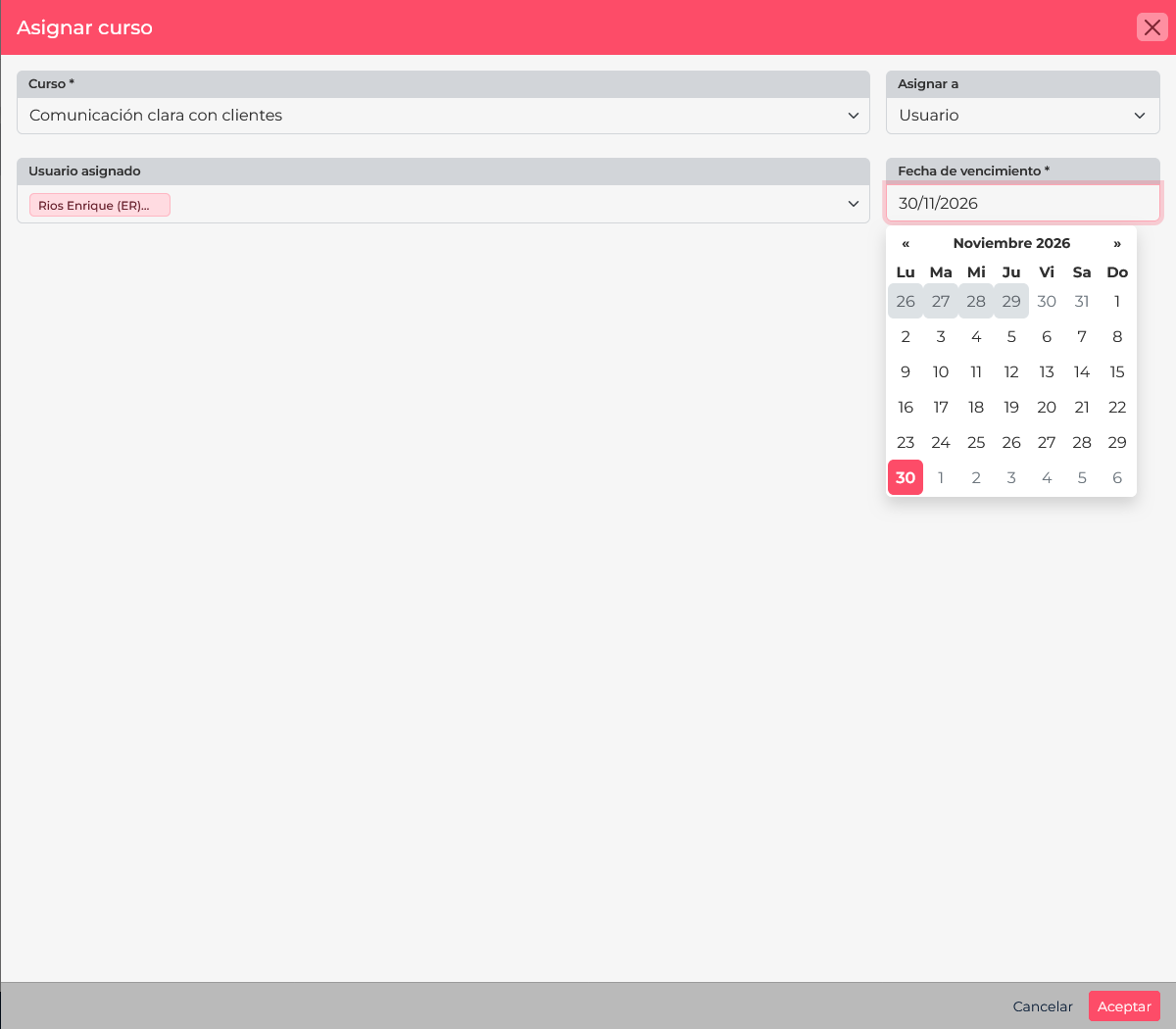
Create an assignment
- In Train, open Assignments and select New.
- Choose the course. Confirm it is the right version and its content is complete.
- Under Assign to, choose User, Contact, or Group, then select the recipient or recipients. For a group, make sure everyone should take the same course.
- Set the Due date. Allow enough time based on course length, shifts, and workload.
- Review the course, recipients, and date before accepting.
A new assignment can email recipients who have an address on file. Review the selection before saving; do not create a test assignment if you do not want to notify people.
Review and manage progress
The assignments list shows the course, recipient, status, last content, progress percentage, score, and dates. Use these details to follow up during the assignment period: for example, contact someone who has not started training that is nearing its deadline, or help a learner who stopped at a module.
Assignment actions let you edit, view progress, copy the access link, activate or deactivate, and restart. If the team calendar changes, edit the assignment and adjust its due date. Tell the recipients about the change so they know when to finish.
Activate, deactivate, and restart are different actions
- Deactivate: changes assignment availability. The record remains, but it is no longer active for the learner.
- Activate: re-enables an inactive assignment so the learner can continue.
- Restart: sends the learner back to the beginning. It resets progress and score, clears the last-content reference, and removes recorded assessment attempts.
Do not restart to restore access or extend a due date. If the assignment is inactive, activate it; if the deadline changed, edit it. Restart only when the learner must repeat the course and assessments from the beginning.
Example: protocol update
Assign the updated course to the service team with a realistic due date. Review progress and scores while it is active. If someone needs more time, change the deadline. If their assignment was deactivated by mistake, activate it so they can continue. Restart only if they must go through every module and assessment again.
Before confirming a change
- Verify the course and whether you chose a user, contact, or group.
- Check the due date and remember that a new assignment may send email.
- Review progress before restarting and confirm with the course owner.
- Use activate/deactivate to control access; restart only to clear progress and begin again.