
A Train course brings learning materials and activities together so people can study a topic in a clear order. Planning its structure first helps learners understand what to review, where to start, and what they are expected to learn. Customer service training, for example, can be divided into listening, explaining options, and follow-up.
1. Create the course and define its purpose
- In Train, open Courses and select New.
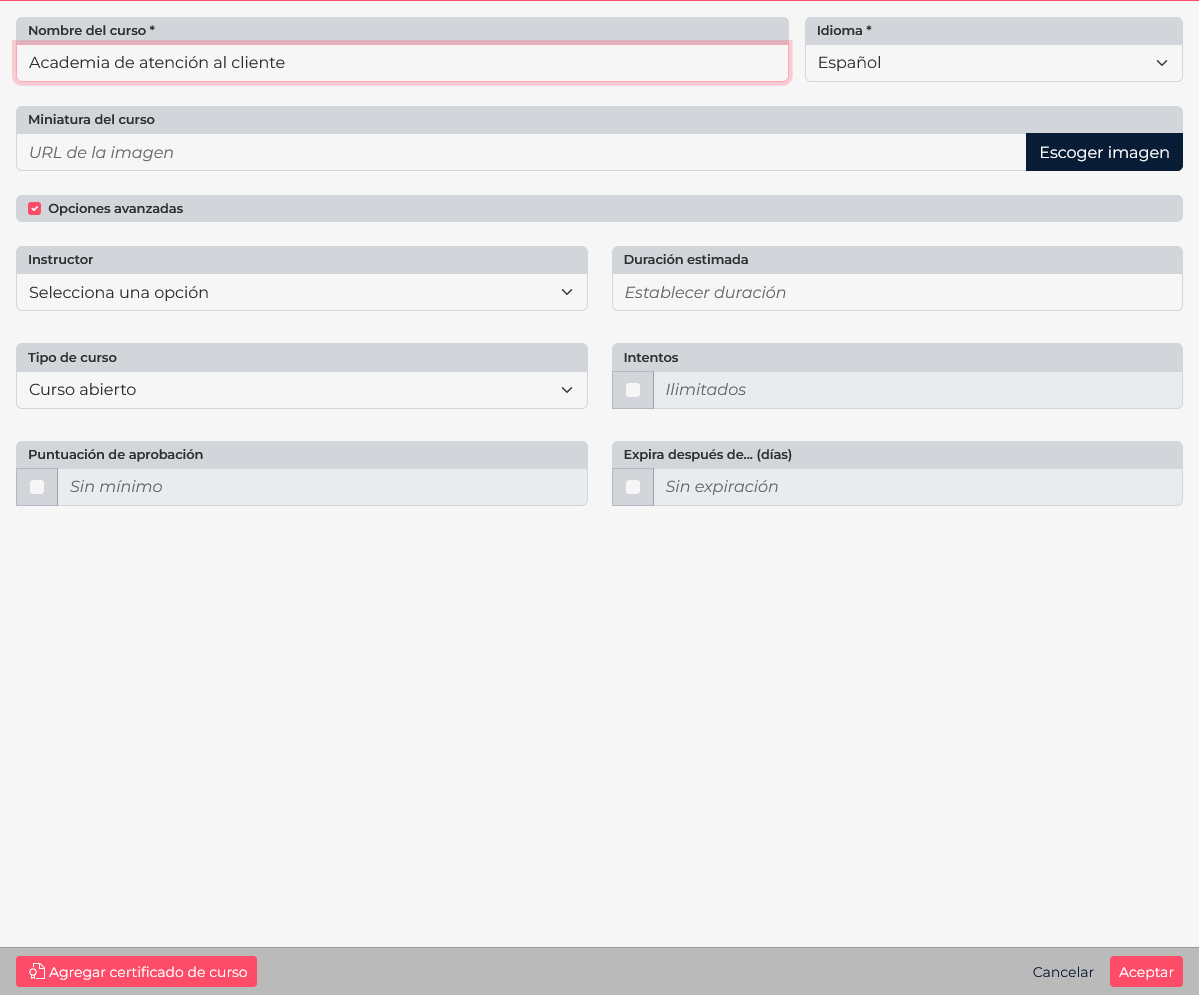
- Choose a name that describes the learning goal, such as “First customer interaction”, and select the course language. Add a thumbnail if it helps people recognize the course.
- Open Advanced options and complete relevant settings: instructor, estimated duration, course type, attempts, passing score, and validity. Decide attempts and passing score after planning how learning will be checked.
- Choose an Open course when learners may review modules in any order. Use sequential format when they need to complete material in a defined order. Save the course.
Use sequential access when one topic depends on another, such as safety before operating equipment. For independent reference material, an open course is often more practical.
2. Organize the course into modules
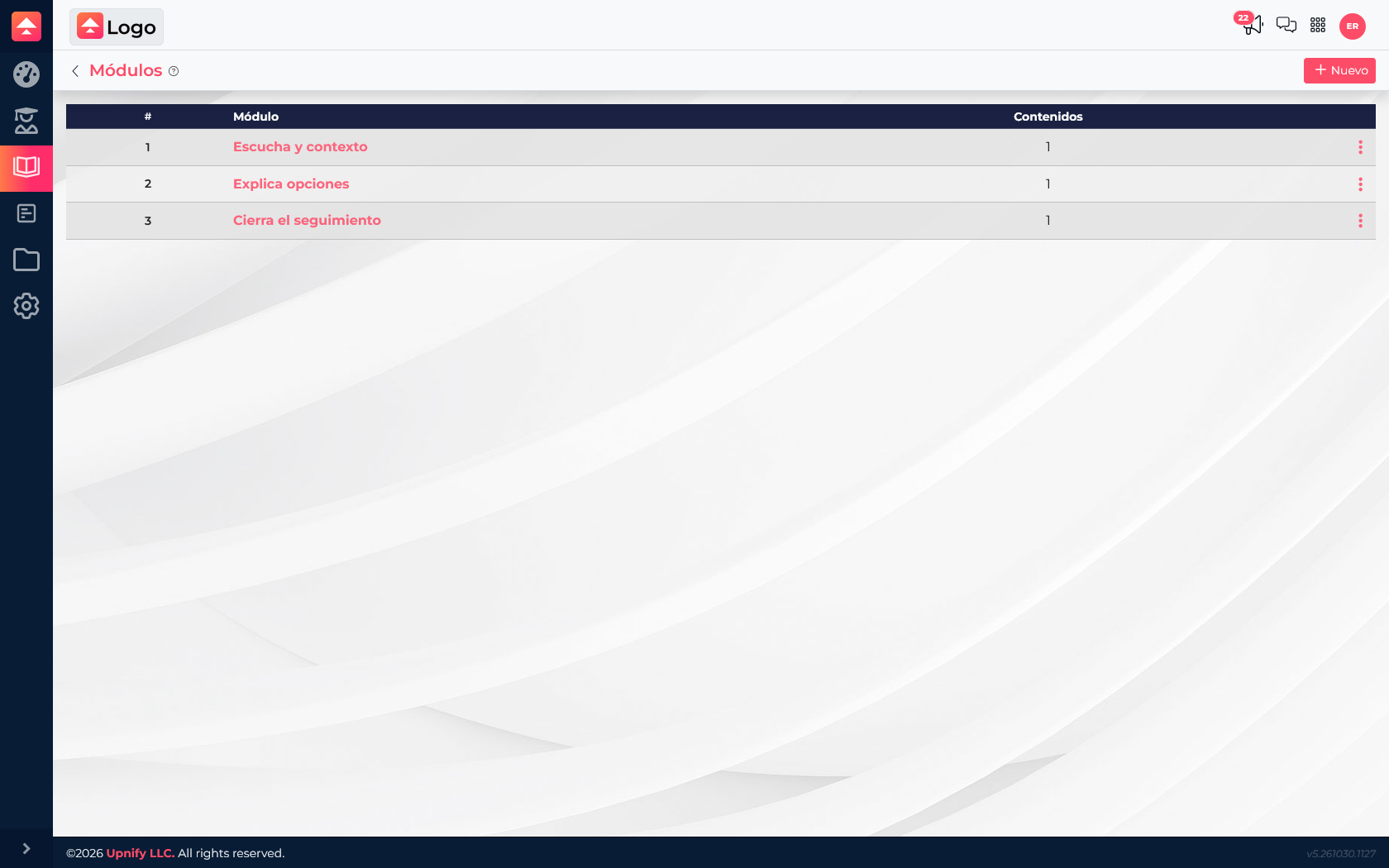
Open a course to see its modules. Each module represents a stage or topic, not necessarily a classroom session. Select New, give it a descriptive name, and save. Keep a logical flow: context first, then the procedure, and finally practice or an assessment.
A good title tells learners what they will find. “Listen and understand the context” is more helpful than “Module 1”; “Close the follow-up” describes a learning action. Review the order before assigning the course so learners do not encounter an incomplete structure.
3. Add content and use AI as support
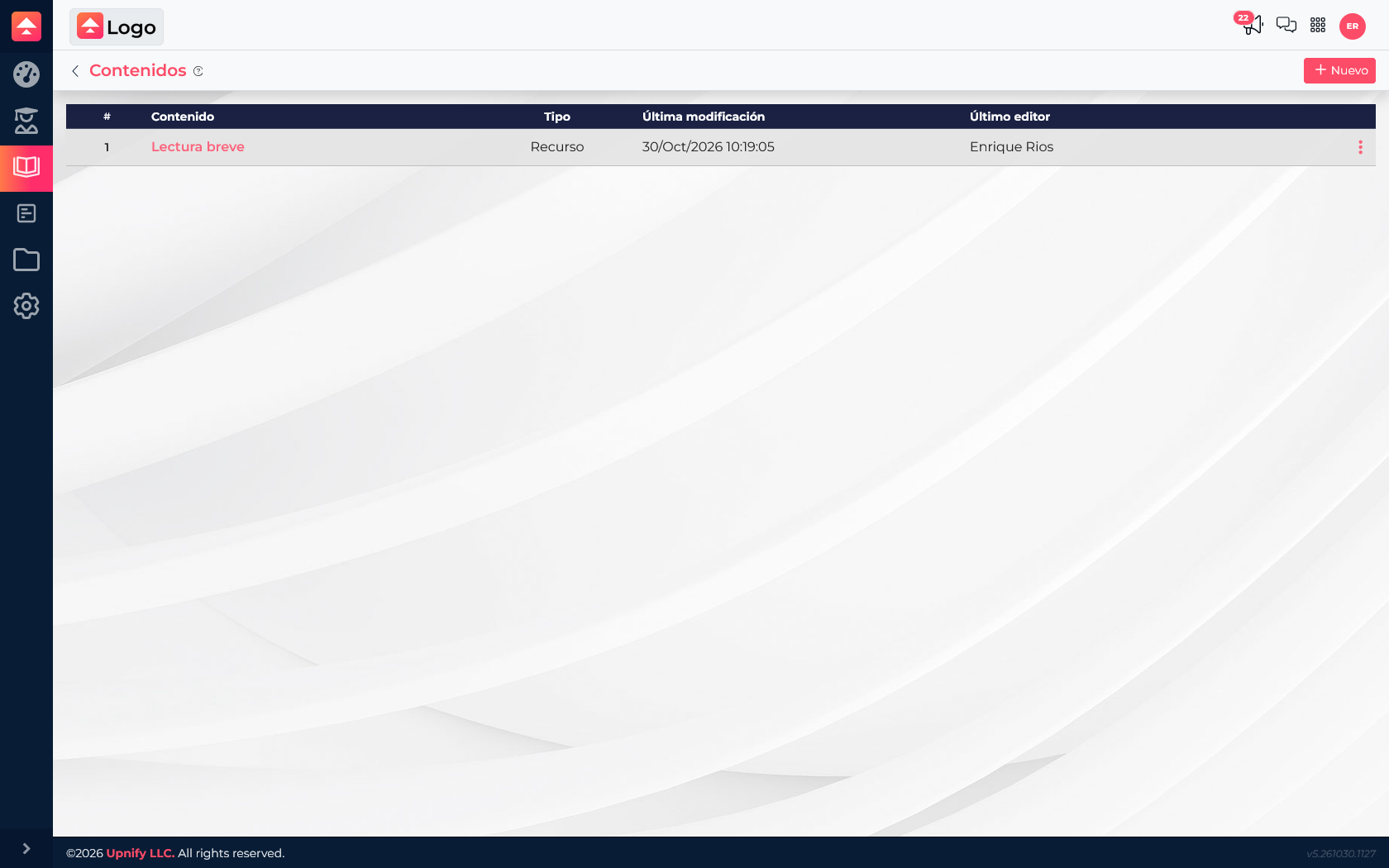
Open a module and select New to choose a content type. A resource explains a topic through text and materials; an assessment checks what learners understood. Match the type to the goal instead of turning every reading into a test.
In the text editor, you can write directly or ask Train AI to create a first draft or improve existing text. AI can help organize an explanation, simplify instructions, or suggest a structure. Always review facts, control names, policies, and examples before saving: AI does not replace review by someone who knows the process.
Each successful AI generation or improvement deducts one Train AI credit. Prepare the goal and reference material first, then verify the result before adding it to the course.
Example: training a customer service team
Create a course called “First customer interaction” with modules on listening to a need, explaining options, and agreeing on follow-up. Add an explanation and a workplace example to each module. If useful, ask AI to turn an internal procedure into an easy-to-follow reading, then verify that it still reflects your company’s actual steps.
Before assigning it
- Review each module, its order, and its materials.
- Test links and files from the learner view when possible.
- Check duration, format, attempts, and passing score.
- If you used AI, verify that it did not invent rules, features, or instructions.