
An assessment helps confirm whether learners understood what they need to apply at work. It can also show which topics need another explanation. In Train, add an assessment as content inside a module; course settings separately define allowed attempts and the passing score.
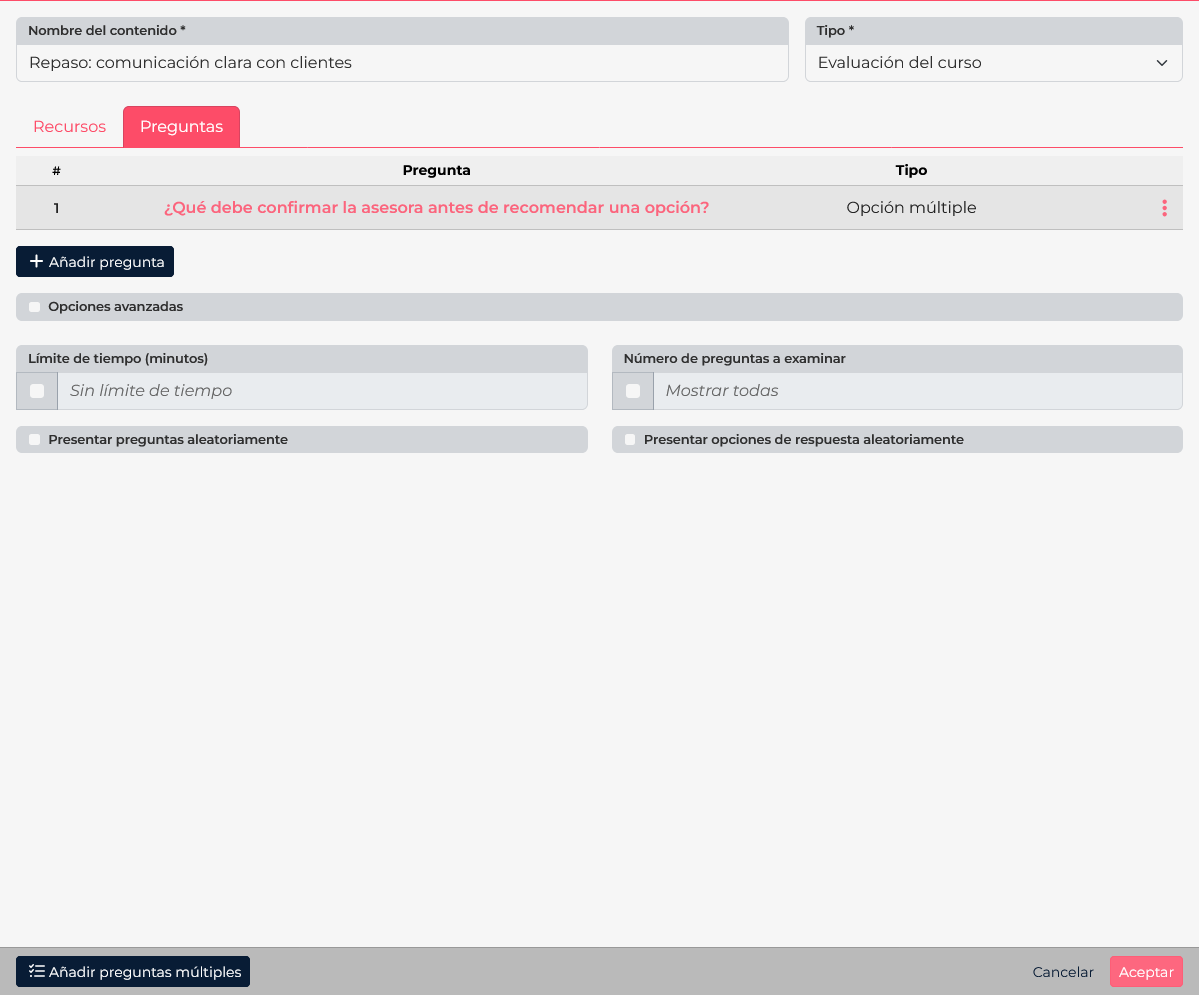
1. Add an assessment to a module
- Open Courses, enter a course, and select the module where you want to check learning.
- Select New, enter a name that identifies the topic, such as “Review: clear customer communication”, and choose Assessment as the content type.
- In Questions, add items individually or use Add multiple questions to add a set in one operation.
- Open Advanced options to set the time limit, number of questions shown, and whether questions or answers are randomized. Randomization is useful when your question bank is large enough to vary attempts.
- Review before saving. Confirm there are questions, correct answers are marked, and the conditions fit the course level.
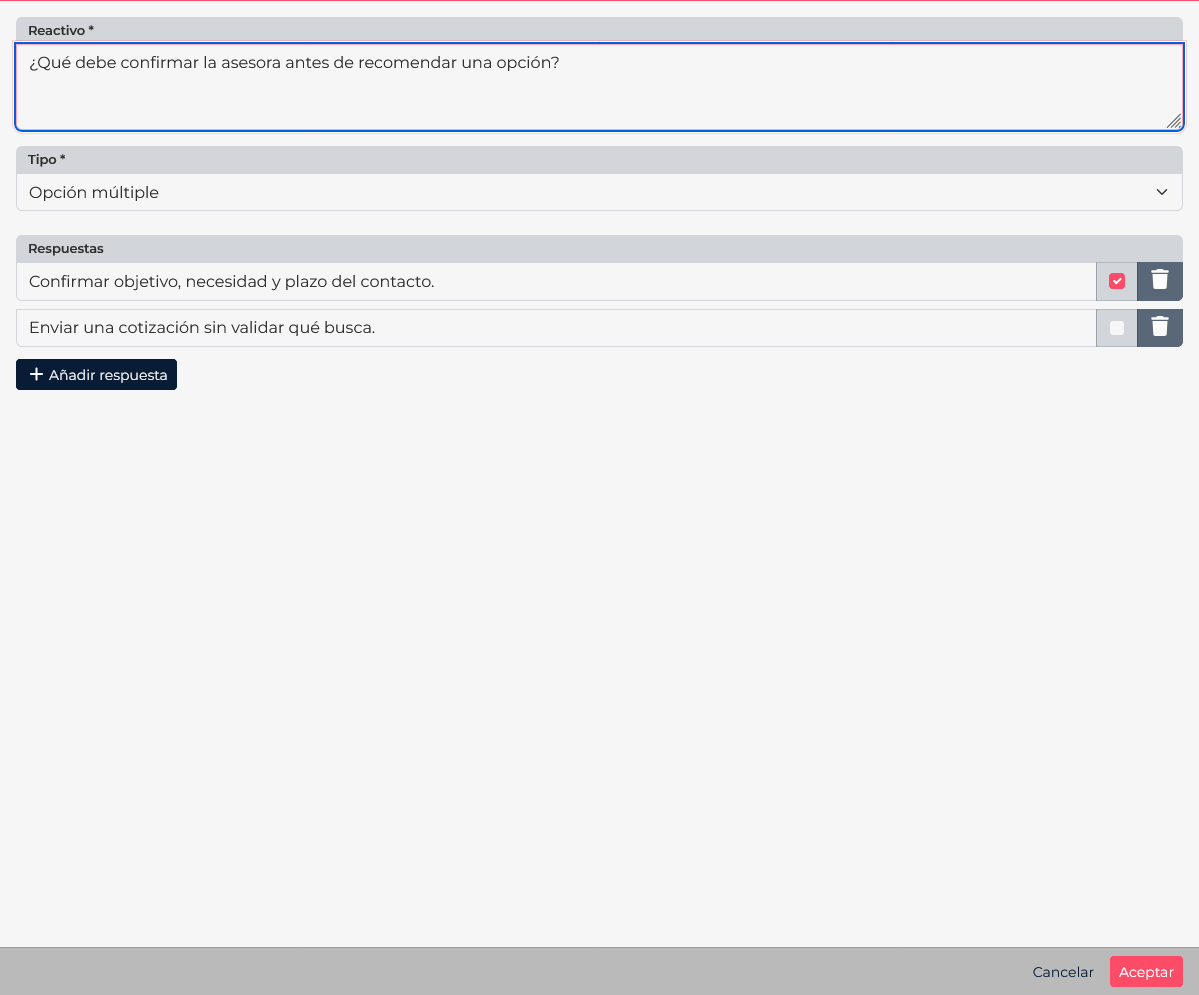
2. Choose the right question type
- Multiple choice: one answer is correct. Use it when there is one expected recommendation or decision.
- Multiple selection: several answers can be correct. Use it when learners must identify every required element, such as information to confirm before closing a case.
- True or false: checks one clear statement. Avoid wording that is ambiguous or depends on interpretation.
Write direct questions tied to the course material. Instead of asking “What does the module say?”, present a situation: “A customer has not confirmed the installation date. What is the recommended next step?” Incorrect answers should seem plausible but clearly conflict with the taught procedure.
3. Keep assessment and course settings separate
Time limit, question count, and randomization belong to the assessment. In the course’s advanced settings, define the number of attempts and, if needed, the passing score. These are separate controls; review both so learners know the requirements before they start.
For customer service training, ask how to confirm a need, explain options, and agree on follow-up. If the course requires 80 points and allows two attempts, communicate those criteria when assigning it and make sure the content prepares the team.
Before saving
- Make sure each question is understandable on its own.
- Check the correct answer and avoid multiple plausible answers when only one is allowed.
- Set the number of questions shown based on the size of your question bank.
- Test time and randomization from the learner view if preview is available.
- Confirm attempts and passing score in the course settings.