
A learning route groups several courses into a defined journey. Use one when training has steps that work best in order\u2014for example, learning about the service first and then practicing customer communication. Each course keeps its own modules and content; the route organizes the courses and makes it easier to assign them as one program.
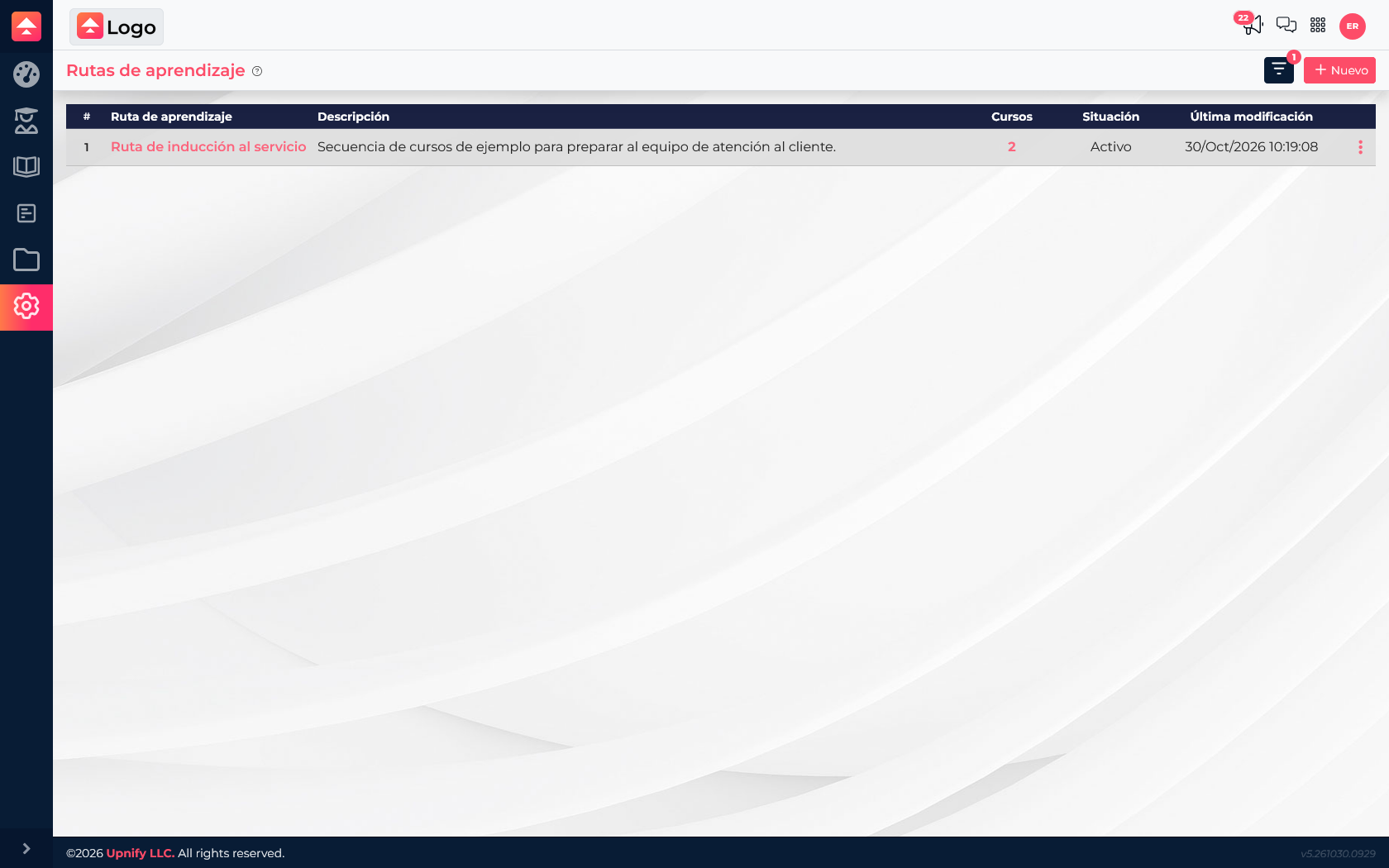
Create a route
- Open Settings ? Learning Routes.
- Select New and enter a name that explains its audience or purpose, such as \u201CService Onboarding Route.\u201D
- Add a short description of the program\u2019s goal and save.
- Open the route to manage the courses it contains.
Add and order courses
- Inside the route, select New to add an existing course.
- Find and choose a course. Repeat for each course in the program.
- Review the order. Use the available list actions to move courses up or down.
- Check the language and confirm each course is active. To change a module or content, open and edit that course separately.
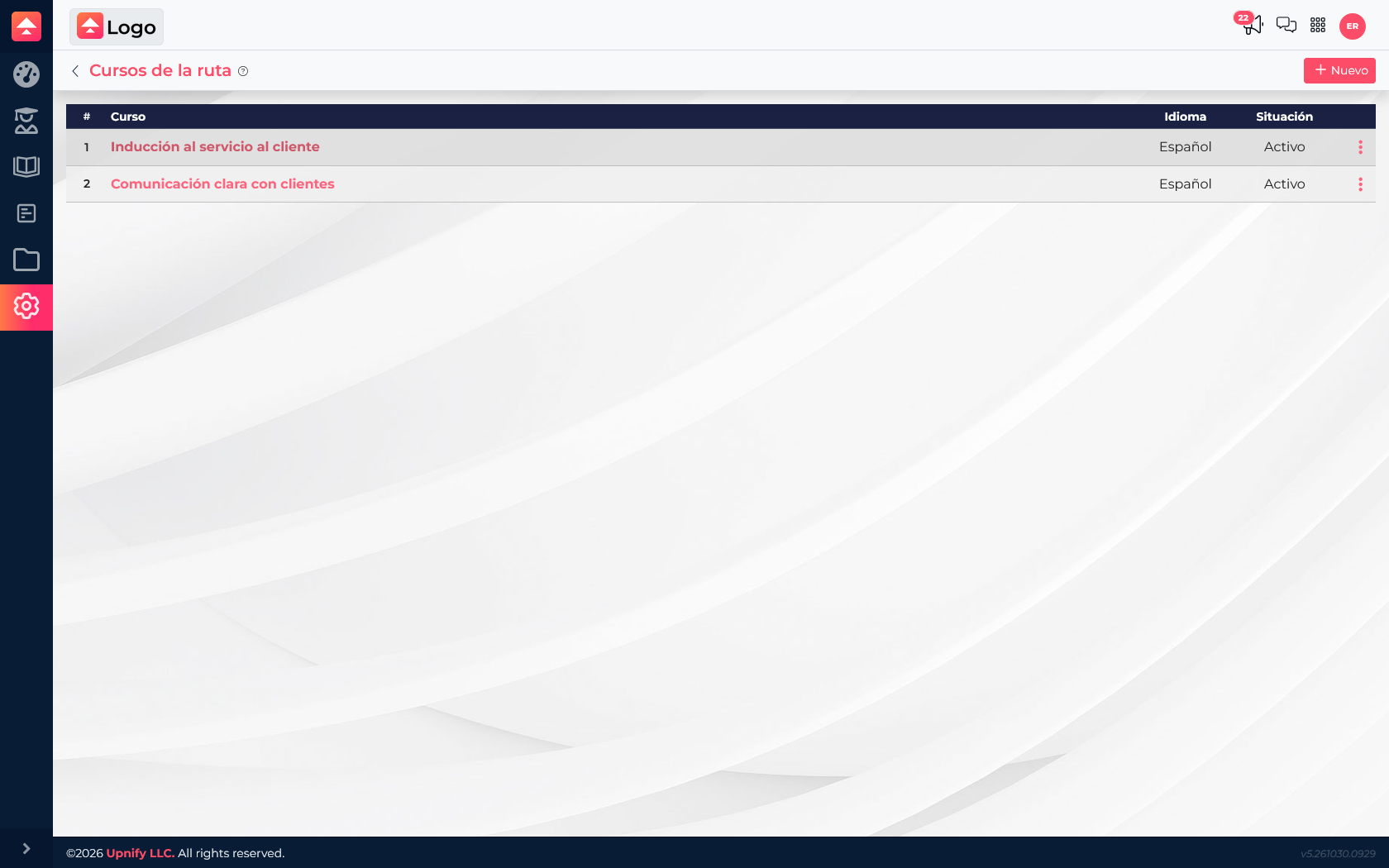
Example sequence
A new service representative\u2019s route could start with Customer Service Induction and continue with Clear Customer Communication. The first course explains the service process; the second helps learners practice conversation and follow-up. If the team should take them in that order, arrange the route accordingly and check both courses before assigning it.
Assign the route
- Open Route Assignments and select New.
- Choose the route. Under Assign to, choose a user or contact and find the right person.
- Set the start date and due date. Allow enough time to complete all courses.
- Review the route, recipient, and dates. Select Accept to create the assignment.
A route can be assigned to a user or contact. To assign an individual course to a group, use Course Assignments and select the group as the recipient.
Assigning a route can create new course assignments for courses the person does not already have. Review your credit balance and the route contents before confirming.
After assigning
Review the assignments to see status and progress. If someone already had one of the courses, that existing assignment does not need to be recreated to follow the route. To update the program, edit the route or course as appropriate and consider the effect on learners with active assignments.