
Training often needs more than text: a downloadable guide, an image that explains a step, or reference material learners can reopen. Train keeps these resources in a library so you can organize them and add them to a course where they are useful.
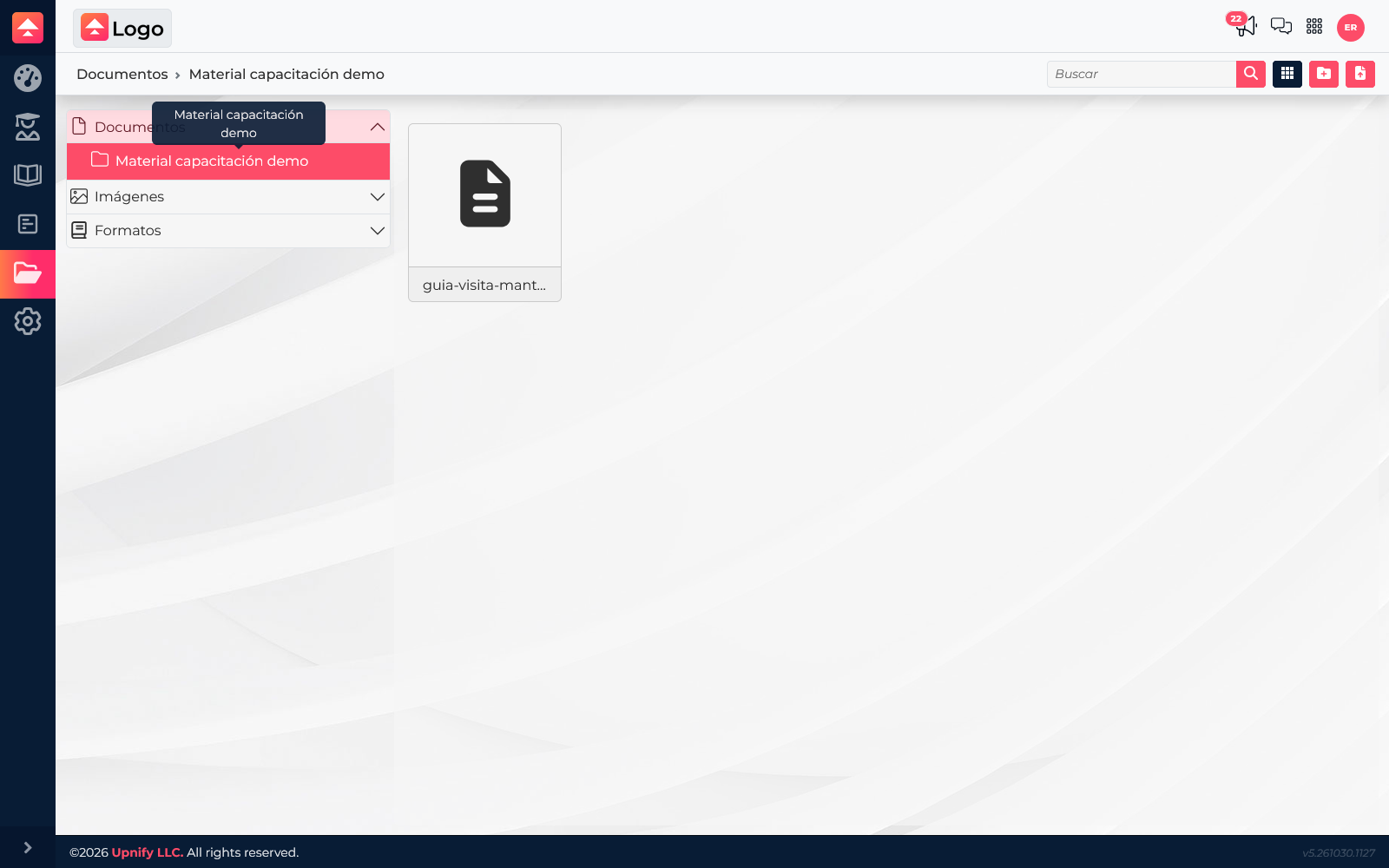
What each area stores
Documents: files learners can review or download, such as guides, procedures, and supporting readings.
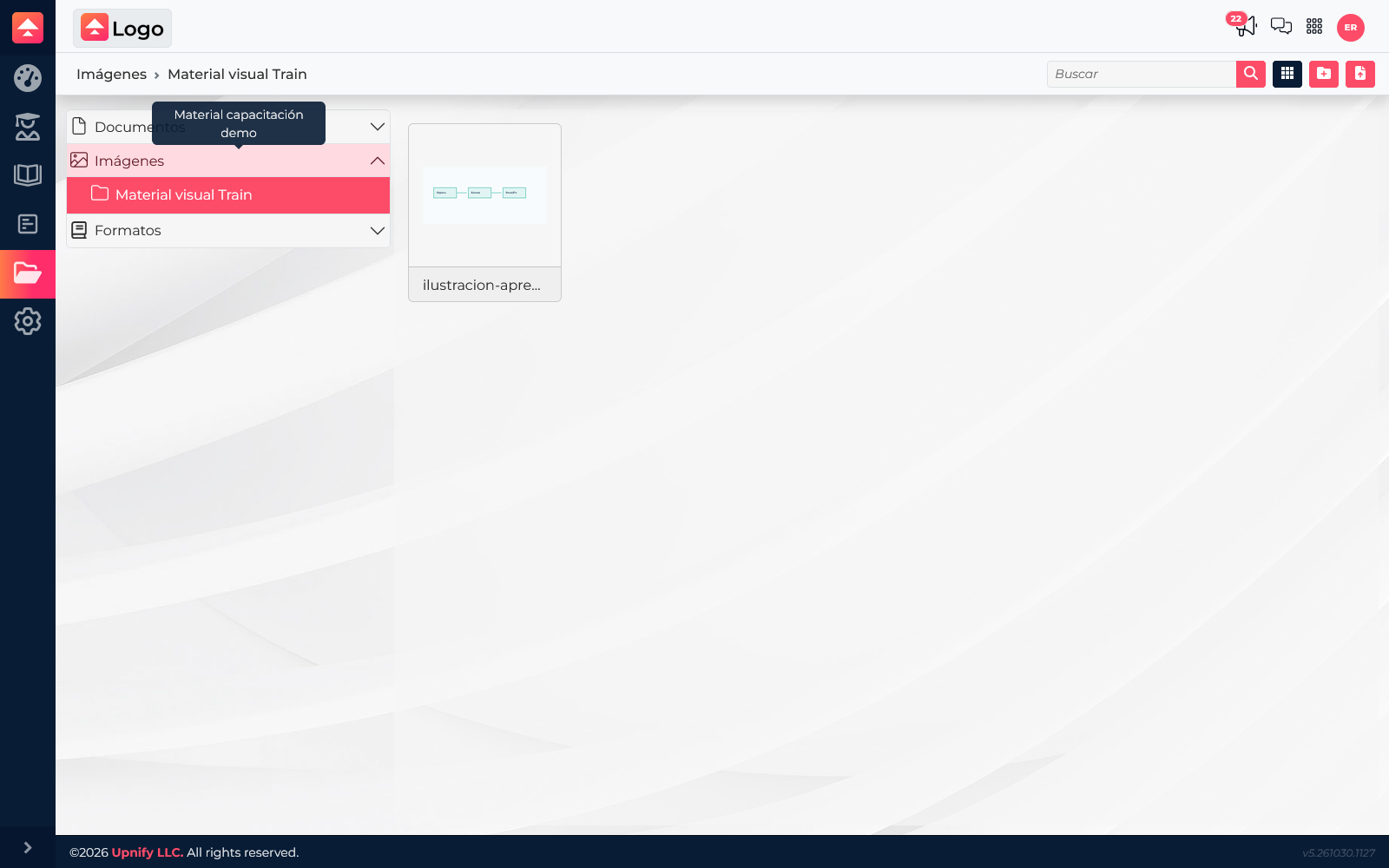
Images: visual resources you can insert into content to explain a step or show an example.
Formats: templates managed separately and available in workflows that support formats; they do not replace a reading document or image.
Keeping resources in separate areas makes them easier to find. A safety guide, for example, can go in Documents and an illustration of its steps in Images. Course editors can reuse them without searching through a mixed collection.
Upload and organize documents
- In Train, open Files and select Documents.
- Use the create-folder button and choose a name that describes the topic or team, such as “Training materials” or “Field safety”.
- Open the folder, choose the upload option, and select a file. Wait until it appears in the list before leaving.
- Use names that identify purpose and version, such as “Technical visit guide”. If you update a resource, check which version is linked in the course.
One folder per topic is easier to maintain than a single folder with everything. It lets you update a guide without confusing it with an image or template.
Upload images and add them to a course
- Open Images, create or select a folder, and upload the visual resource.
- Open Courses, then the course and section where you will explain the topic.
- Create or edit a resource. In the editor, open the library image picker, find the folder, and select the file.
- Place the image beside the step it illustrates, add descriptive alternative text, and save.
- Review the resource from the learner view. Make sure the image has context and related documents can be opened or downloaded.
For a maintenance-visit course, store a procedure guide in Documents and an inspection-order diagram in Images. Explain the process in the content, place the diagram beside the steps, and make the guide available for reference.
If a file does not appear
- Confirm you are in the right area: Documents, Images, or Formats.
- Open the folder where you uploaded it and make sure the upload finished.
- In the editor, browse to that folder; the image picker displays visual resources.
- Save the content and review it again from the learner view.