

When several people handle messages, a single unstructured agent list can make it unclear who should take each request. Support teams organize people by function\u2014such as support, sales, or follow-up\u2014and make it easier to select the right agents when setting up conversation distribution.
Before you create a team
Confirm that each person has Connect access. If someone is not available to assign, review their product access and profile under My organization. Decide which requests each group will handle so its name and membership are clear to everyone.
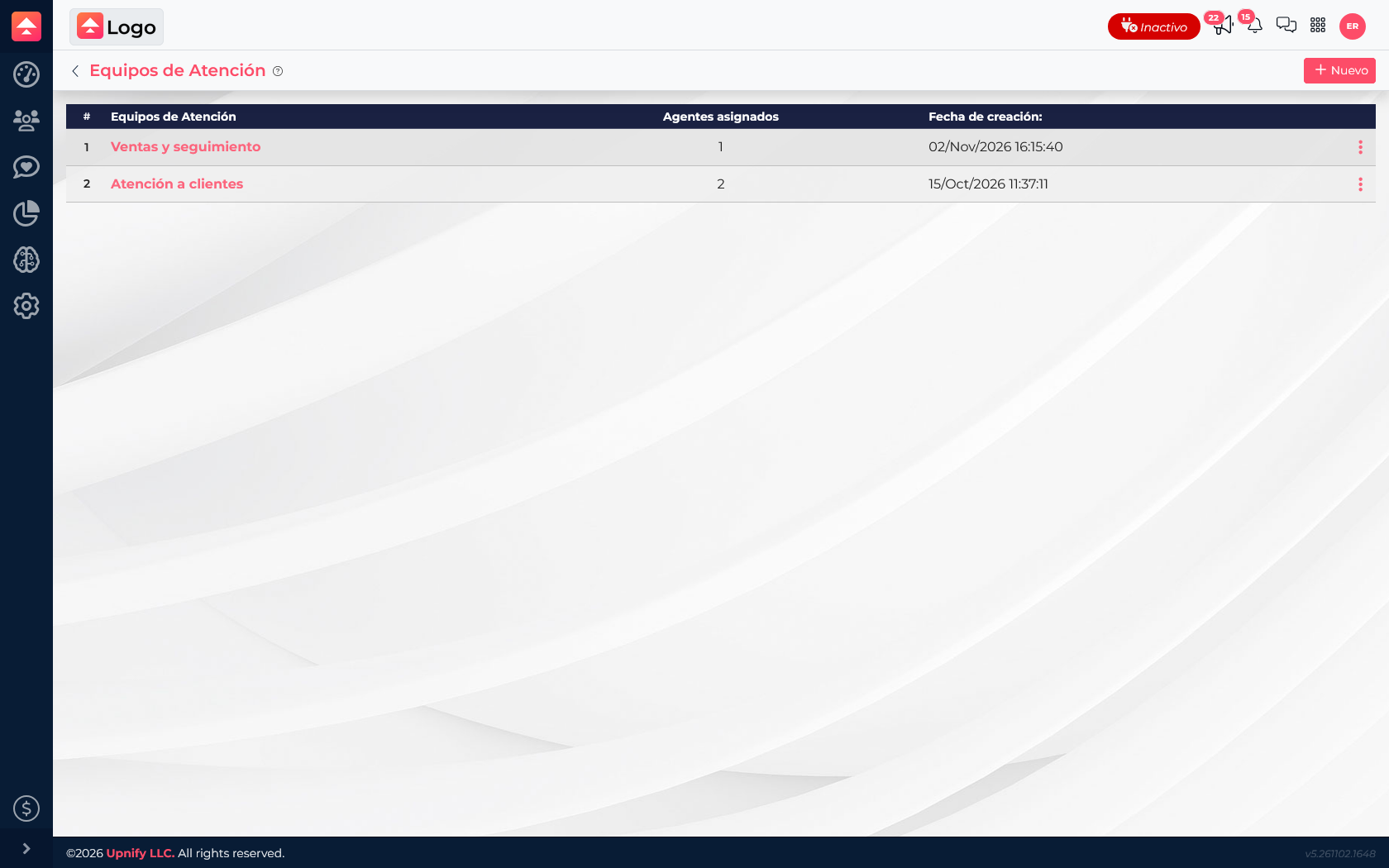
Create a support team
- In Connect, open Settings ? Support Teams.
- Select New, enter a name that describes the team\u2019s purpose, and save.
- Create only the teams your operation needs, such as Customer service and Sales follow-up.
Assign people to a team
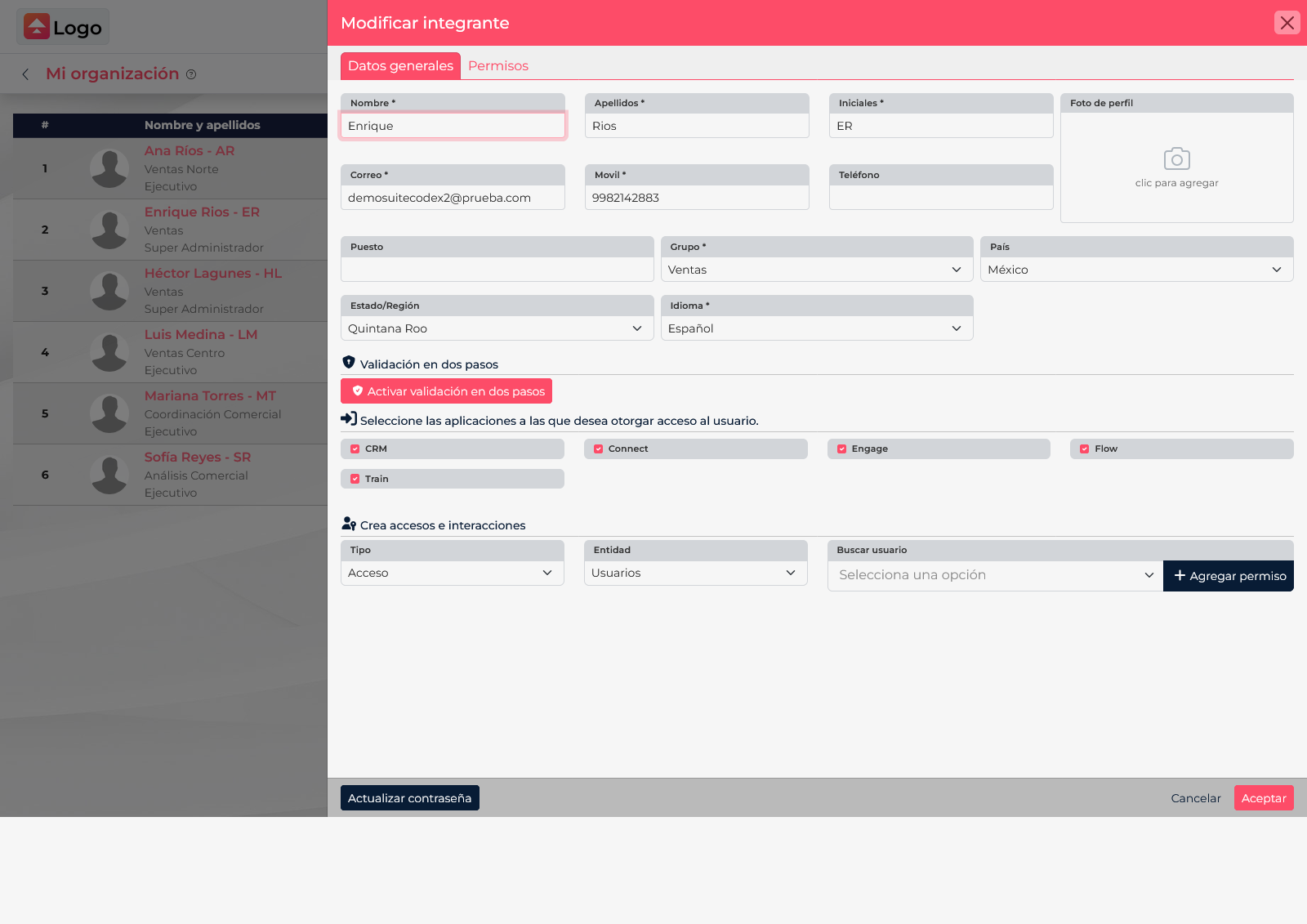
Manage this relationship from the user profile. Open My organization, edit the agent, and select a team in the Group field of their profile. Confirm that Connect is enabled for that person and save. The agent count helps you verify the assignment.
Example team structure
| Team | What it handles | When it helps |
|---|---|---|
| Customer service | General questions and service requests. | When several agents share inquiries or follow-up. |
| Sales follow-up | Product questions, buying interest, and demo requests. | When conversations need a response from the sales team. |
After organizing people, select the appropriate agents or teams in the channel\u2019s distribution rules. This keeps team structure separate from the logic that assigns conversations. See also How to configure distribution rules, schedules, and agent availability.