

A well-configured product prevents team members from quoting different names, units, or prices for the same item. The catalog is what the team uses to build a quote: CRM uses the product details to identify it and calculate the amount.
Before creating the record
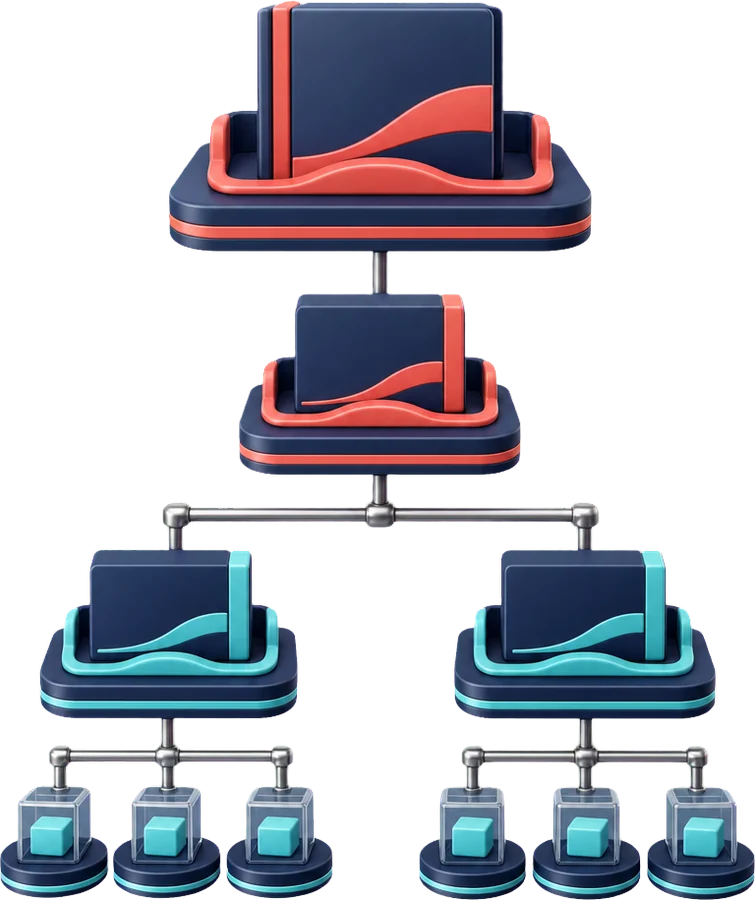
Check whether the line, brand, model, and unit you need already exist. These catalogs are managed separately and then assigned to the product. To define or correct those relationships, see How to organize products by lines, brands, models, and units.
Create the product or service
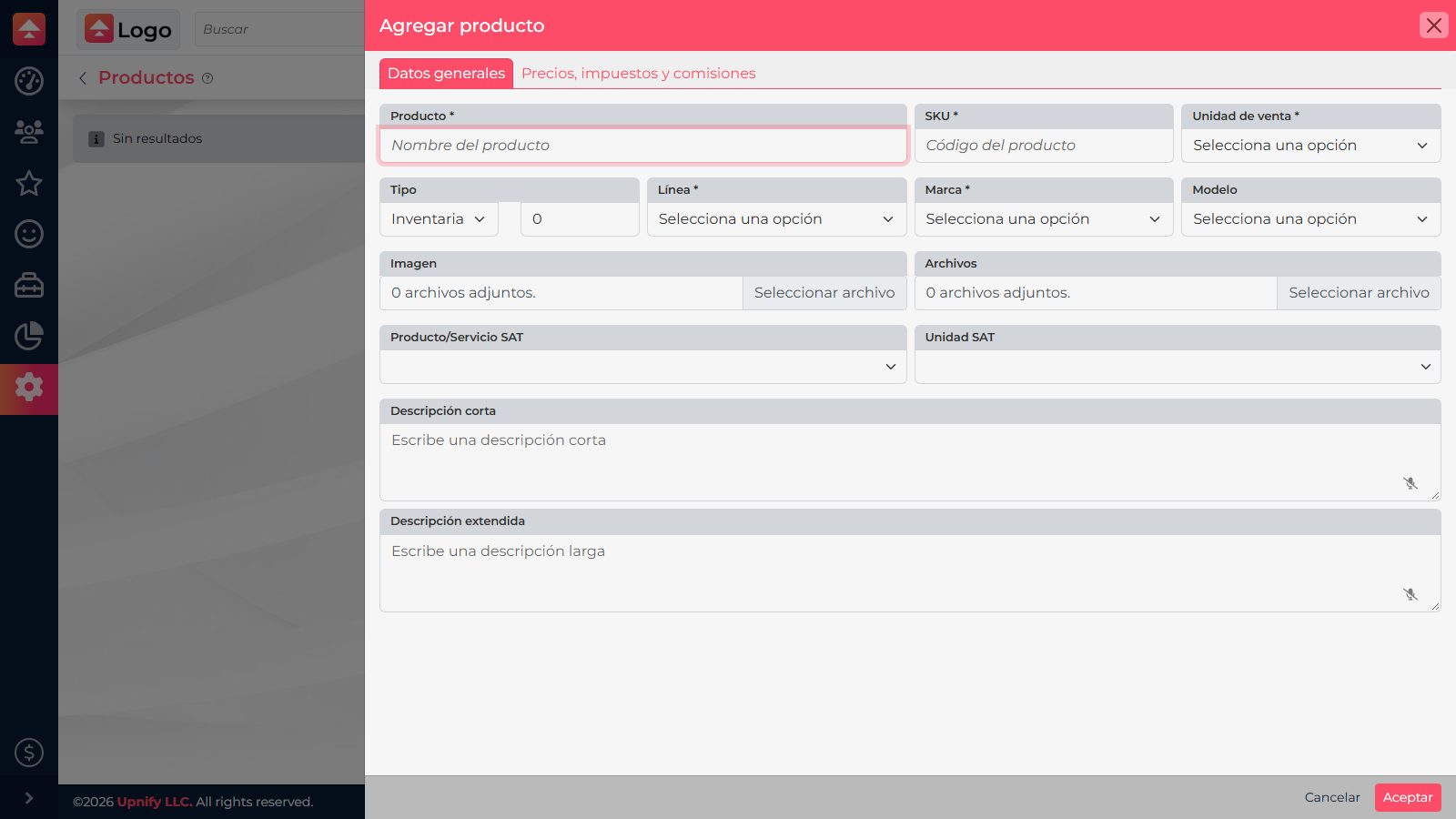
- In CRM, open Settings > Products and select New.
- In General data, enter a clear name and a unique SKU or code. The name helps the team recognize it; the code distinguishes it from similar variations.
- Select the correct Sales unit, such as item, hour, user, or month. It should match how you show the quantity to the customer.
- Assign the Line and Brand. Select a Model when the product has variations that need to be distinguished.
- Add descriptions that help identify the item and, when appropriate, attach a product image or reference file.
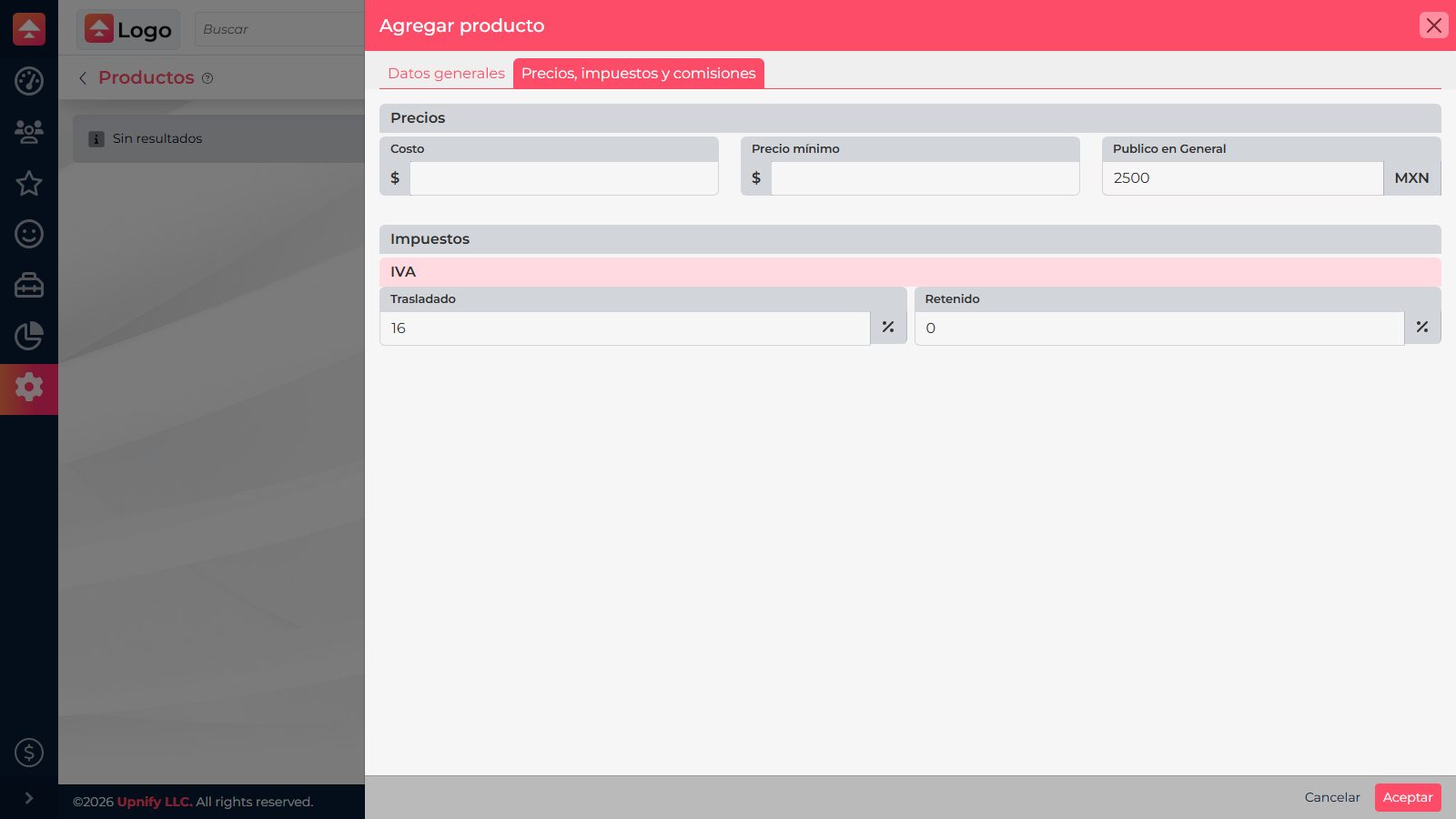
- Under Prices, taxes, and commissions, review the settings used by your business. Confirm the currency or price list, taxes, and commission before saving.
- Save the record and reopen it to confirm that it is active and has the correct details.
Test it in a quote
- Open an opportunity and go to Edit > Quote.
- Search the product catalog. If your quote panel shows line, brand, and model filters, use them to narrow the list.
- Choose the correct price list, enter the quantity, and confirm the unit, price, and taxes are what you expect.
- Add the item and review the total before accepting the quote panel and saving the opportunity.
Example: to quote eight hours of consulting, set the service unit to \u201Chour,\u201D use an SKU the team can recognize, and enter the correct rate. When quoting it, enter 8 and check that the subtotal reflects eight hours rather than eight full services.
If you cannot find the product, check that it is active, that its unit and catalog relationships are configured, and that you selected the right price list. Search by name or SKU before creating another record.