

An invoice status tells you whether a document was issued, remains a pre-invoice, was canceled, or needs attention because of an error. Before changing a transaction, check its record and file: canceling a CFDI has tax effects and is not the same as deleting a sale.
A pre-invoice is not yet a stamped CFDI. If it was issued, corrections must follow the SAT cancellation and, where applicable, replacement process.
Check the status in ERP
- Open ERP > Invoices.
- Find the document by folio, date, concept, or customer. Use search and filters when needed.
- Review Status, total, and amount paid. Confirm that the folio and transaction match the order.
- Open the row actions. Use View file or Download to inspect the document. Send by email shares it through the available workflow.
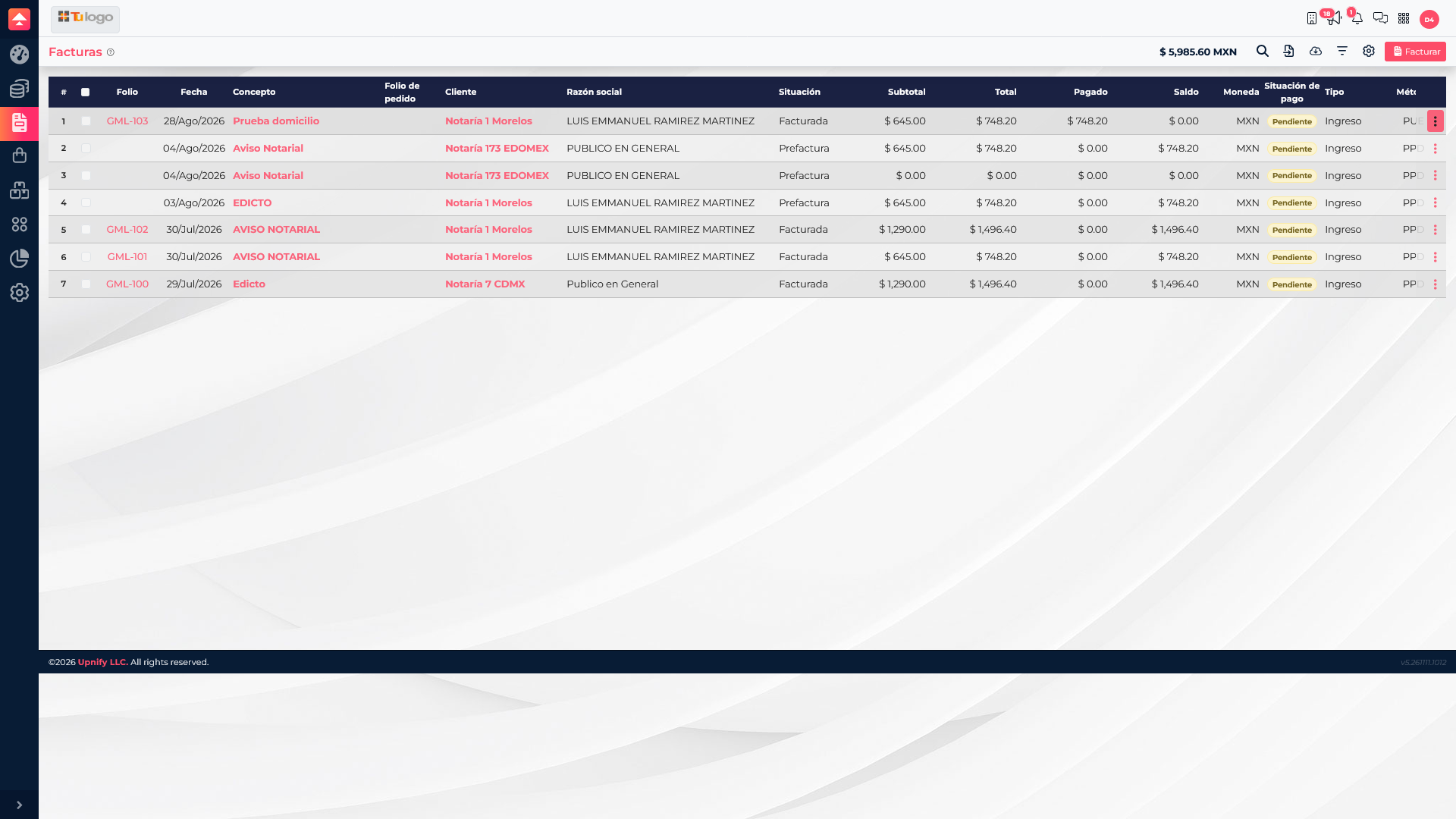
| Displayed status | How to interpret it |
|---|---|
| Invoiced | ERP shows an issued document. Inspect the file and tax details before deciding whether it needs correction. |
| Pre-invoice | It is a preparation step; check whether issuance still needs confirmation. It is not an issued CFDI. |
| Canceled | The document is marked canceled. If the sale remains valid, confirm whether a replacement was issued and review the history. |
| Error! | A problem requires investigation. Review the detail or consult your administrator/advisor before retrying to avoid duplicates. |
Correct an issued CFDI
An issued CFDI is not edited like a draft. If tax data, amount, or concept is wrong, determine whether it should be canceled and replaced, or whether another tax reason applies. Invoice actions can include Cancel and Cancel and re-invoice. Use the latter only when the sale remains valid and a corrected document will be issued.
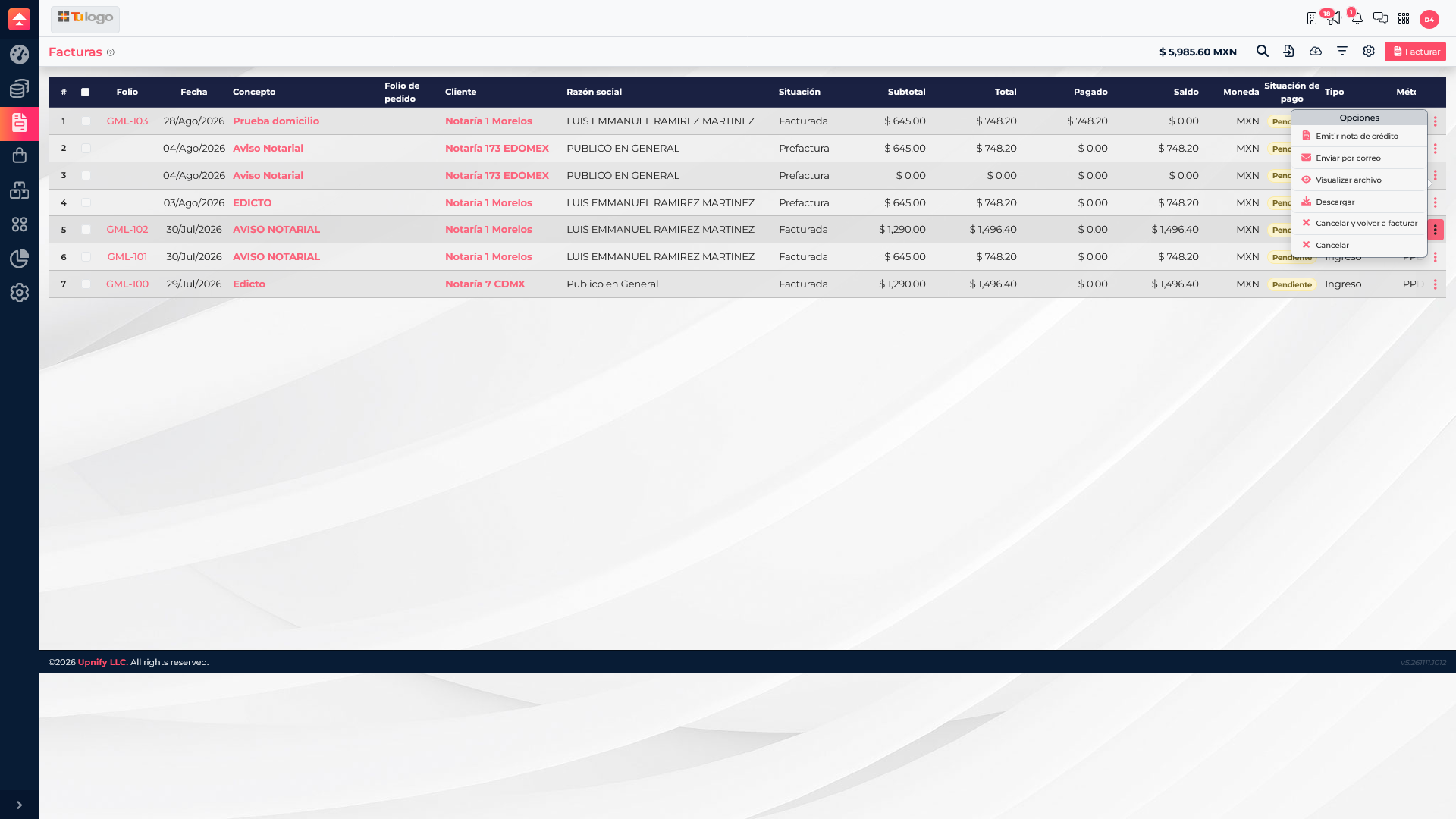
Select the cancellation reason that matches the actual situation. SAT reasons include error with a related replacement CFDI, error without replacement, transaction not carried out, and a nominative transaction included in a global invoice. Recipient acceptance may be required depending on the case. See the SAT cancellation process and cancellation scheme; do not choose a reason simply to speed things up.
- Identify the original CFDI UUID and check whether a replacement already exists.
- Choose the matching ERP cancellation action and provide the requested details.
- If a replacement is required, prepare and issue the corrected CFDI through the invoicing workflow before linking its UUID.
- Check the status in ERP again and use SAT\u2019s official verification methods when you need to confirm the tax status.
If the document is still a pre-invoice, correct it before issuance. Cancellation applies to an issued CFDI.
Check the transaction impact
Canceling an invoice does not necessarily cancel the sale or order behind it. Separately check the commercial status, receivable balance, and any payment or receipt linked to it. If a replacement is needed, make sure the customer receives it and no duplicate balance remains.
For payment collection and PUE/PPD guidance, see How to issue CFDIs, choose PUE or PPD, and issue payment receipts.