
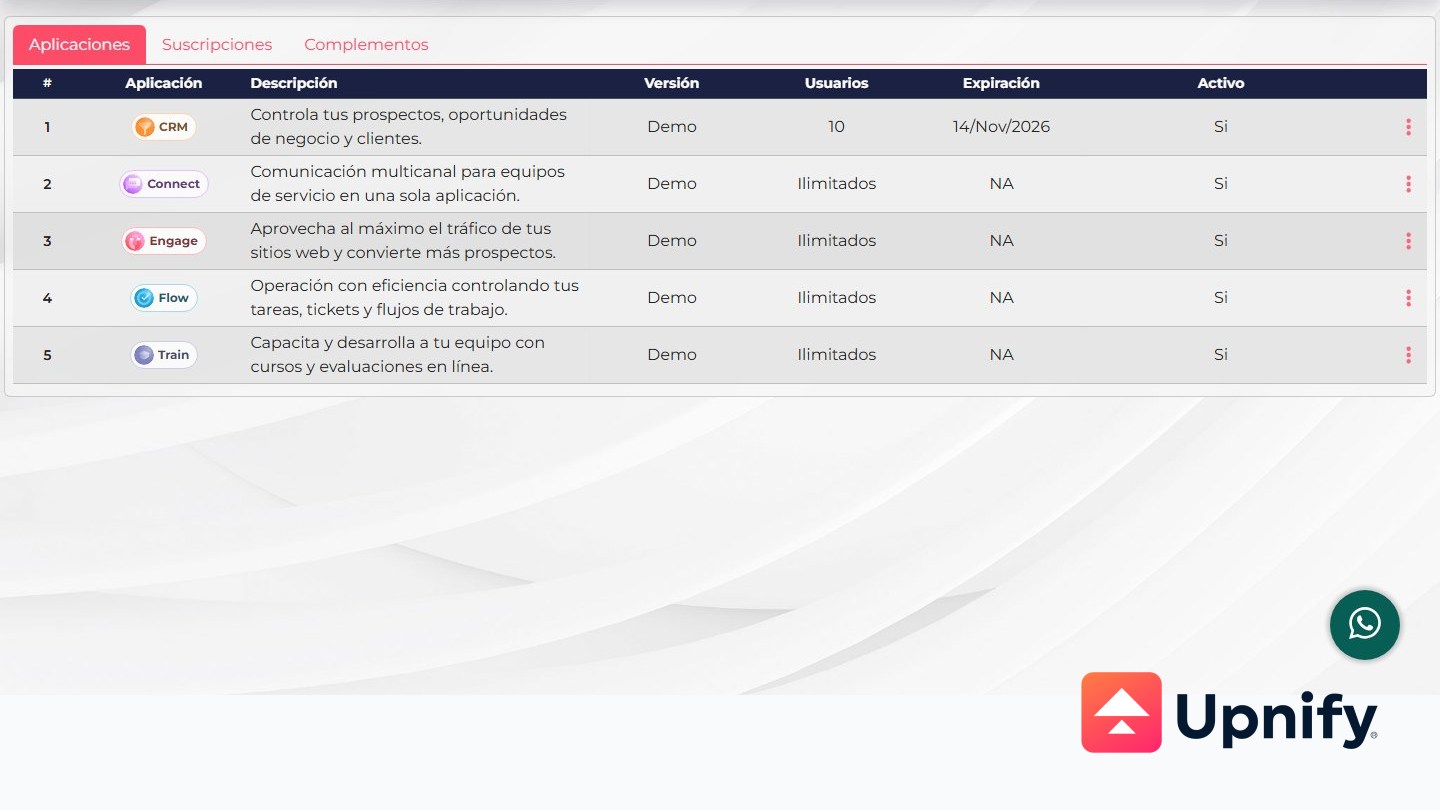
From the Licensing cart, you can activate or renew licenses, increase the number of users available for a product, and buy credits. These processes share the same area, but each meets a different need: a license enables products and sets user capacity, while credits expand usage such as conversations or tasks. This guide helps you choose the right process and review the amount before continuing to payment.
Check the product, quantity, billing period, currency, taxes, and any automatic refill option. The total depends on your company’s configuration and current pricing; the cart shows the amount before you continue.
1. Buy or renew licenses
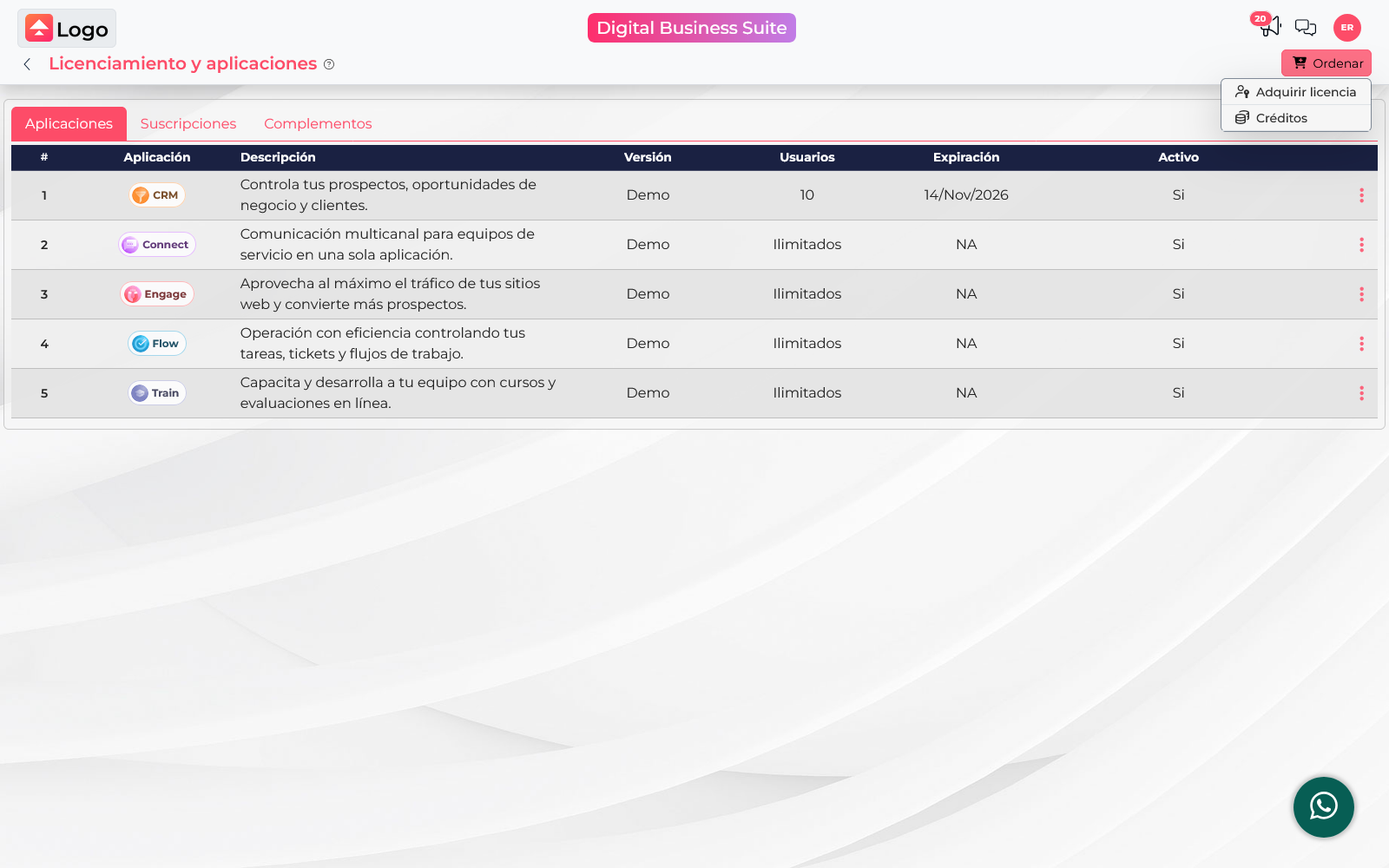
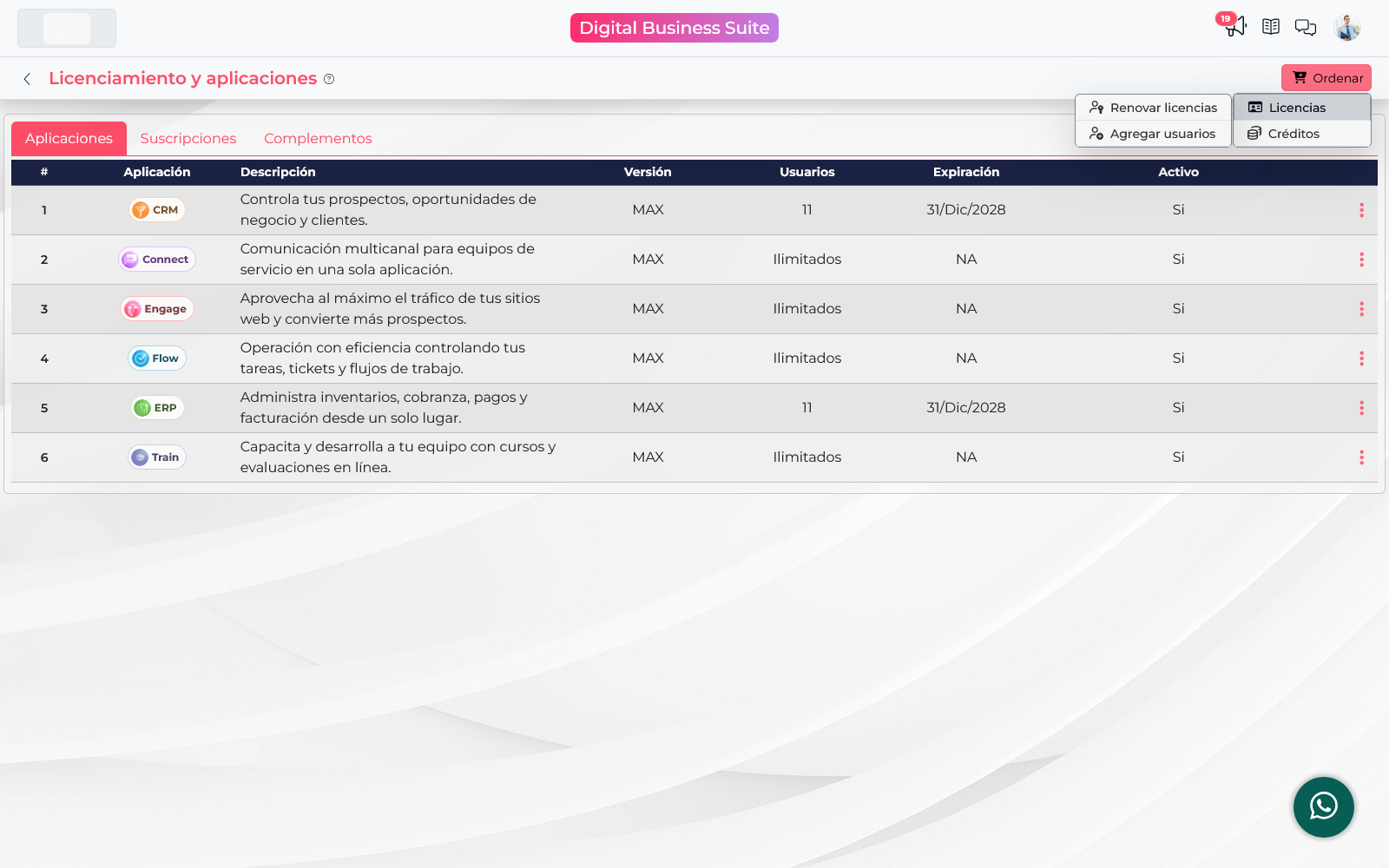
Use this option when activating a Suite product for the first time or renewing an active license. Open the user menu, go to Licensing, and select Order. For a new purchase, choose Acquire license. If your company already has a subscription and the option is available, open Licenses and choose Renew licenses.
- Complete or confirm the billing details requested by the cart. The selected country determines the currency and may affect the taxes shown.
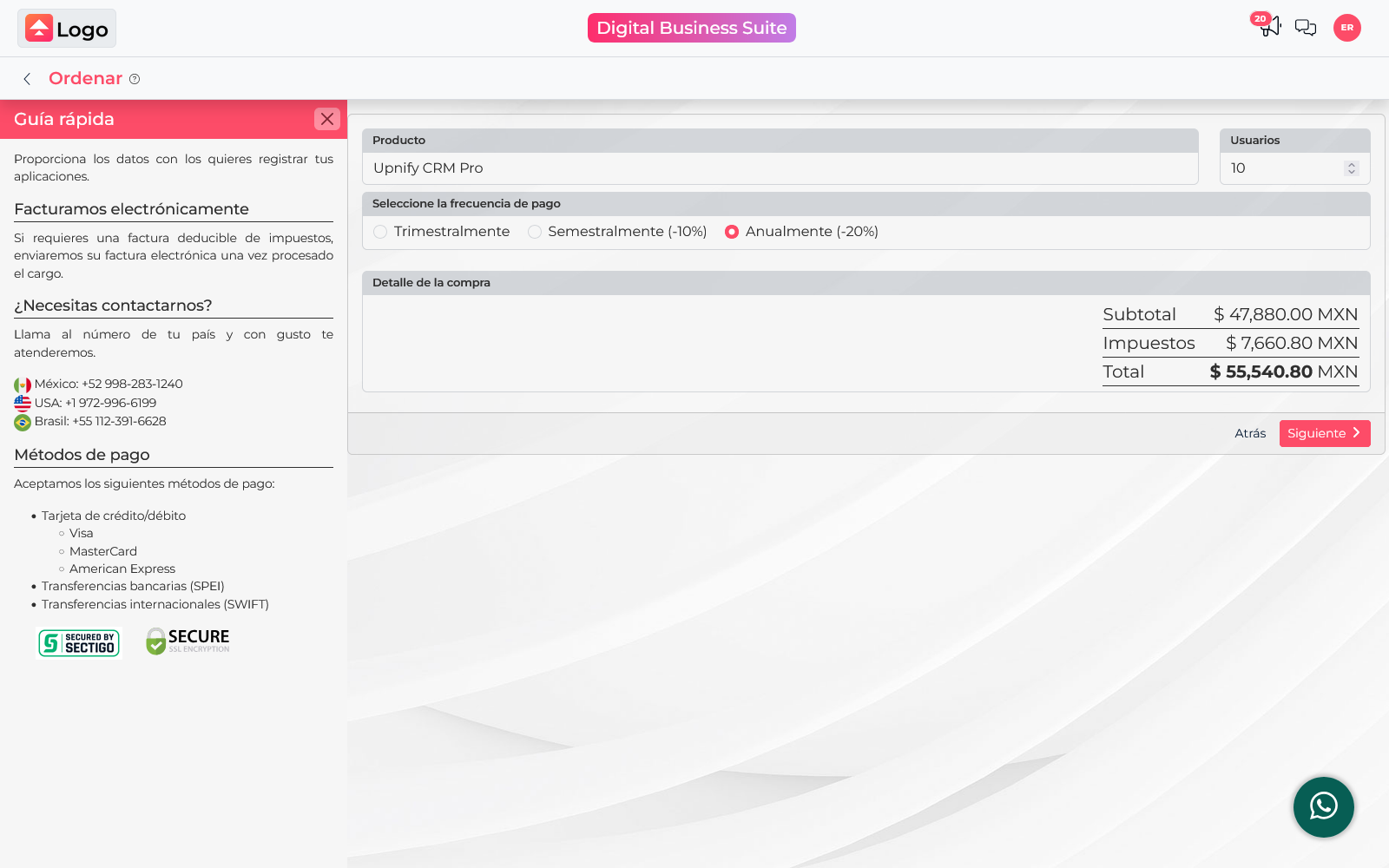
- On the product step, choose the application and version you need. Set the number of users and select an available billing period.
- Review the order summary. Check the subtotal, taxes, and total before continuing; the cart calculates the amount using your company’s current terms.
- Continue to choose a payment method and follow the instructions on screen.
Confirm that you are renewing the product and version your company needs. If the renewal option does not appear, check that the account has an active subscription and that you have Super Administrator access to Licensing.
2. Add users to a subscription
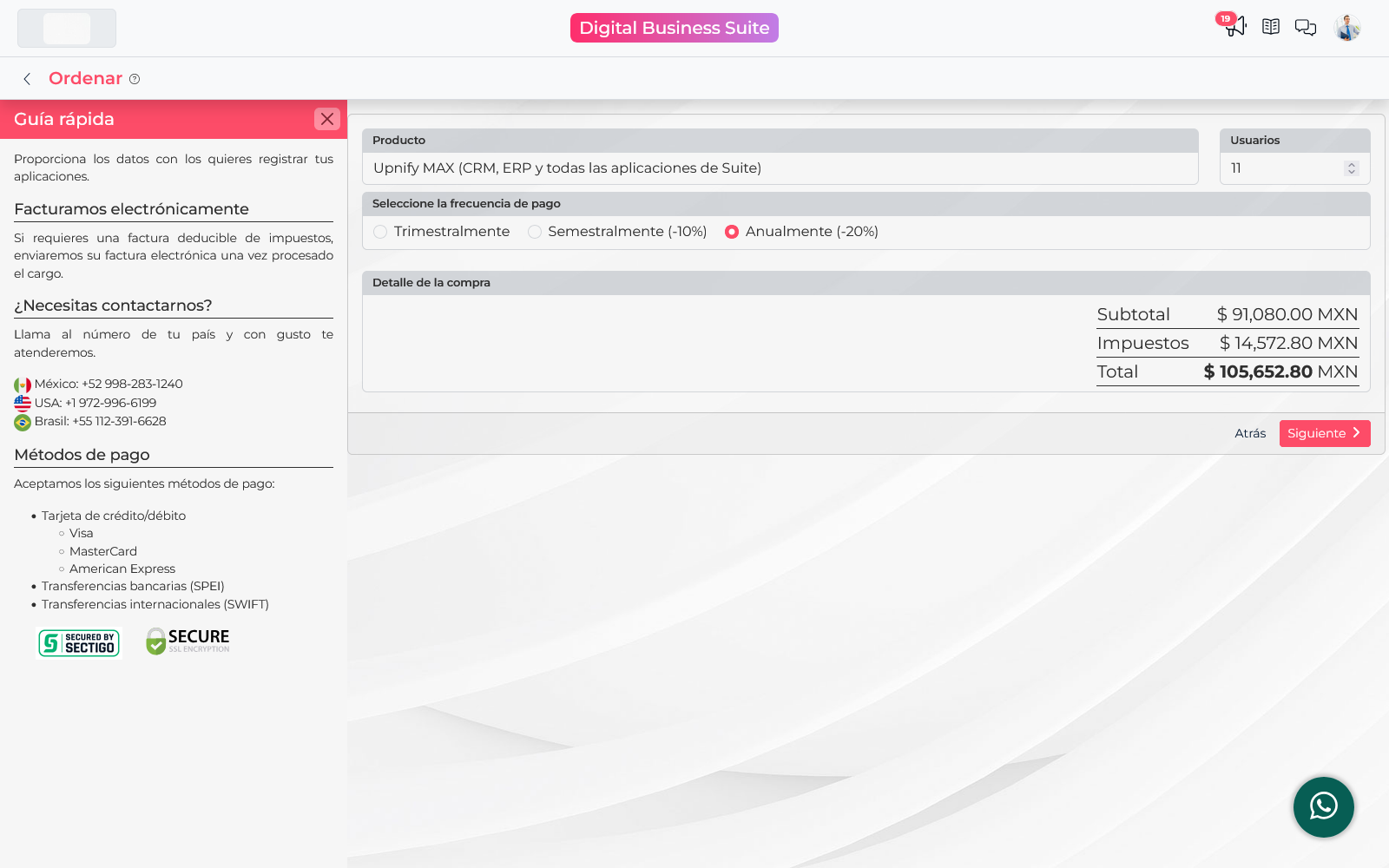
Use this process when someone joins the team and needs access to a product your company already has active. The charge is not automatically a full standalone license for a new term: it is calculated using the time remaining until the next renewal and the number of additional users.
- Open Licensing and select Order → Licenses → Add users.
- Check the active product and version shown in the cart. The available options must match the company’s licenses; you cannot expand a subscription by adding users on a different version.
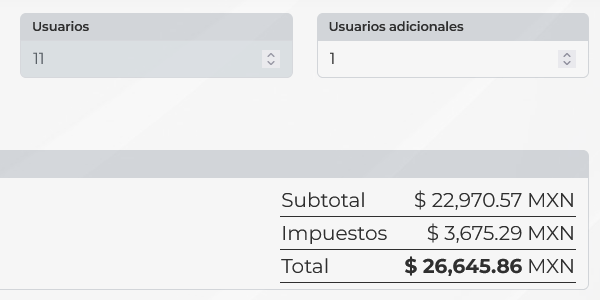
- The Users field shows the current number of users. Enter the new seats in Additional users.
- Review the calculated amount. The system considers the time remaining in the term and the number of users you add. When less than a full billing period remains, the charge is proportional to the remaining days. Applicable taxes are also added.
- If the quantity and total are correct, continue to payment.
A company has five CRM Pro users and needs two more with two months left before its annual renewal. Instead of charging for two full annual licenses, the cart calculates roughly two-twelfths of the annual per-user price for each new user, plus taxes. The exact amount uses the remaining days and appears before you choose a payment method.
3. Buy credits
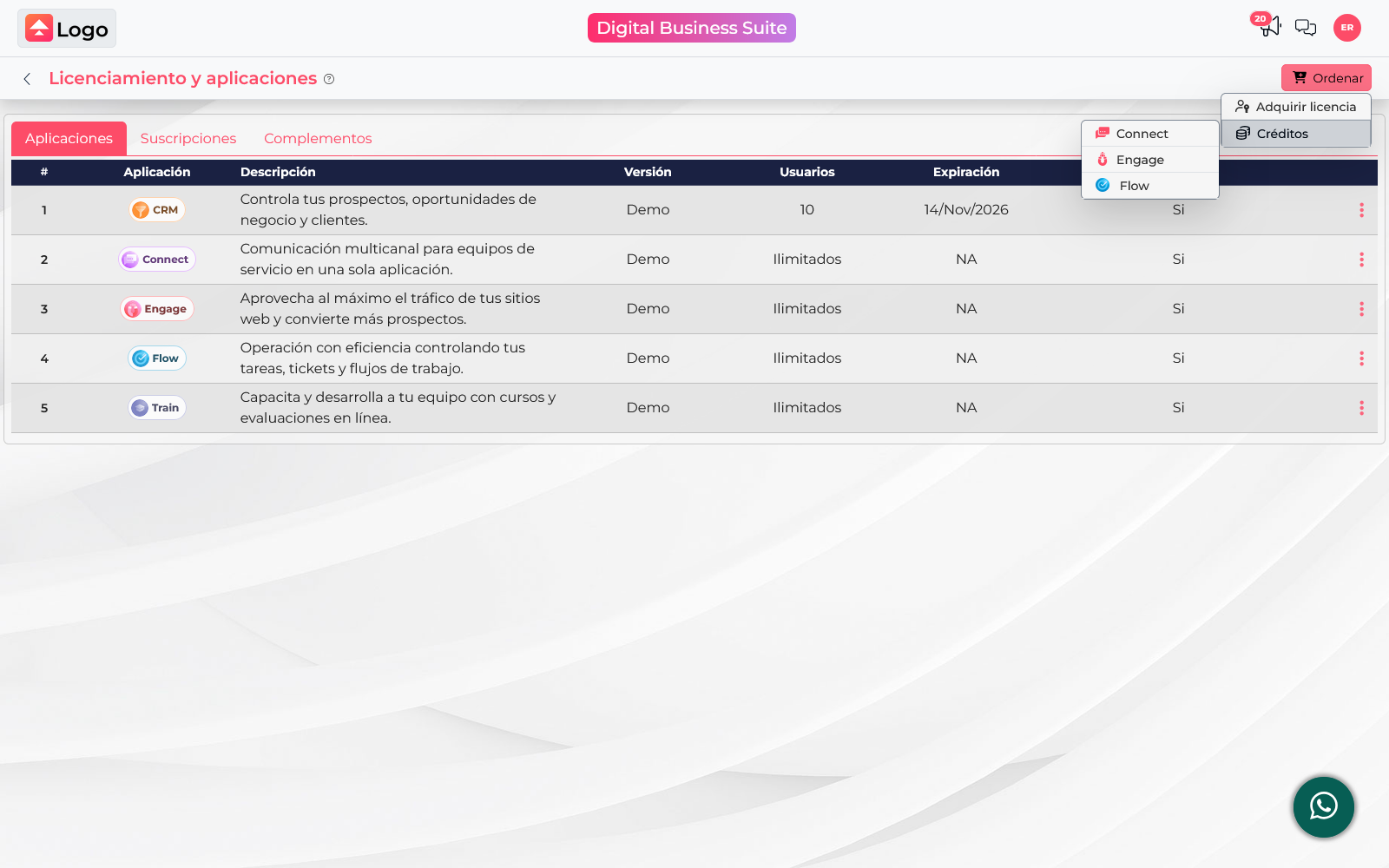
Credits increase the usage available for certain features. The unit depends on the product: for example, Connect offers conversation packages and Flow offers task packages. Check the selected product and the amount included before adding a package.
- From Licensing, select Order, open Credits, and choose the product you need.
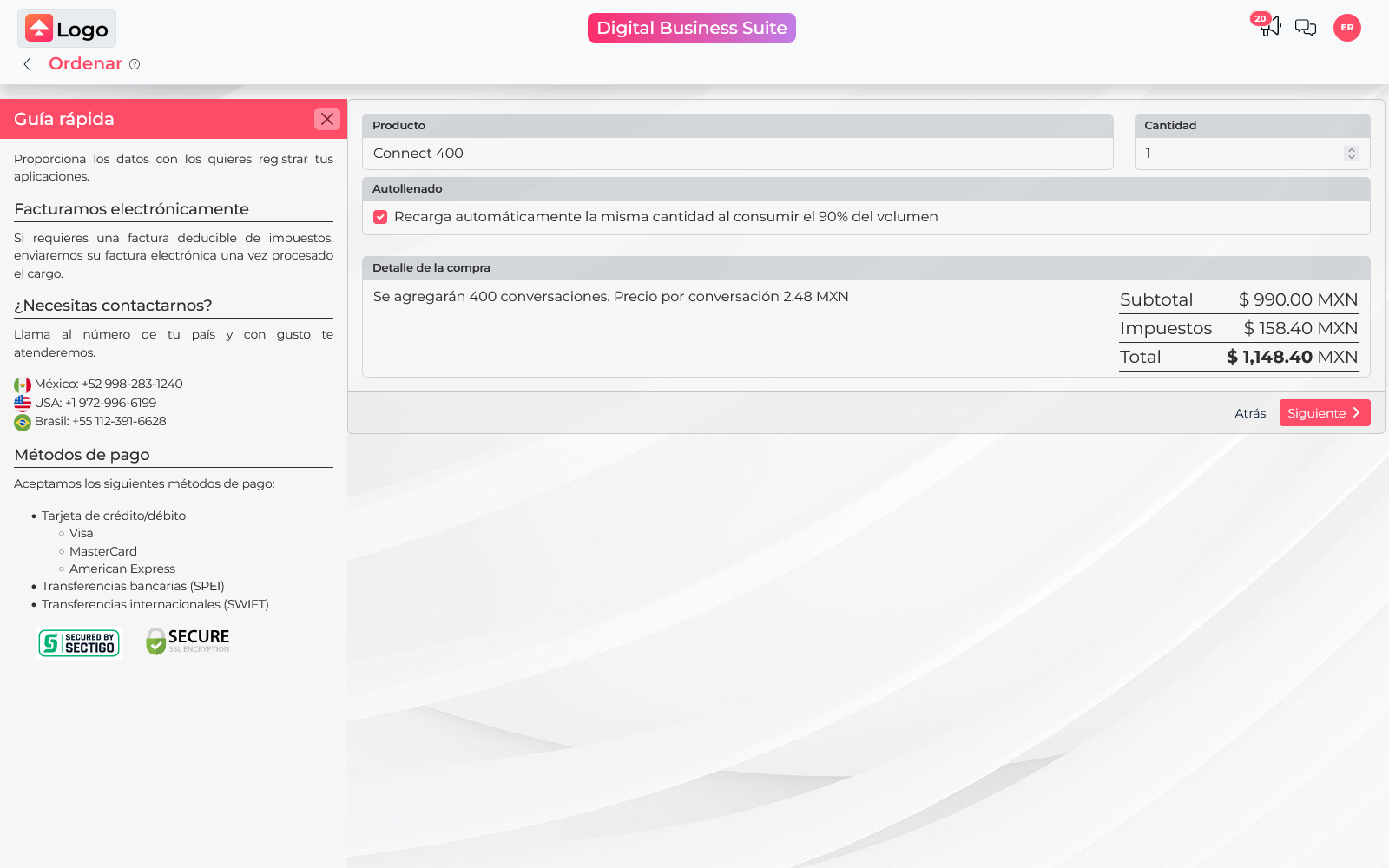
- Choose a package and quantity. The cart details show how much volume will be added and, when available, the price per unit.
- Decide whether to leave Auto-fill enabled. When this option is on, the same quantity is automatically recharged after 90% of the volume has been consumed. Turn it off if you prefer to review each purchase manually.
- Review the subtotal, taxes, and total, then continue to payment.
Before you finish
The next step opens the payment method selection. Check the product, quantity, billing period or package, currency, and total one last time. The order is submitted when you confirm the payment method; do not confirm if you are only reviewing the available options.
See also How Upnify pricing works: products, licenses, and credits.