
Connect Zoom and create virtual events from Engage
Link your Zoom account from Integrations, and when scheduling a virtual event in Engage, choose whether it will be a meeting or a webinar. You can also set the time zone and duration right from the form.
 MKT
MKT
Link your Zoom account from Integrations and, when scheduling a virtual event in Engage, choose whether it will be a meeting or a webinar. You can also define the time zone and duration from the same form.
Link your Zoom account
Go to Engage → Settings → Integrations, select New, and choose Zoom. Enter the integration name and complete the required fields: phase, source, category, and user. If needed, you can also define default tags for contacts created through this integration.
Then select Link with Zoom and finish saving the integration. Once the account is linked, you will be able to select it when creating events.
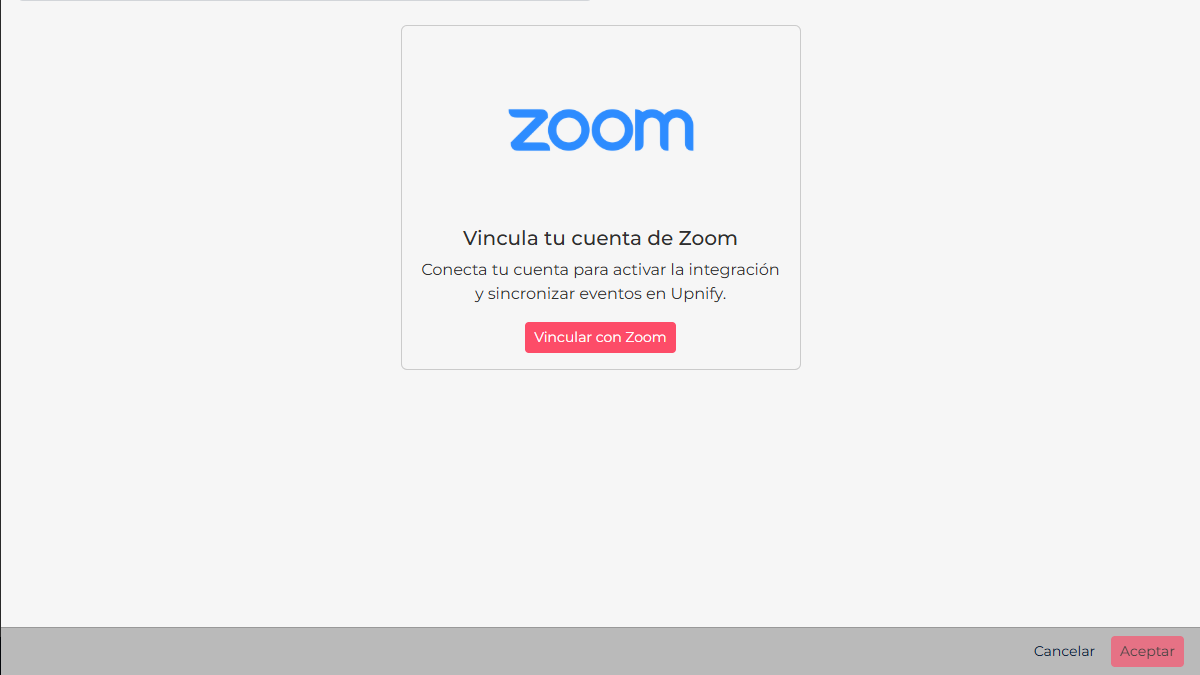
Before saving: category is required. If no options appear in this field, first create a category in Engage → Settings → Event Categories and then return to the integration.
Use Zoom when scheduling an event
In Engage → Events, create a new event and select Virtual as the event type. Enable Create Event in Zoom to display the integration options.
- Select the Zoom account you want to use.
- Choose the Zoom event type: Meeting or Webinar.
- Define the time zone and duration.
- Complete the remaining event information and save it.
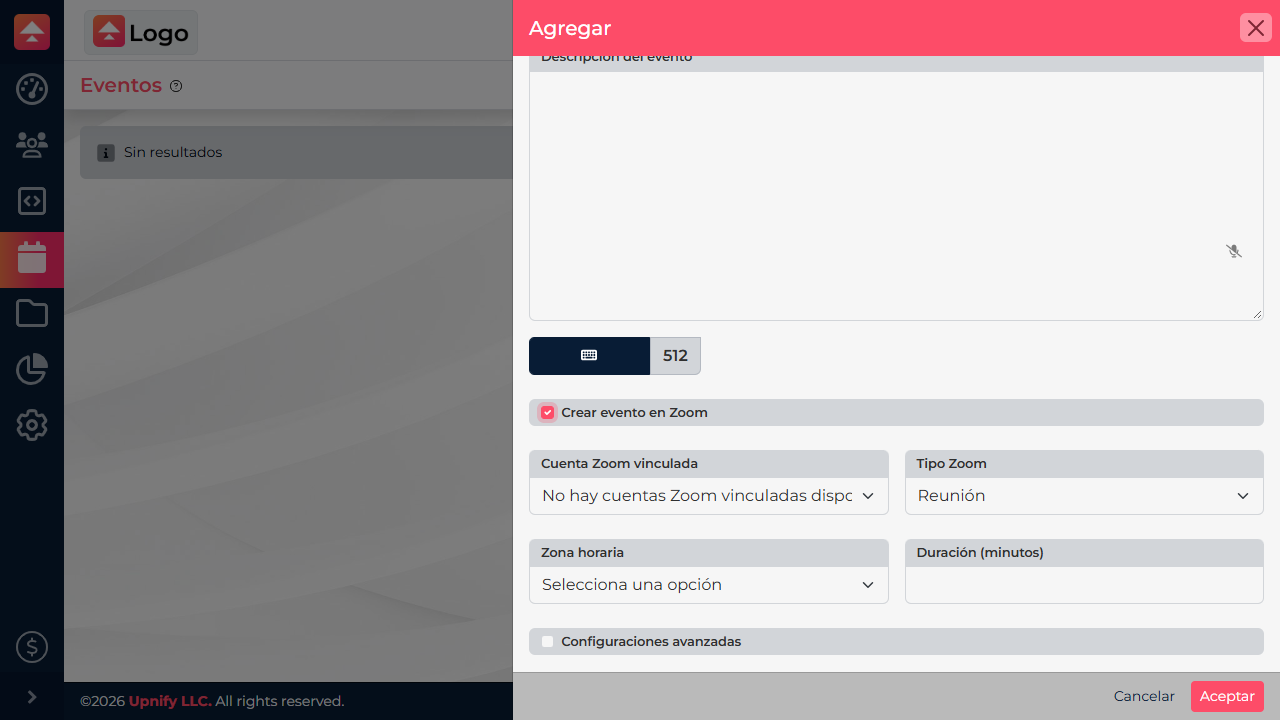
Keep in mind: the account selector displays the Zoom accounts linked from Integrations. If it is empty, complete the linking process first before scheduling the event.
Link your account once, then decide for each virtual event whether you also want to create a Zoom meeting or webinar.