
New Kanban View for Conversations in Connect
Now you can organize your conversations by stage on a Kanban board, visually track their progress, and reply to them without leaving the view.
 COMM
COMM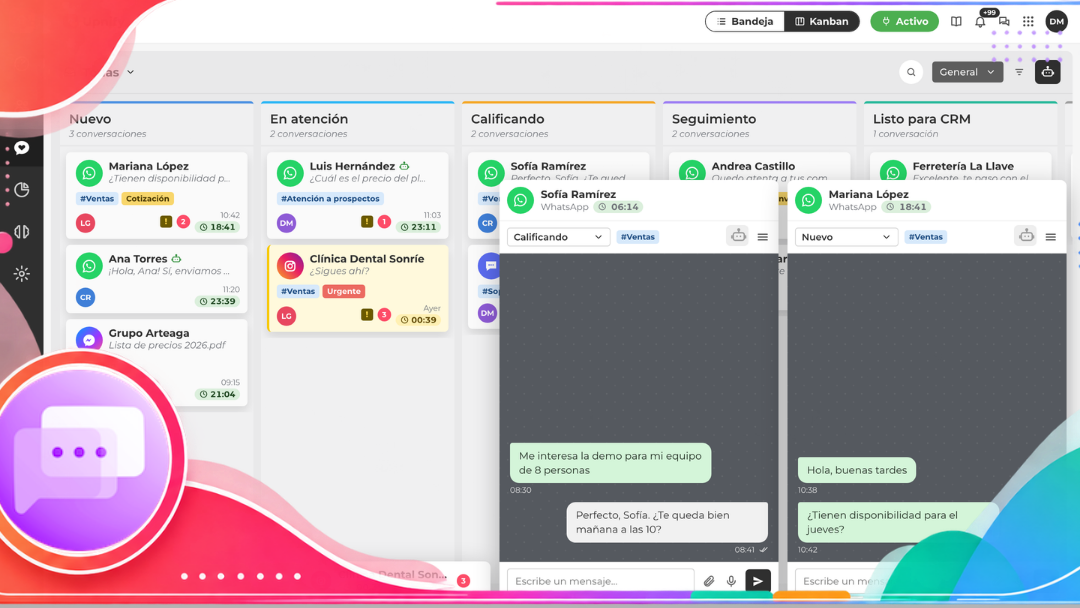
Now you can organize your conversations by stage on a Kanban board, visually track their progress, and reply to them without leaving the view.
Haven't connected your WhatsApp yet? You can now connect it in just 3 minutes without losing your conversations, while continuing to use WhatsApp Business. Learn how to do it \u2192
What's New?
Conversations now offers a second way to work. In addition to the Inbox, you can view your chats on a stage-based board to prioritize them and see where each conversation stands in the service process. Here are the main changes you'll find in each screen.
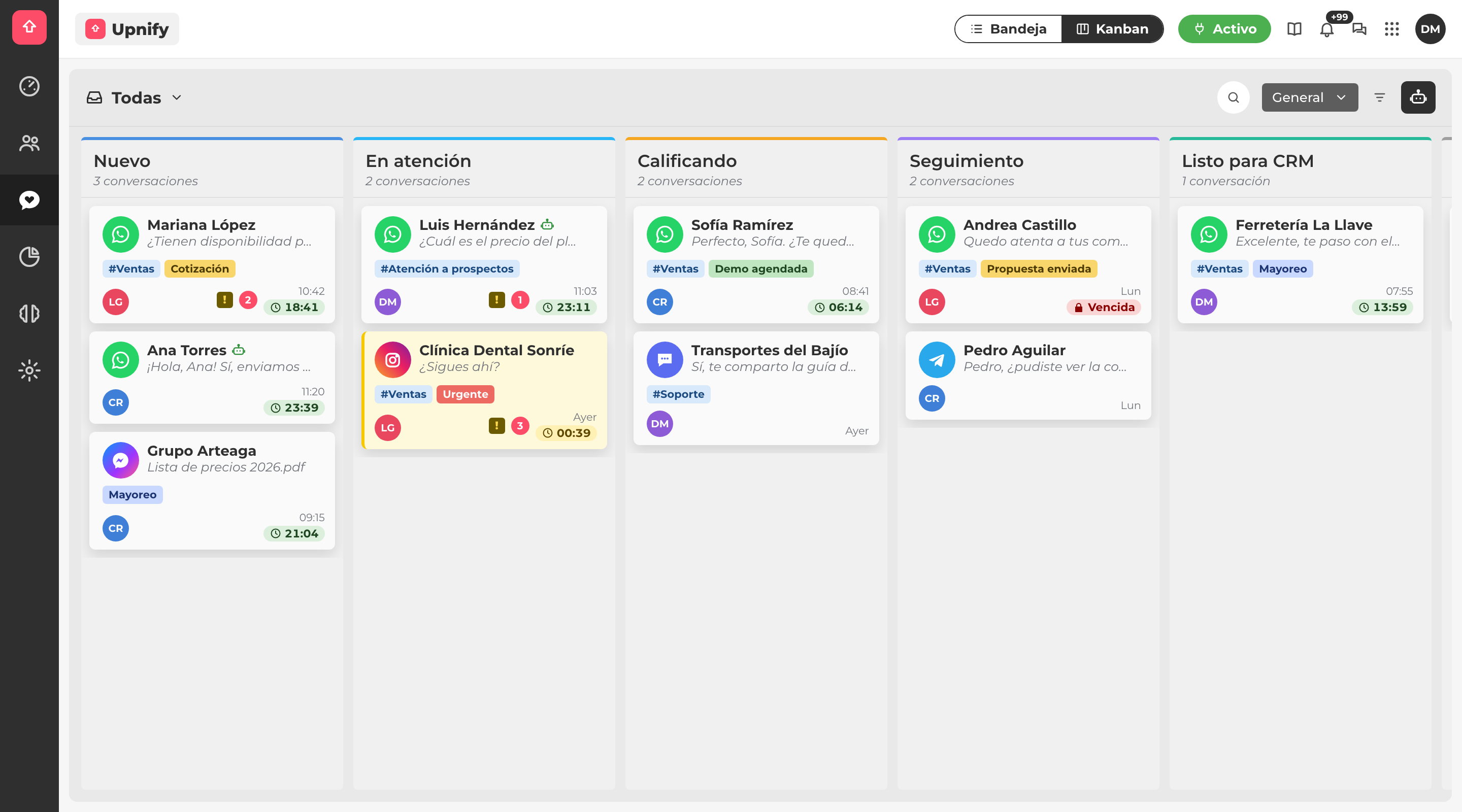
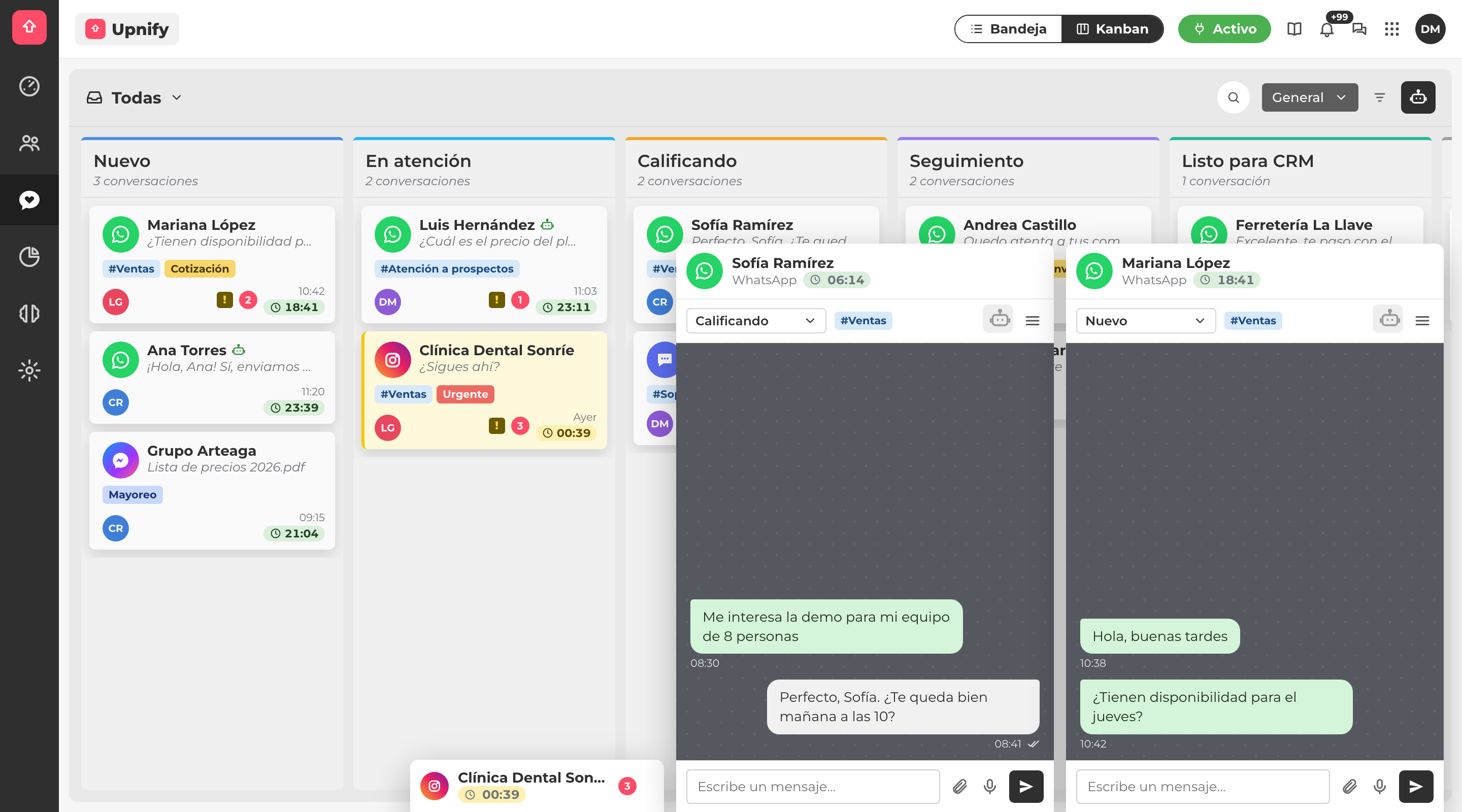
Use the Inbox | Kanban button in the header, next to your status, to switch between the conversation list and the board. Each column represents a funnel stage and displays the number of conversations it contains.
Each card displays the channel, contact, latest message, category, tags, assigned representative, unread messages, unanswered-message indicator, and remaining time to reply.
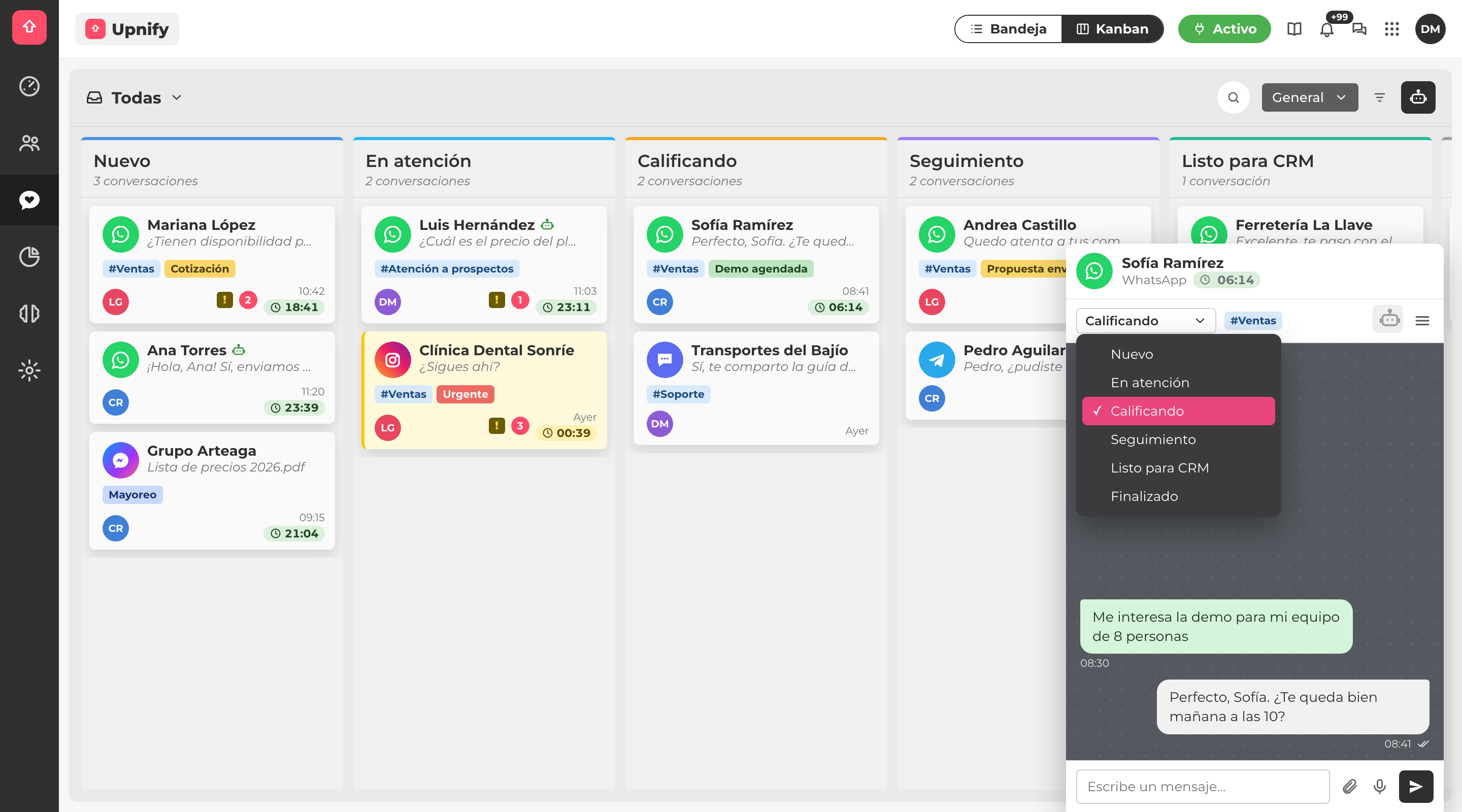
Drag a card to another column to move the conversation to a different stage. You can also change its stage using the stage selector that appears when you open the chat.
Every stage change is recorded in the conversation's activity history. The stage is independent of the chat status: moving a conversation to Completed does not close or archive it.
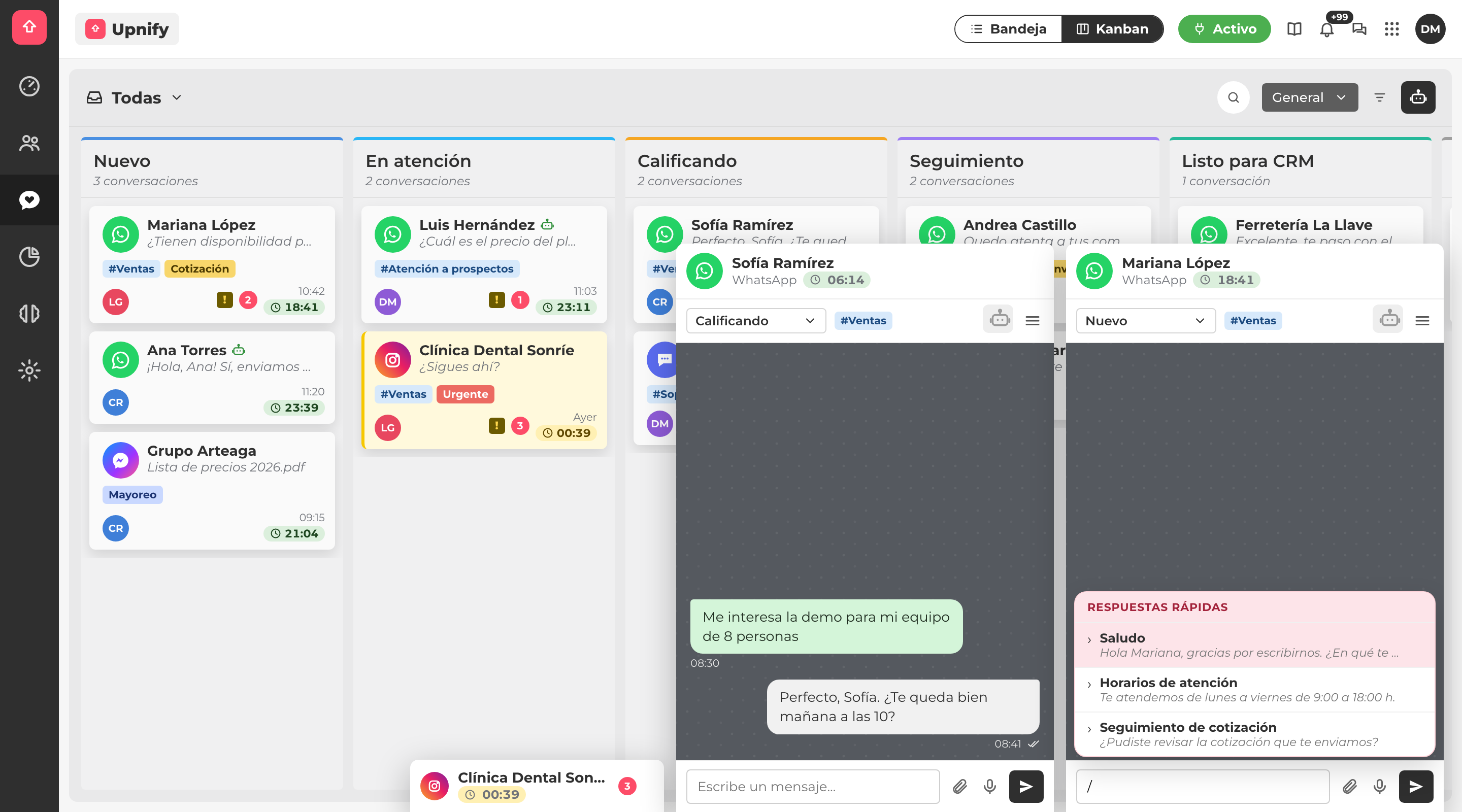
When you select a card, the conversation opens in a window within the same board. You can have up to 3 conversations open at once, minimize them, and expand them to the center of the screen whenever you need more space.
From the chat window, you can reply with text, attachments, and voice messages, use quick replies by typing /, access the conversation actions menu, and open the chat in the full Conversations view.
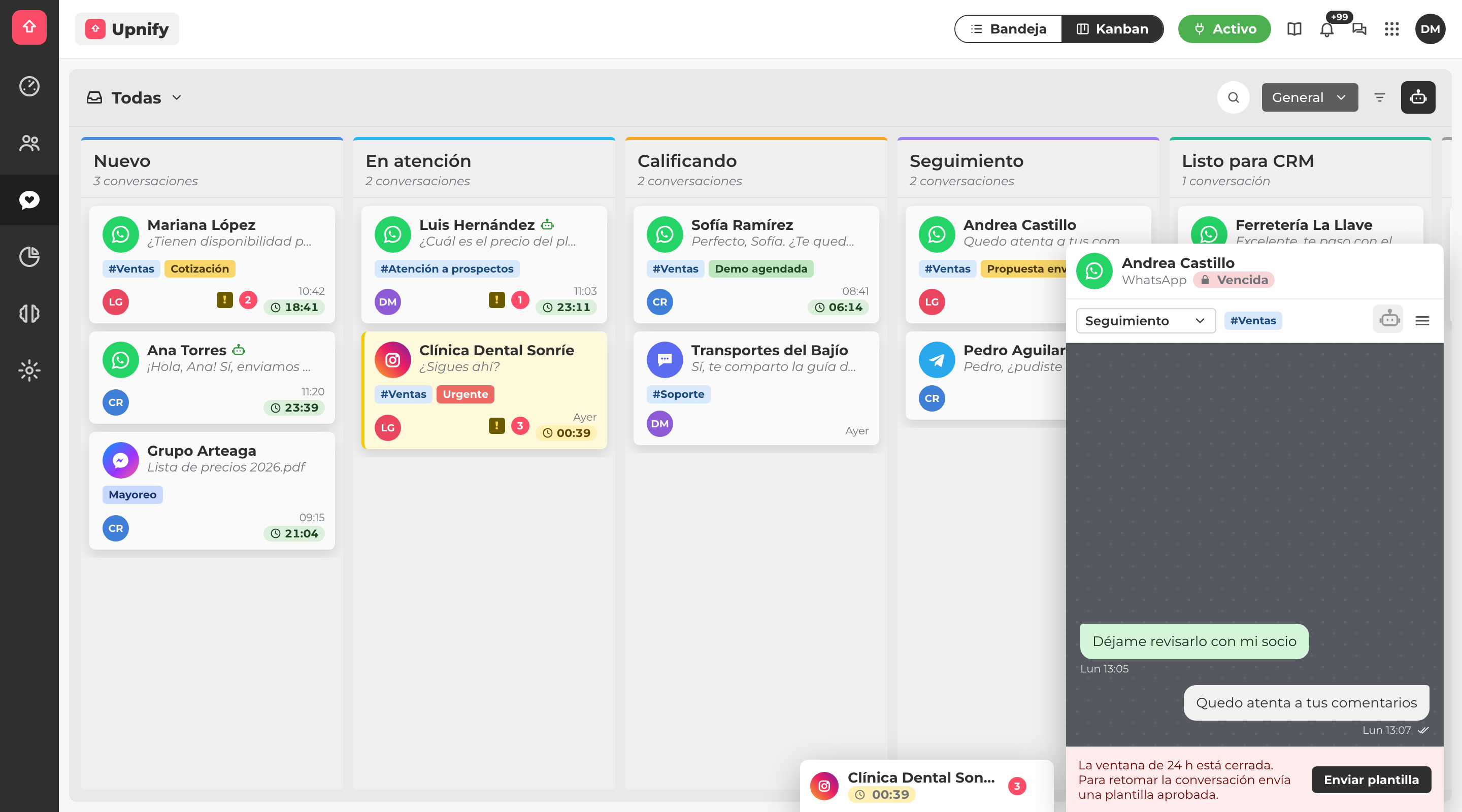
For WhatsApp, Messenger, and Instagram, a countdown timer shows how much time remains in the 24-hour window to reply without using a message template. The timer turns yellow when one hour or less remains and displays Expired when only template messages can be sent.
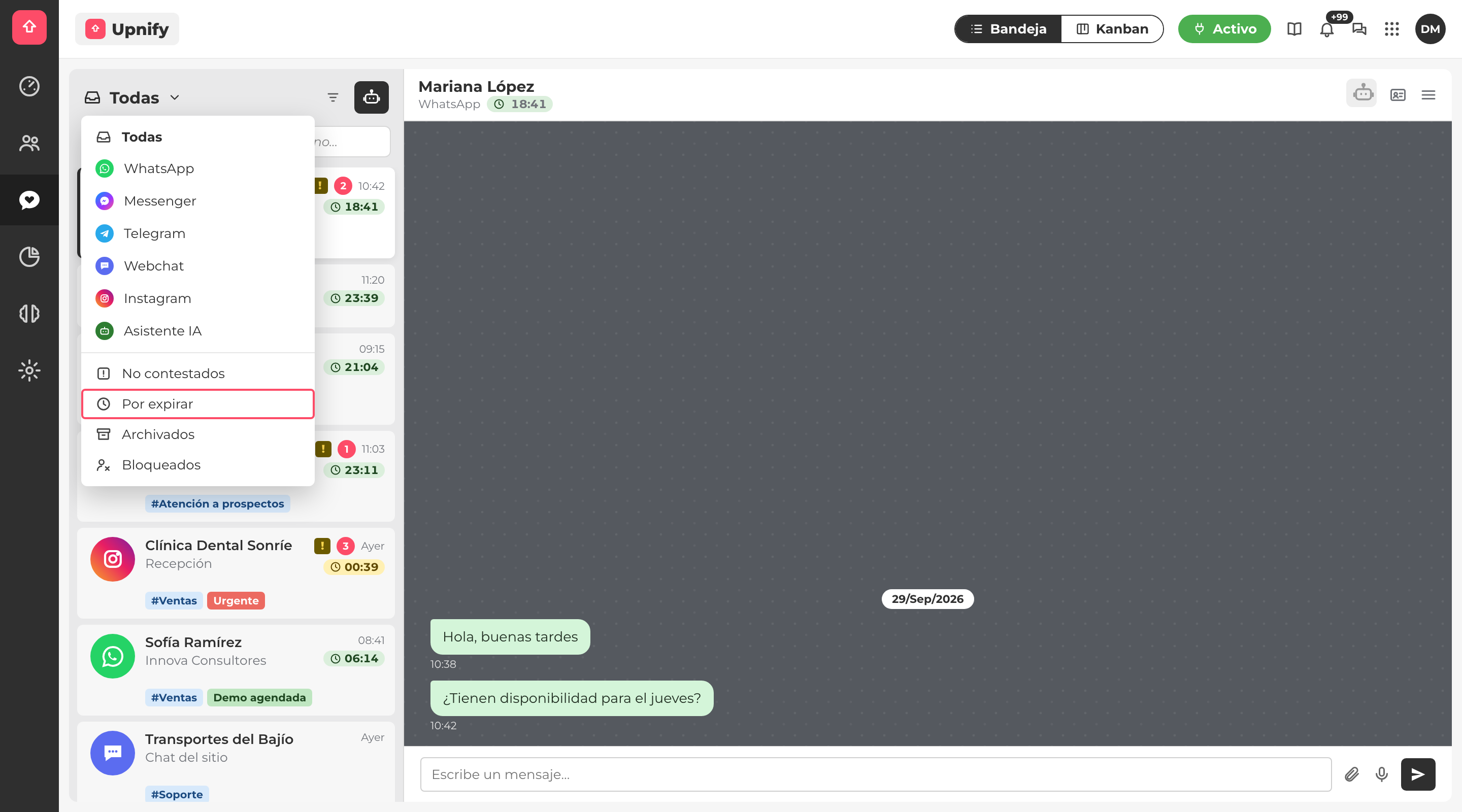
The Expiring Soon filter groups conversations with one hour or less remaining to reply.
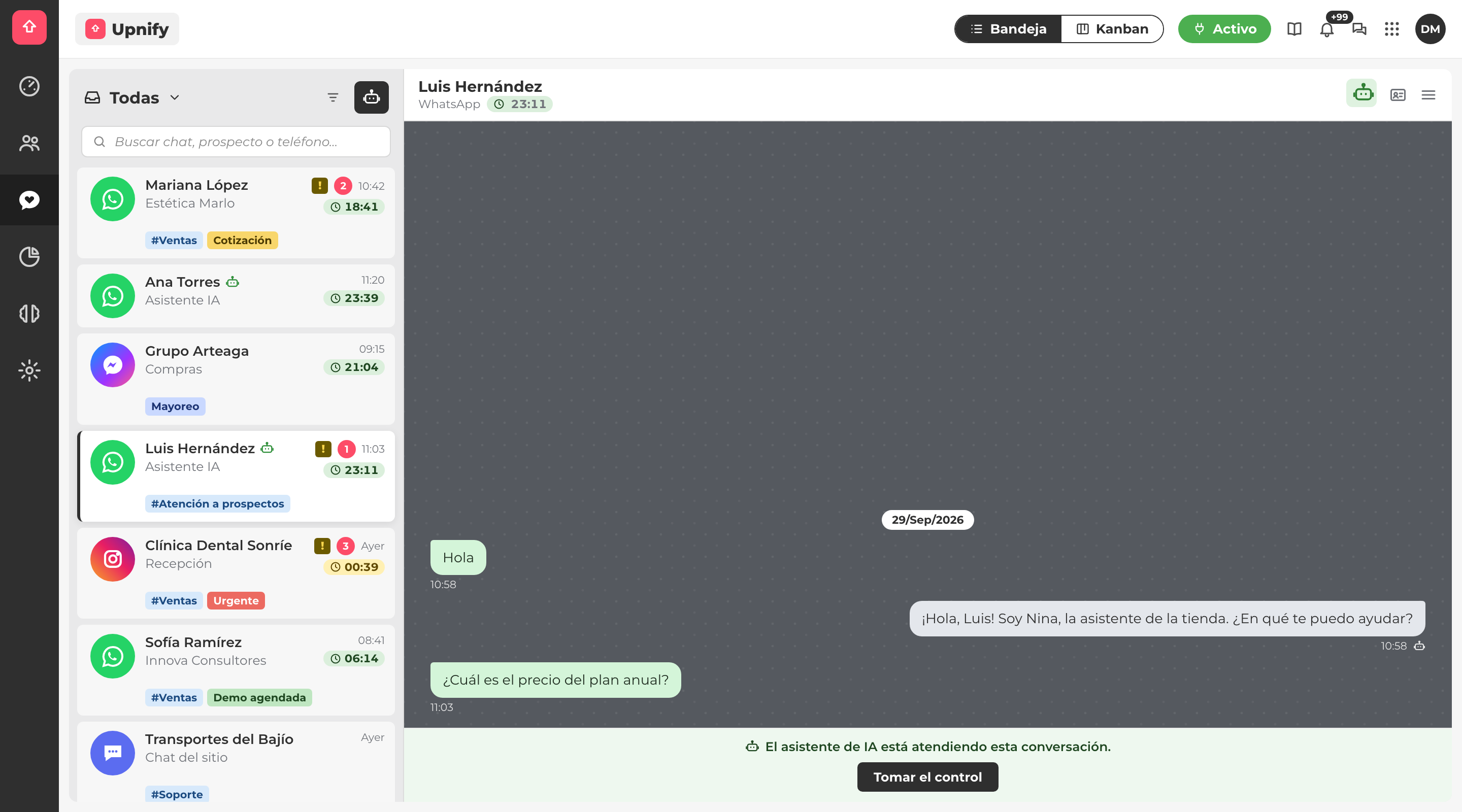
Conversations handled by the AI assistant also appear under All, identified by a robot icon. You can take over a conversation yourself by clicking the robot icon in the header or the Take Control button.
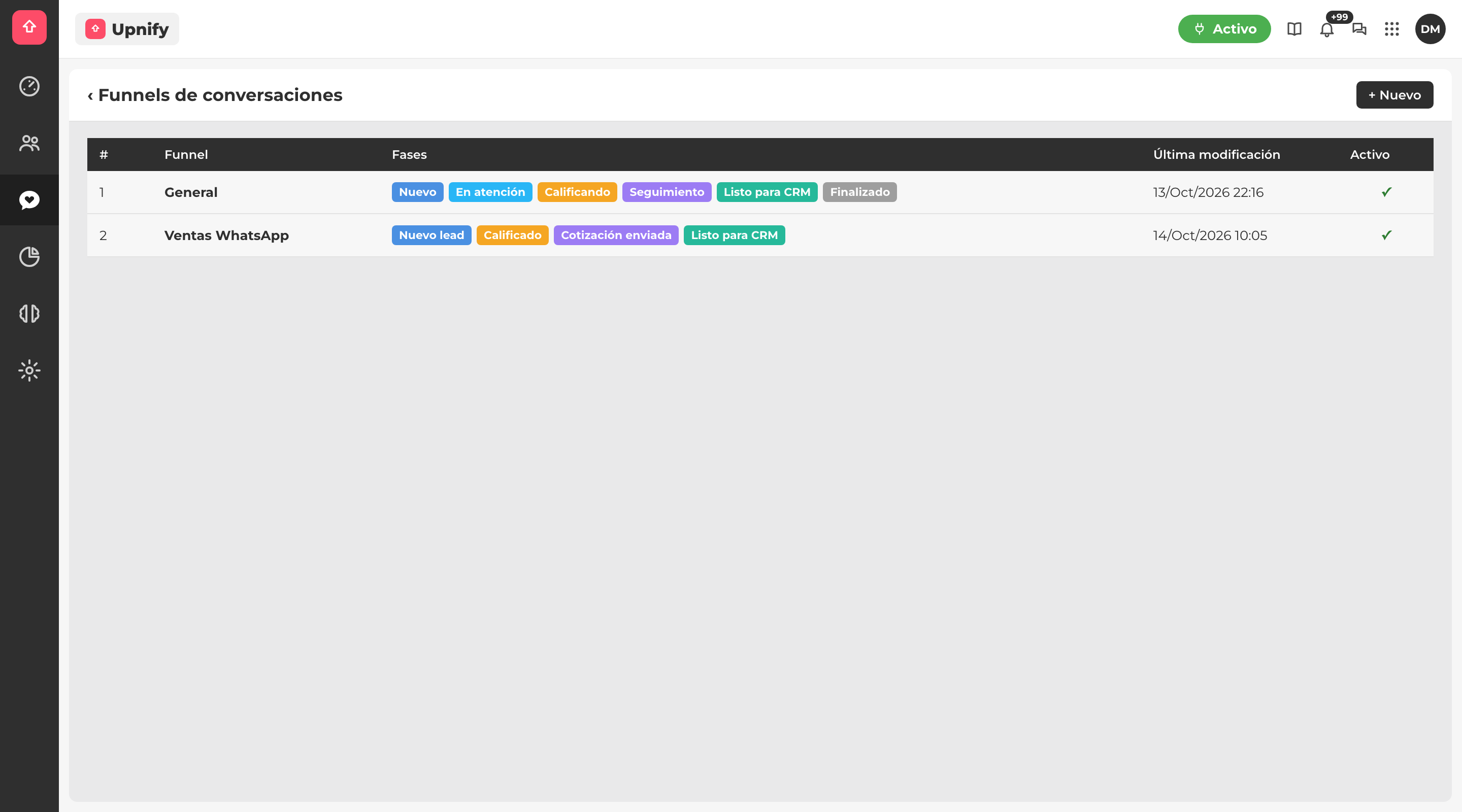
Administrators can create conversation funnels under Settings \u2192 Conversation Funnels, define their stages with a name, color, and order, and assign each channel a funnel and starting stage through distribution rules.
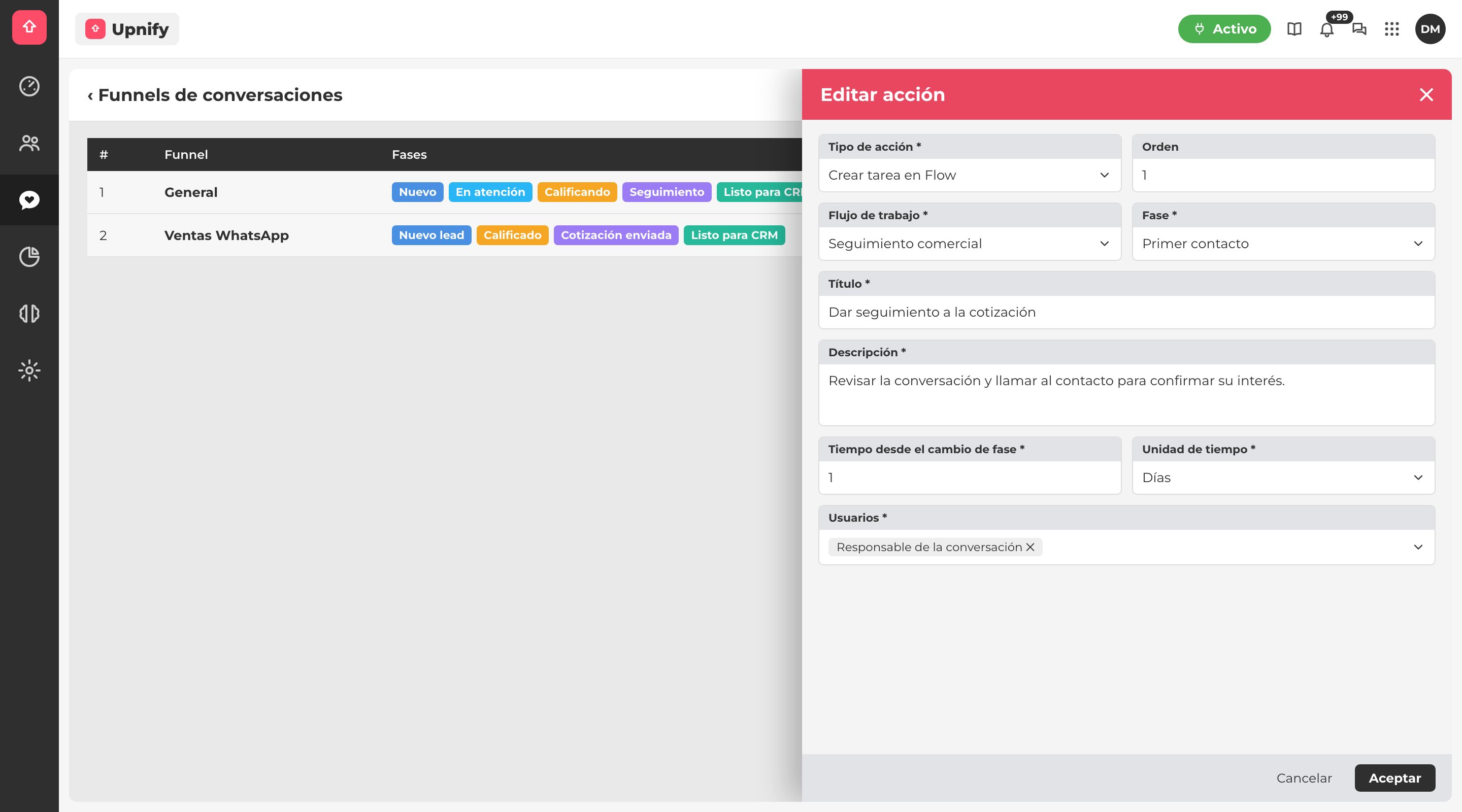
Each stage can have automated actions, such as converting a conversation into a lead, creating a task in Flow, moving the conversation to another funnel, archiving it, or creating a reminder in the CRM.