
Track work time on Flow tasks
Measure time spent on each task, document the work, and review its total in the task history.
 Flow
Work time matters, too.
With Flow\u2019s new time tracking, each team member can measure time spent on a task, describe the work, and keep that effort documented in the task history.
In support, implementation, and consulting, knowing how much time tasks require helps teams understand the work behind each service. The timer is now tied to the task, so there is no need for separate time sheets or end-of-day estimates.

Start the timer from a task and keep working in Flow.
When you finish, add a comment describing the work you completed.
The entry appears in the task history and adds to its total time.
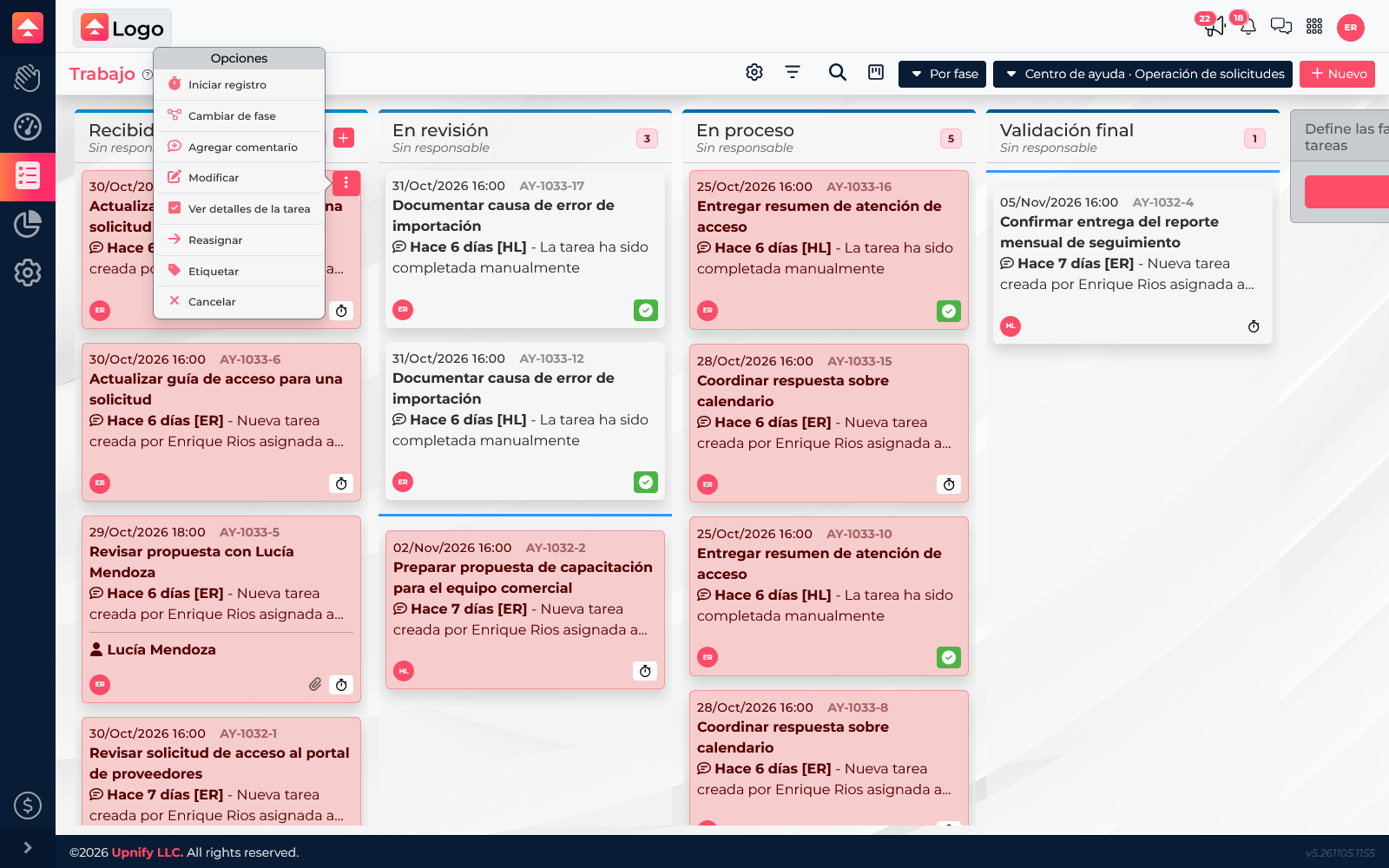
A timer that stays with your work
Once you start tracking, Flow shows the elapsed time and linked task while you move around the app. You can open another task or check information without losing sight of the activity being measured. Each person can have one active timer at a time, while several people can track time on the same task simultaneously.
When you finish, add a required comment about the work and save the entry. Flow keeps the duration and the phase where tracking began, then adds the entry to the task\u2019s regular history. Saved time becomes part of that task\u2019s total.
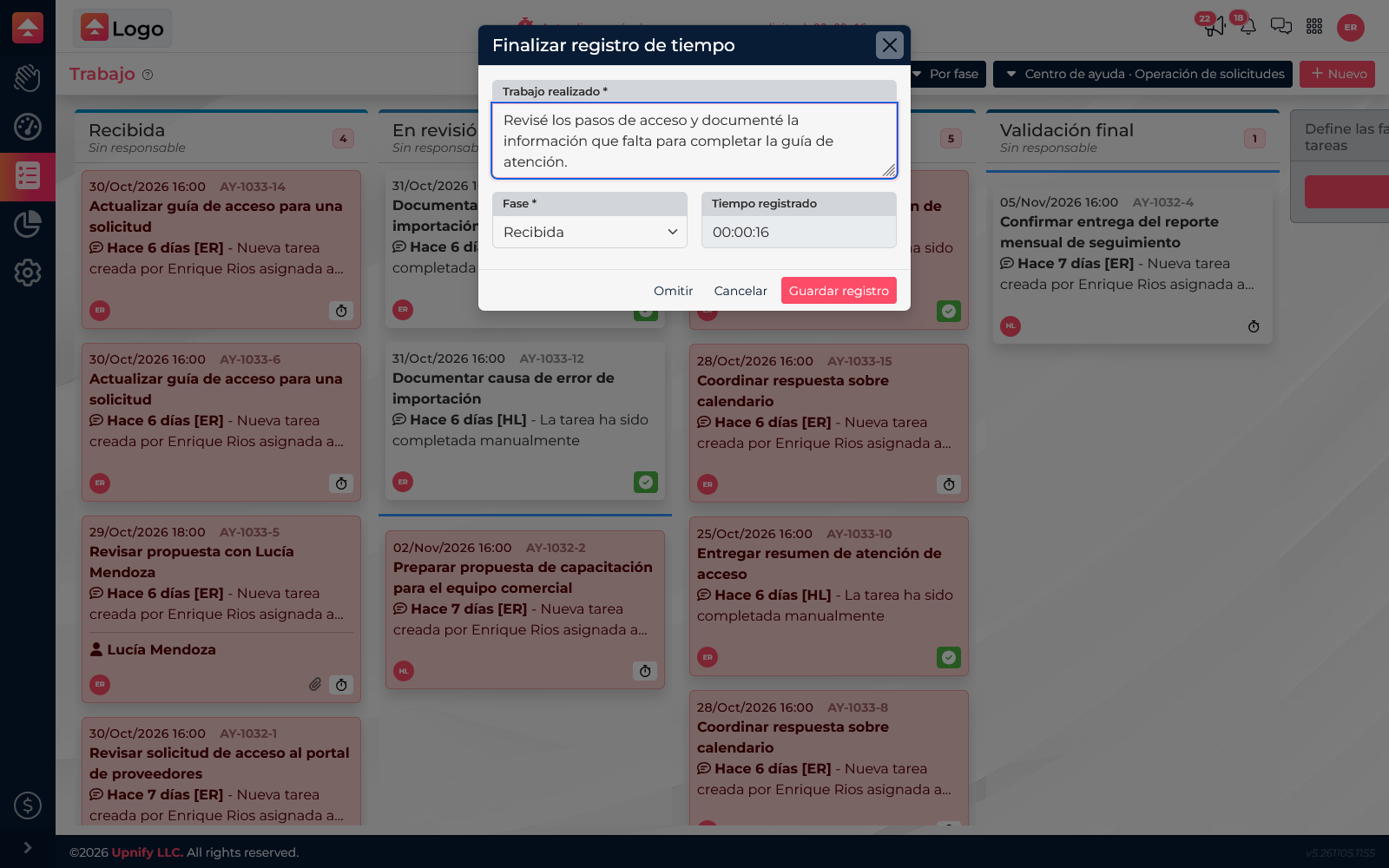
You can leave the timer running if you simply close the entry window. If you choose to discard the measurement, Flow asks you to confirm; discarded time is not saved or added to the task.
Make each contribution clear, even across a team
Imagine two specialists handling an installation request. Each starts a timer on the same task and, when finished, describes their part: one records the diagnosis and the other the configuration. The history keeps both entries separate, and the task adds together the effort from both people.
If a timer began during the \u201CDiagnosis\u201D phase, it keeps that phase even if the task moves forward while another person continues working. This makes it easier to see which stage required the time.
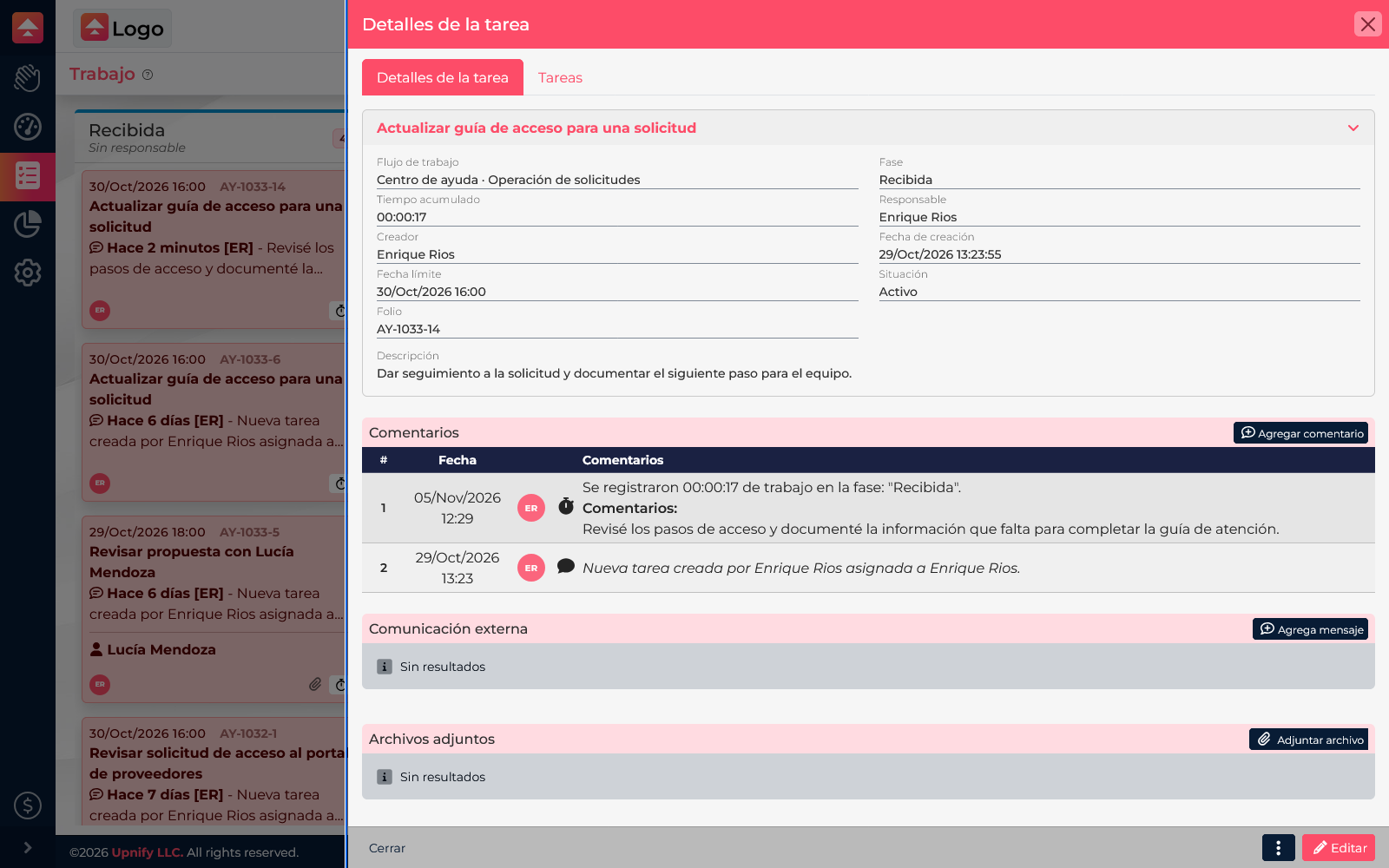
Time tracking helps document the real effort behind support, implementation, and consulting work directly in tasks. Coming soon, we\u2019ll add reports to analyze these times and measure team productivity.
Start the timer on a Flow task and let its history tell the story of the work.